¶ JOIN DCP - End User Application
Join DCP allows end user to create different type of records which will have user form set by the admin for that collections. User can also add different files to the records
When User clicks on the Join DCP in the Decos cloud platform, user will land in dashboard page of the Join DCP.
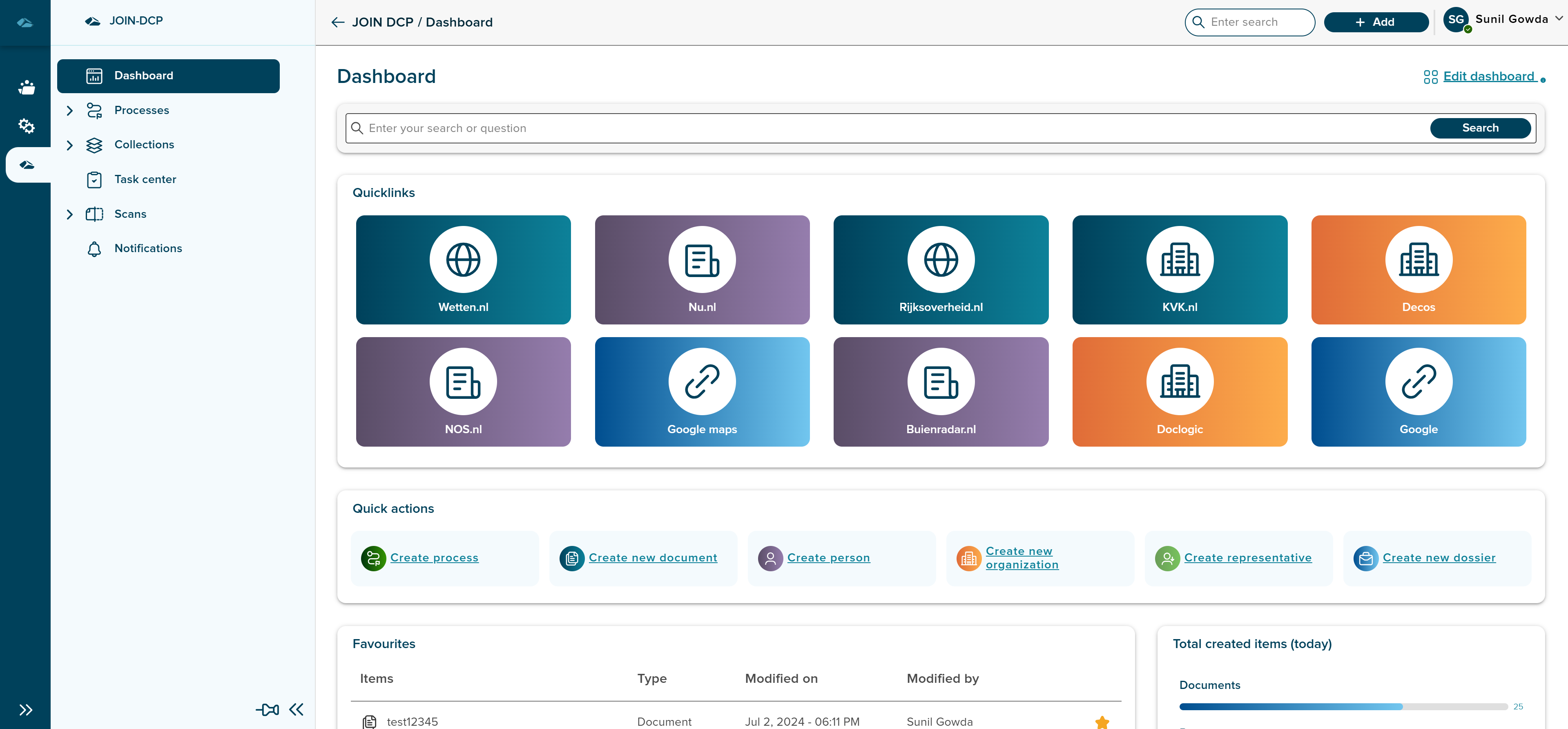
¶ Dashboard
On the dashboard Page, user can see the Different sections, and are listed below
1. Quick Links : Here different links are available as tile, it can be clicked and navigate to desired page.
2. Quick Actions : Here quick links to creation of different objects are available as links, it can be clicked and navigate to desired creation page.
3. Favourites : Here the Favourites items are displayed, when ever the user marks the items as favourite.
4. Total Created Items(Today) : Here the total count of items created on that day is displayed in terms of Percentage.
5. Status of Documents : Here the number of handled and open documents count is displayed with pie chart.
6. Open Documents : Here the number of open document count is displayed.
User can also change order of the tile in the dashboard by clicking on Edit Dashboard in the top right corner. Clicking on the button will enable the user to drag and drop in the same page, order and perferences can be sorted in the dashboard.
User can drag and drop file of different format in the dashboard, to initiate creation of Document, Dossier and Process. once the file is added, side panel will be opened and shows the dropdown for selecting the object type.
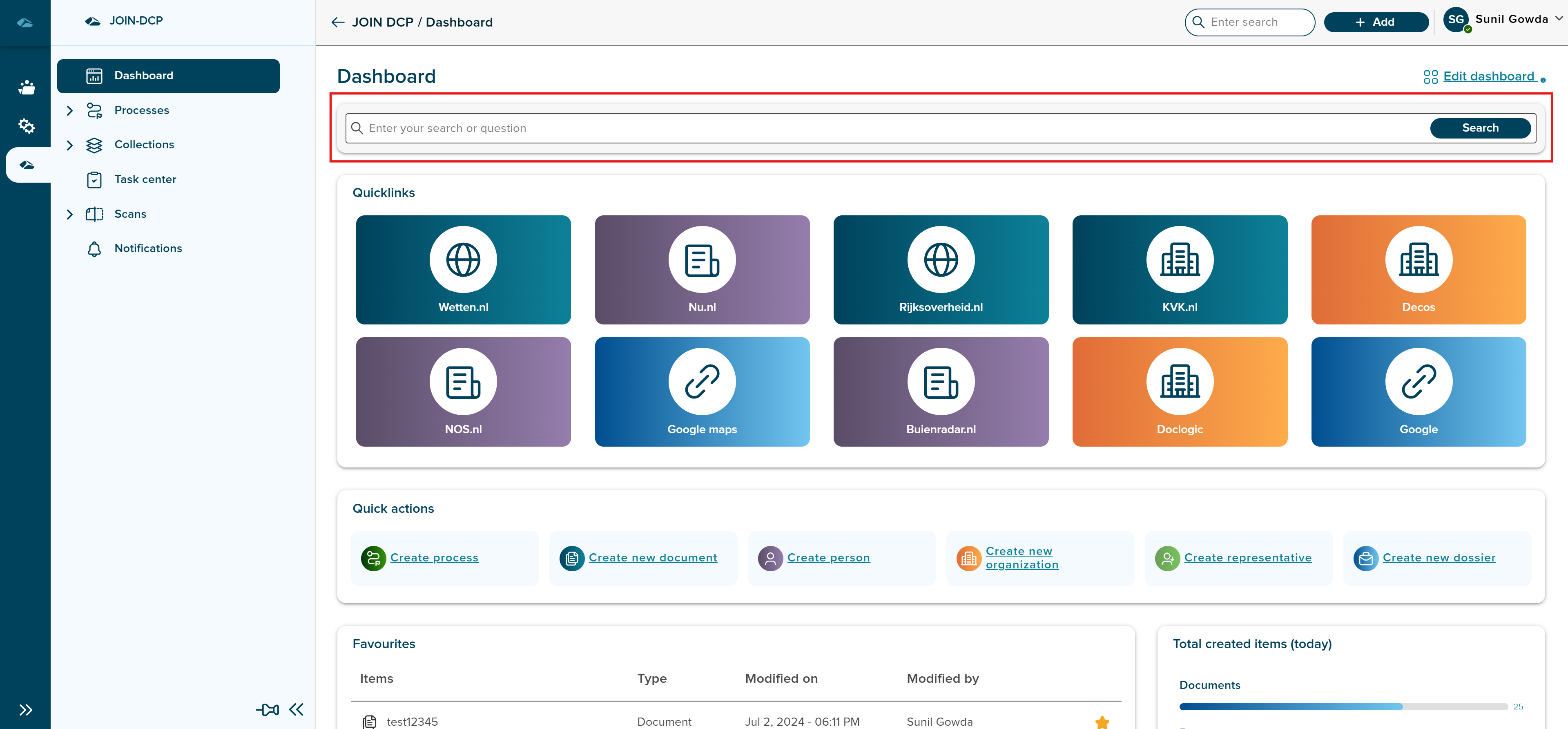
¶ Search
Search can be used from the dashboard screen with the help of the field as highlighted in the below image.
Click on the below link to navigate to understand the Processes.
¶ Processes
Processes will have list of created process with the help of already created Process type in the admin configuration side.
Empty state of Processes can be seen in the below image.
image yet to be added
Click on the below link to navigate to understand the Processes.
¶ Scans
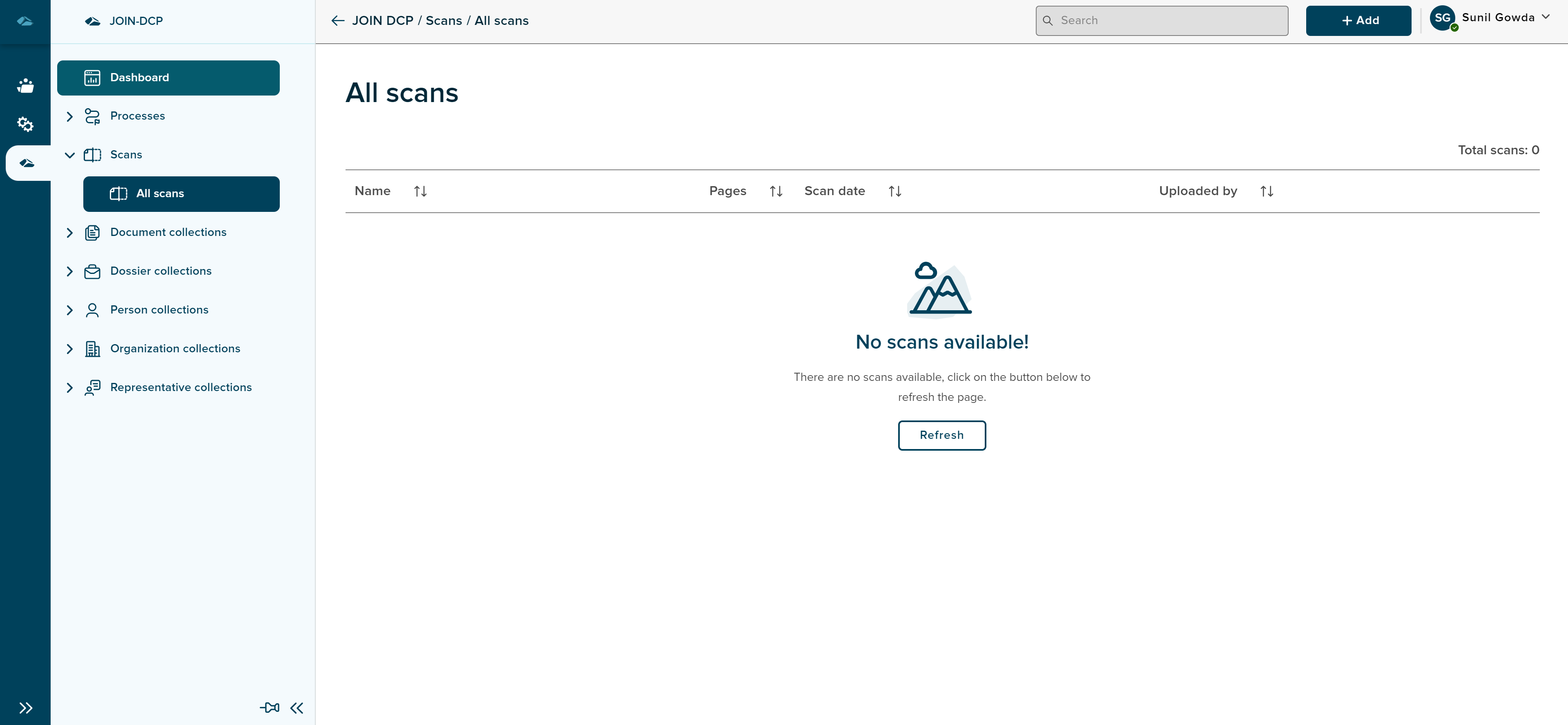
Scans will have list of scans which are add to the system, which can be linked to the documents, dossier and process documents.
Empty state of Scans can be seen in the below image.
Click on the below link to navigate to understand the Scans.
¶ Document Collections
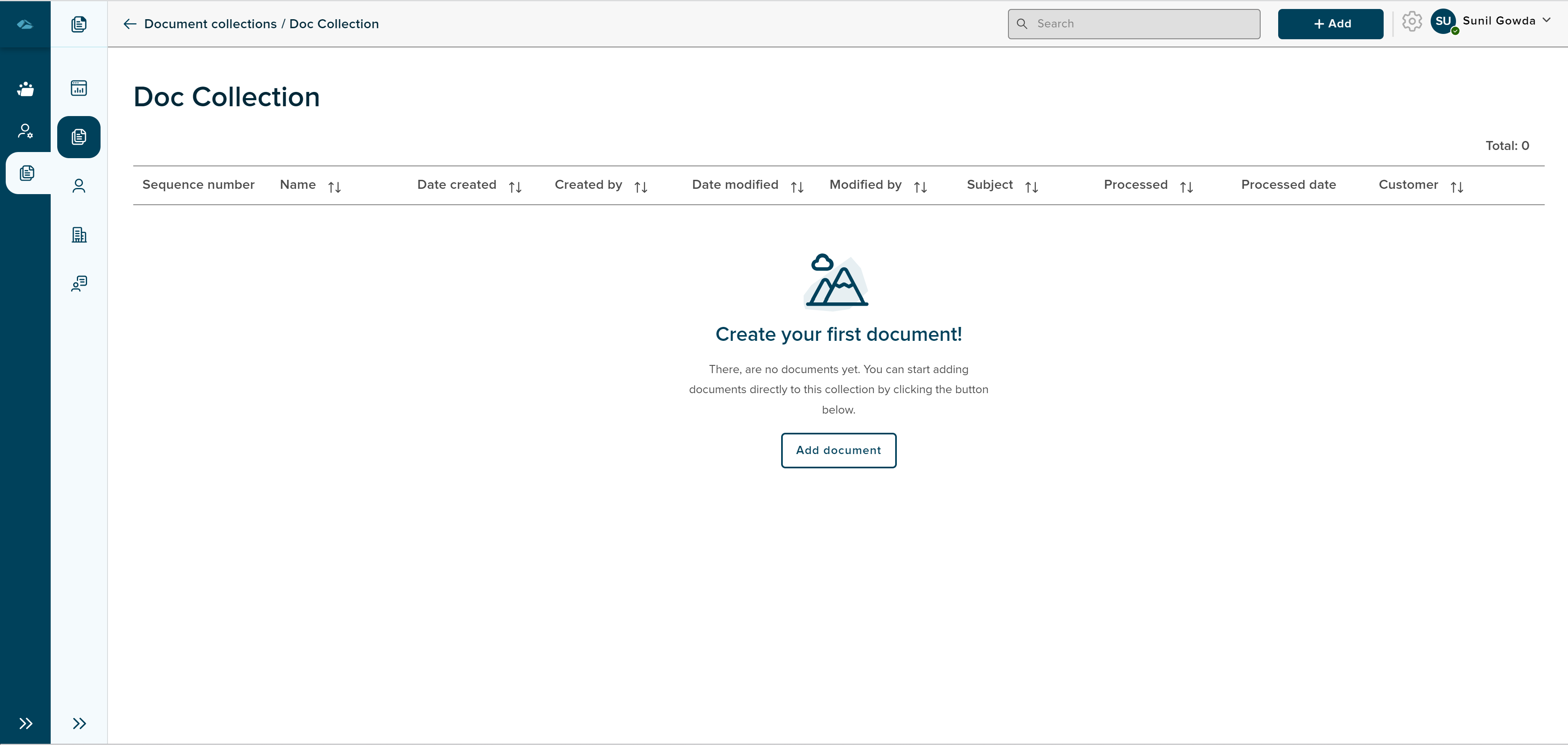
Document collections will have different document collections which are made visible in the admin configuration page. Documents can be created in this page for each of the collections. Differenet type of attributes can be linked to Documents, such as Files, Persons, Organications. Form to create the documents are configured by the admin of the document collection.
Empty state of document collections can be seen in the below image.
Click on the below link to navigate to understand the document creation.
¶ Dossier Collections
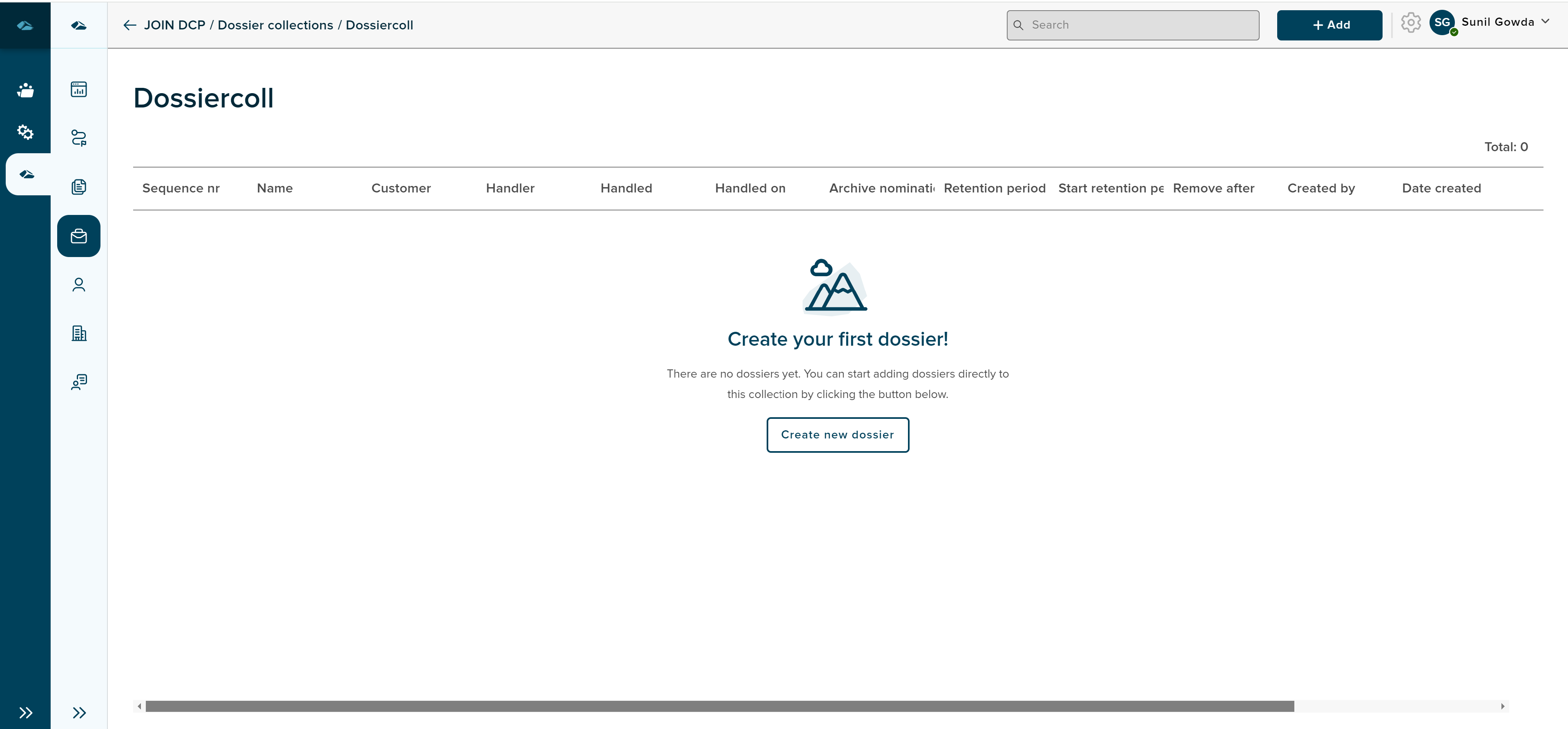
Dossier collections will have different dossier collections which are made visible in the admin configuration page. Dossier can be created in this page for each of the collections. Differenet type of attributes can be linked to Documents, such as Files, Persons, Organications. Form to create the dossier are configured by the admin of the dossier collection.
Empty state of dossier collections can be seen in the below image.
Click on the below link to navigate to understand the dossier creation.
¶ Person Collections
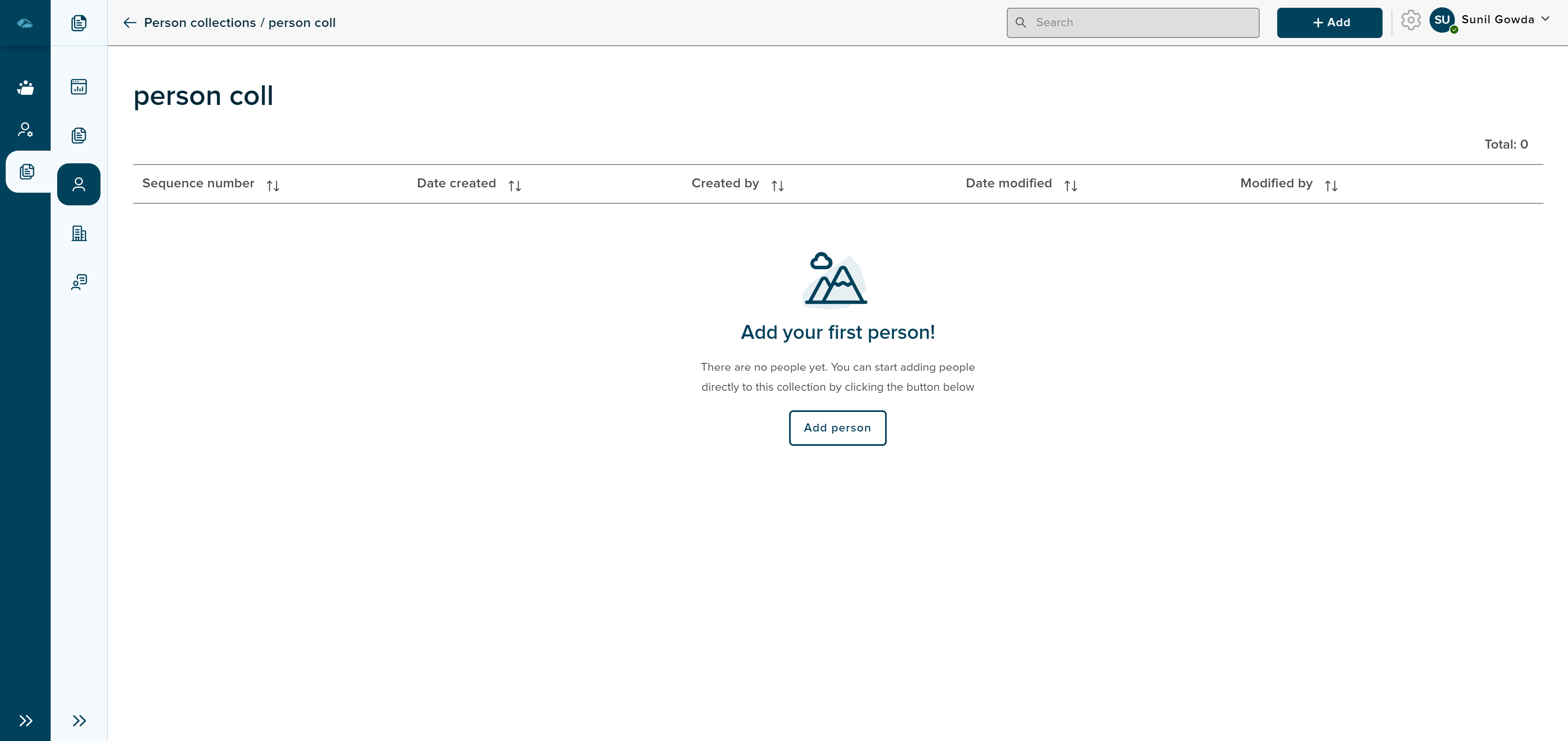
Person collections will have different person collections which are made visible in the admin configuration page. person can be created in this page for each of the collections. Form to create the persons are configured by the admin of the person collection.
Empty state of Person collections can be seen in the below image.
Click on the below link to navigate to understand the Person creation.
¶ Organization Collections
Organization collections will have different organization collections which are made visible in the admin configuration page. organization can be created in this page for each of the collections. Form to create the organizations are configured by the admin of the organization collection.
Empty state of Organization collections can be seen in the below image.

Click on the below link to navigate to understand the Organization creation.
¶ Representative Collections
Representative collections will have different Representative collections which are made visible in the admin configuration page. Representative can be created in this page for each of the collections. Form to create the Representatives are configured by the admin of the Representative collection.
Empty state of Representative collections can be seen in the below image.

Click on the below link to navigate to understand the Representative creation.
¶ Custom Collections
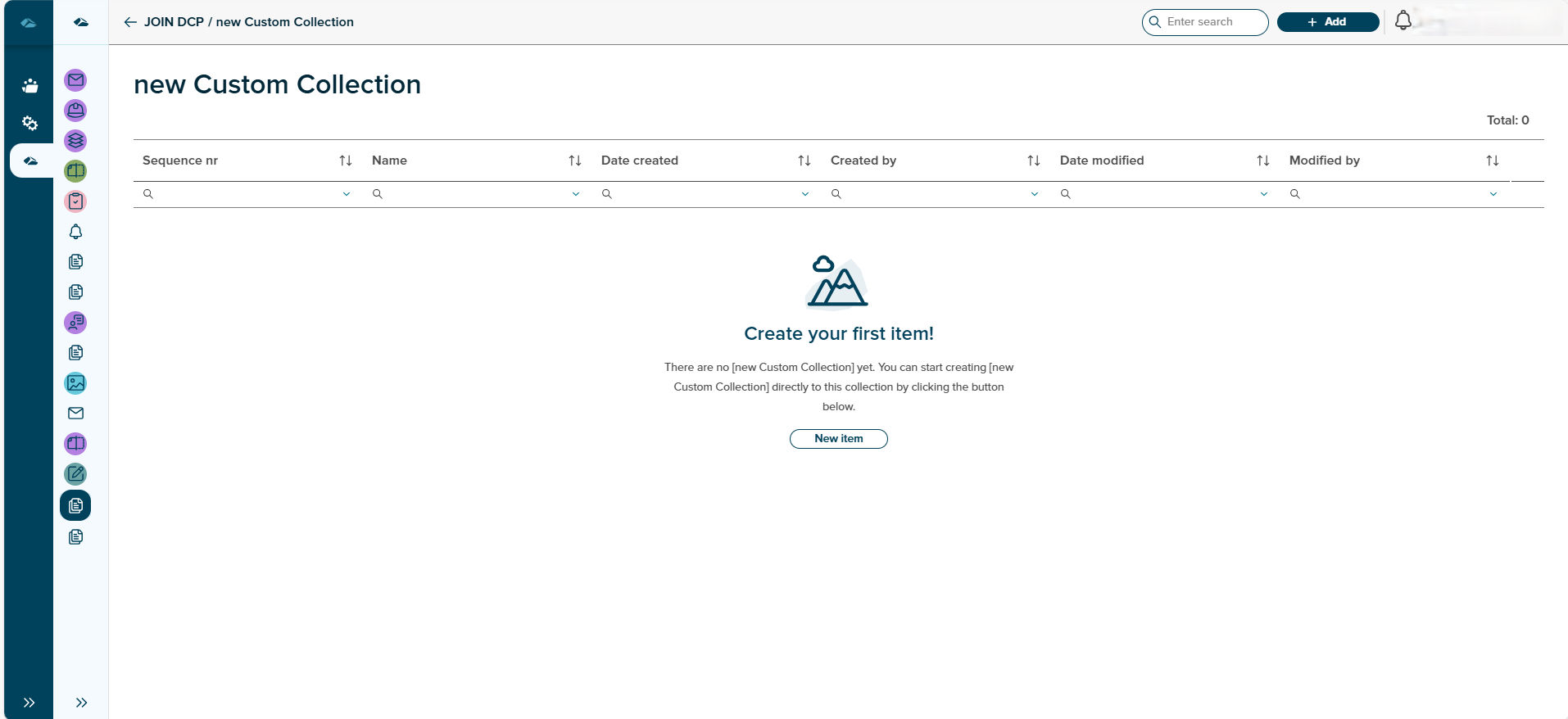
Custom collections will have different Custom collections which are made visible in the admin configuration page. Custom can be created in this page for each of the collections. Form to create the Customs are configured by the admin of the Custom collection.
Custom collections user can see bellow in the menu.There is no specific menu as custom collection like other collections.
Custom collections we can see by its name in menu.
Empty state of Custom collections can be seen in the below image.
Click on the below link to navigate to understand the custom creation.
¶ Task Center
Task center will have list of different Task types that are assigned to the logged in user and assigned to Role to which the user is part of.
Click on Below link to navigate to understand the Task Center.