¶ Dossier Creation
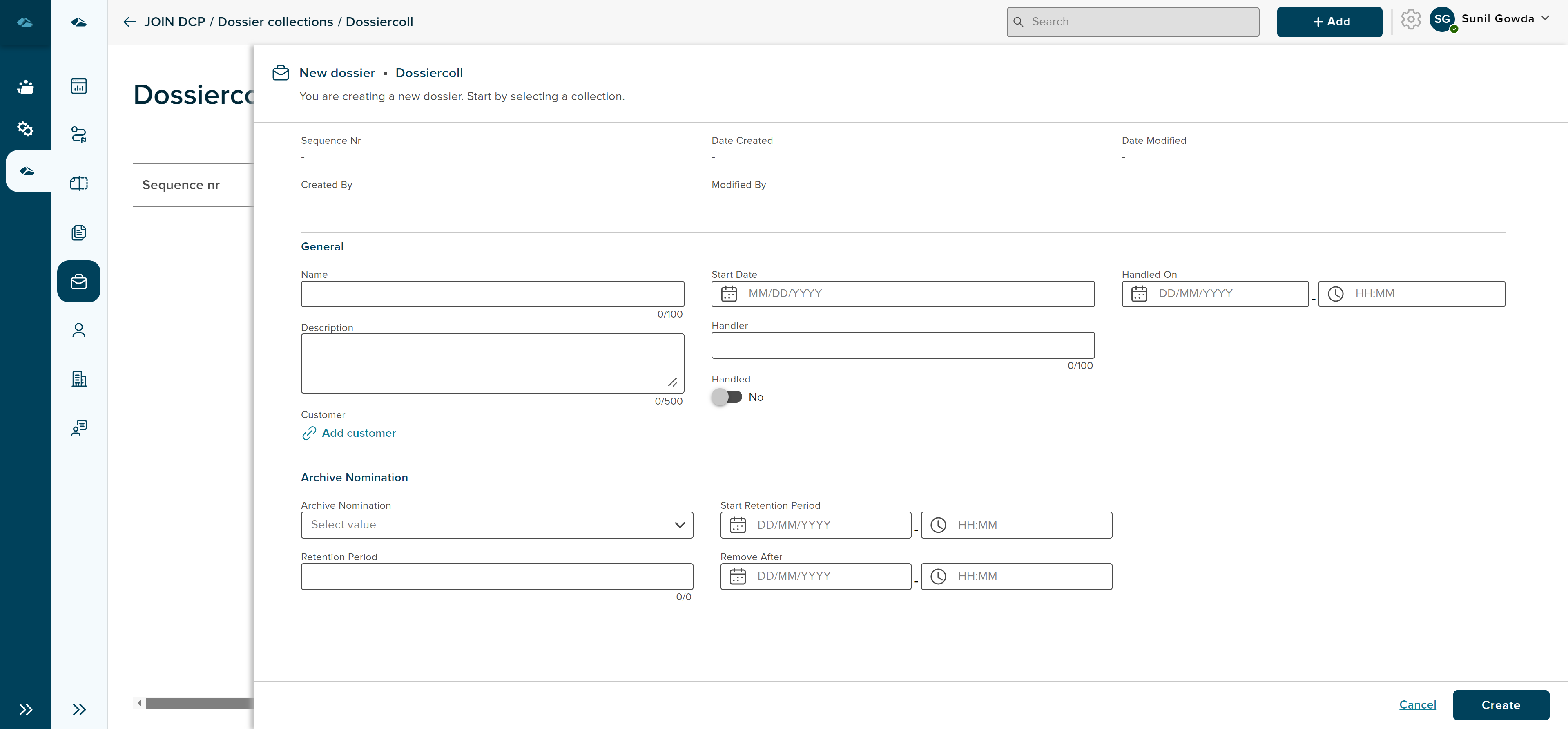
After clicking Add new dossier side panel will be displayed with dossier creation form. User has input field to fill in deatils, option to attach the files related to the dossier.
Column labels are displayed based on the configuration done at the admin side of the collection.
¶ Creation of Dossier
- User can fill the input fields of different parameters and click on Create button. Creation form of dossier can be see in the below image. clicking on Cancel button will close the sidepanel and will cancel process of creation.
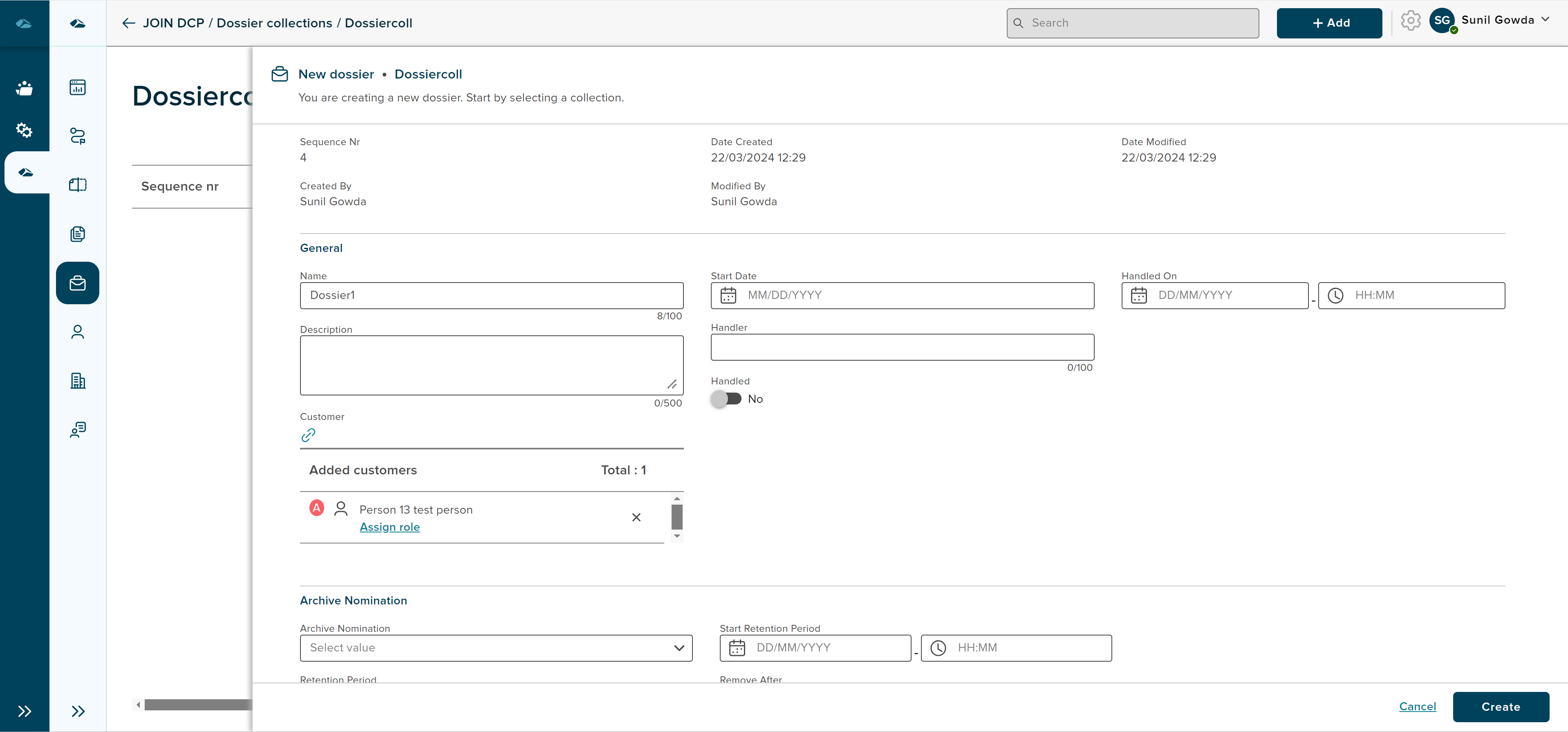
- User can also link the customer such as person and organization to the dossier by clicking on customer link in the form.
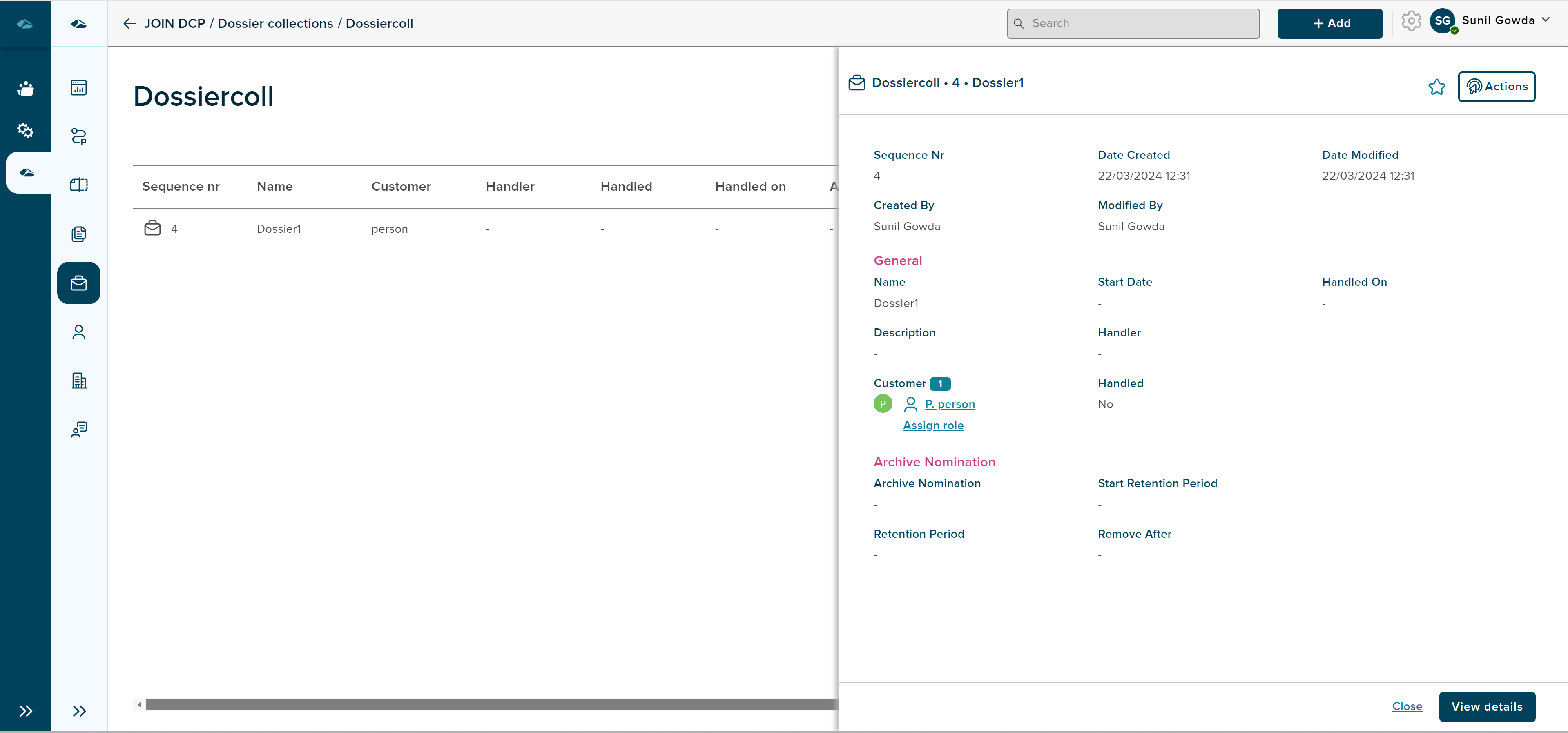
- After clicking on Create button, user will displayed with details page of created dossier in the side panel and will have View Details and Cancel button.
User can drag and drop file of different format in the grid. Once user drops the file on the screen, a side panel is opened and displays all the existing dossiers either user can choose existing dossier or create new dossier by clicking on the create New button. followed by creation of document to which file will be attached.
¶ Edit Dossier
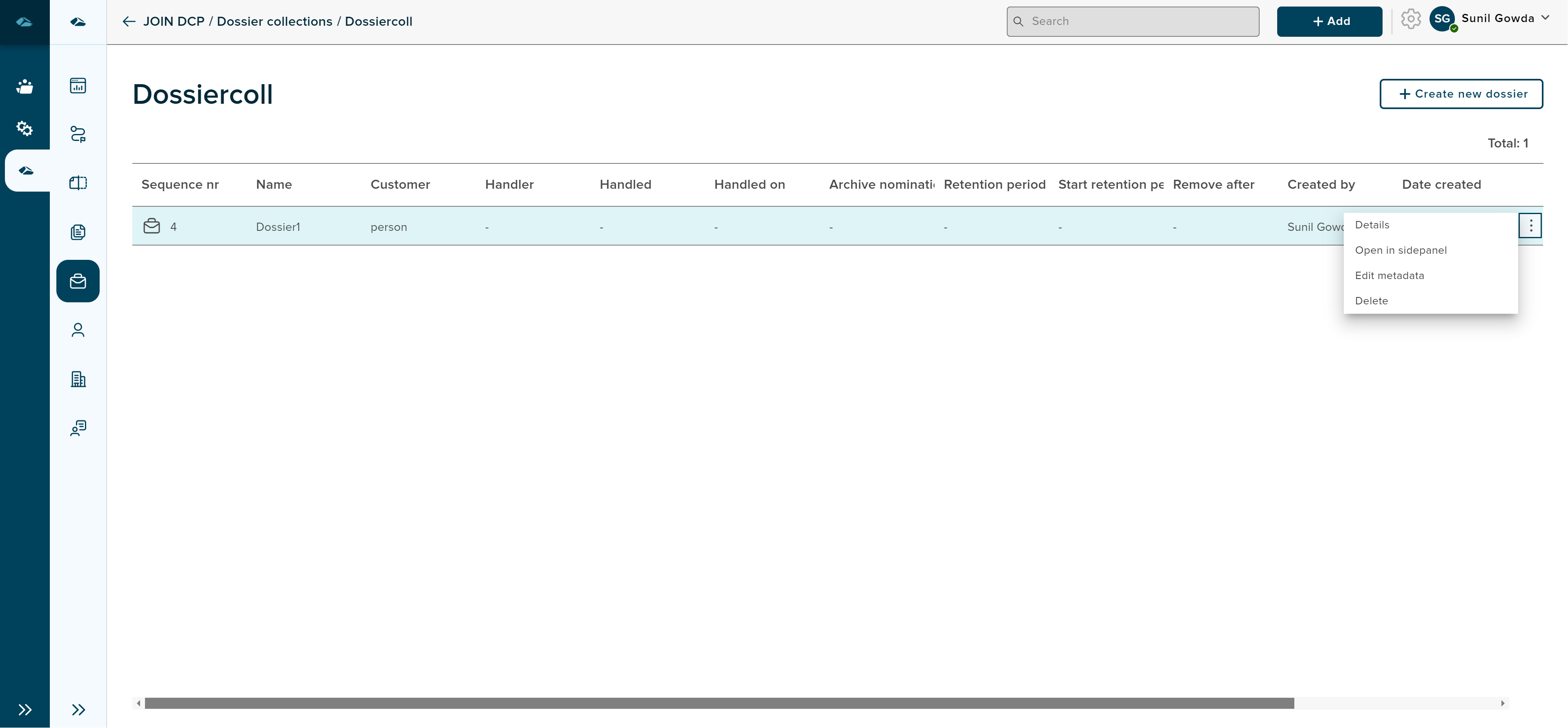
In order to edit the dossier which is already created, user can click on the dossier in the grid or can also navigate from Details and Edit Metadata options in kebab menu. Kebab menu options can be seen in the below image.
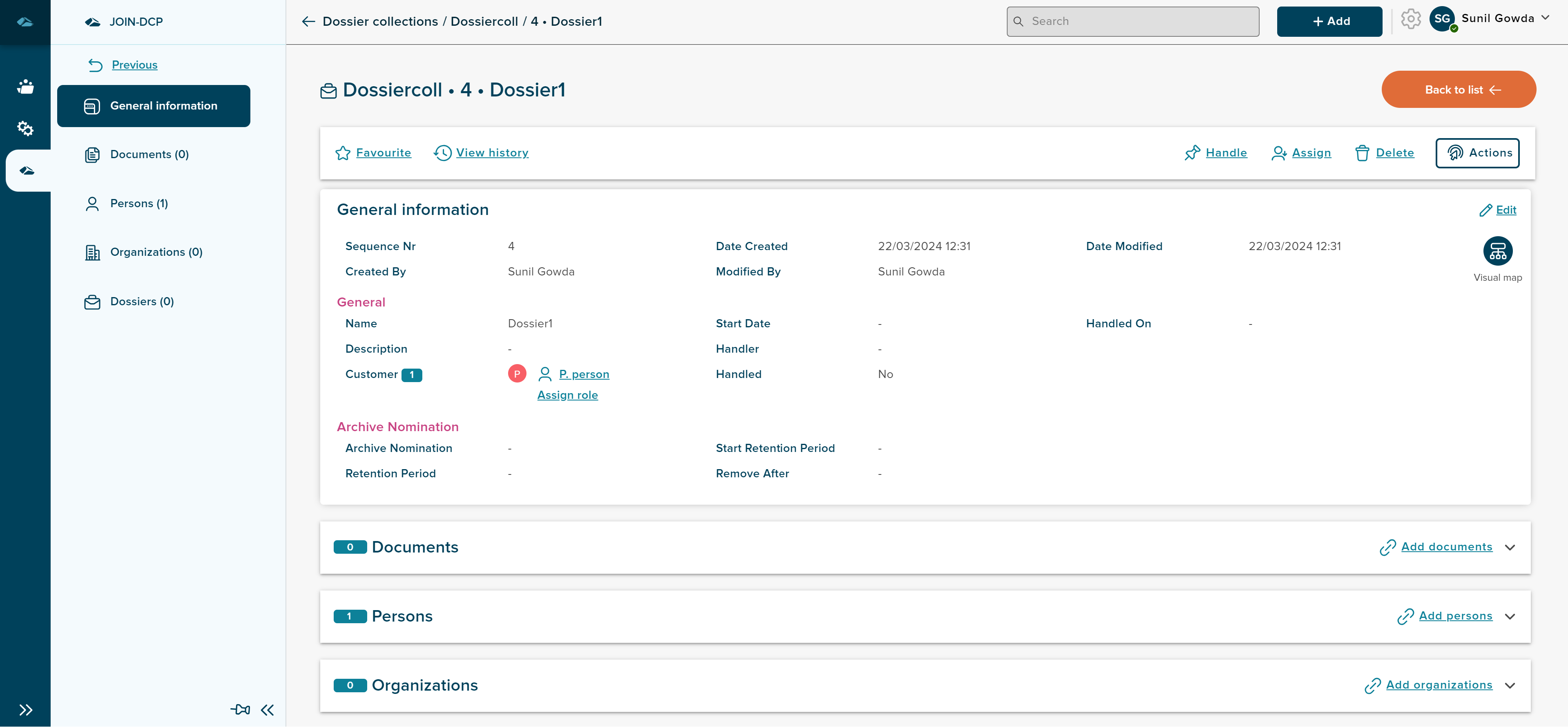
After clicking on Details option, user will be landed in the details page in read only mode.
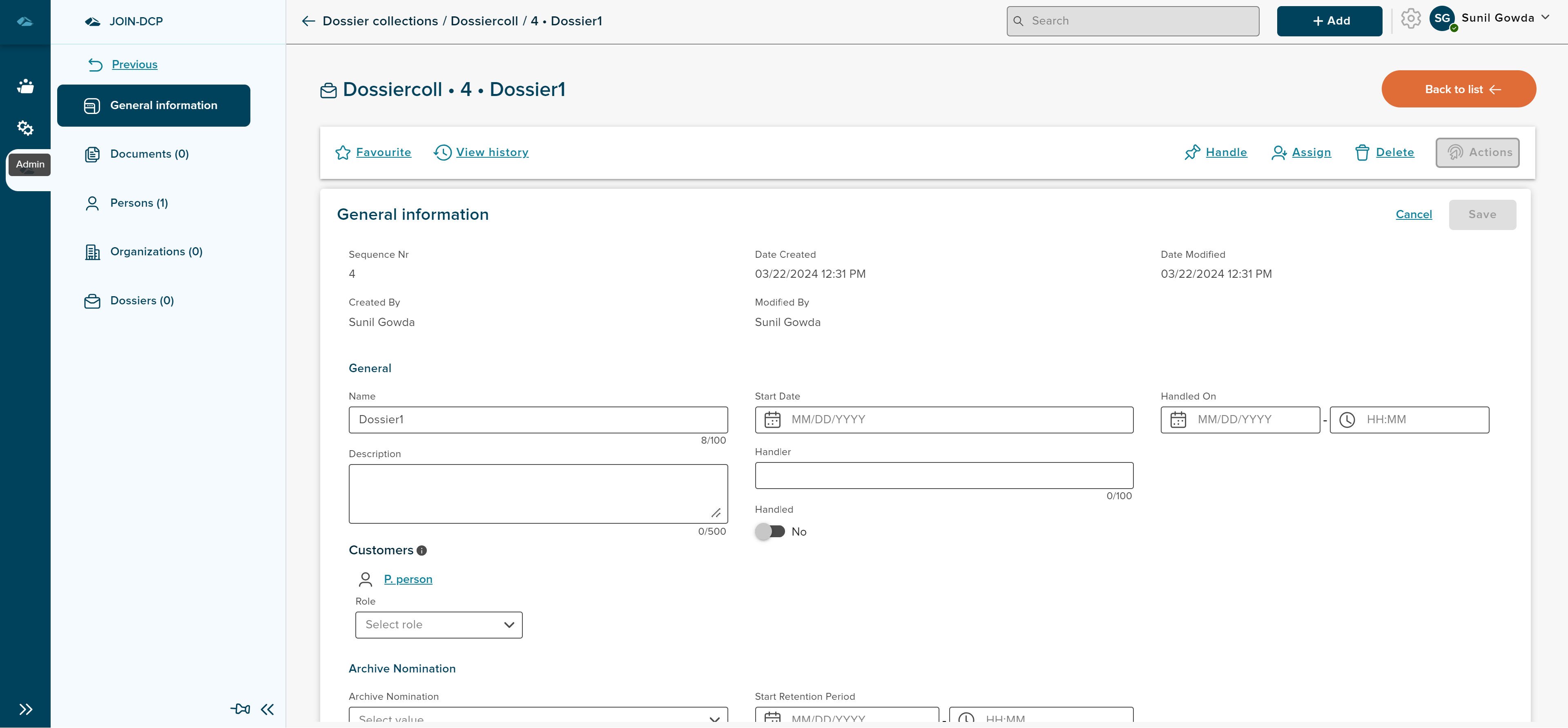
After clicking on Edit Metadata option, user will be landed in the details page in edit mode, where metadata block will be editable.
¶ Adding Customer
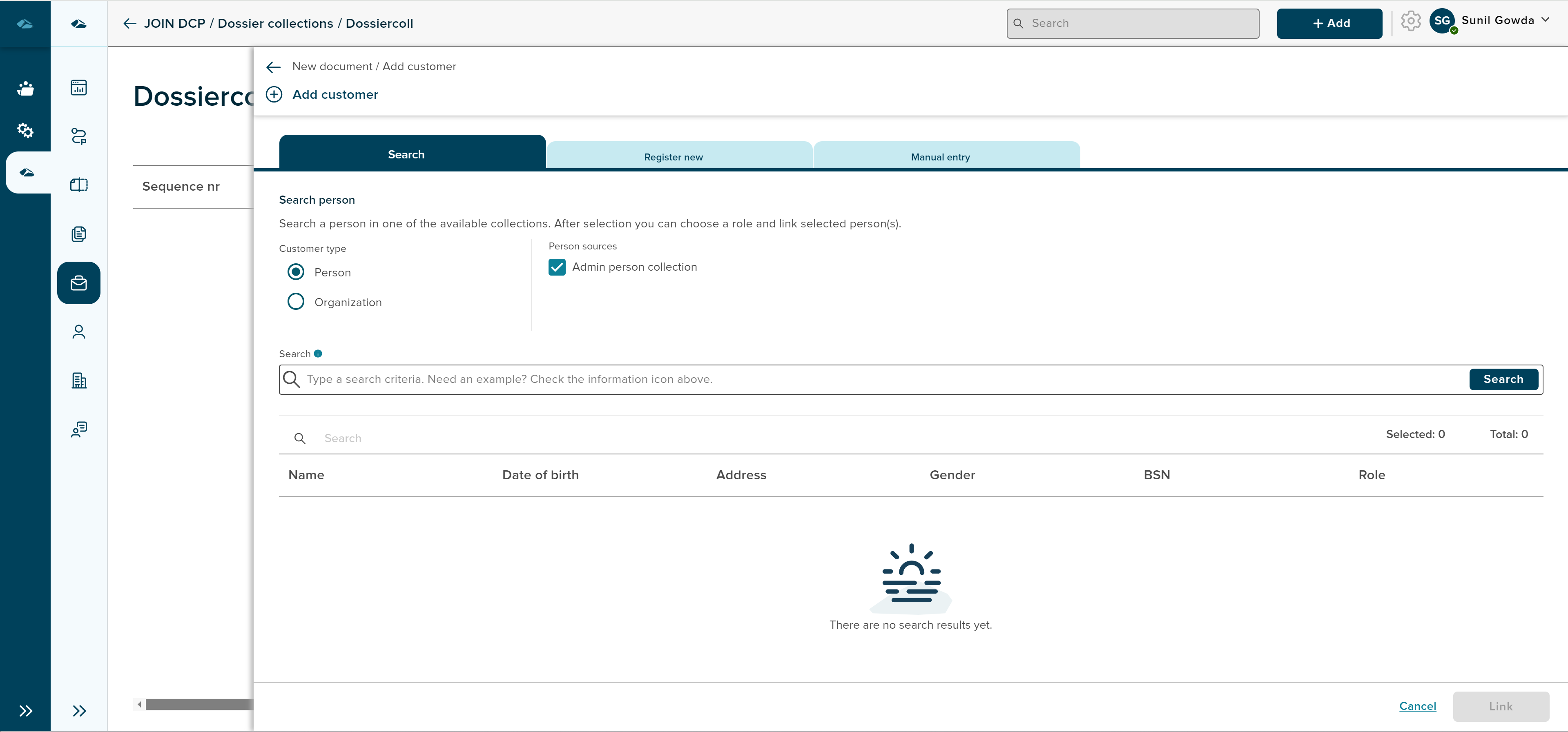
Customer such as Person and Organization can be added to the dossier in the creation form by clickin on Add Customer link.
On clicking Add Customer link, side panel will be moved out to display 3 ways of adding the customers, side panel will be as shown in the below image.
Details process of adding the customer can be seen in the below link.
¶ Visual Browser
When users are in Details page, user can view visual browser icon in the General information section. user can click on the icon and see the detailed visuals in the section.
Detail process of viewing Visual browser can be seen in the below link.
¶ Delete Dossier
Dossier can be deleted from the grid view, by clicking on the Delete option from kebeb menu.
Dossier can also be deleted from the details page of the dossier, Delete button is available in the top row of the details page.
On Clicking of the Delete, user will be prompted with pop-up, with two options: 'No, I’m not", and “Yes, I’m sure”. On clicking 'No, I’m not" option the user will be taken back to dossier overview page. On clicking “Yes, I’m sure” option, the Dossier will be deleted and the dossier name is removed from the list on dossier overview page.
¶ File Viewer
User can see all the files added to document which are linked to dossier, by clicking on the file viewer icon, next to kabab menu for each of the document.
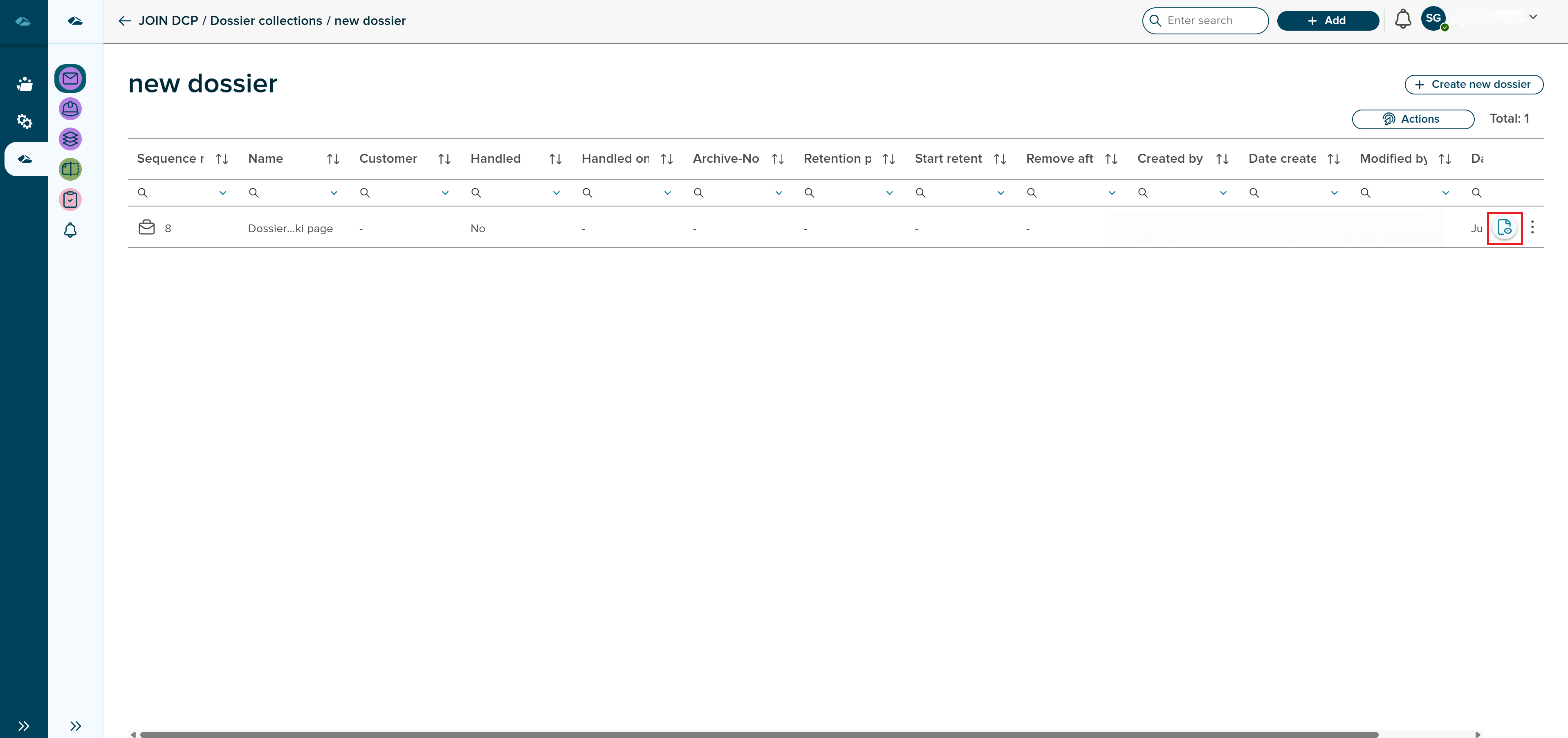
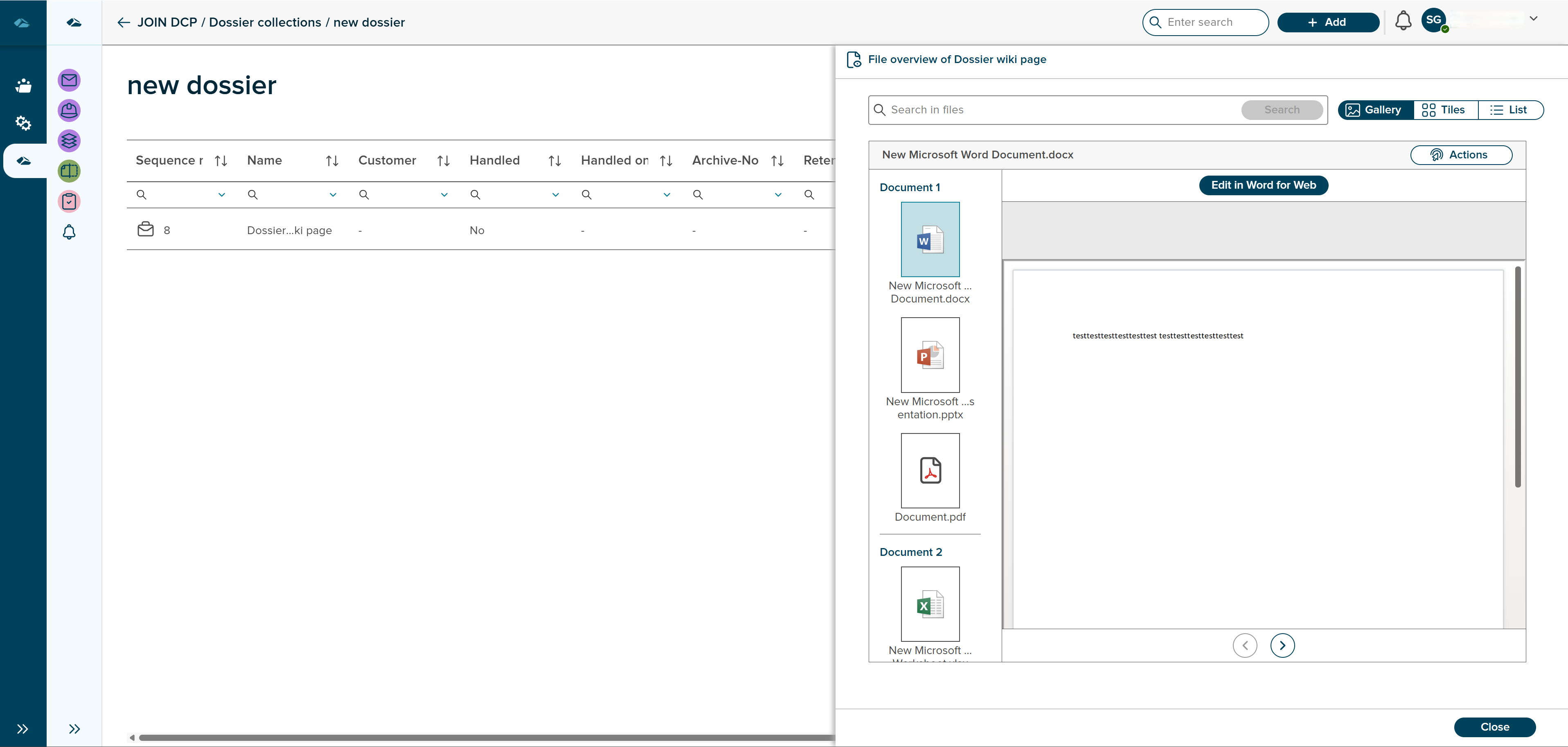
once user clicks on the icon, side panel will be opened and it shows the files in different views, by default files will be displayed in the Gallery view.
In Gallery view, user can see the details of the file inside. user can navigate between files and see the details inside it. User can see edit button on the top to edit in the new tab.
Action button is also present to see the details, edit metadata and download. user can navigate to different view by clicking on the tiles view
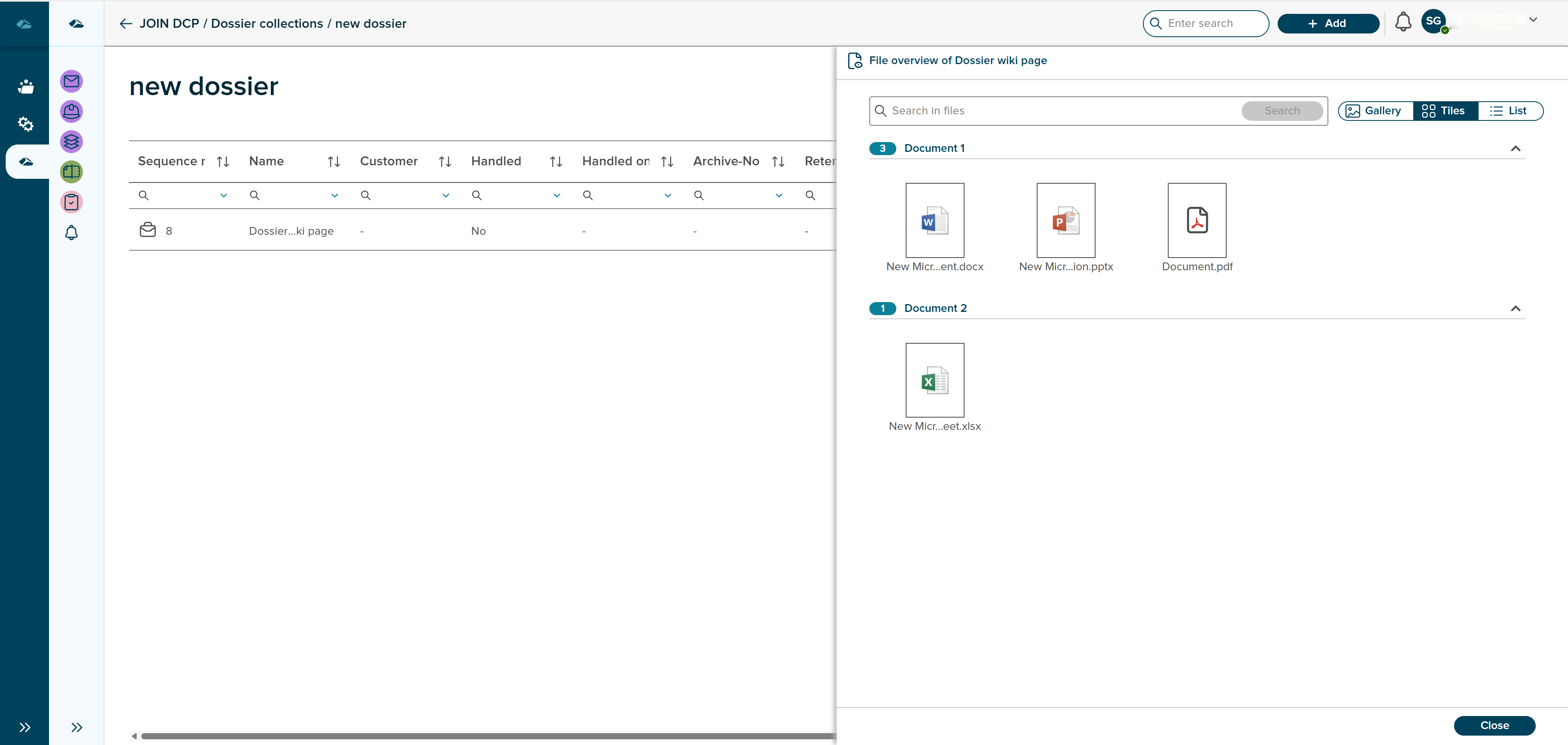
In Tiles view, user can see the files in in different section based on the document in tiles.
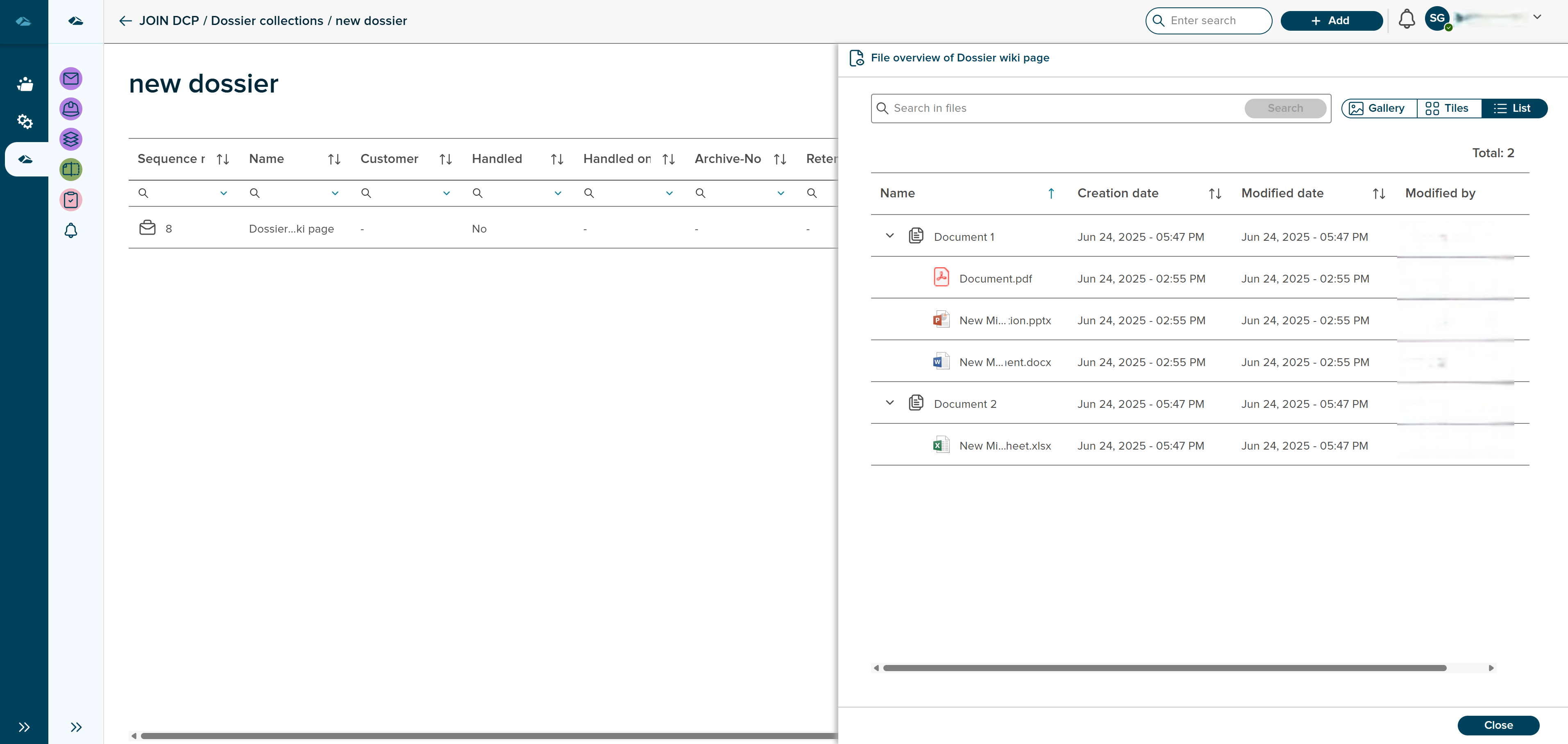
In List view, user can see the files in lists, this will shows details of file creation, modified date and user details.
¶ Overview and Bulk actions
The user can export the Dossier data in Excel and edit the Document data by clicking on the Actions button in the Dossier grid.
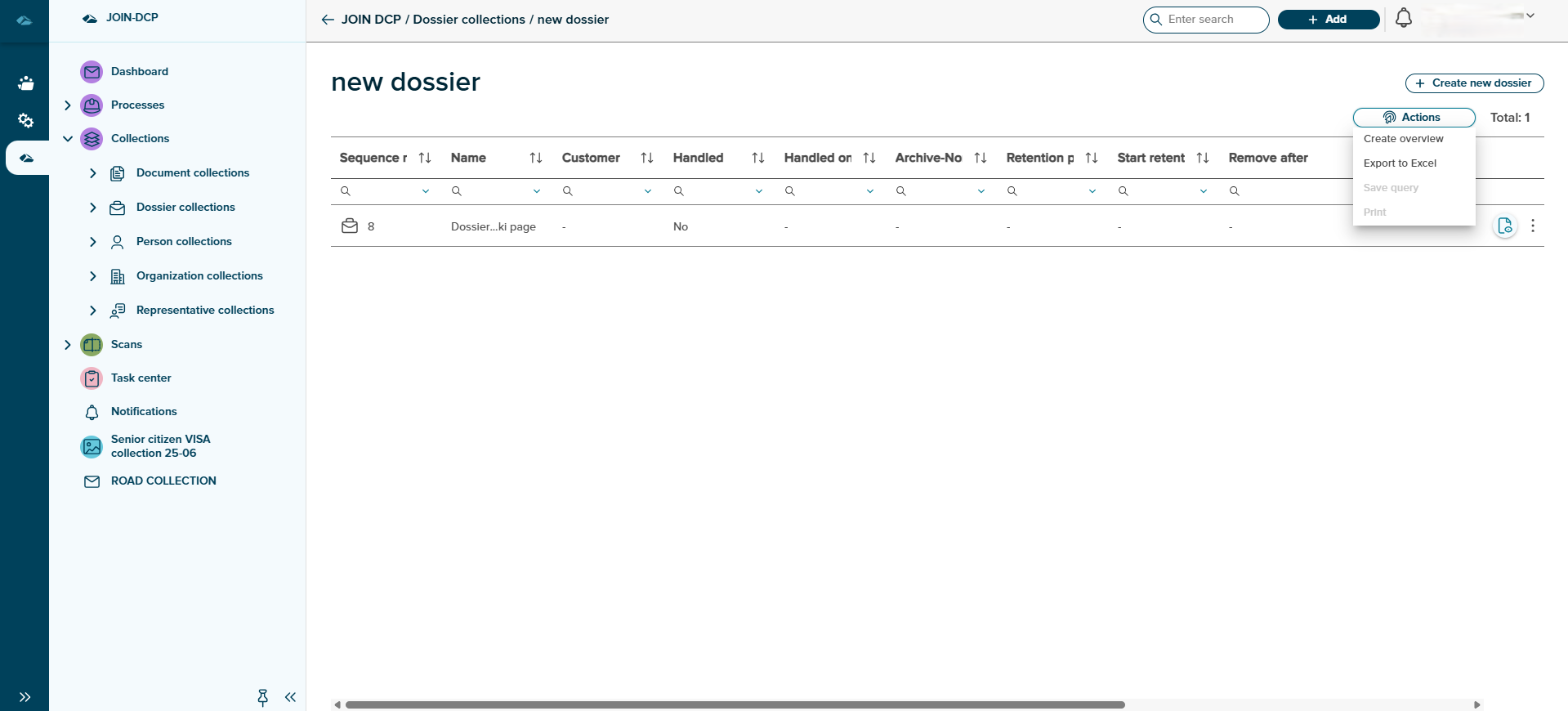
On click on the Actions button, a dropdown will open with 4 options
1)Create overview
2)Export to Excel
3)Save Query
4)Print
On the click of the Create overview option, a new page will open which contains all the created Dossier and above the page are two tabs
1)Base
2)Bulk
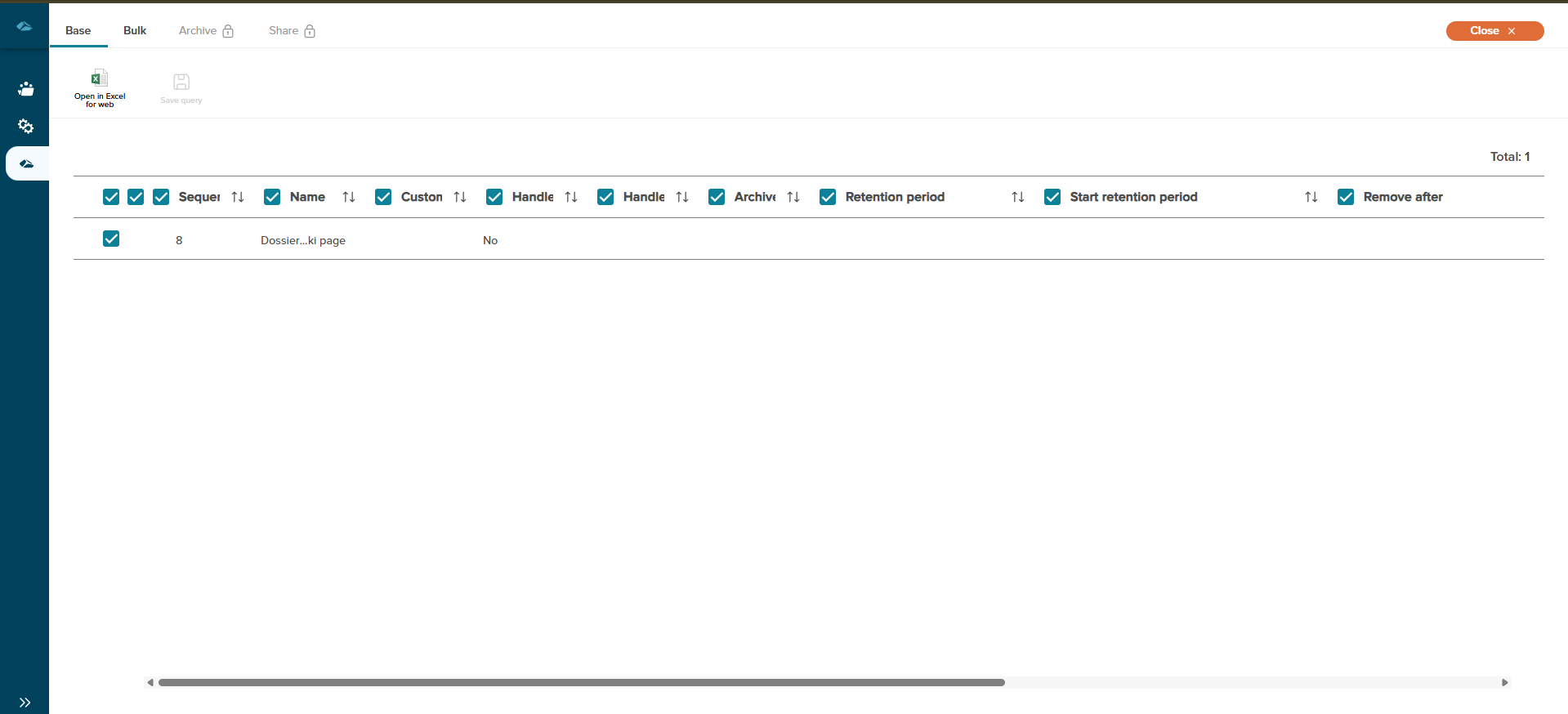
On the Base page, the User can select single or multiple Dossier by clicking on the checkboxes. After that, the user has to click on “Open in Excel for Web,” and a side panel will open containing all the fields.
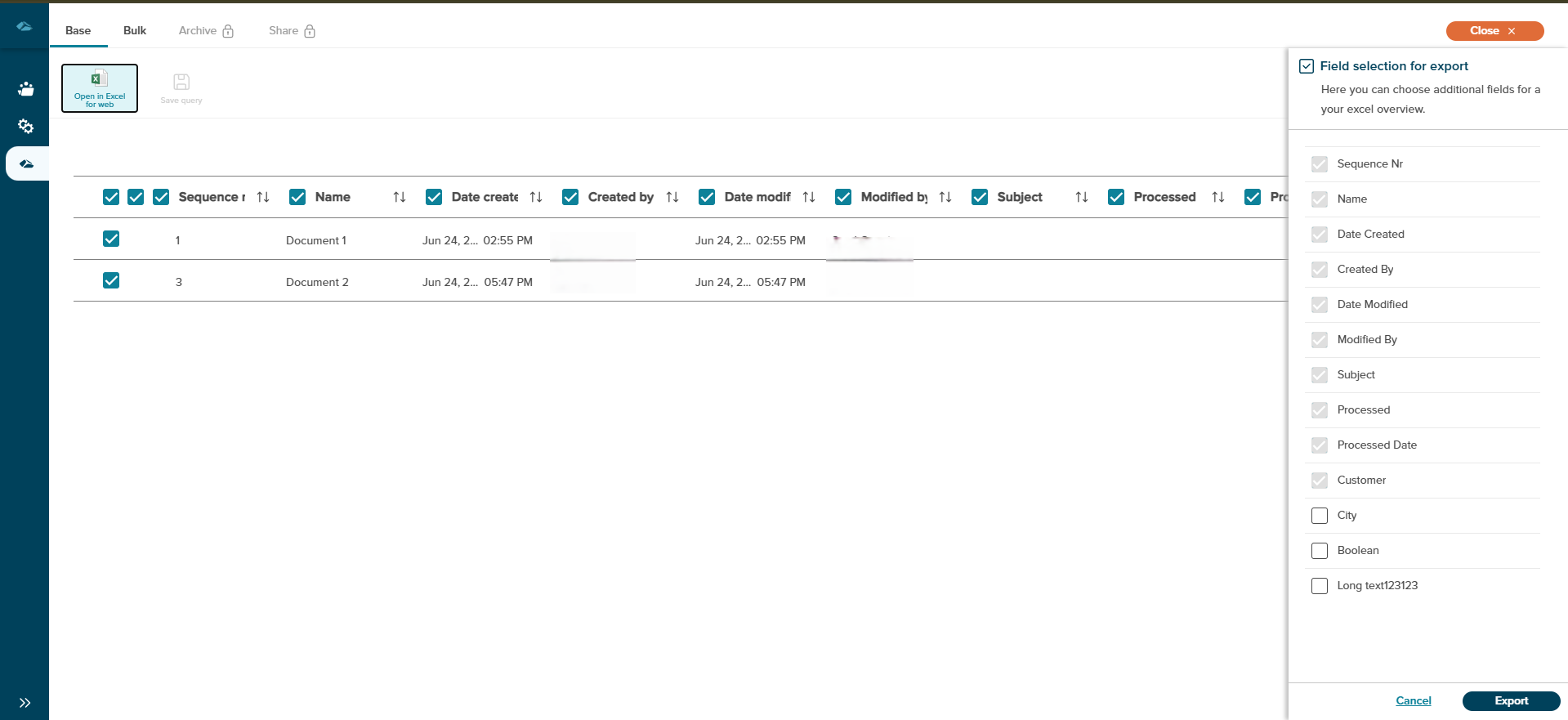
The user can click on the “Export” button in the side panel to export the data in an Excel sheet and after clicking on the export button , the excel sheet will download.
On the Bulk page, the User can select single or multiple Dossier by clicking on the checkboxes. After that, the user can “Edit fields” or “Clear fields”.
When the user clicks on the “Edit fields” option, a side panel will open containing the editable fields. When the user edits the fields and clicks on the save option, a popup confirmation message will appear on the screen with the “No,I’m not” and “Yes,I’m sure” options.
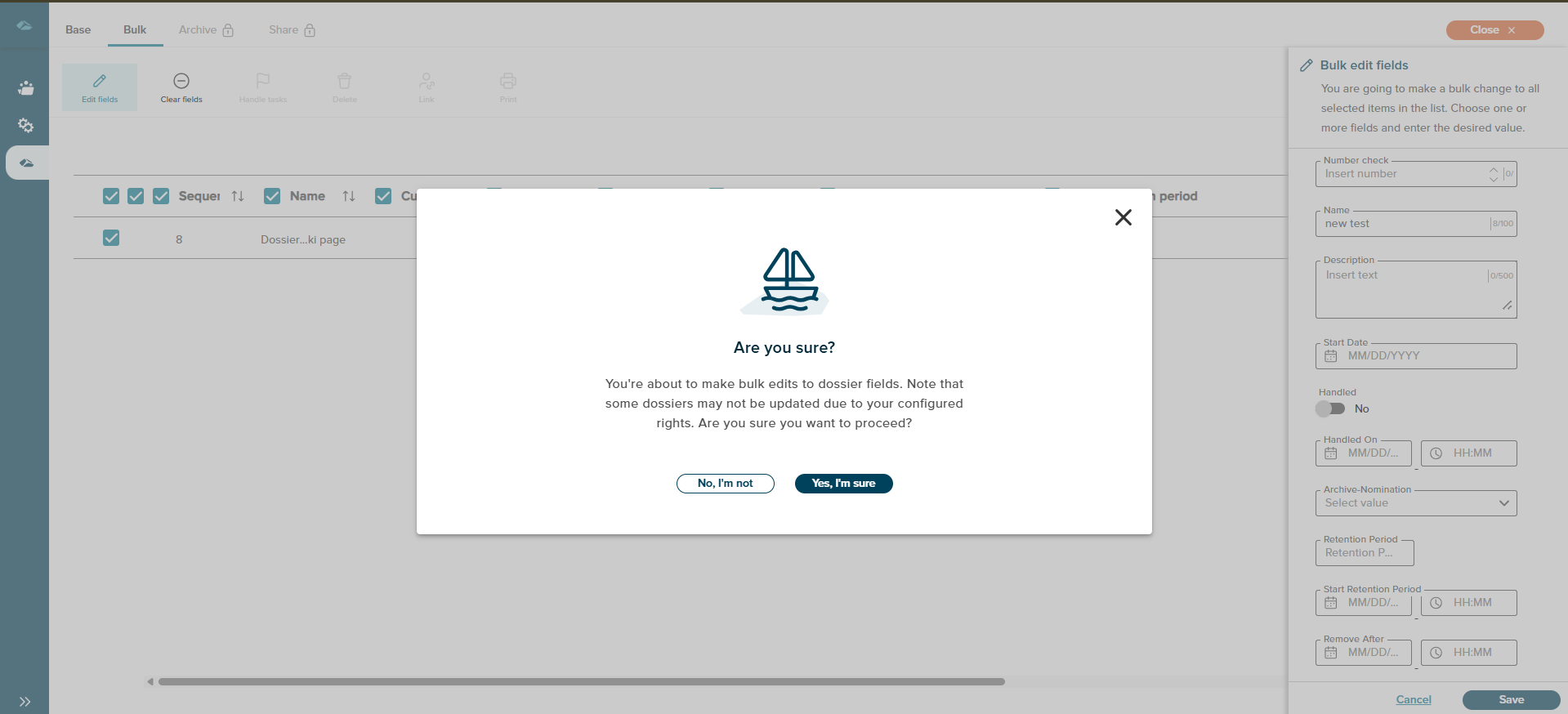
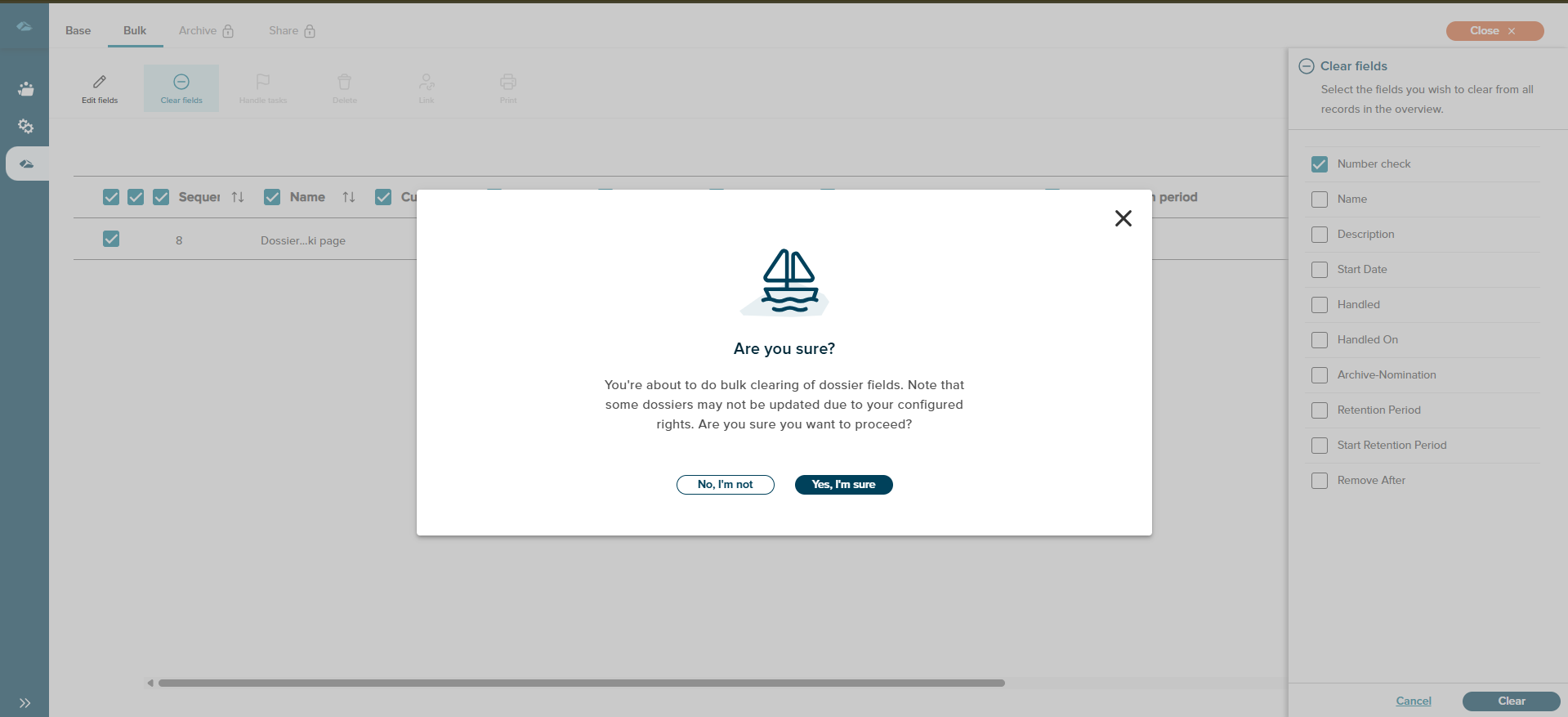
And when the ,user clicks, on the “Clear fields” option then a side panel will open and which contains the fields and user have to select which fields data have to clear and after selecting the fields user can click on the “Clear” or “Cancel” option.And if user select the “Clear” option then a popup confimation message will appear on the screen with “No,I’m not” .