¶ Forms management
The user can initiate form creation by clicking the New Form button, available either in the center of the page or in the top right corner.
Empty state of the Forms page will be seen as below image
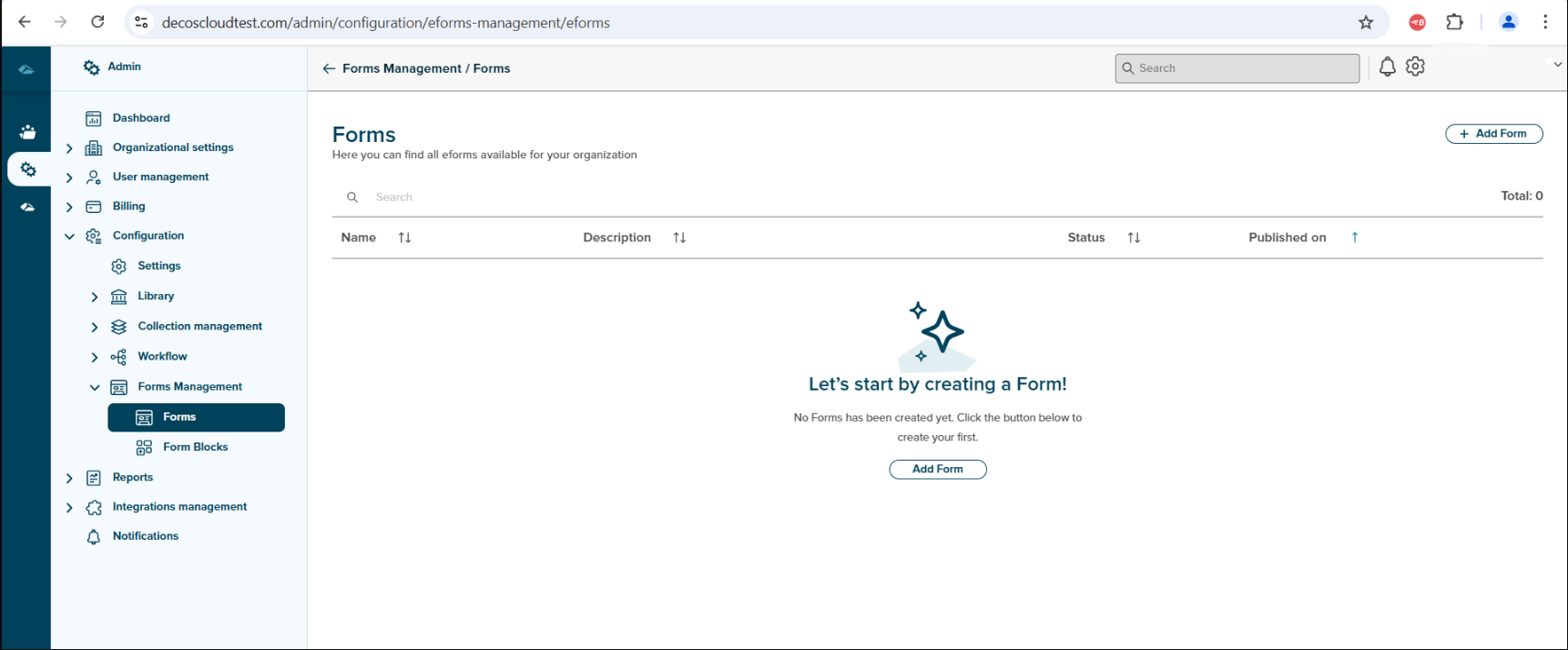
User can click on the New form button in the center of page or on the top right corner.
Upon clicking the button, the form creation screen appears, which includes the following fields:
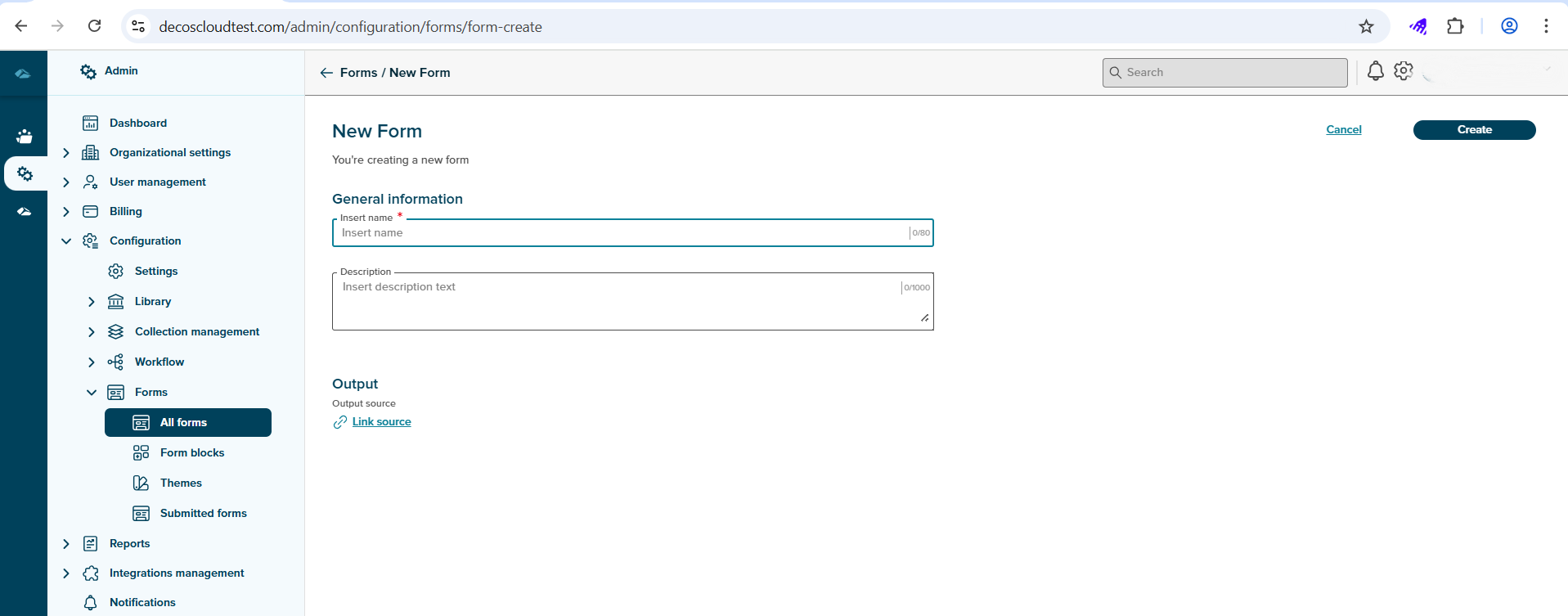
1. Name - Enter the name of the form in this field.
2. Description - Provide a brief description of the form.
3. Link Output - Clicking this opens a side panel. Here, the user can link a case type to the form during its creation or later via the Output tab. In the future, additional link options (e.g., document collection) will also be supported.
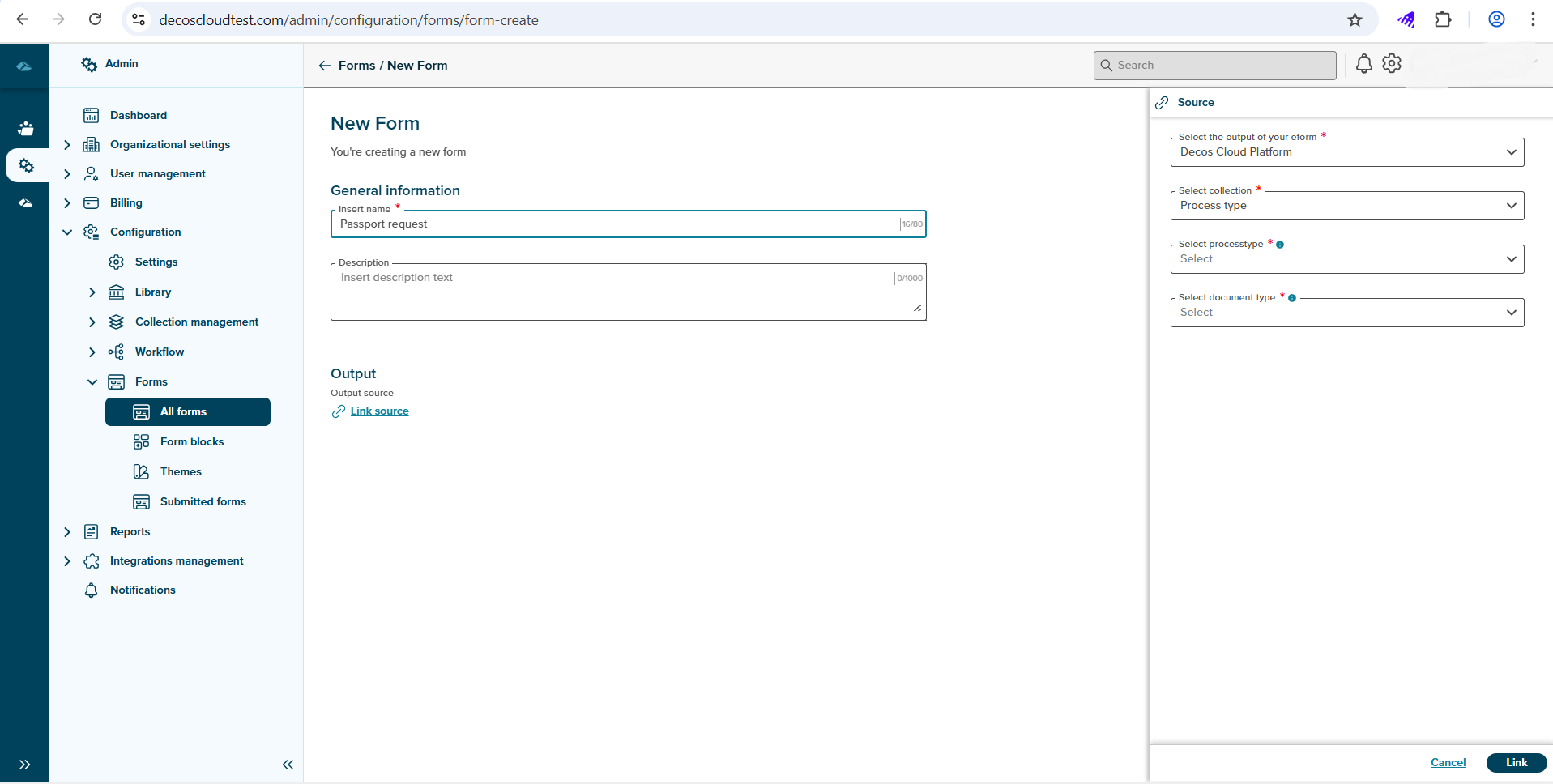
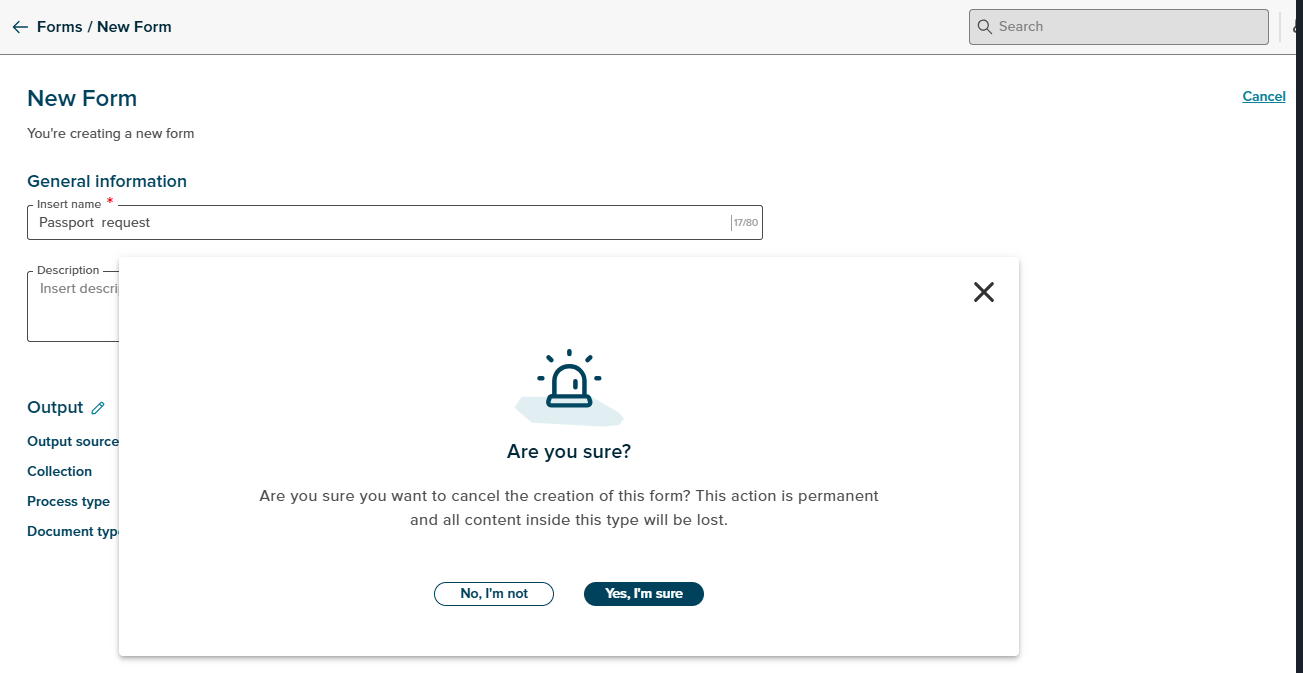
User can fill the details in the creation tab and then click on Create button or can click on Cancel button to exit the flow.
On clicking the Cancel button, a pop-up message is displayed to warning about the action which leads to information loss. clicking on Yes, I’m sure will exit the page from the creation, and clicking on No, I’m not will close the pop-up screen.
After the creation of form, user will land in the details page of process type, details page will shown as below image.
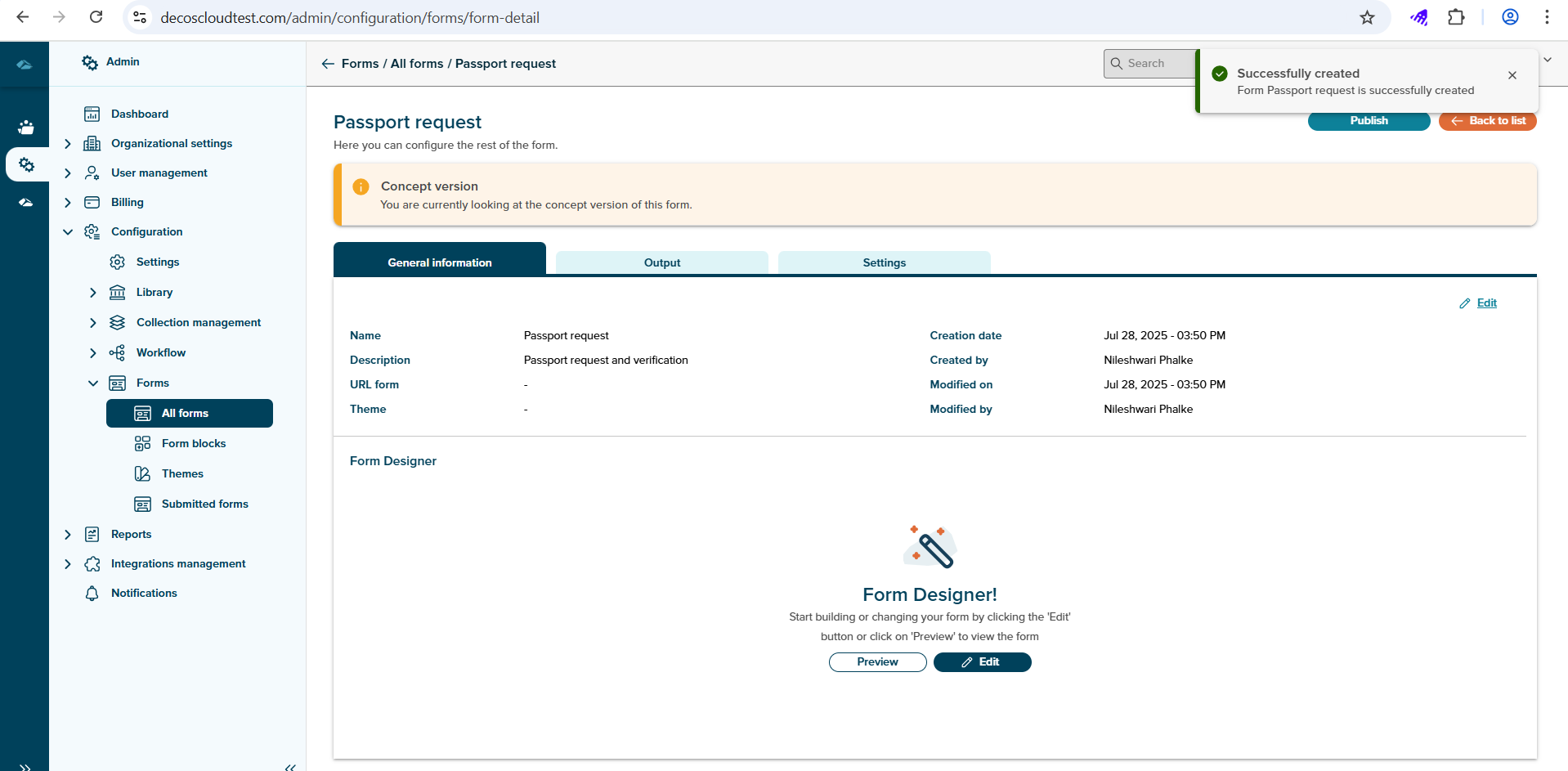
The form’s details page is divided into several tabs, each serving a specific purpose:
-
The Name and Description of the form can be edited by clicking on the [Edit] button.
-
The URL of the form is not generated until the form is published.
-
The ability to select a theme for a form will be available in an upcoming release.
-
The Form Designer is also located on this tab. It allows users to configure the questions and fields that will be used in the form.
-
In the Output tab, users can link a case type to the form.
-
In future releases, it will also be possible to link additional items, such as a document collection.
-
After selecting the desired case type and possibly document type, the associated fields will be displayed, indicating which are mandatory and optional. These are used to store the PDF summary of the completed form.
- In the Settings tab, users can configure authentication, integrations, and payment registration at the form level.
¶ List of forms
Under forms management, under ‘Forms’, you will find the list of forms:
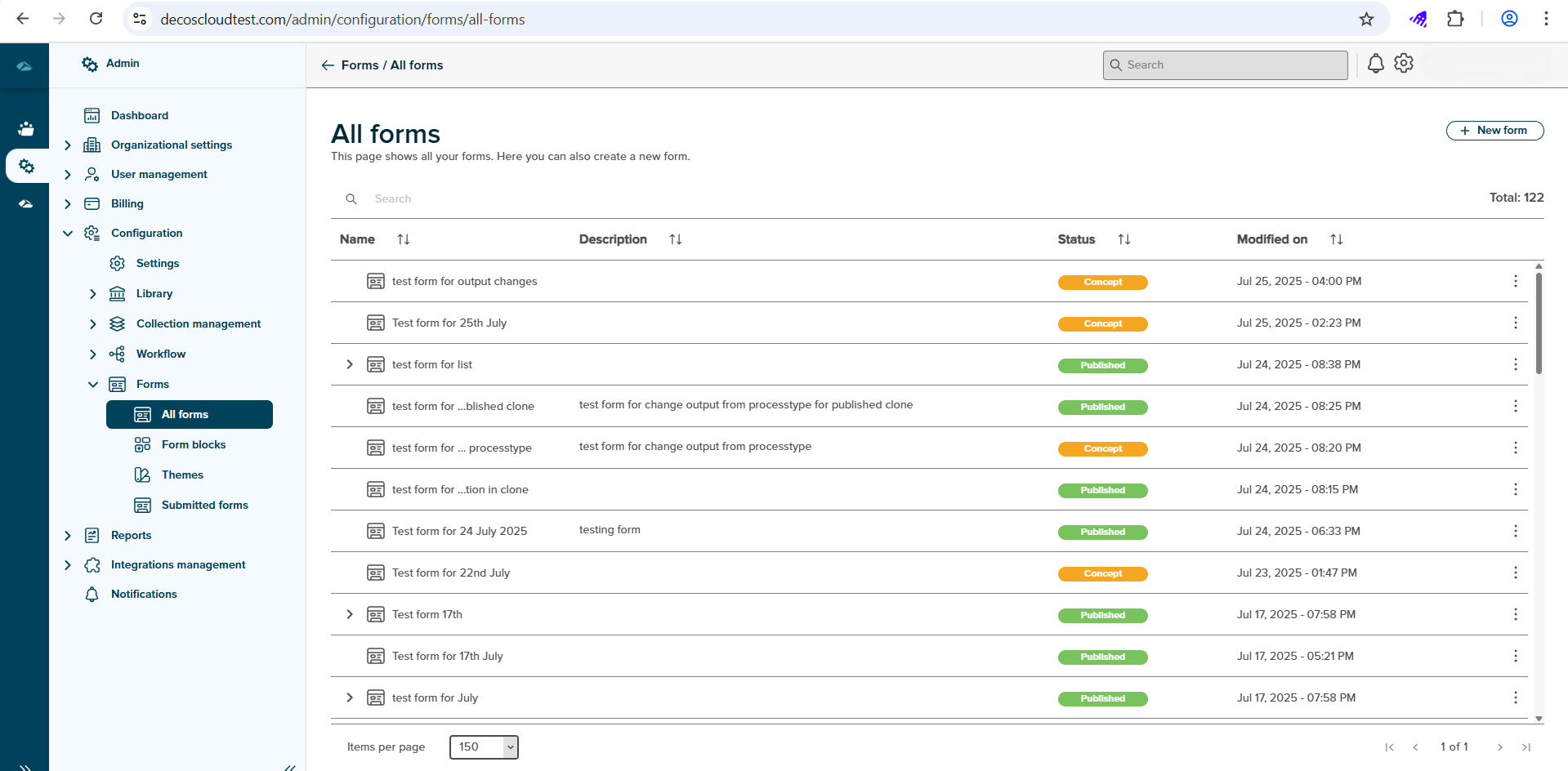
Forms home page list view has different columns, each column will show the information below
- Name : Name of the form will be displayed.
- Description : Description of the form will be displayed.
- Status : The Status (concept or publish) of the form will be displayed.
- Modified on : The Date and time of the updation of the form will be displayed.
Sort
A Sort icon is present against every column which allows a user to sort and display the data in either ascending or descending or in a default order.
Total
Total Field shows the number of forms available in the form List view page.
Search
Search Field is available to search any particular form in the List view page.