¶ Linking a Case Type in the [Output] Tab
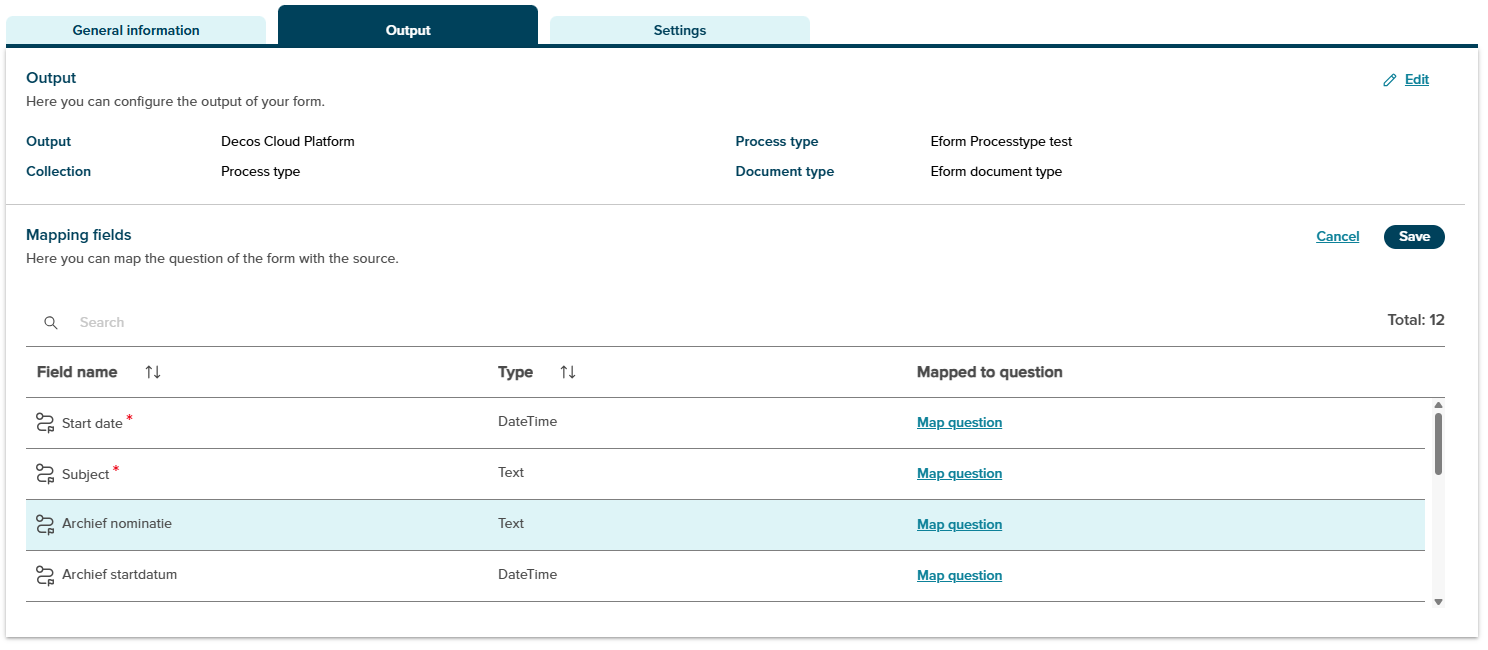
Within the [Output] tab of the form, a case type can be linked as follows:
-
Select an Output Destination
First, the end user selects where the form’s output should be sent. In this example, the destination is Decos Cloud Platform (DCP). In the future, additional options such as Email or other systems will be available. -
Select a ProcessType Collection
-
Once the output destination is selected, the user chooses a ProcessType from a dropdown. This dropdown dynamically retrieves all published case types from DCP.
-
After selecting a case type, the user can also specify a Document Type. When the form is submitted as a case in DCP, it is stored under the selected document type.
For example, the form may be linked to the case type “Eform Processtype test”, which can contain multiple phases, fields, and configurations. These elements can be mapped to the corresponding questions or fields in the form.
¶ Linking Case Type Fields to Form Questions
After a case type is linked to the form, its fields will appear automatically.
• Required fields are listed at the top.
• When the user clicks [Edit] next to a case type field, a side panel appears showing all the unlinked questions from the form.
• The user can then select which form question to link to the specific case type field.
Once all required fields are successfully linked to form questions, the screen will reflect a completed mapping.
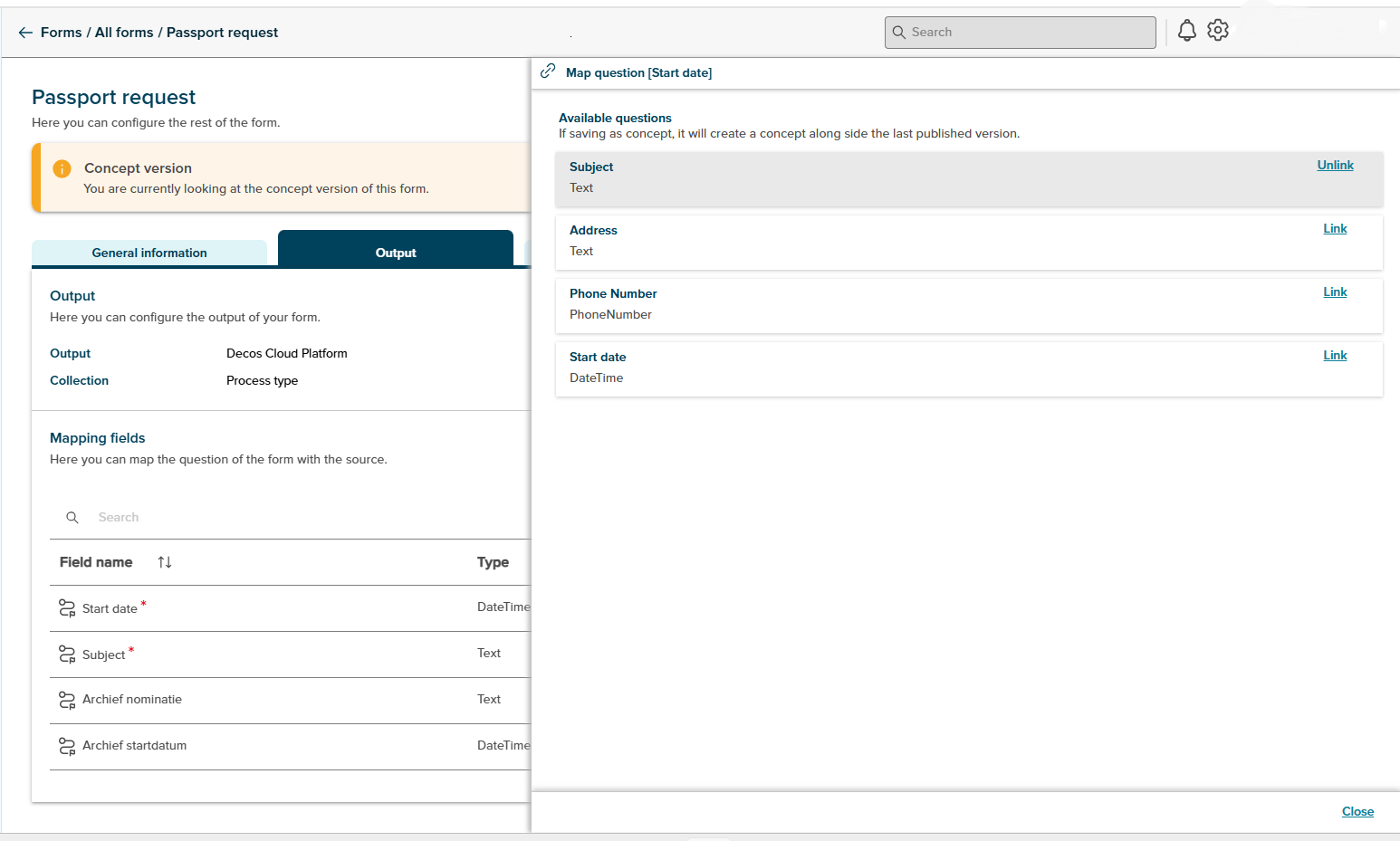
All required case type fields must be linked before the form can be published. These fields are essential for initiating the business process associated with the case.