¶ General Information Tab
Incidates form version oncept version or published version in the snack bar.

¶ Form designer
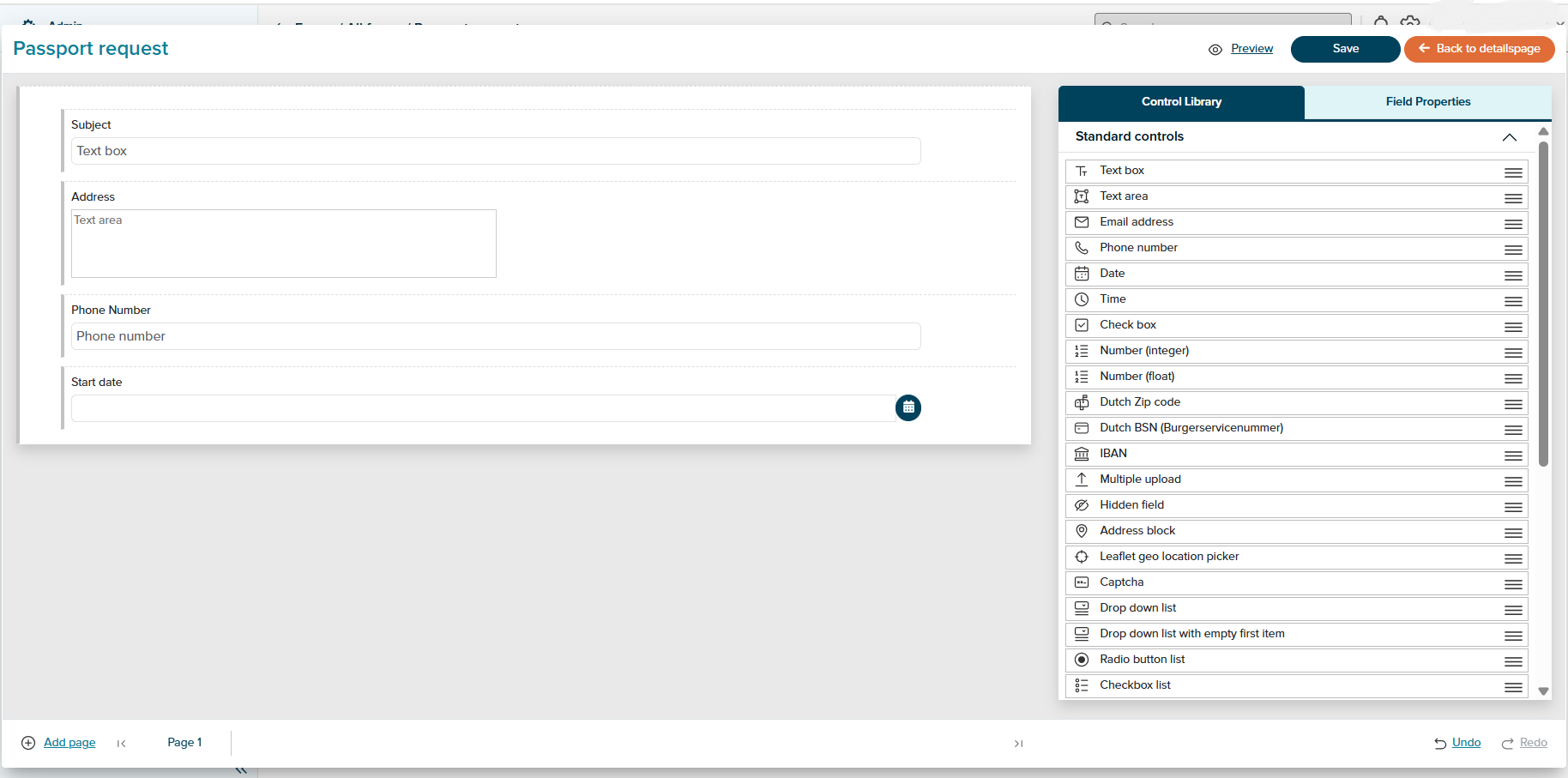
¶ 1. Controls in the Form Designer
You can drag and drop various elements (fields/questions) into the form, such as:
• Text boxes
• Email addresses
• Phone numbers
• IBAN fields
• Upload icons
• Social security numbers
¶ 2. Customizing Fields and Questions
When a field or question is selected, the right panel displays its Properties. Here, you can configure a variety of settings, including:
• Hint and warning texts
• Whether the field is mandatory
• Maximum character length
• WCAG-compliant read-aloud texts
¶ 3. Moving or Removing Fields/Questions
To rearrange fields or questions within the form:
• Click, hold, and drag a field up or down
• Use the arrow icons to move a selected field
• Click the close (X) button to remove a field or question
¶ 4. Adding and Managing Pages
There are two ways to add pages to the form:
• Via the footer: The footer of the designer shows all pages, and allows you to add one or more new pages.
• Via the Elements panel: Click on “Page” or drag a page element into the form. A new page will be added, ready for you to place additional fields or controls.
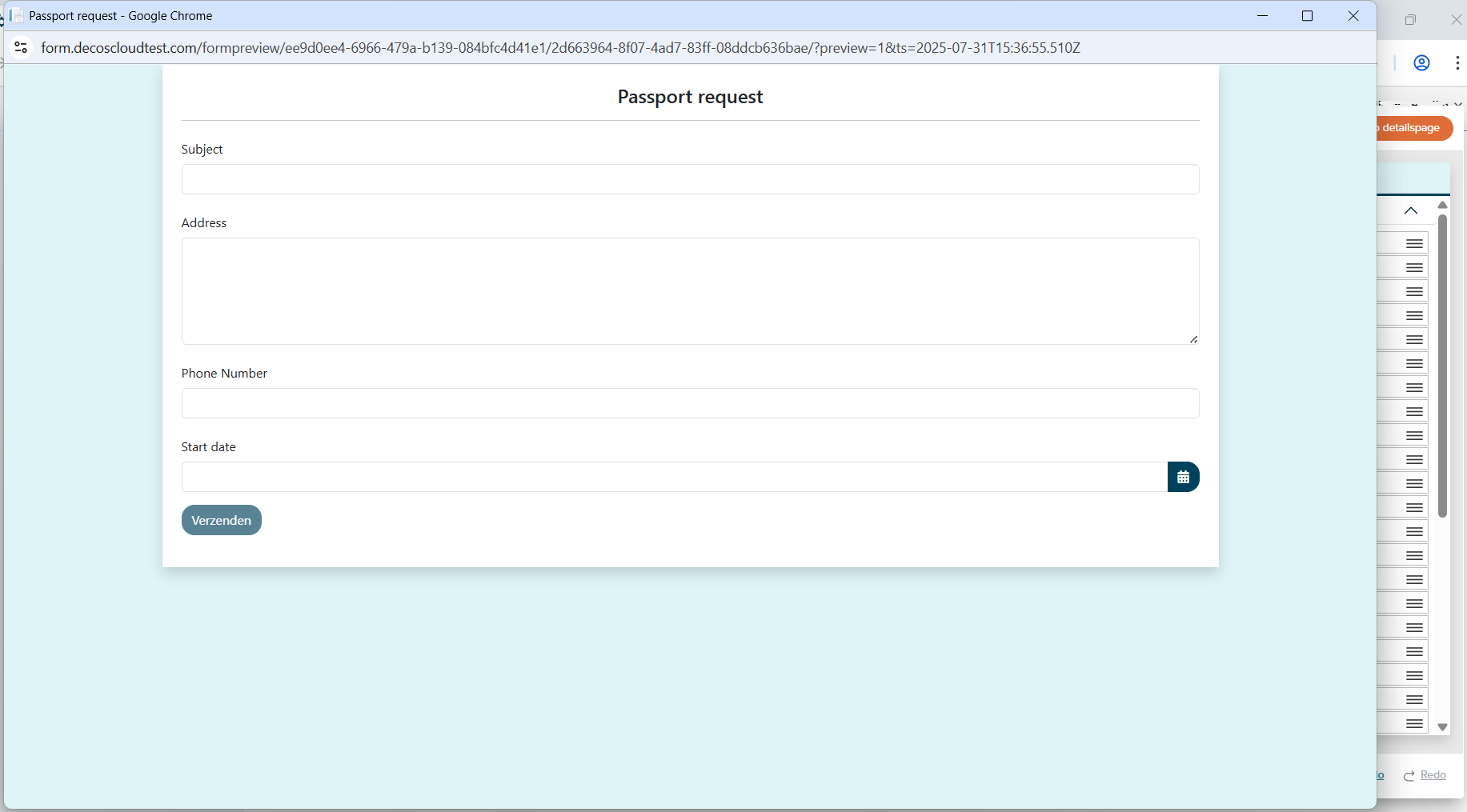
¶ 5. Preview
The Preview feature in the Form Designer allows users to see how the form will appear to end users. This helps ensure the layout, content, and functionality meet expectations before publishing.