¶ Reject Process
This page describe information about reject feature for process. To create a process ,follow the steps mentioned on the page process creation.
Admin can see reject option only when allowed rejection is configured for processtype in admin.
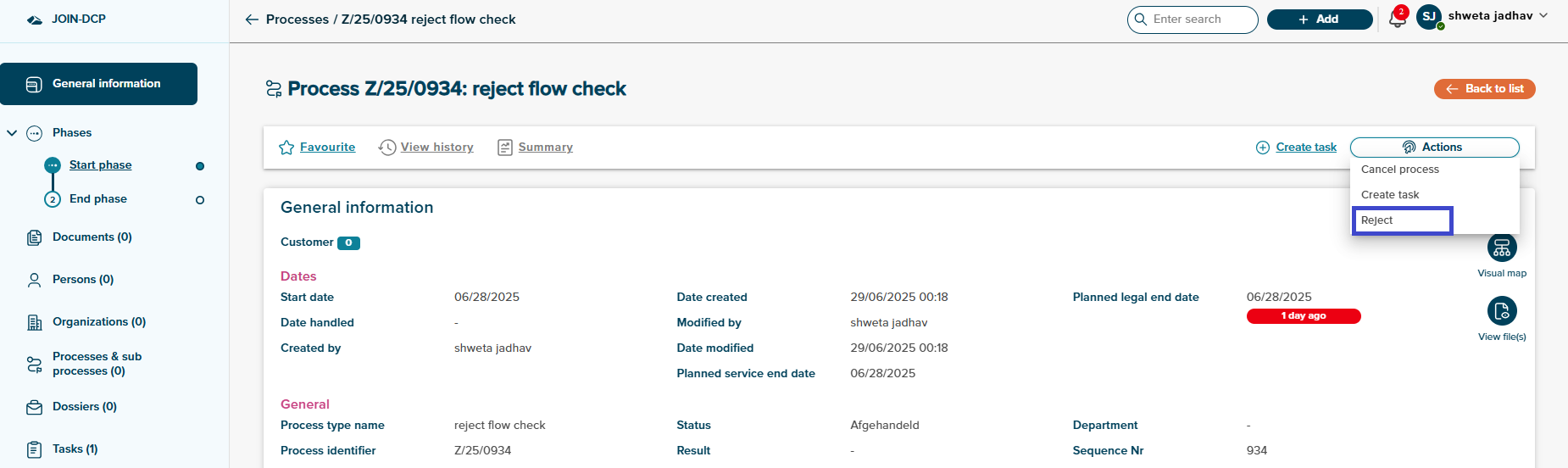
- User can reject a process in its first phase based on different reasons.
- User can’t reject a process from the phase or process detail page if the process is in the second or any other phase than phase one.
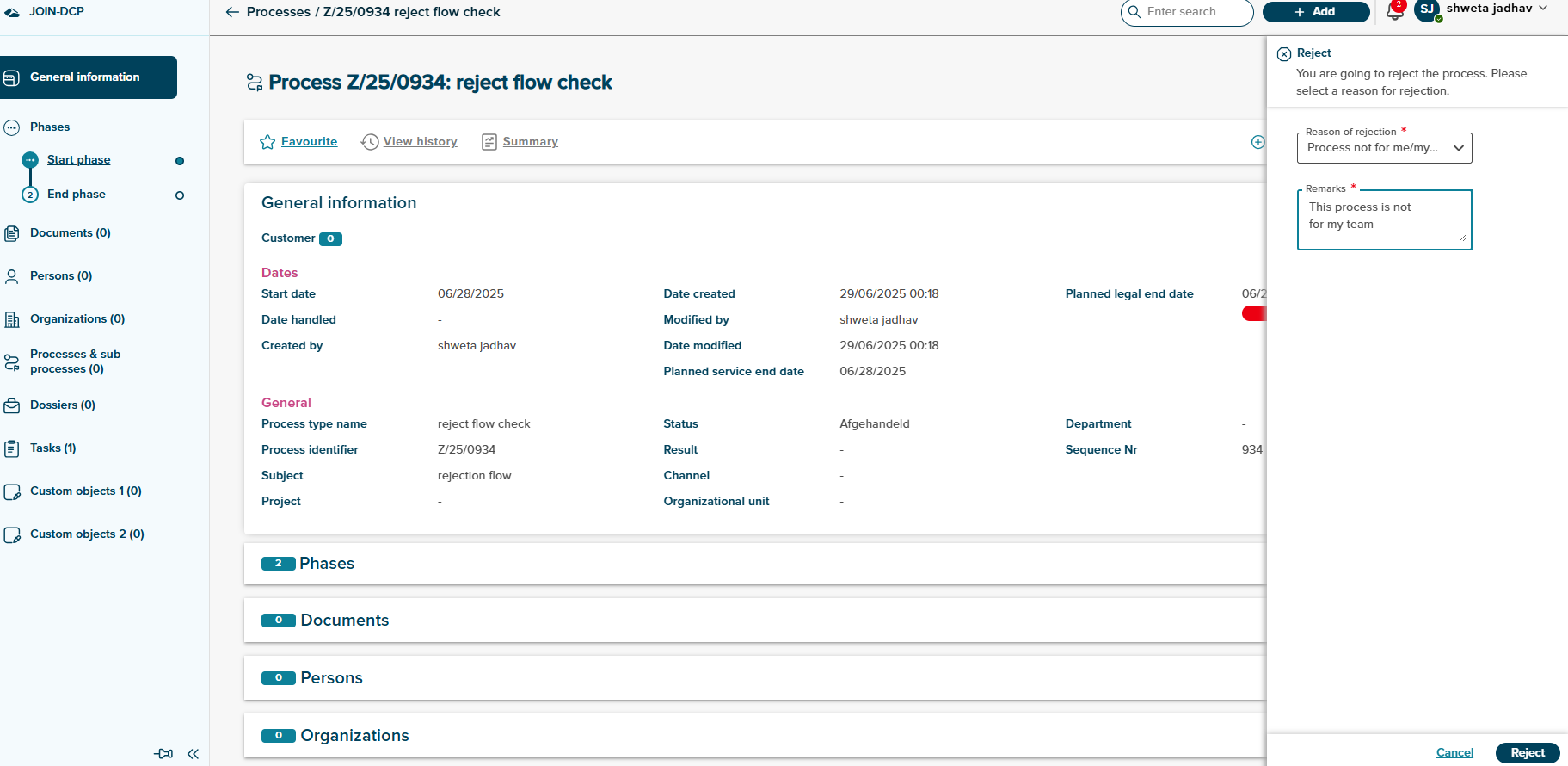
After clicking on reject button ,side panel will open to add rejection reason and remarks. User can see two button to cancel the changes or reject the process on side panel.
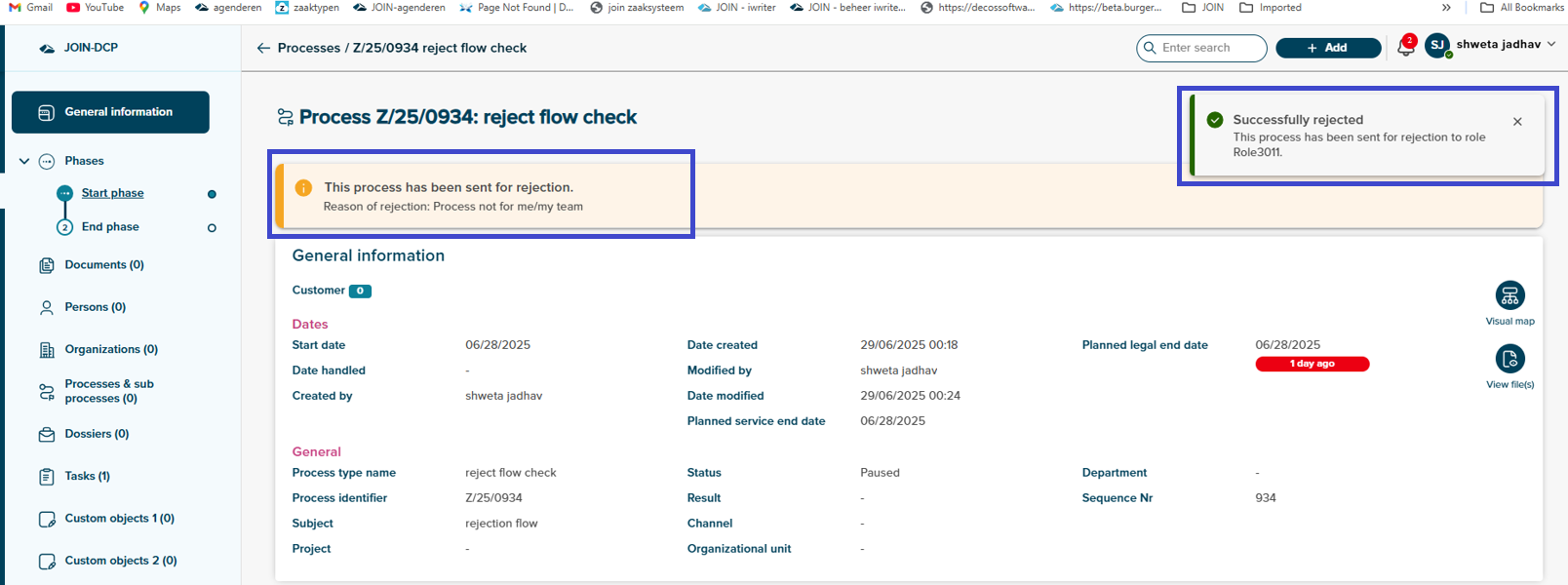
After clicking on reject button user can see successfull toast meassage and rejection banner message on process deatils page. Rejection task will create and assiged it to the rejection role set in admin for review rejection task.
Once the process is rejected, user can’t perform any action on process until rejection task is handled.
 .
.
User can see rejection task created in task for the rejection role.
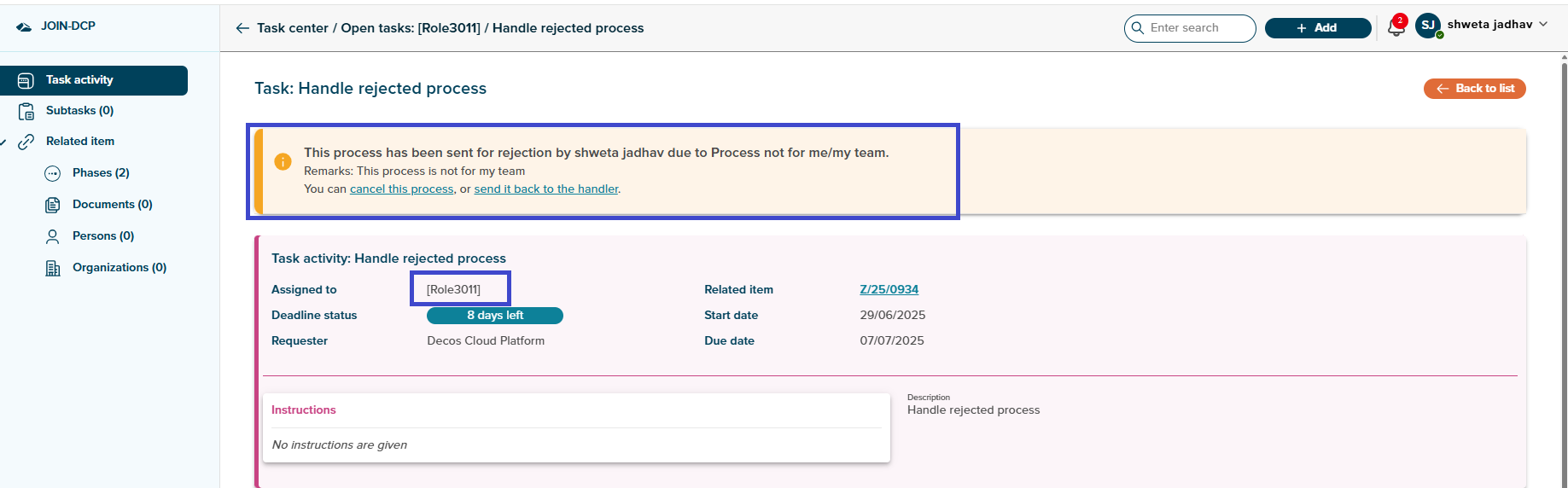
User can see the banner indicating that the process has been sent for rejection by the handler, along with the handler’s name and reason for rejection.
User can see two option to performed on rejection process.
1. Cancel the process
-
The handler of the rejection task can cancel the process if they determine it should be canceled during the evaluation.
-
The task handler can do this by clicking the “cancel this process” button or link in the banner of the rejection task.
-
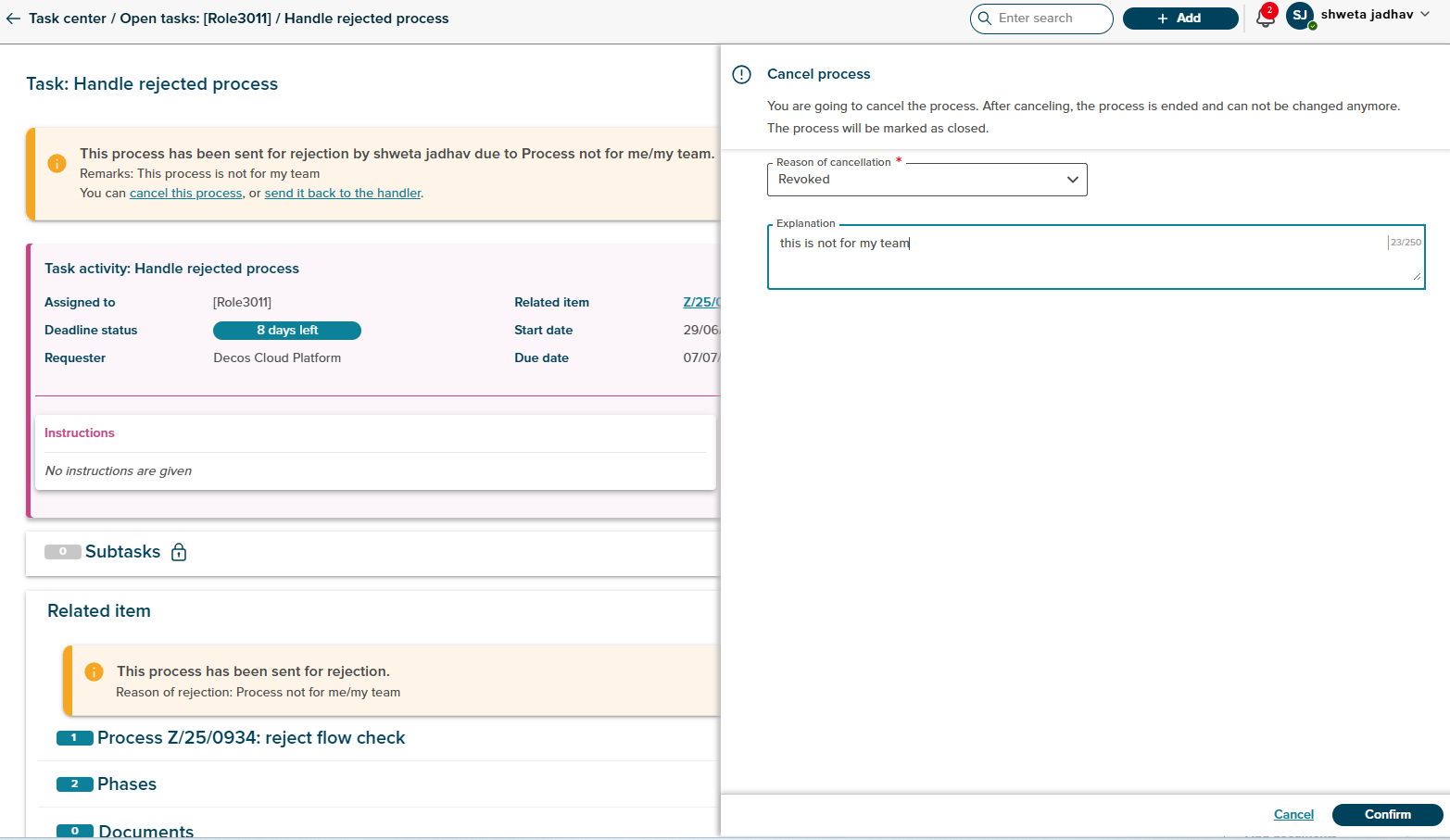
Clicking the button opens a sidepanel called “cancel process.”
-
In this sidepanel, a drop-down for the reason of cancellation is automatically opened, populated from the system library on the admin side.
-
The task handler selects a reason for cancellation and can also provide an explanation before proceeding.
-
Once the reason and explanation are entered, the task handler clicks “confirm” to cancel the process or “cancel” to abort.
-
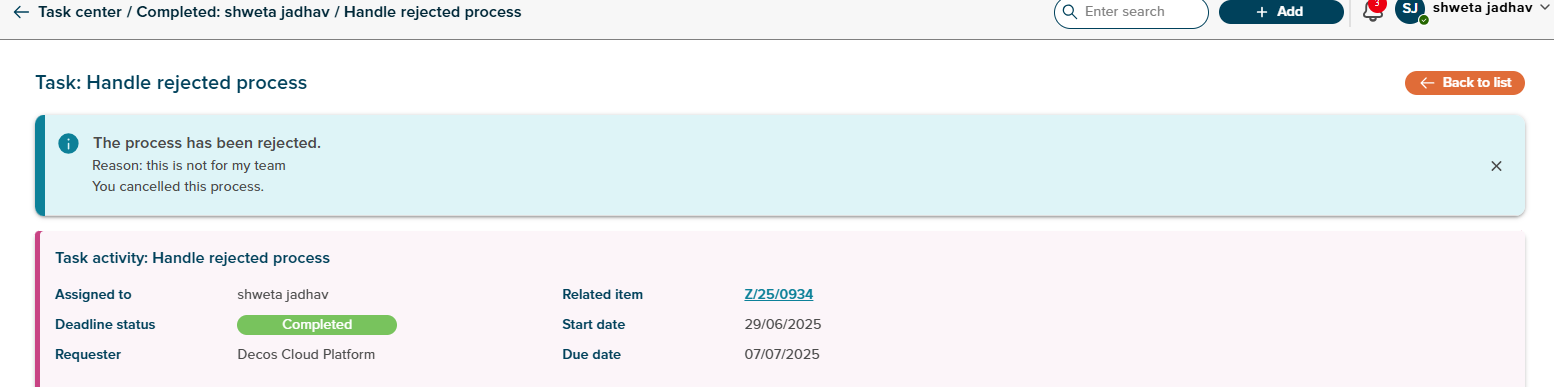
Clicking “confirm” completes the task for rejection, and the task handler sees a blue banner indicating the task has been canceled and the reason.
-
A success message (toast) confirms the process has been canceled.
-
This action cancels the entire process, including all related activities.The rejction task will end and process status will set to completed.
2. Send it back to the handler
-
When the task handler gets a task for rejecting a process and plans to send it back to the handler, they click the link button in the banner called “send it back to the handler.”
-
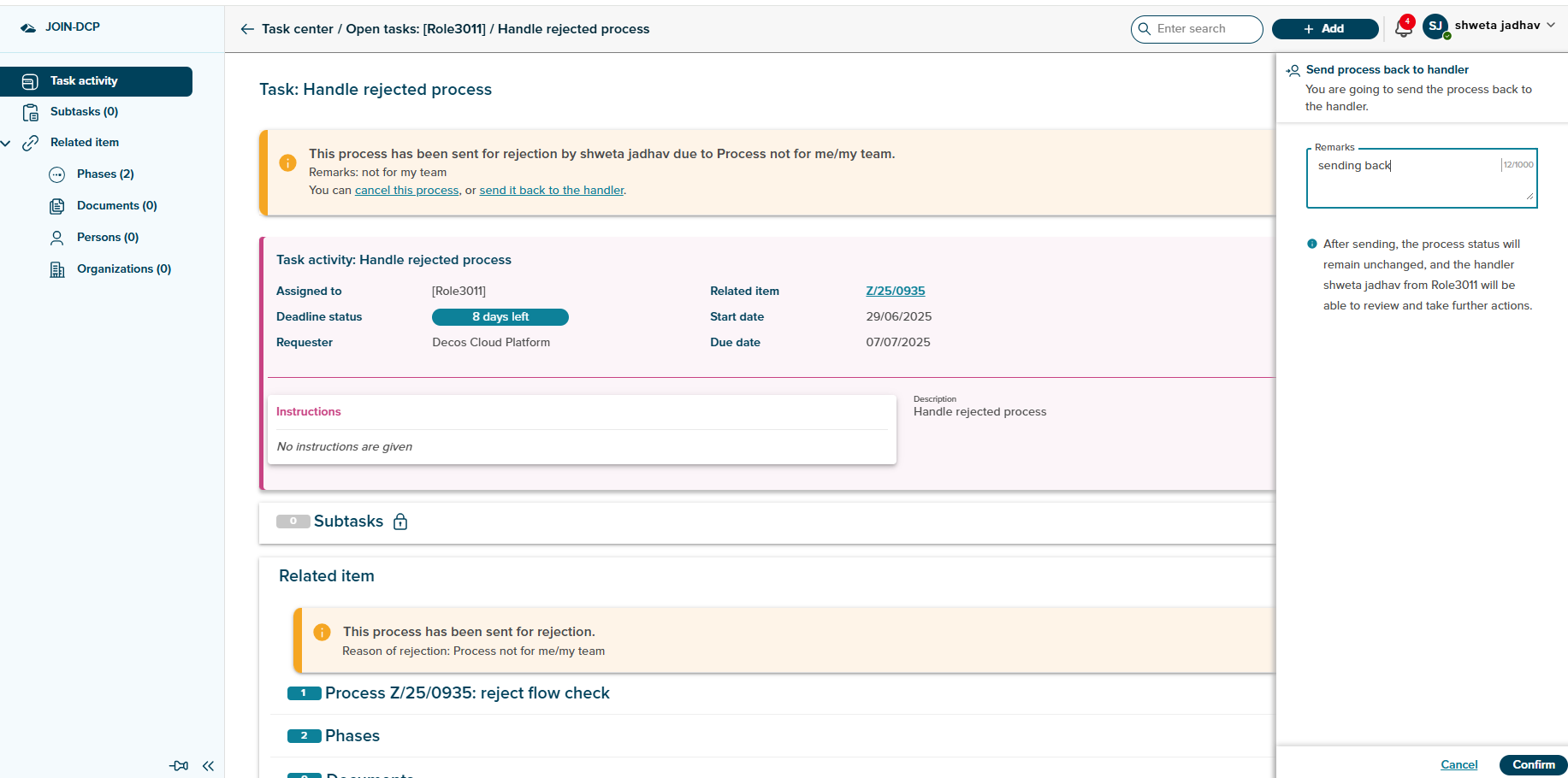
Clicking that link opens a sidepanel labeled “send process back to the handler.”
-
In this sidepanel, the task handler can provide remarks to the original process handler, explaining why the process is being sent back.
-
An information icon provides the text: “After sending, the process status will remain unchanged, and the handler [Process handler name] from [Role name] will be able to review and take further actions.”
-
After entering the remarks, the task handler can click “confirm” at the bottom right of the sidepanel to send the process back to the process handler.
-
The task is then completed, and the task handler sees a banner indicating that the process has been sent back to the process handler, along with the reason.Process will set to active again.