¶ Settings
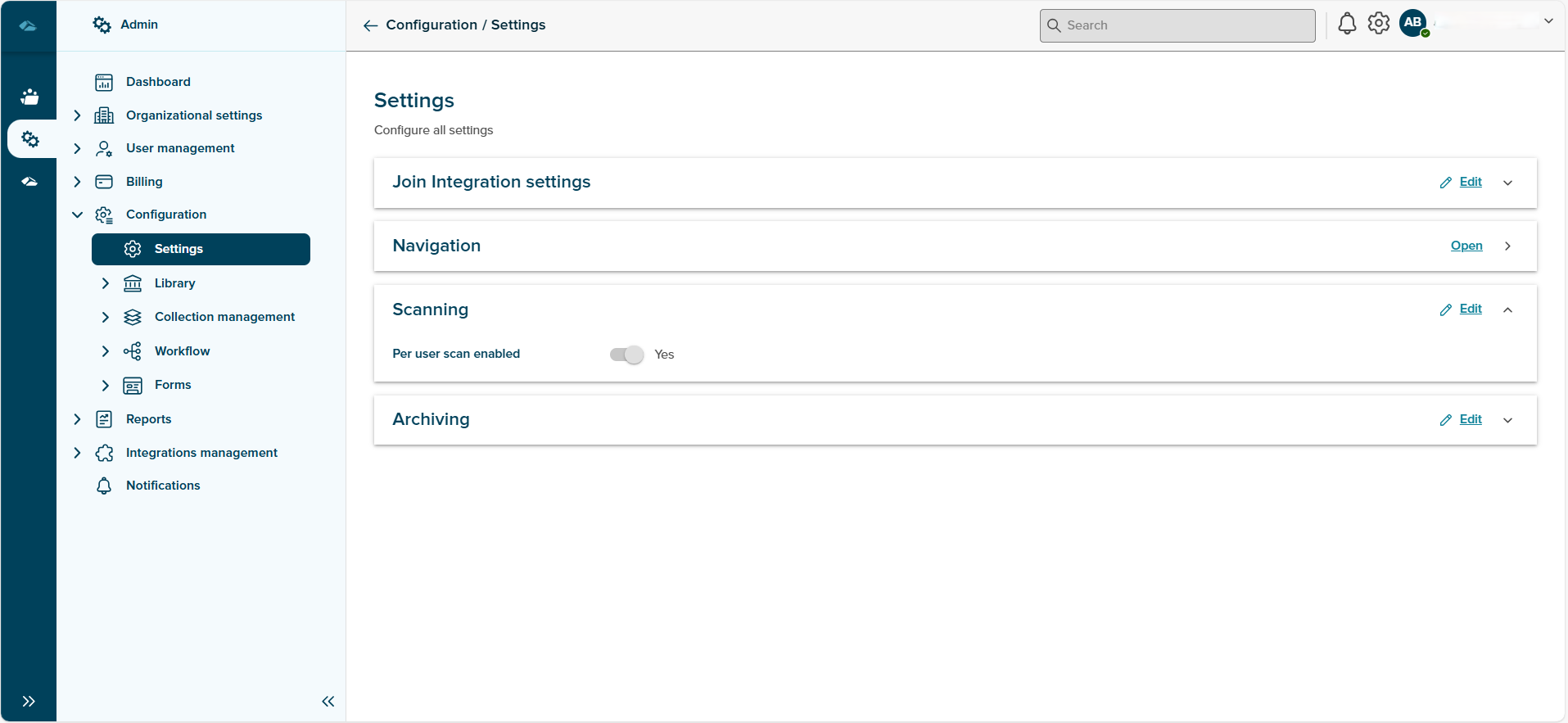
Once user click on settings in the navigation tree, user lands in the settings home page, which can be seen in the below image
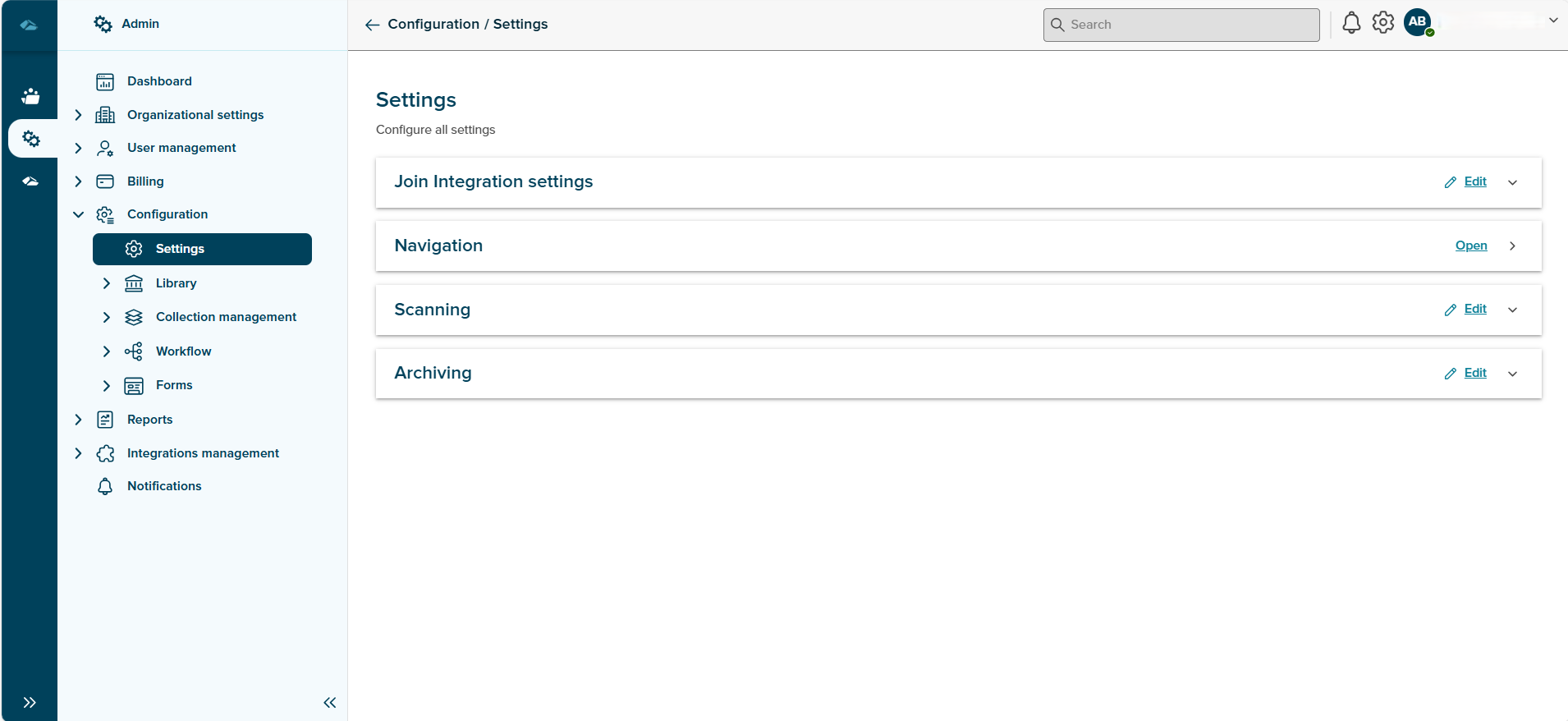
User has 3 settings wihch can be edited and updated, each of the settings are explained below
¶ JOIN Integration Settings
Join integration settings can be seen at the top section, User can click on the section and see the Meta information.
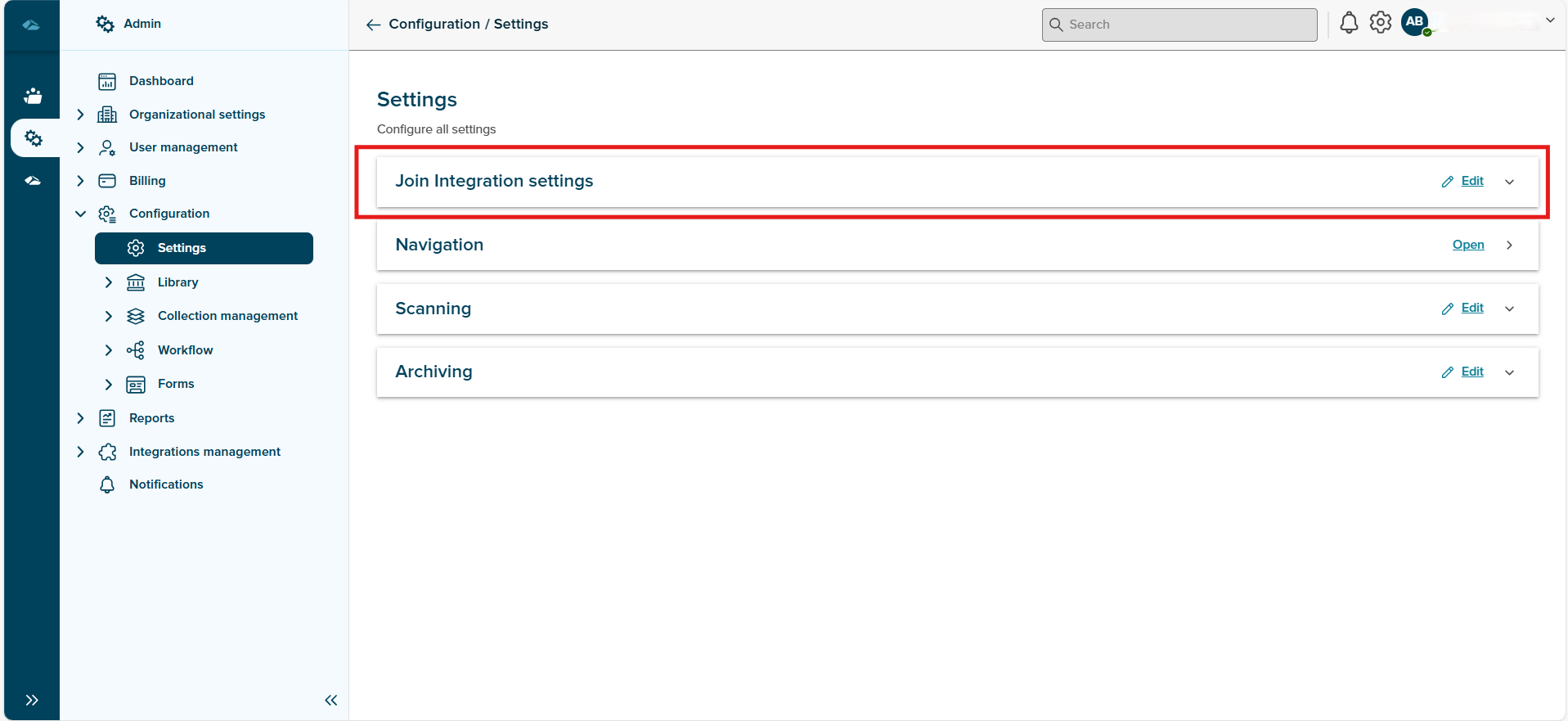
User can click on edit button and update the information in the input fields and then save the settings, JOIN integration setting fields can be seen in the below image
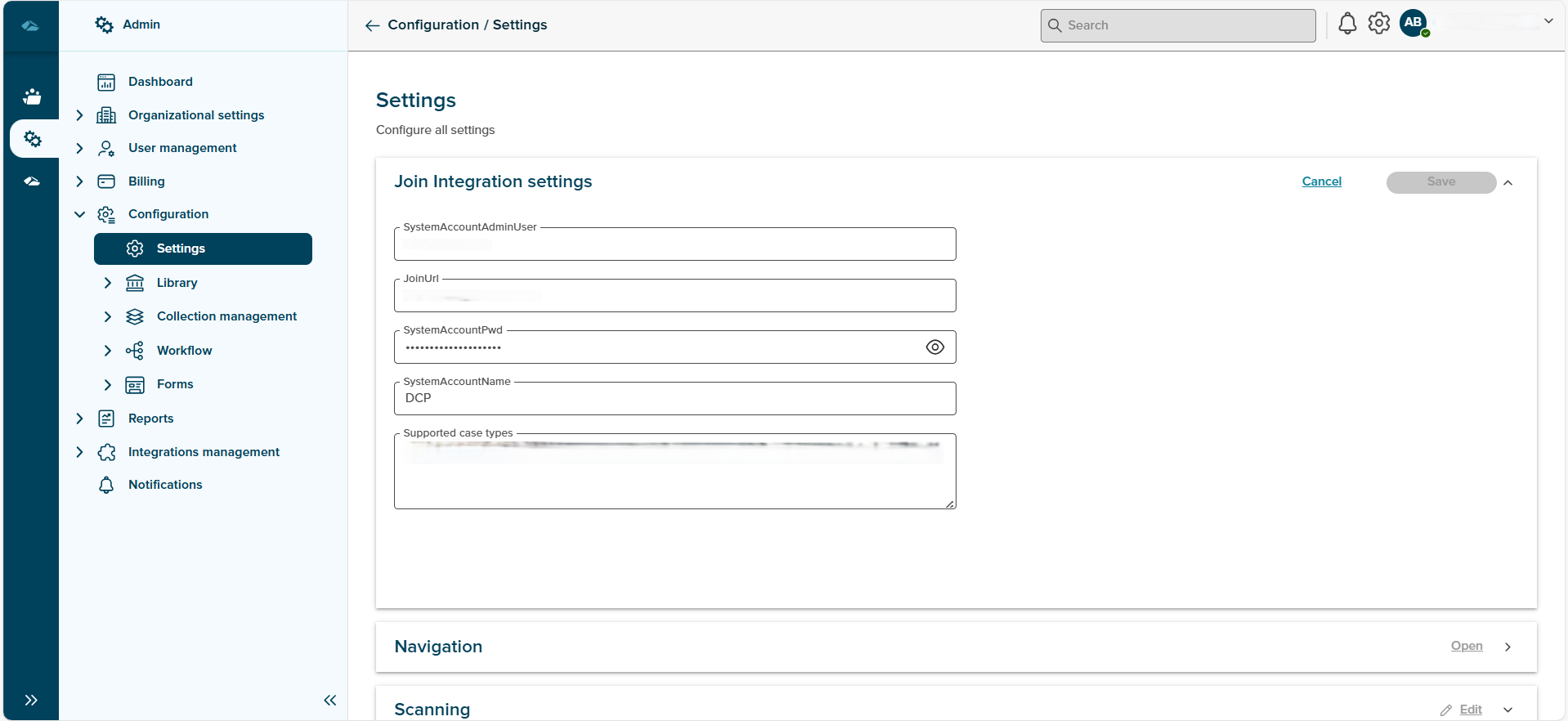
User can exit the flow by clicking on Cancel button and exit the flow of editing the settings.
¶ Navigation
In this section User can change the settings related to navigation tree, user can add or remove or hide different section in the navigation based on the requirements. To understand more on navigation setting functionality, user can click on the below link.
¶ Scanning
Scanning related settings can be done in this section, user can click on the section to see the contents of the scanning section.
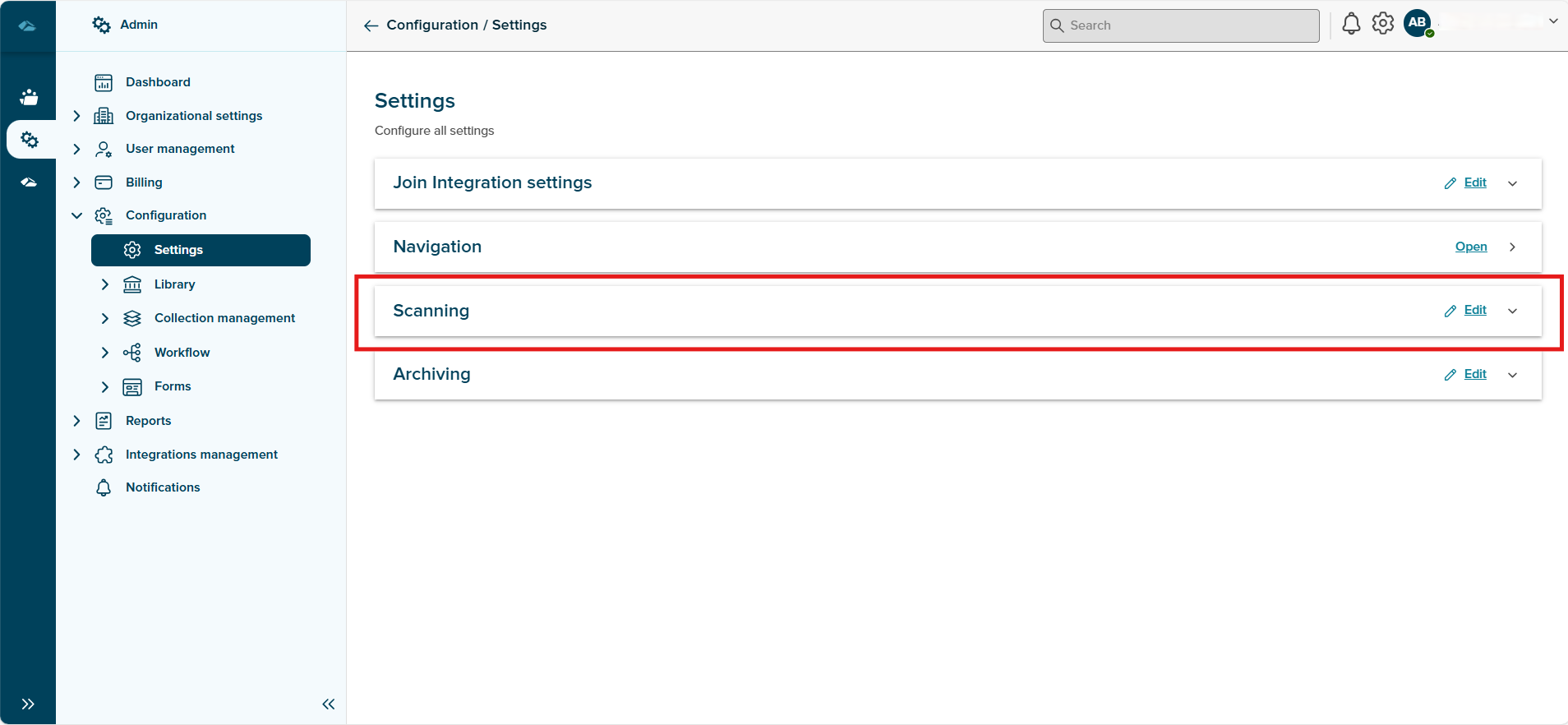
User can click on Edit button to update the setting in this section and update the information in the fields and then click on save the settings, scan setting fields can be seen in the below image.
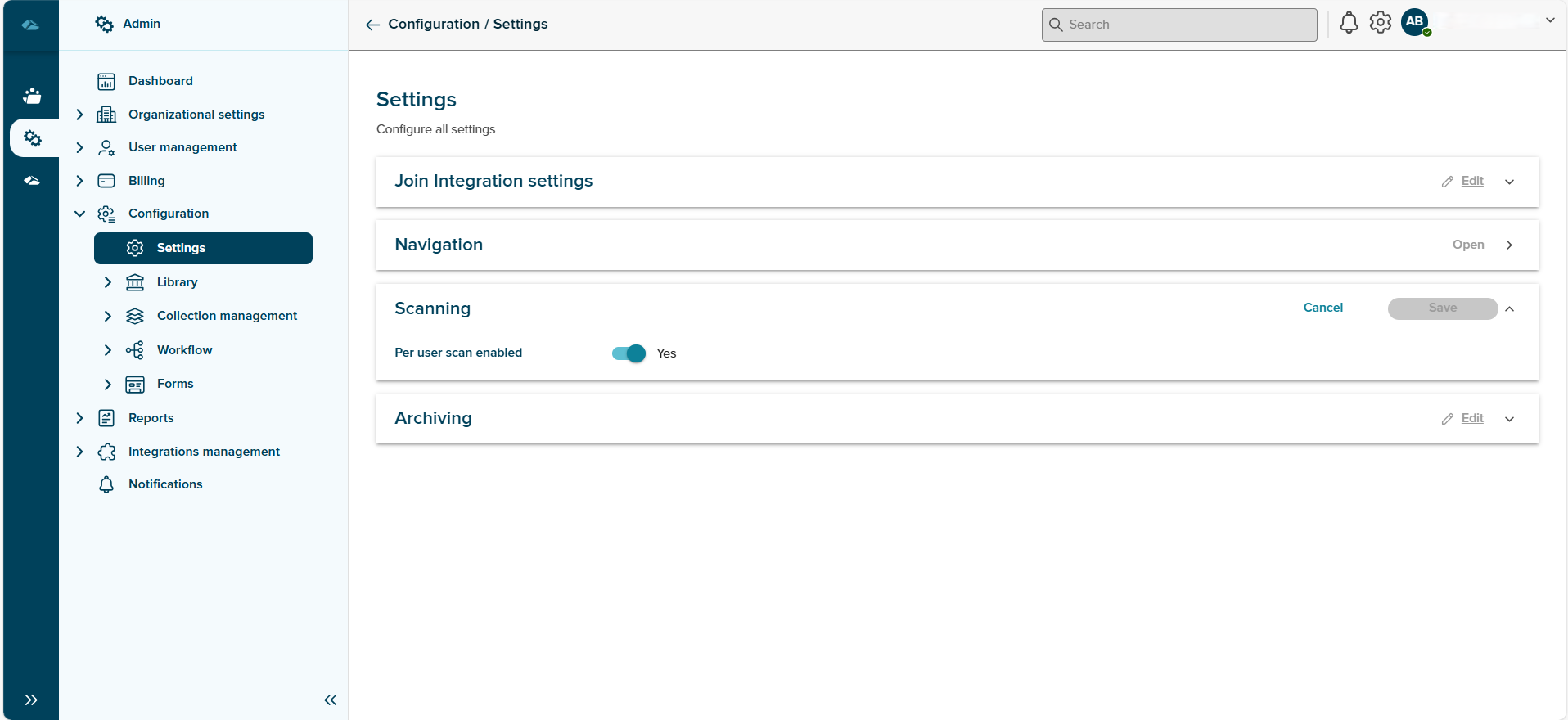
User can exit the flow by clicking on Cancel button and exit the flow of editing the settings