¶ Navigation
Once the User clicks on the Open link in the Navigation Settings section. The user will be landed on the navigation home page, which can be seen in the below image.
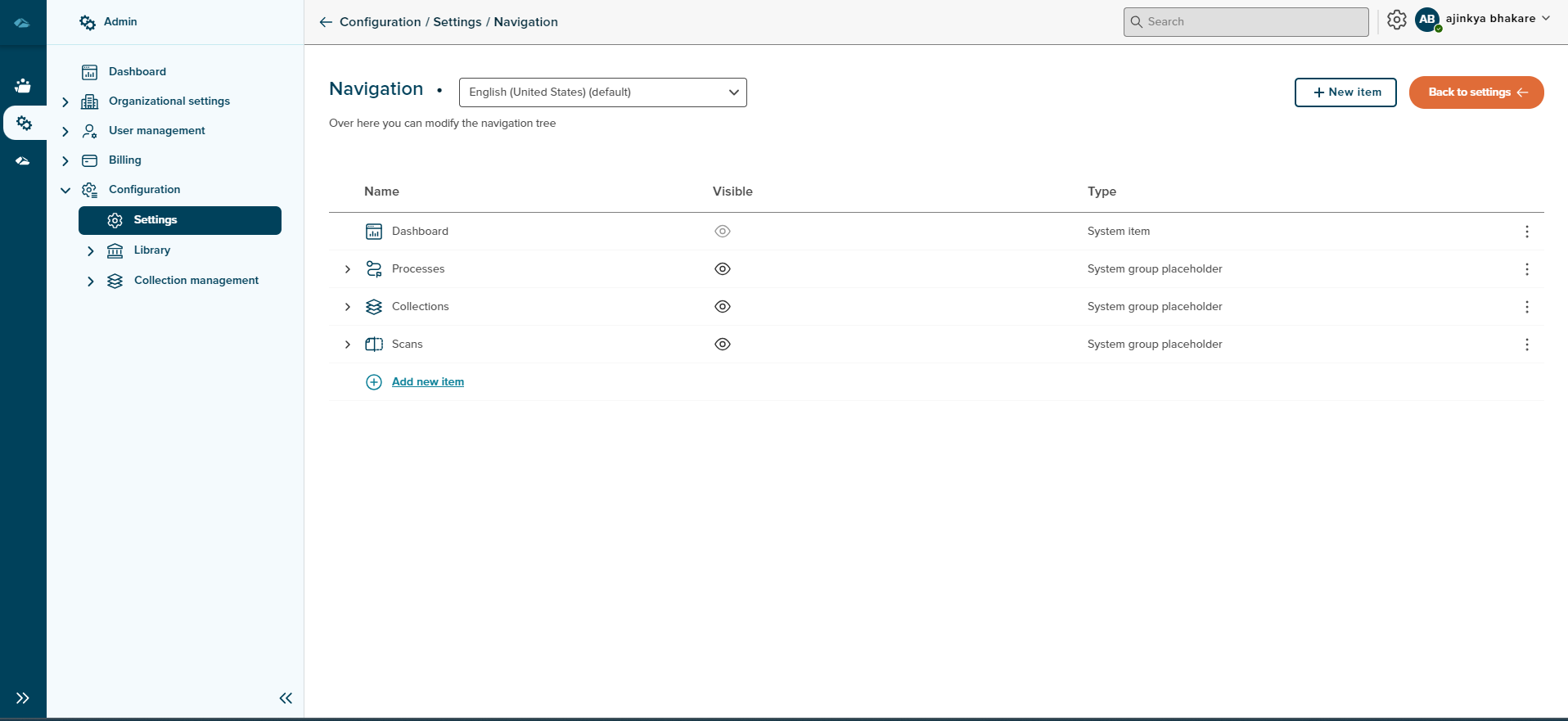
- Name - By default- Dashboard, Processes, Collections and Scans will be displayed under this column area.
- Visible - Items that are hidden or unhidden will be displayed under this column area.
- Type - Items of which type like System item, System group placeholder, Group placeholder and Collection shortcut will be displayed under this column area.
¶ Add new items
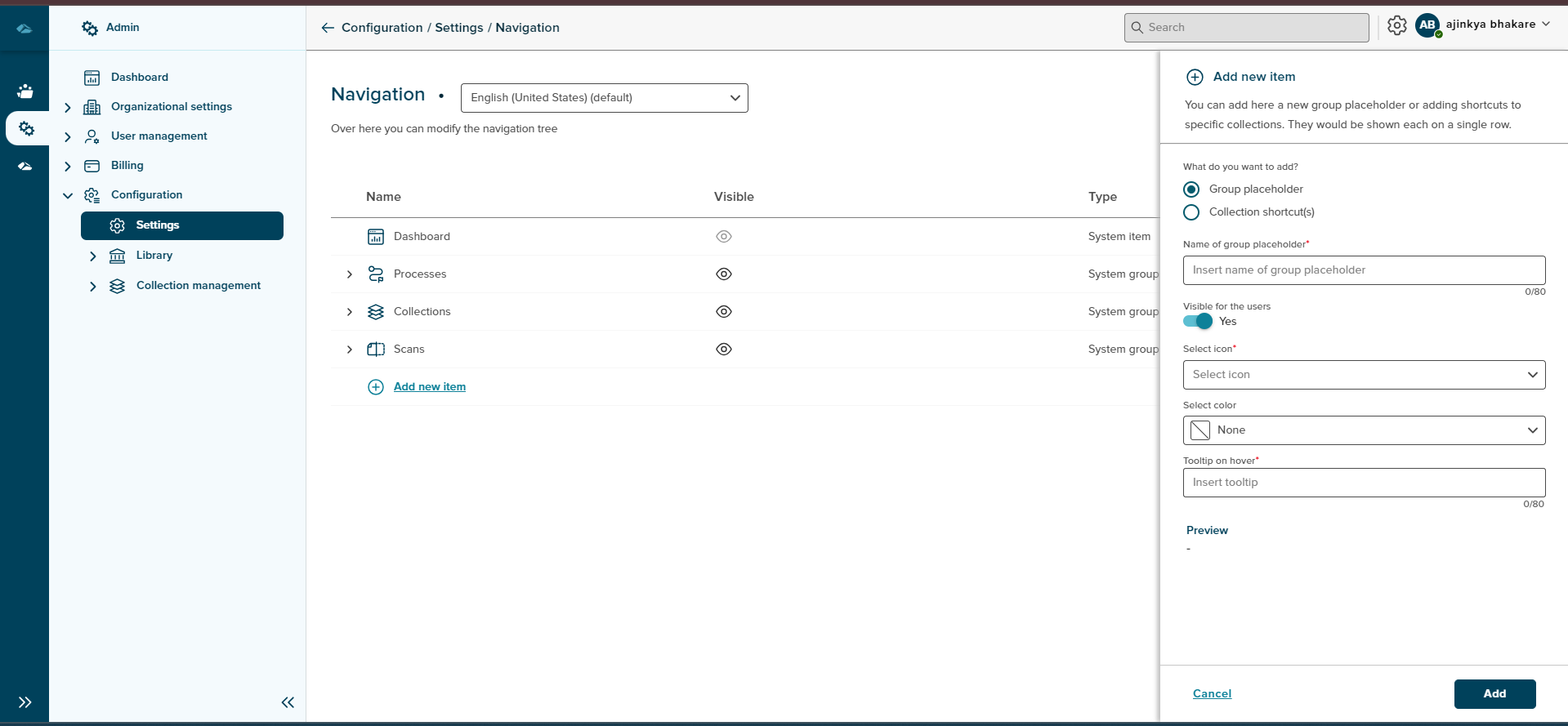
Users can add new items in the Navigation tree-like Group Placeholder and Collection Shortcut(s) by clicking on the “Add new items” button at the bottom of list view or clicking on the “Add new items” on the right side of the top corner.
When the user clicks on the “Add new items”, the sidepanel will open with two options Group Placeholder and Collection Shortcut(s) and adding all mandatory info user will get a successful snack bar message.
¶ Up & Down arrows for changing position
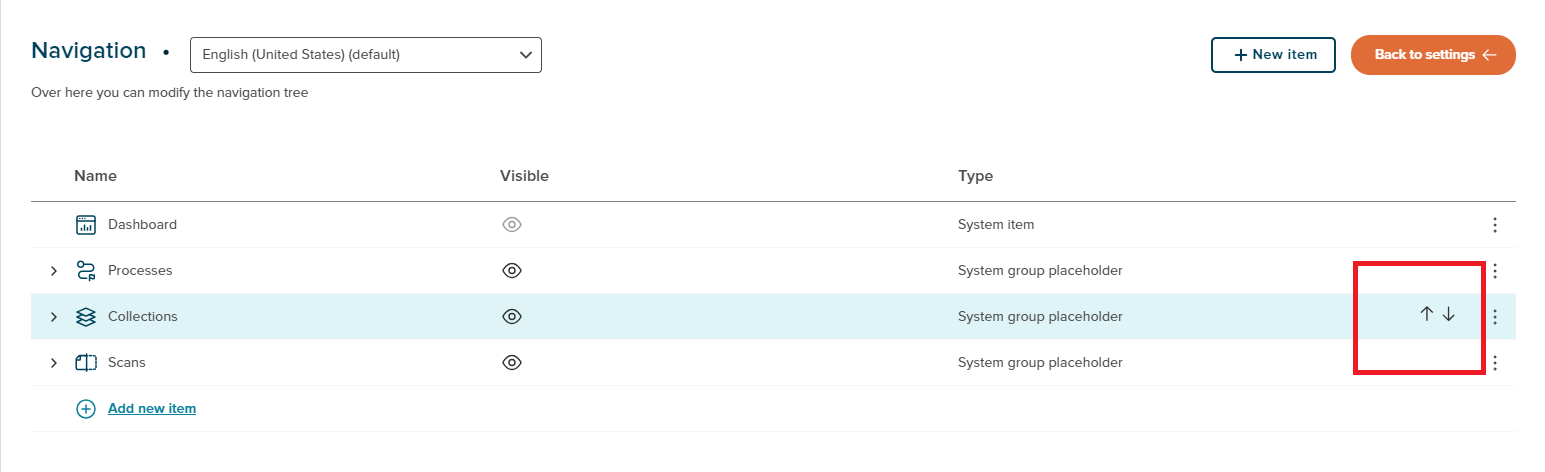
- Users can change the position of items by clicking on the Up & Down arrows. While hovering over the row, the User will get Up & Down arrows.
- By default, the Dashboard is fixed at the top postion and the User will not get Up & Down arrows for the Dashboard row.
- User can change the position of other items just by clicking on the Up & Down arrows.
¶ Kebab menu
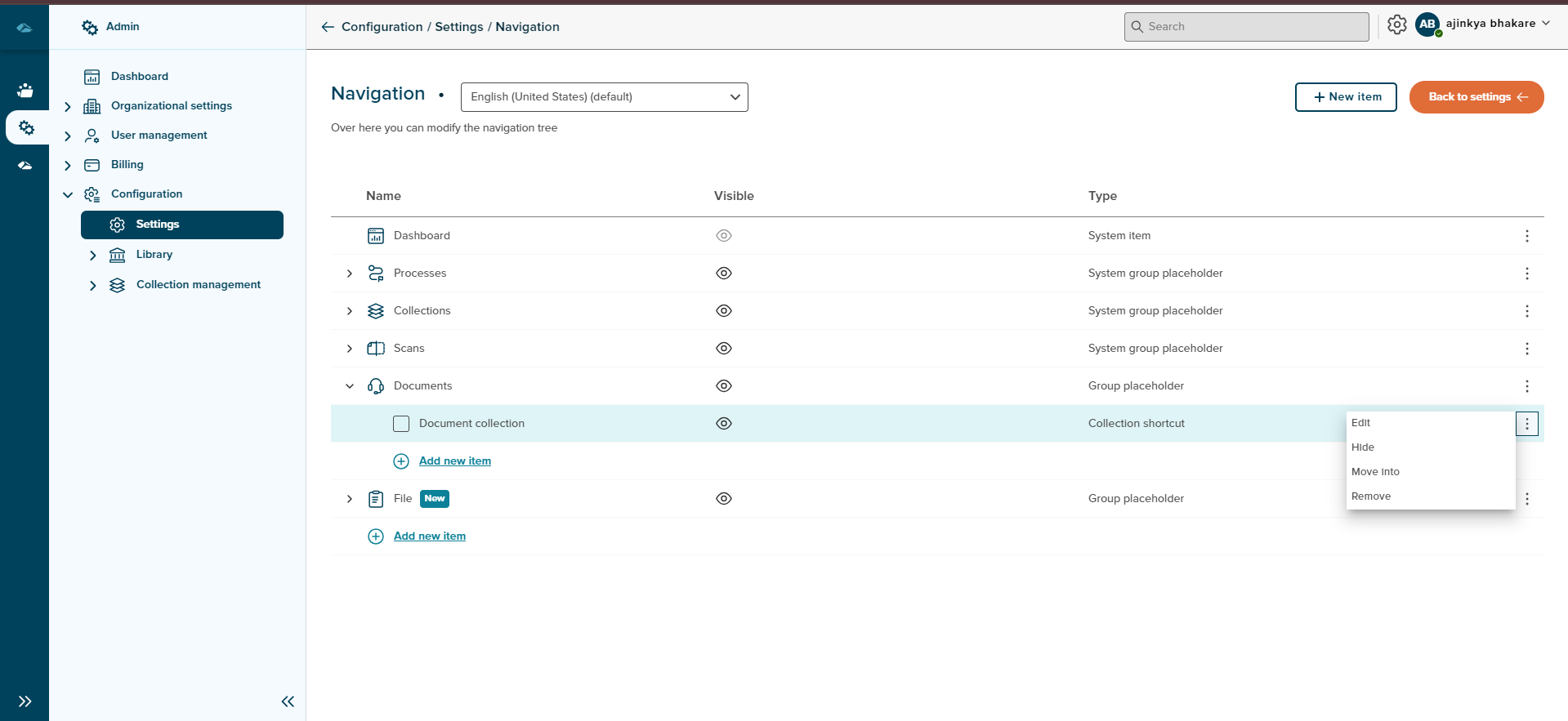
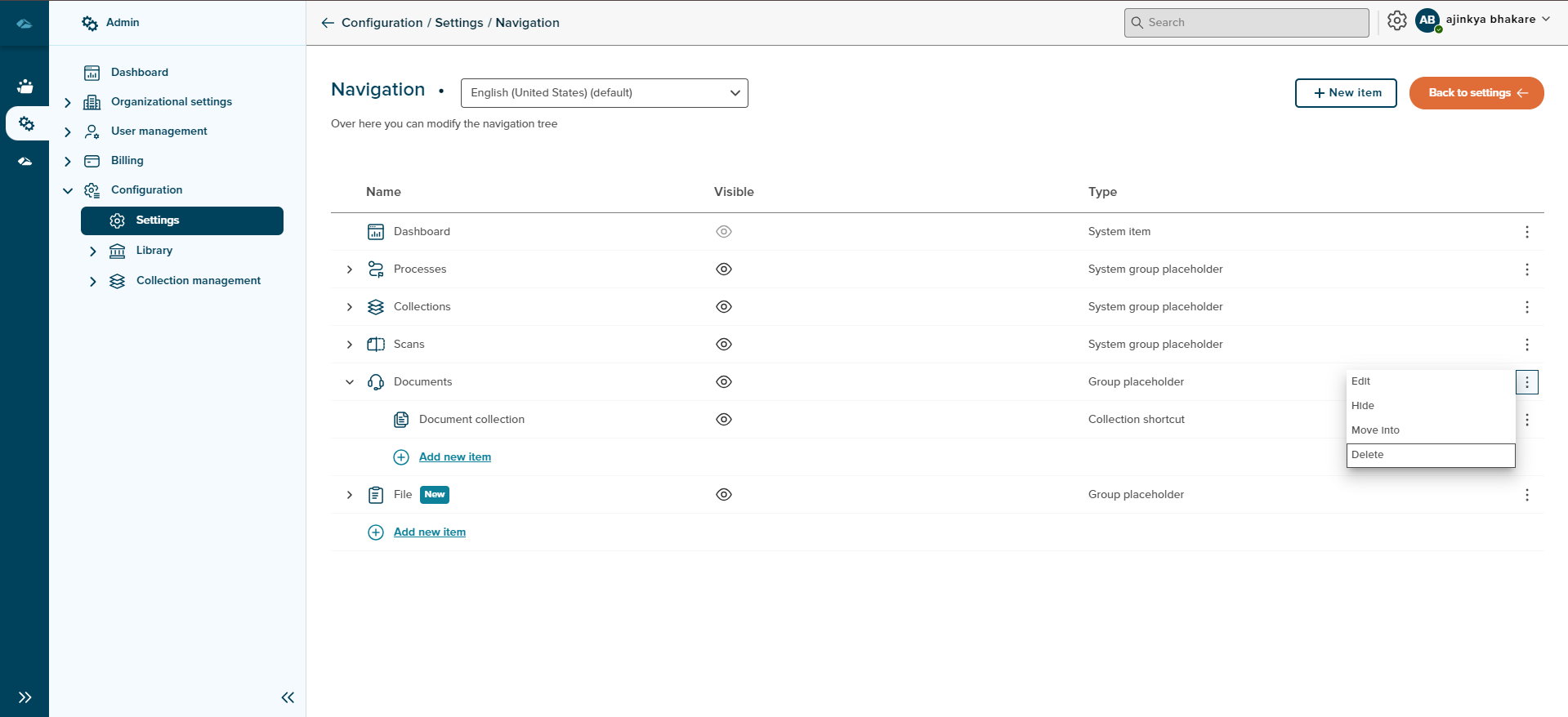
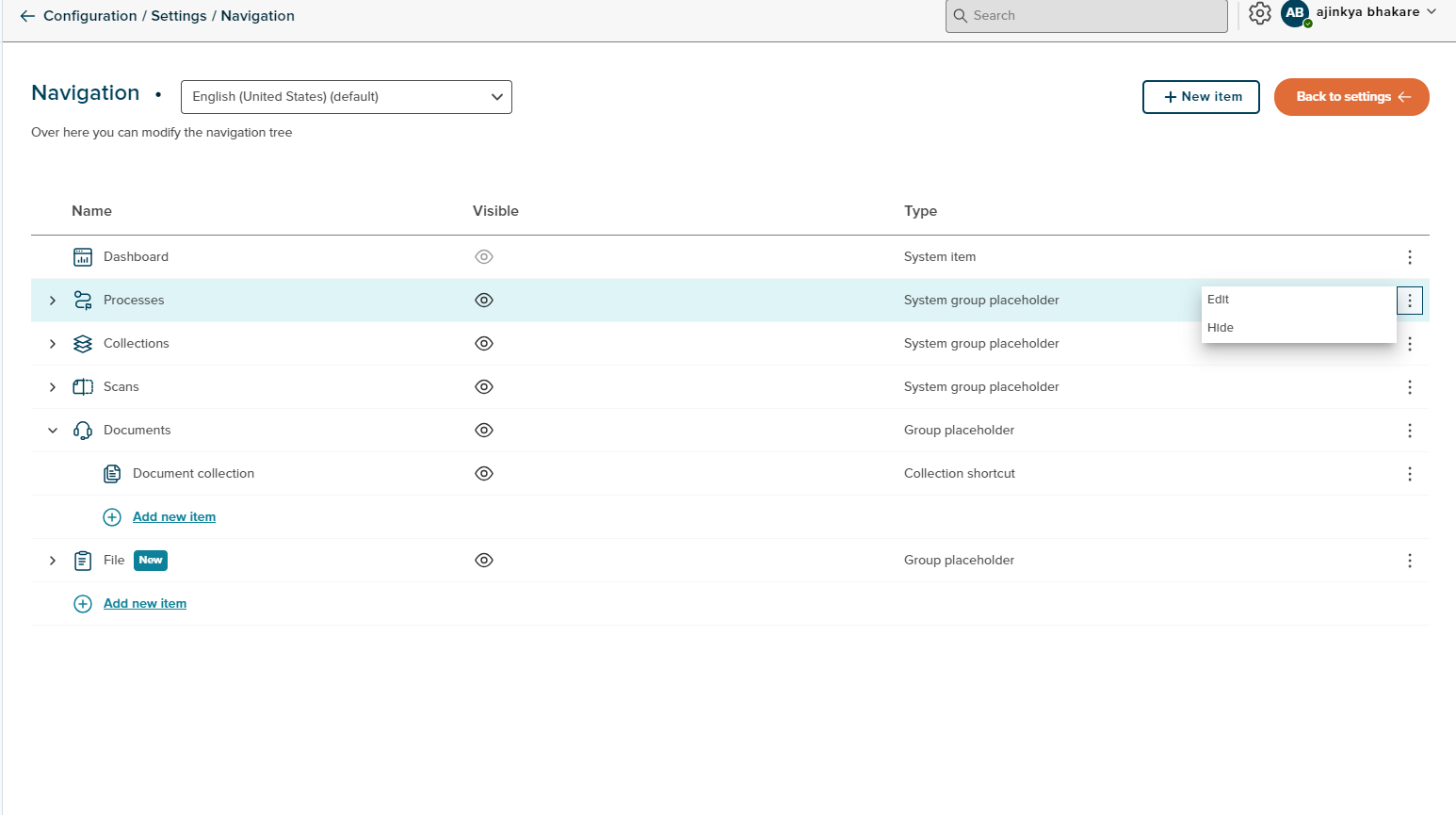
Users will get three types of Kebab menus in the Navigation tree :
- For System items - In Kebab menu, User will get only Edit option
- For System Group Placeholder/System Collection - In Kebab menu, User will get two options Edit and Hide/Unhide
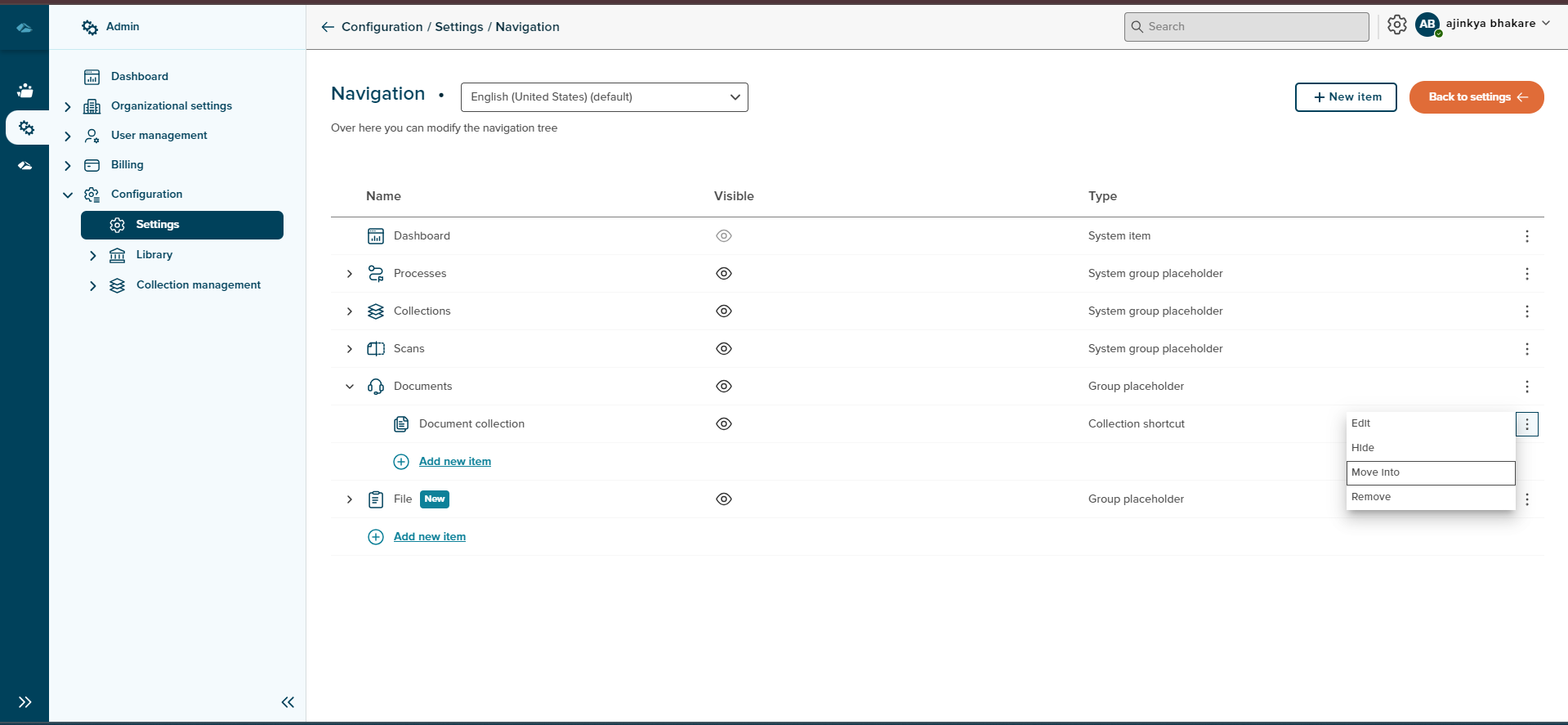
- For Group placeholder - In Kebab menu, User will get four options Edit , Hide/Unhide , Move into and Delete/Remove
¶ Edit Function
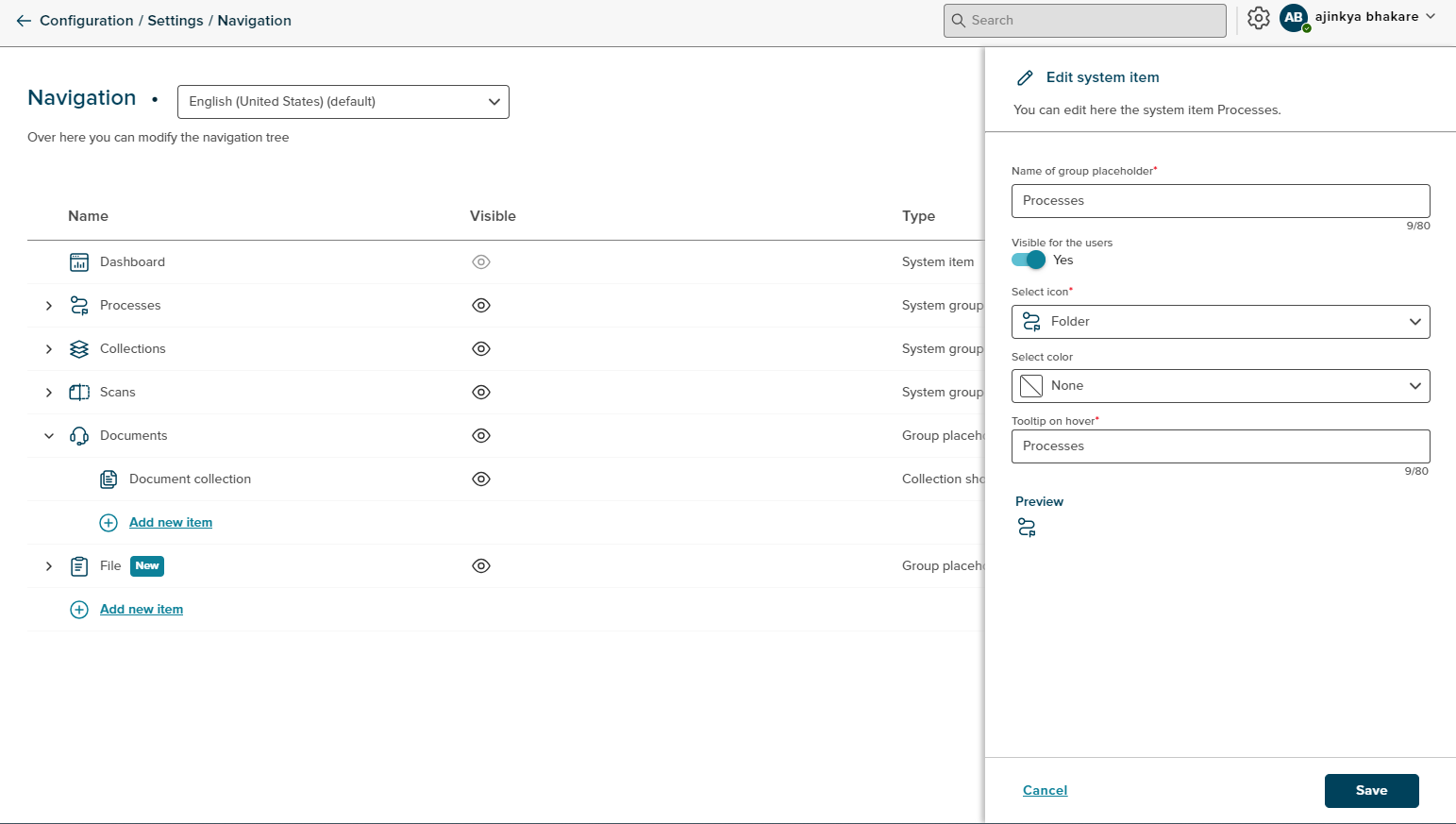
Using the edit option from the Kebab menu, the User can edit the Name of group placeholder, Selected icon, Selected colour and Tooltip on hover in the sidepanel and save it by clicking on the Save button and can cancel it by clicking on the Cancel button.
¶ Hide Function
Users can hide all the items in the Navigation tree except Dashboard.
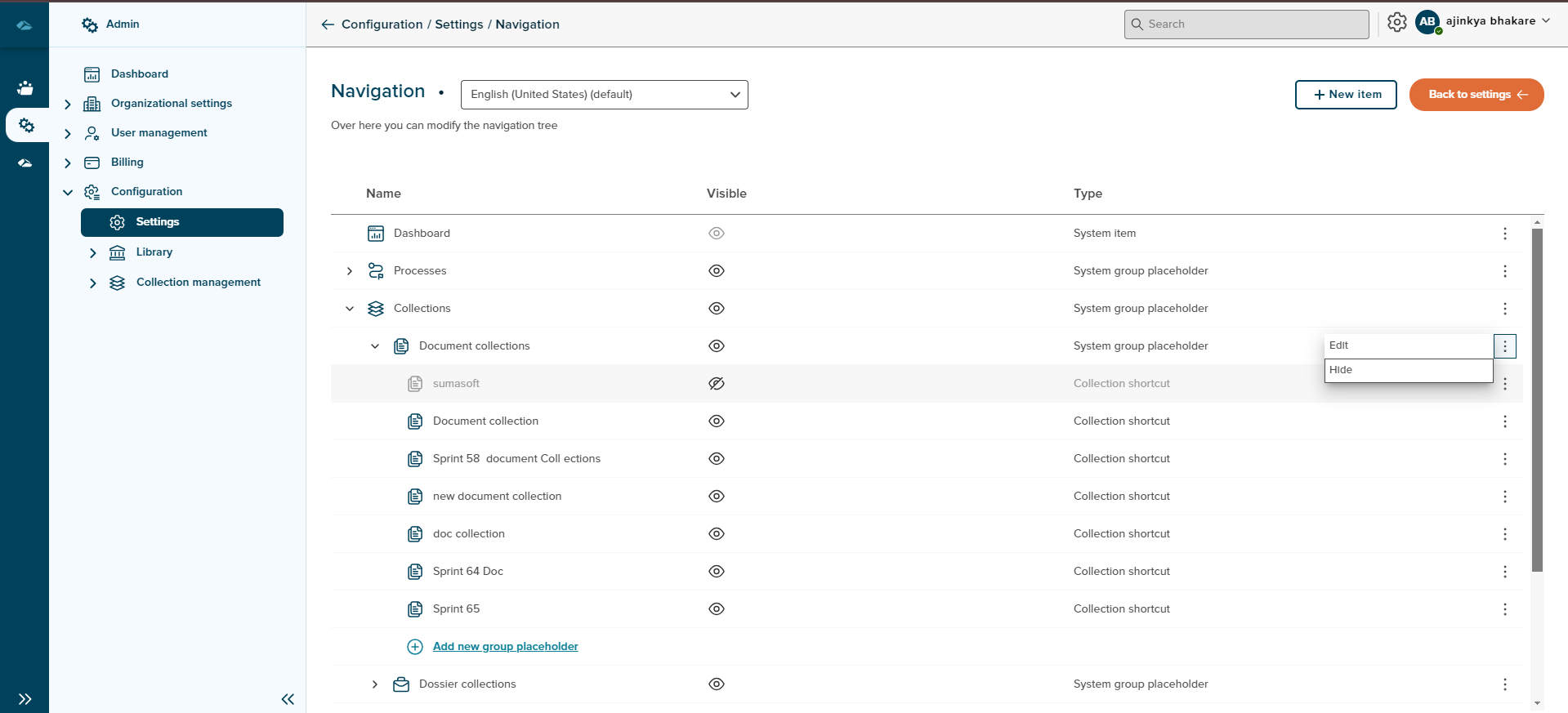
- When the User hides the System Group Placeholder/System Collection/Collection Shortcut then the User will get a popup message that
- You’re not only hiding the group placeholder but also all the layers below, it will not be visible for the user anymore.
No, I’m not & Yes, I’m sure
- When the User hides the Collection shortcut from inside the Group placeholder then the User will get a popup message that
-
One or more shortcuts to collection [Collection name.] also exists elsewhere. Do you want to hide these shortcuts to this collections as well?
No,don’t hide them & Yes,hide them
¶ Unhide Function
Users can Unhide all the items in the Navigation tree which are hidden
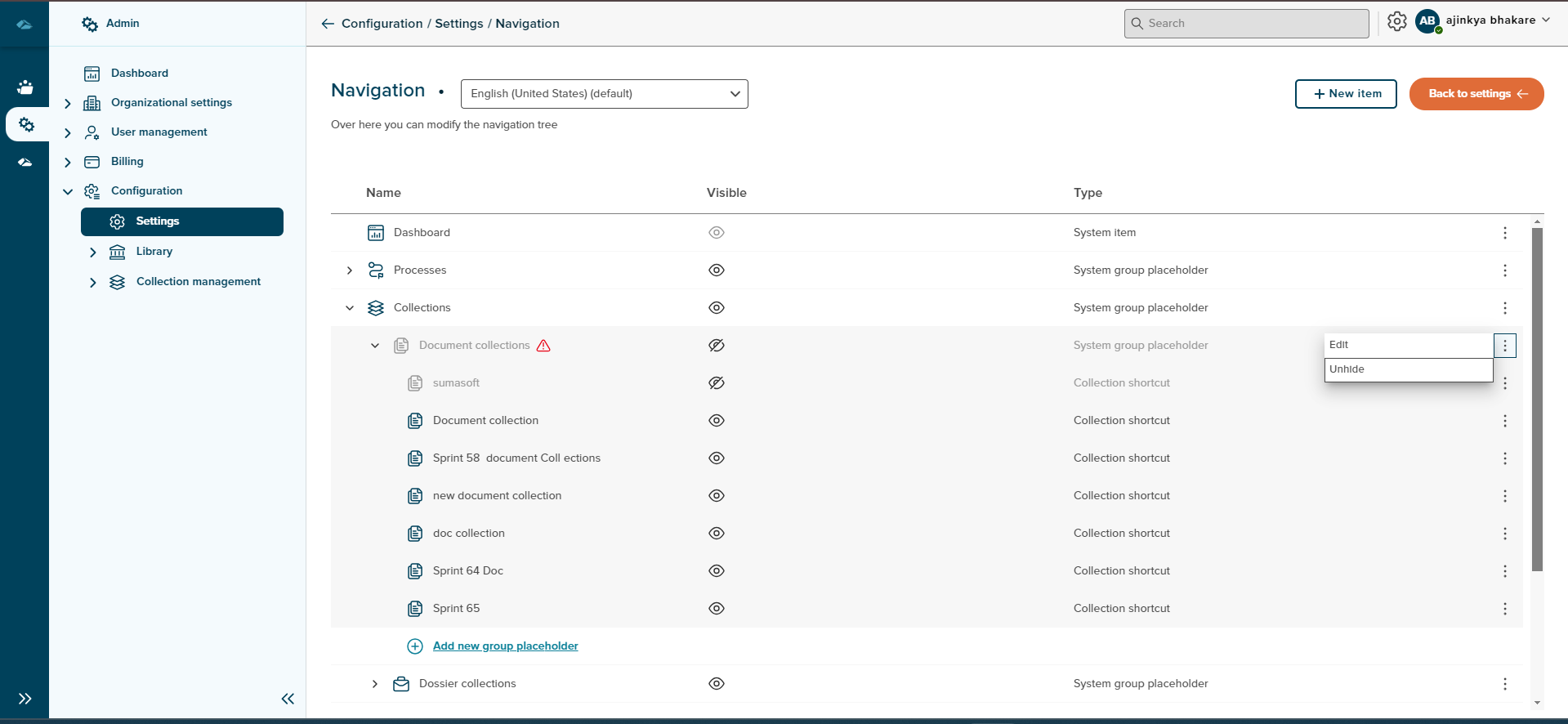
- When the User unhides the System Group Placeholder/System Collection/Collection Shortcut then the User will get a popup message that
- You’re going to make the group placeholder visible again. All the layers below that are also marked as visible will be visible again for the user.
No, I’m not & Yes, I’m sure
- When the User unhides the Collection shortcut from inside the Group placeholder then the User will get a popup message that
- [Collection name ] also exists elsewhere. Do you want to make it visible there as well?
No,don’t Unhide them & Yes,Unhide them
¶ Move into function
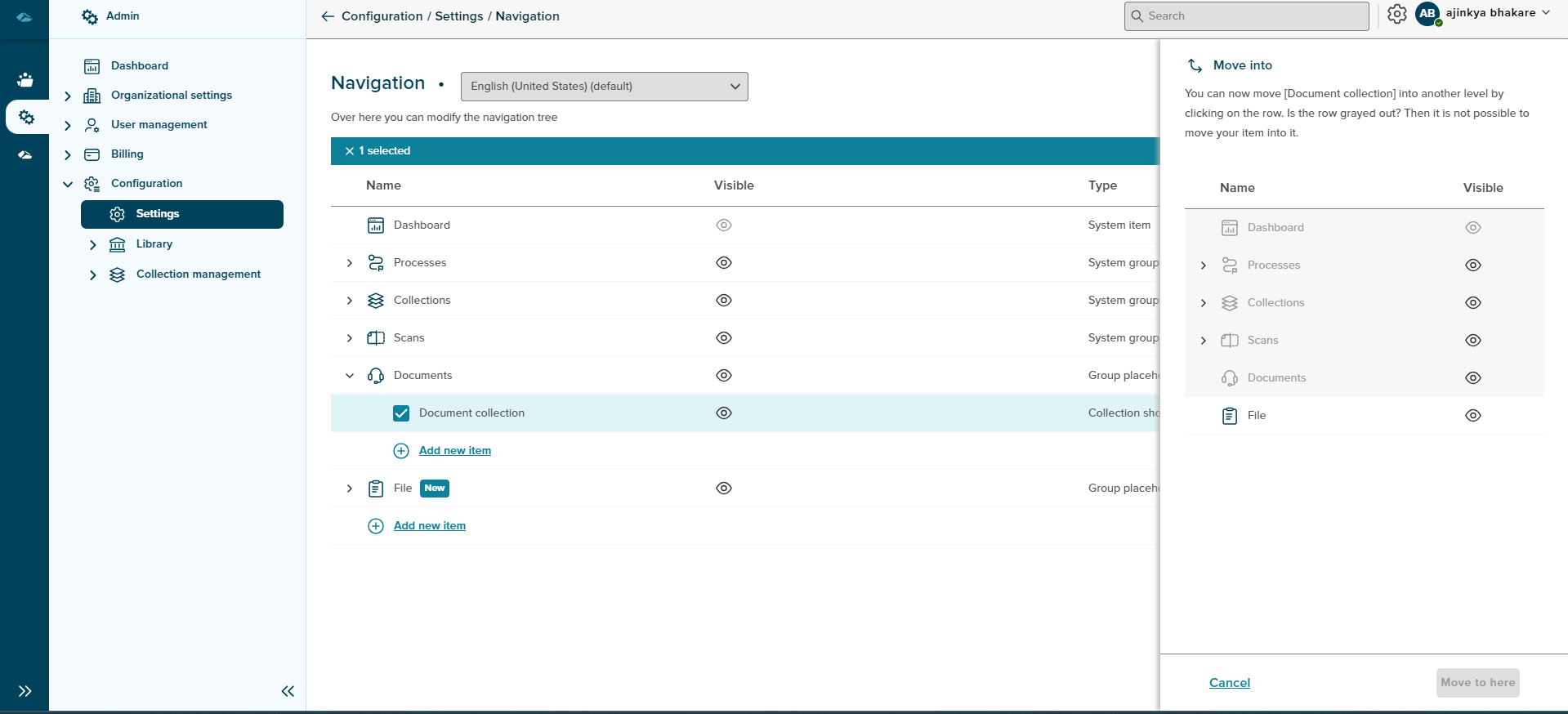
Users can move the Group placeholder and Collection Shortcut(s) into Group placeholder. If the Collection Shortcut(s) is already present in the Group placeholder then the User cannot move that same Collection Shortcut(s) into Group placeholder.
- When the user clicks on the kebab option of a Group placeholder or Collection Shortcut, the Move into option will appear. After clicking on Move into, a side panel will open, allowing the user to select the Group placeholder where they want to move the items.
¶ Delete/Remove Function
Users can delete/remove the Group placeholder and Collection Shortcut(s)
from the Navigation Tree.
When the user clicks on the kebab option of a Group placeholder or Collection Shortcut, the Delete/Remove option will appear. After clicking on Delete/Remove, the user will receive a confirmation message for the deletion of the items.
-
Are you sure you want to delete the group placeholder [group placeholder name]? Be aware of that all the layers below will be deleted as well.
No, I’m not & Yes, I’m sure -
Are you sure you want to remove collection shortcurt [ collection name]?
No, I’m not & Yes, I’m sure