¶ Upload files
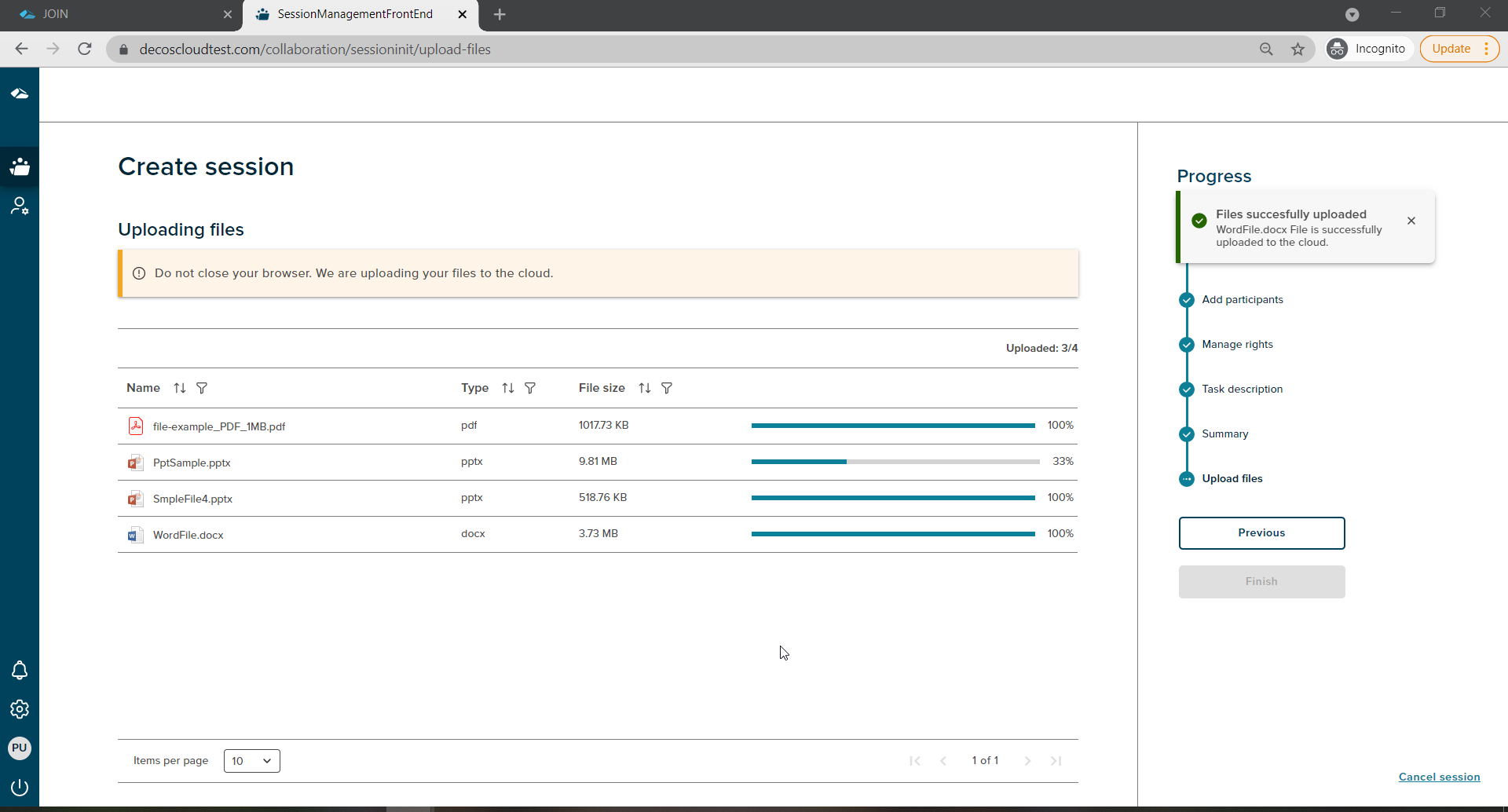
As you edit and overview the details for Session creation on the Summary page with the Collaboration Web version, this is the last step of uploading your selected files to the session. The selected files will be uploaded to the session once you land on this step.
Besides every file being uploaded, a progress bar will be shown with a percentage of progress. Once the file is uploaded successfully, a confirmation message pop-up is displayed at the top right corner of the page. A warning message is shown while uploading files stating to not close the browser until the files are uploaded. Initially, the Finish button will be disabled, when all the files upload are completed, the Finish button will be enabled. The total count of the files is displayed on the top of the files grid.
¶ Failed to upload a file??
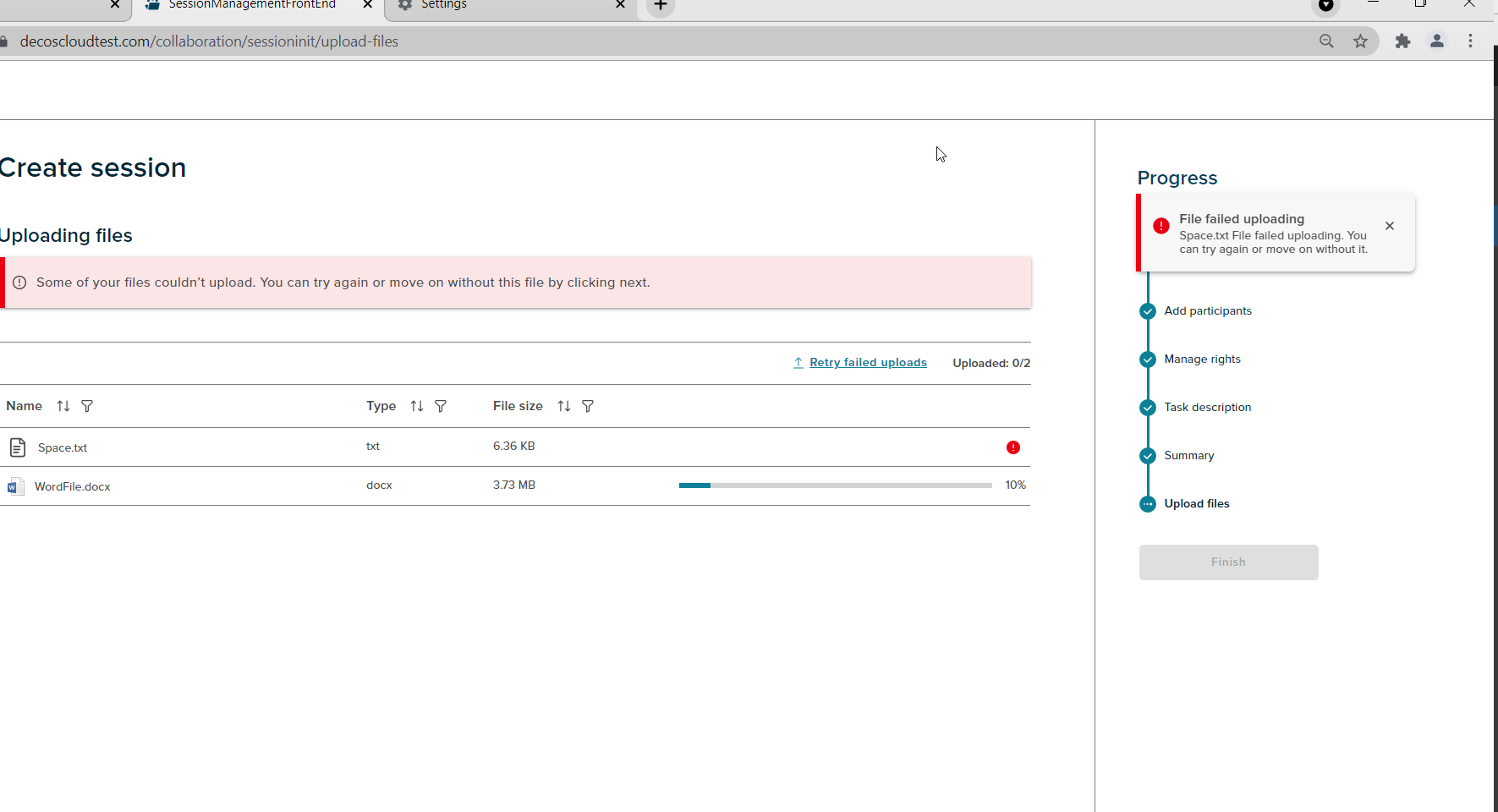
If the file upload fails due to some error, a failure pop-up will be displayed with a retry failed uploads. With a click of this button, the files will start to upload again thereby facilitating the creation of a session smoothly.
On click of the Finish button, the session is created successfully and the user is navigated to the Session Overview page.
Sort
Every column in the table can be sorted in ascending or descending order. The application supports mutiple sort as well. If any of the columns have multiple entries of the same name/size/type/description then user can sort another column in addition to the previous one.
Filter
Every column in the table has a filter icon against its name. On click of the icon, filter popup shows up. The popup has all the items from the selected column. User can select one or more items with a click on the checkbox. Select all option is also available. Once selected click on Apply button to apply the changes. Click on Cancel button will discard the changes.
Search
There is a search feature available in the filter popup. User can search for any item by entering text within the column. If there are no matches to the entered search a validation message is shown.
Lazy loading
All the files on the list have an infinite scroll, User can scroll and access each of the files
Cancel Session
If a user wants to cancel the session,then the progress chart section has a ‘Cancel session’ link at the bottom right corner. On click of the ‘Cancel session’ link a popup will be shown. There are two options on cancel, On Click of the ‘No,I’m not’ button,the popup gets dismissed. The popup has a close button (X) as well, on click of close button the popup gets dismissed. If user clicks on the ‘Yes,I’m sure’ button the session is cancelled and user gets navigated to the collaboration dashboard.