¶ Session Details
On the Session Overview page, when the user clicks on the session name,the user gets navigated to the Session Details page. The session details page can also be reached from the ‘Details’ option in the kebab menu.
The Details menu item is highlighted, thus showing the details of the session. The Session Details page have breadcrumbs displayed on top of the page. The breadcrumb includes links to Session overview,Session name and Details. On Click of Overview, the user will be navigated to the session overview page.
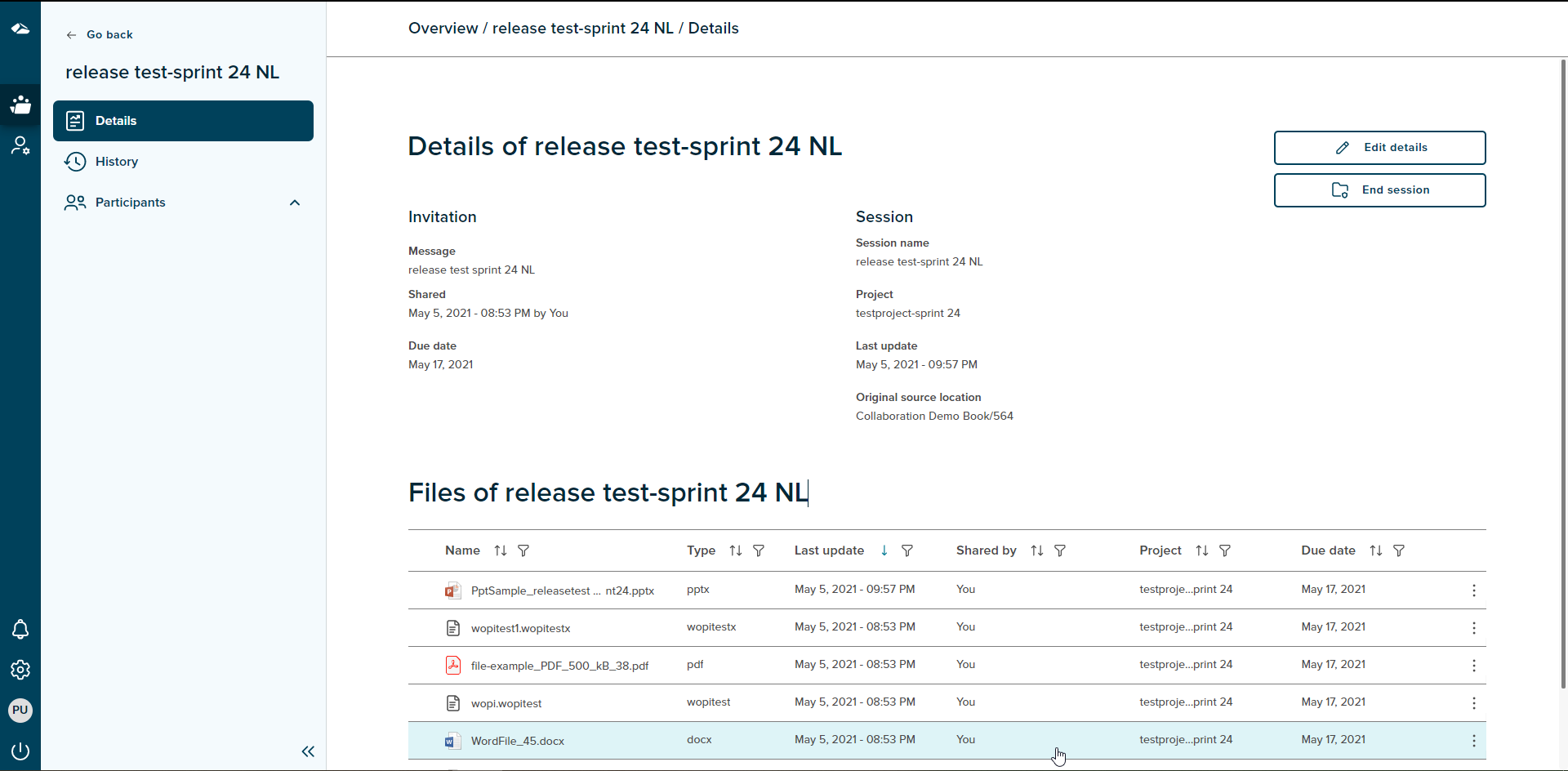
The Session details page, has a menu bar to the left, which includes the below items
- Go back
On click of Go Back link, user gets navigated to the session overview page - Session name
Shows the name of the session - Details
Shows the session details page - History
The session audit history is shown on this page. - Participants
The Invite and Rights option are seen only to the session initiator.
Invite
The session initiator can invite other participants using this menu item.
Rights
The session initiator can assign rights on files to the participants.
The Session Details page shows the Details of a session and the files which are added to the session. The Details includes Invitation and Session details. The Invitation details shown are Message, Shared and Due date.
-
Message
This is the task description entered by the session initiator during the session creation. -
Shared
This shows the timestamp when a session is created. -
Due date
The due date entered during creation of session by user is mentioned. By default, the due date is calculated as two weeks form the current date.
The Session details includes session name, project name, Last update and Original source location.
-
Session name
The name of the session entered by user is shown here. -
Project name
The project name associated with session name is displayed. When there is no project selected, this is shown as blank. -
Last update
This shows the timestamp when a session is created or last updated. -
Original source location
It mentions the Document name to which the session belongs along with its sequence number.
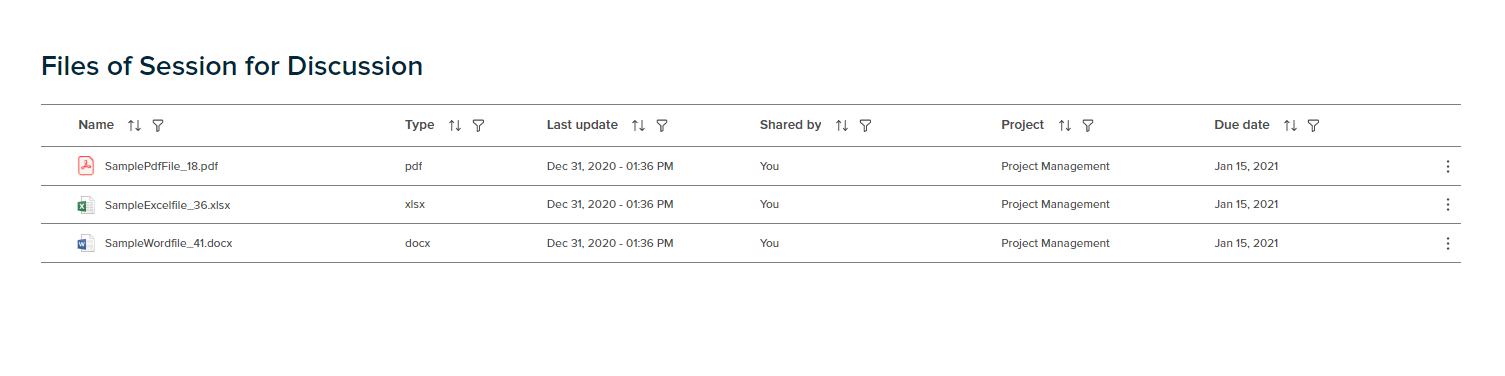
Files
This section displays the list of files a session initiator adds to a session during session creation.
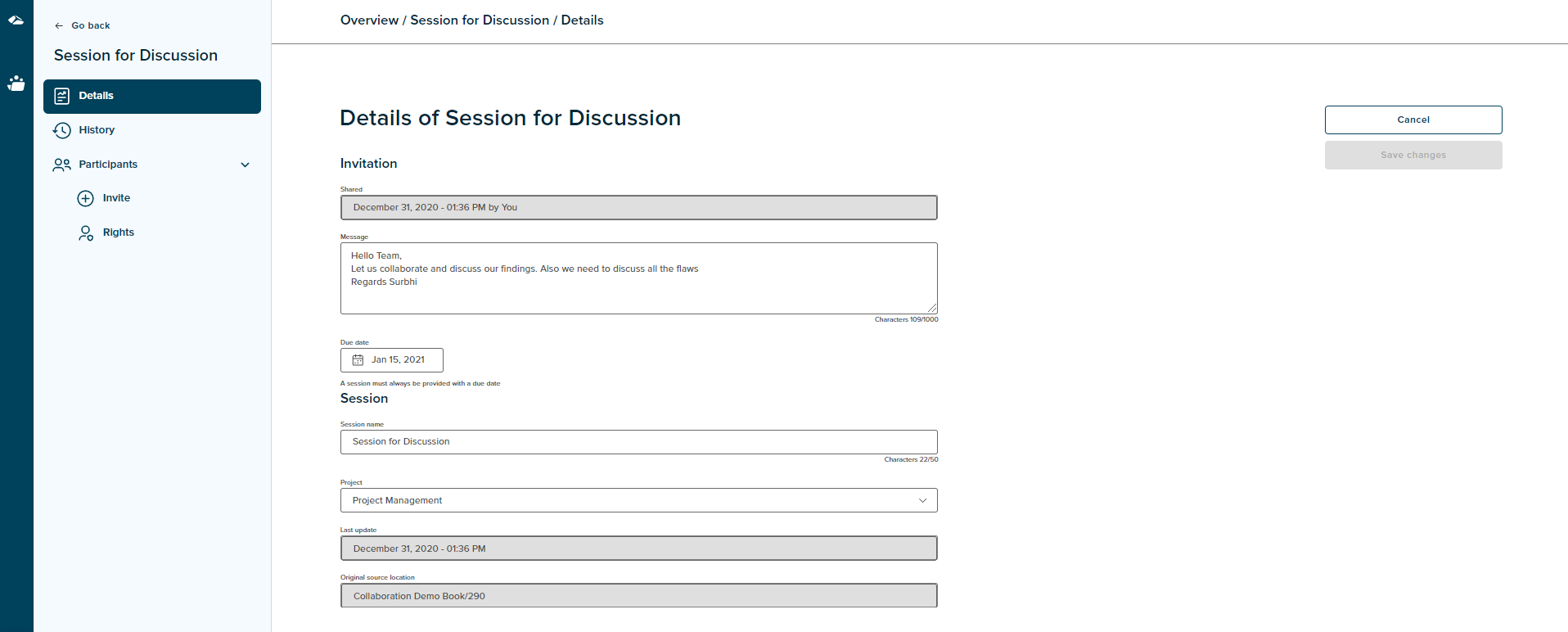
The Session Details page has two features ‘Edit Details’ and ‘End Session’.
- Edit Details
The Edit Details feature allows a session initiator to edit the session details. The fields that can be edited include Message, Due date, Session name and Project. Session name is the only required field.The ‘Save Changes’ button is enabled only when the user edits any content.
On click of ‘Cancel’ button the user will get navigated to the details page and no changes will be saved.
- End Session
The End Session feature allows a session initiator to end the current session.On click of it a confirmation popup is shown with two options: 'No, I’m not", and “Yes, I’m sure”. On click of 'No, I’m not" button the user will be taken back to session details page. On click of “Yes, I’m sure” button, the session ends and the session name is removed from the list on session overview page.
¶ Session Details with Case collection
The session details page contains information about the session initiated with the above mentioned details. The kebab menu options are available at the file level. The user can collapse or expand the files view by clicking on the Document level or by clicking on the arrow besides the Document.
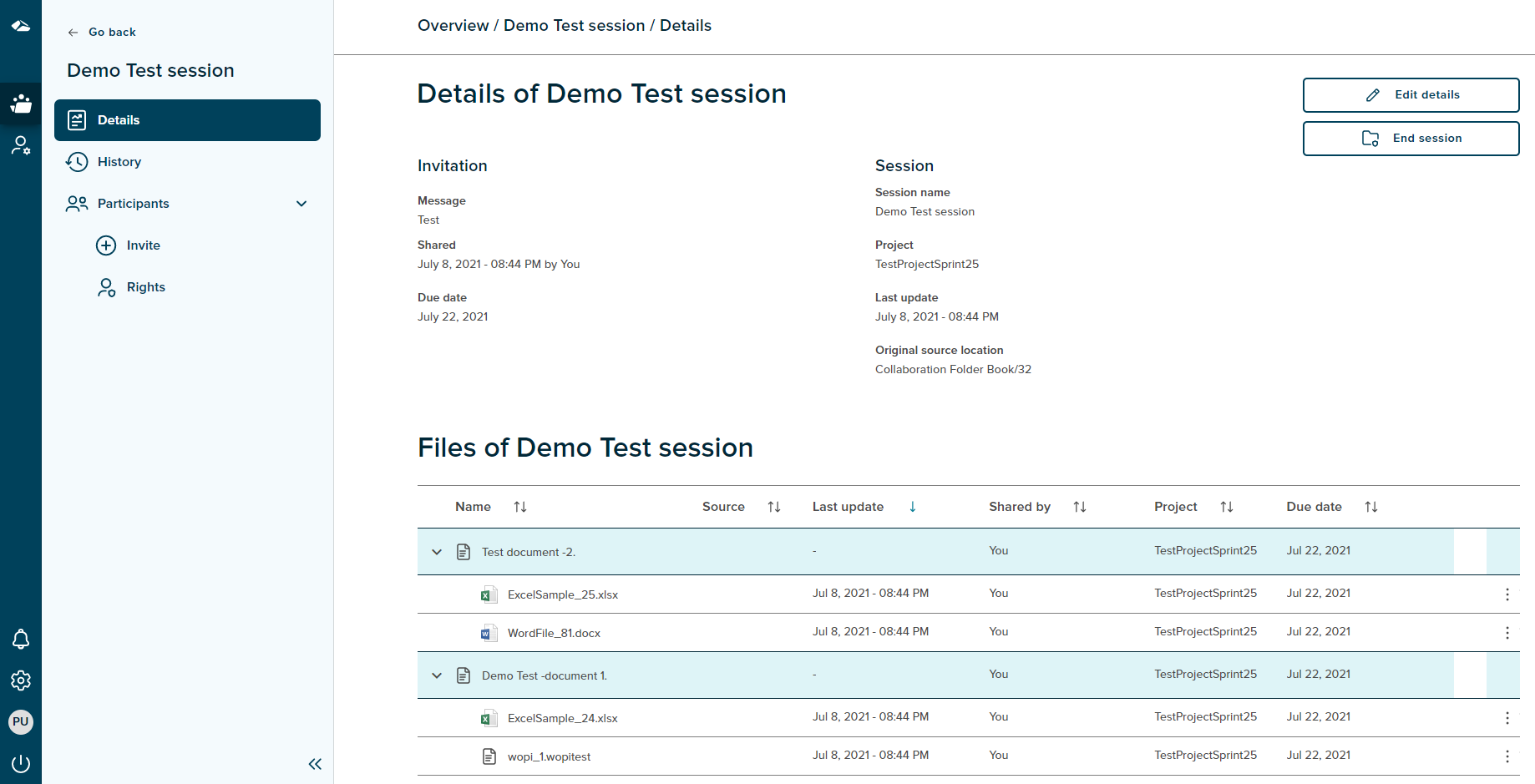
Features on this page includes:
Filters
Every field in the table has a filter icon next to it. On click of an icon, filter popup shows up and displays all the items present in the list. The popup includes Select All option, Ascending, Descending and search field box. User can search for the required content by typing it in search box. User can select one or more items by selecting the checkbox. Once selected, click on ‘Apply’ button to apply the changes. Click on Cancel button will discard the changes.
Sort
A Sort icon is present against every field which allows a user to sort and display the data in either ascending or descending or in a default order.
Pagination
User can control the number of items displayed per page using ‘Records per page’ button present at the bottom of the page. It contains various options i.e 10,15,30,50. These value depicts the number of items to be displayed per page. If the number of items per page exceeds the limit the feature of ‘Next’ and ‘previous’ page is enabled at the bottom right corner and the user can navigate back and forth between the pages.