¶ Which files would you like to share?
Here we show a list of files available for the session initiator to select.
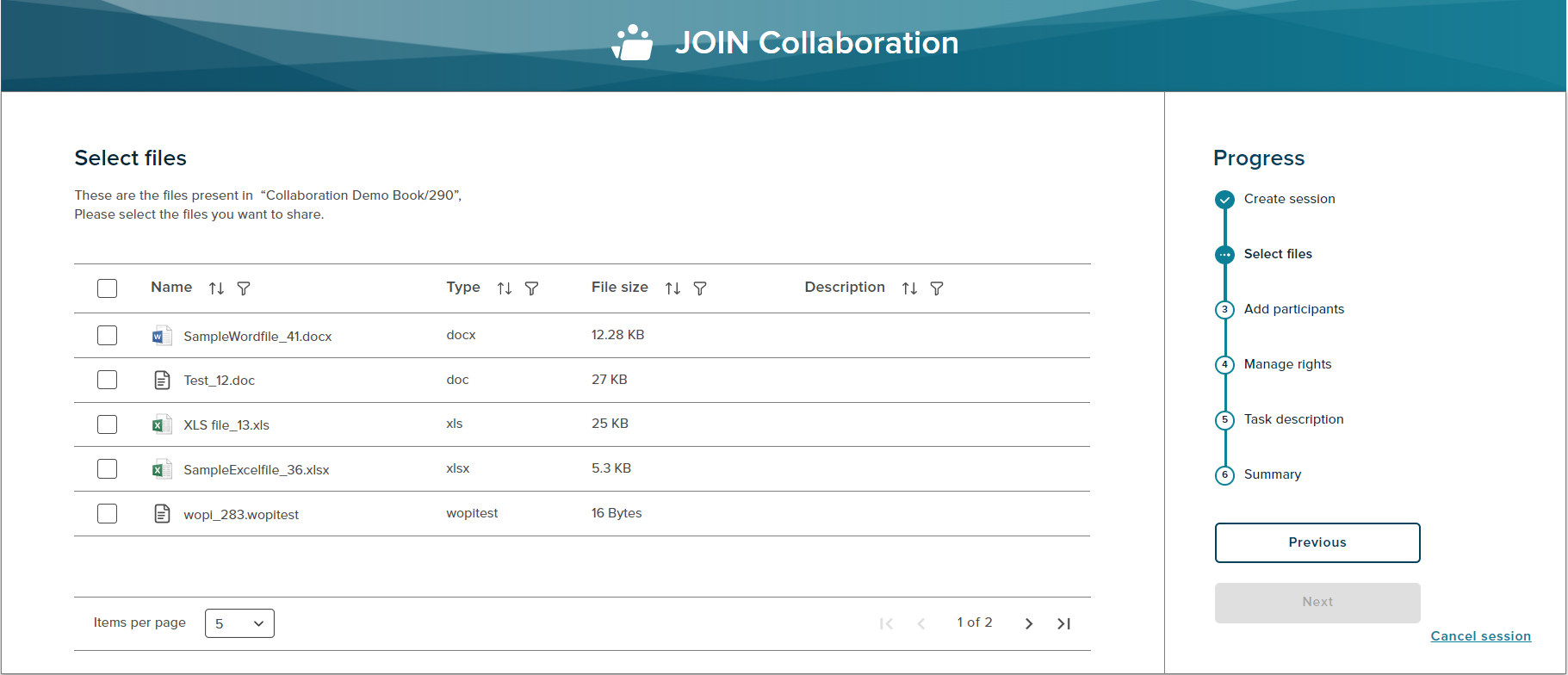
The select files description mentions the Container name and the sequence number of the document to which these files belong.
The Select files page show all the files attached to the document. The Initiator can choose the files which needs to be collaborated from this list.
The Progress chart shows Select files as the current state. User will not be able to proceed until one of the files is selected.
¶ Select files – Case-collection Version
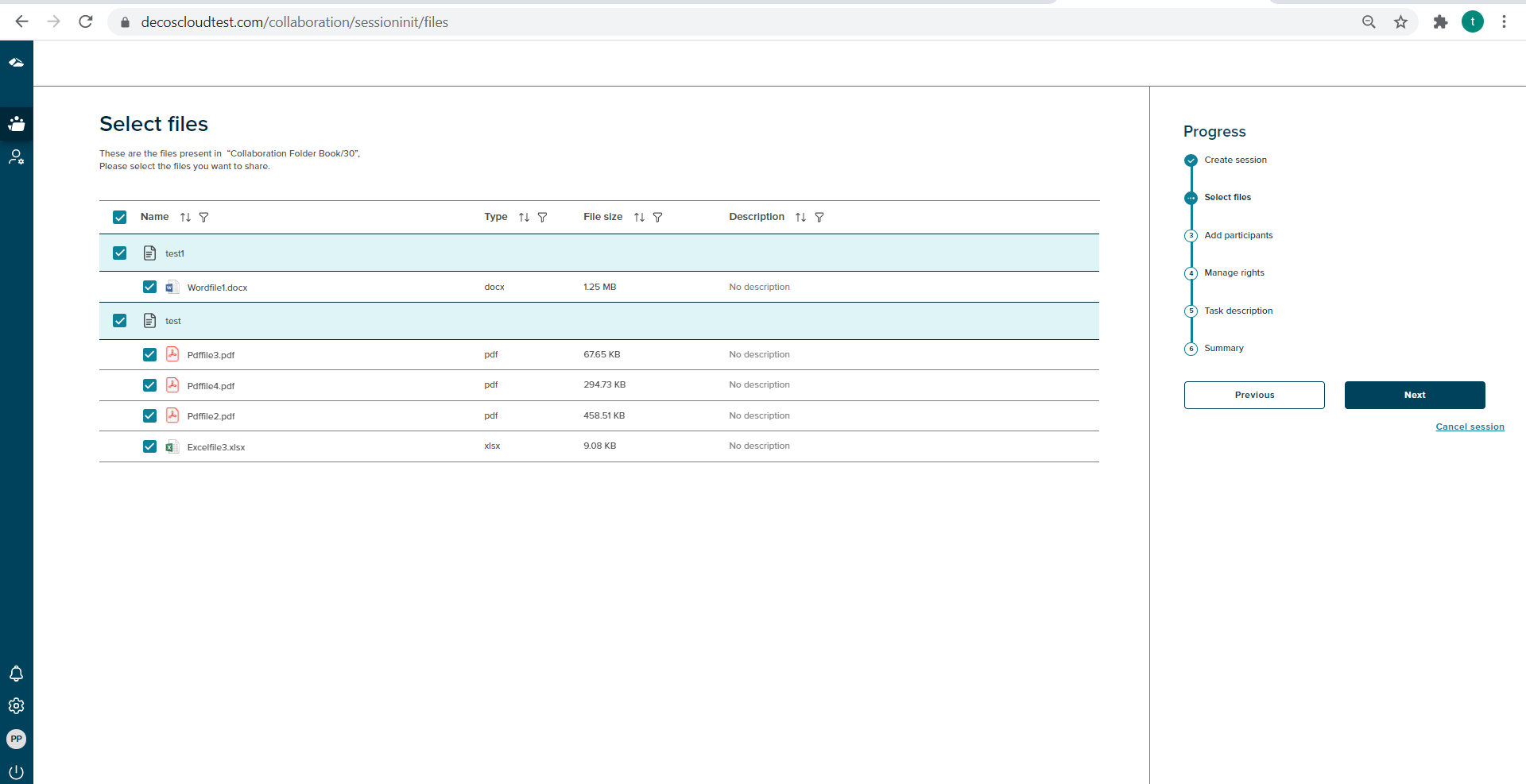
The Select files page show all the documents attached to the folder along with files. The Initiator can choose the files which needs to be collaborated from this list. The Progress chart shows Select files as the current state. User will not be able to proceed until one of the files is selected.
¶ Select files – Collaboration-Web
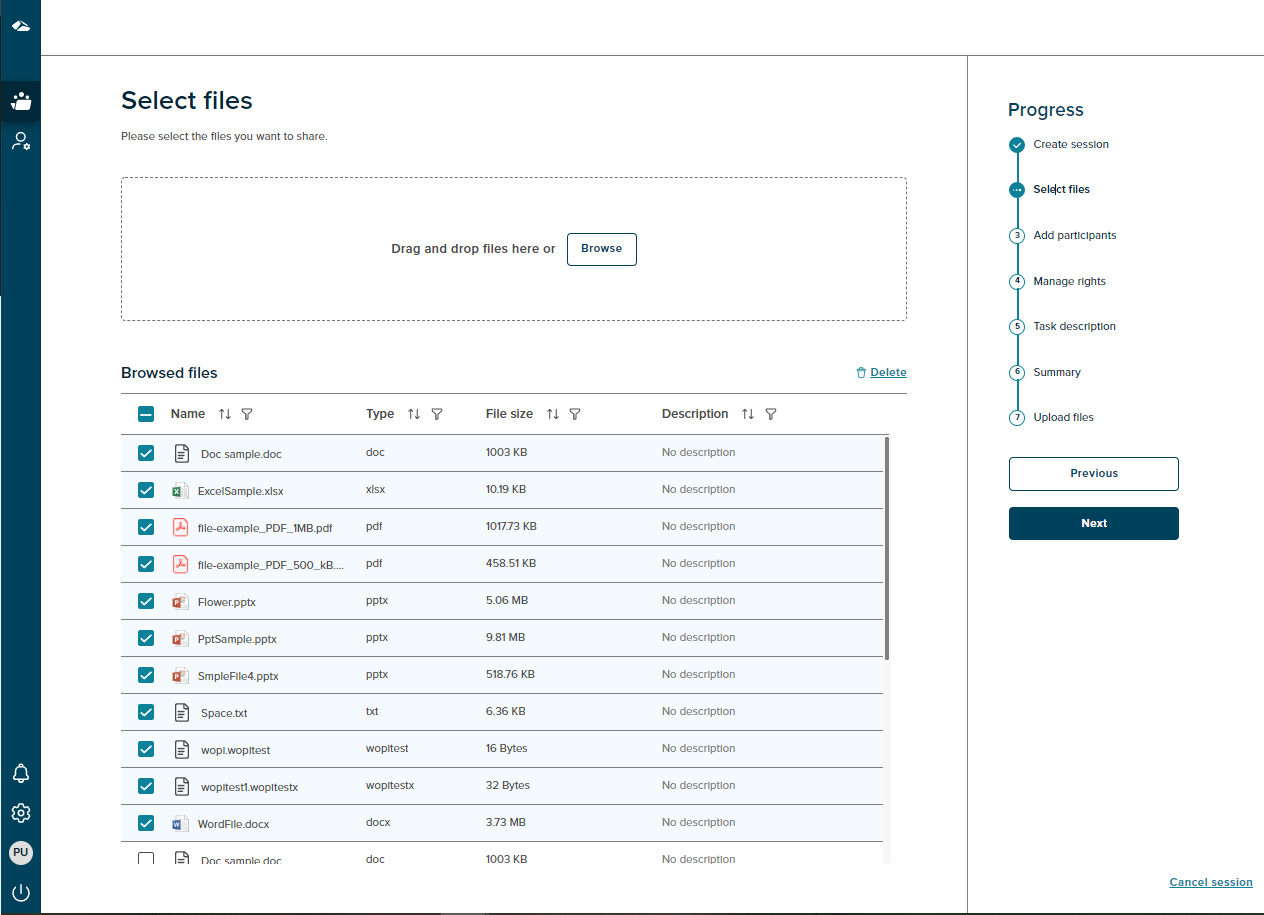
With this version, on the select files page, the files can be added using either of the options ‘Drag and Drop’ feature or the ‘Browse’ button. On click of the Browse button, the window for files selection pop-up.
The User can select the files and add them or drop them in the box. The added files will be selected by default. A Delete button is available at the top of the files view. User may select and delete the unwanted files.
¶ Features available on the select files page
Select all
Users can click on the checkbox adjacent to the ‘Name’ column to select all the files present on the list.
File selection at document level
User can select multiple files at document level.
Sort
Every column in the table can be sorted in ascending or descending order. The application supports mutiple sort as well. If any of the columns have multiple entries of the same name/size/type/description then user can sort another column in addition to the previous one.
Filter
Every column in the table has a filter icon against its name. On click of the icon, filter popup shows up. The popup has all the items from the selected column. User can select one or more items with a click on the checkbox. Select all option is also available. Once selected click on Apply button to apply the changes. Click on Cancel button will discard the changes.
Search
There is a search feature available in the filter popup. User can search for any item by entering text within the column. If there are no matches to the entered search a validation message is shown.
Lazy loading
All the files on the list have an infinite scroll, User can scroll and access each of the files
Cancel Session
If a user wants to cancel the session,then the progress chart section has a ‘Cancel session’ link at the bottom right corner. On click of the ‘Cancel session’ link a popup will be shown.
There are two options on cancel, On Click of the ‘No,I’m not’ button,the popup gets dismissed.The popup has a close button (X) as well, on click of close button the popup gets dismissed. If user clicks on the ‘Yes,I’m sure’ button the session is cancelled and user gets navigated to the collaboration dashboard.