¶ Manage sessions
Manage sessions page lets the collaboration admin user to manage the existing sessions.
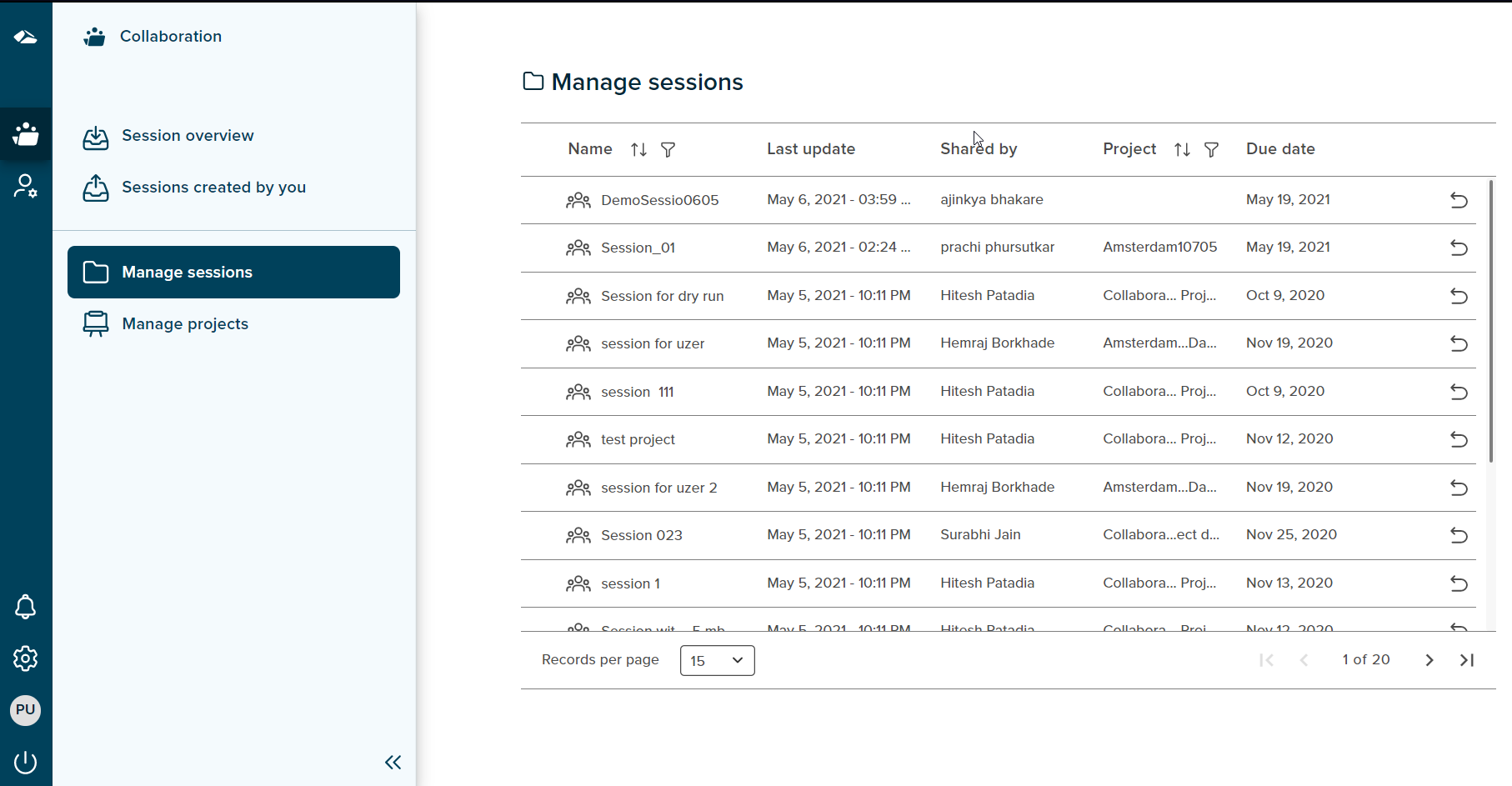
-
¶ End session
End session feature allows a collaboration admin user to end any of the existing sessions on the manage sessions page. The End session icon is seen on the right hand side of a session, on click of it a confirmation popup is shown with two options: 'No, I’m not", and “Yes, I’m sure”. On clicking 'No, I’m not" option the user will be taken back to session overview page. On clicking “Yes, I’m sure” option, the session ends and the session name is removed from the list on session overview page.
Features available in this module are as follows:
¶ Filters
Every column in the table has a filter icon next to it. On click of an icon, filter popup shows up and displays all the items present in the list. The popup includes Select All option, Ascending, Descending and search field box. User can search for the required content by typing it in search box. User can select one or more items by selecting the checkbox. Once selected, click on ‘Apply’ button to apply the changes. Click on ‘Cancel’ button will discard the changes.
¶ Filter option in Name and Type column
On click of the expand icon next to the session name, file names present in the session are displayed in the filter list. User can then filter the list by selecting the desired items. The file type (.ppt,.pdf) will be displayed in the type field.
¶ Sort
A Sort icon is present against every field which allows a user to sort and display the data in either ascending or descending or in a default order.
¶ Pagination
User can control the number of items displayed per page using ‘Records per page’ button present at the bottom of the page. It contains various options i.e 10,15,30,50. These value depicts the number of items to be displayed per page. If the number of items per page exceeds the limit the feature of ‘Next’ and ‘previous’ page icon is enabled at the bottom right corner and the user can navigate back and forth between the pages.