On this page, the ‘Manage projects’ menu item is highlighted on the left side of the collaboration menu.
¶ Manage Projects
The Collaboration admin user can add a new project, rename a project name or delete any of the existing projects. On this page, all the projects names are listed along with their respective session count.
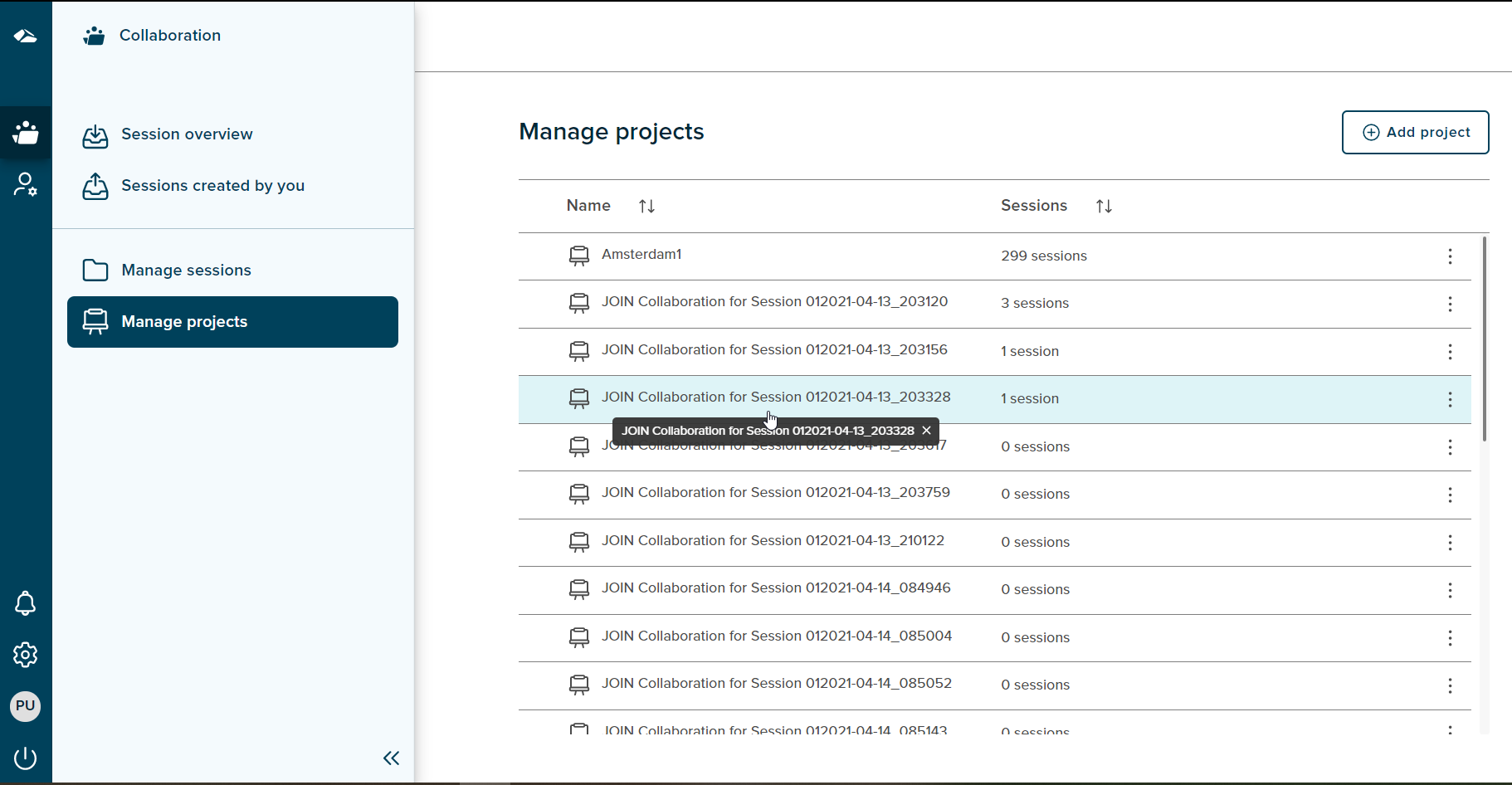
¶ Add a new project
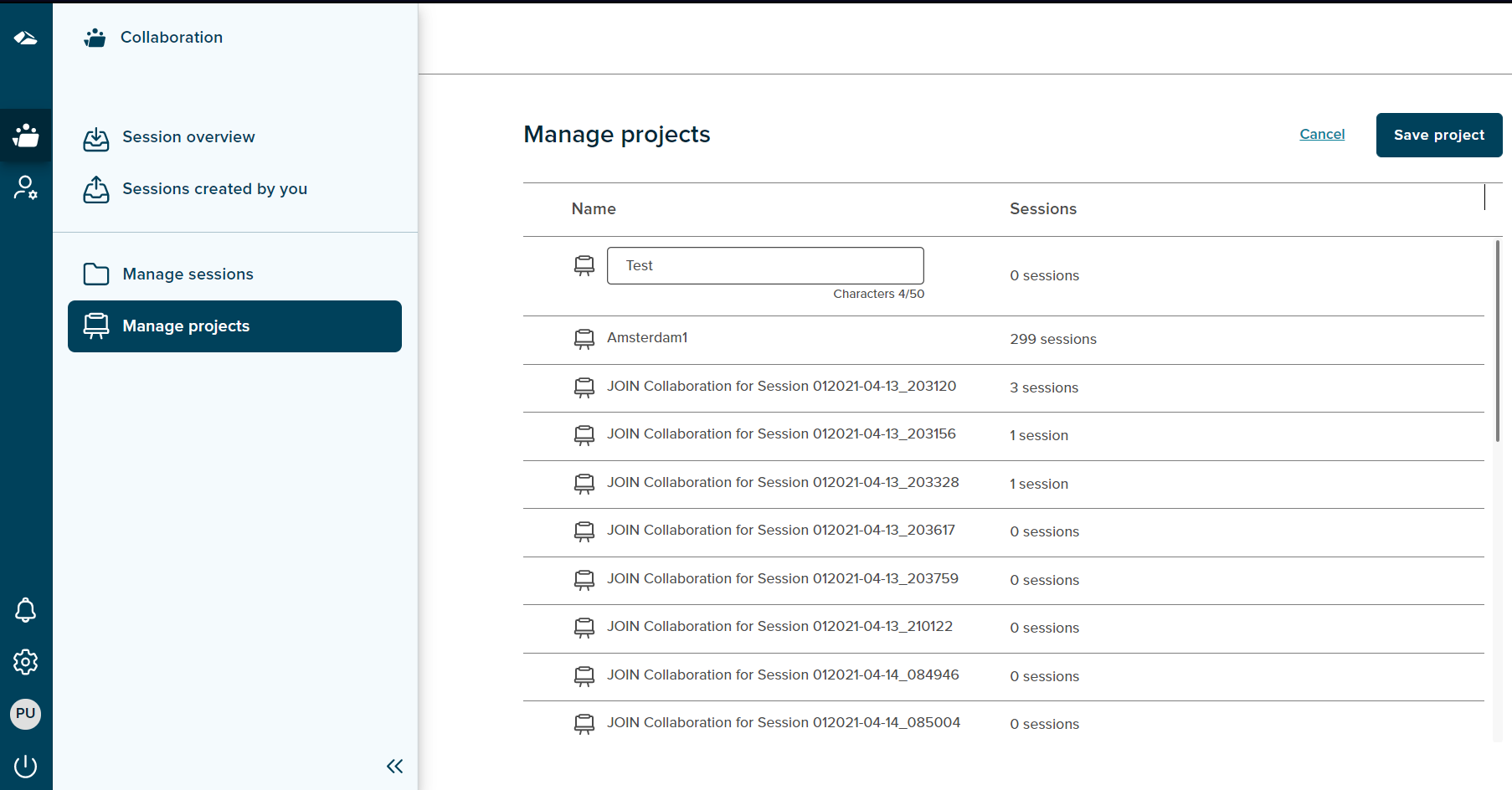
On click of ‘Add project’ button, a new project name field is created and user can add a project name to it. There are two buttons shown i.e. ‘Save project’ and ‘Cancel’ button. The ‘Save project’ button is enabled once a project name is added.On save, the newly added project is displayed in the list with a ‘New’ tag next to it. The ‘Cancel’ button is always enabled. On click on the ‘Cancel’ button the project creation process is ended.
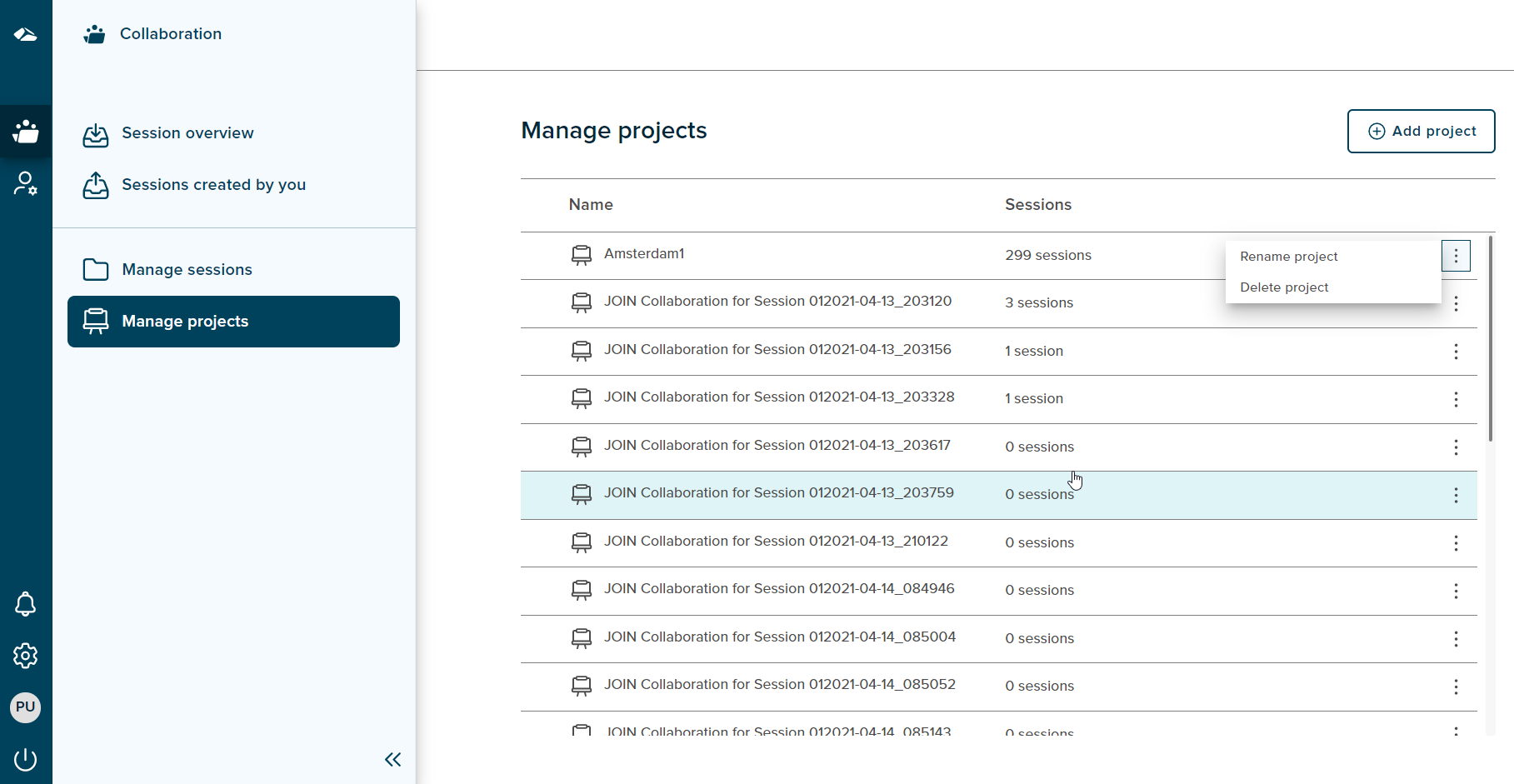
A kebab icon is seen against every project on manage projects page. It includes ‘Rename Project’ and ‘Delete Project’.
-
Rename a project
On click of this option from the Kebab menu, the user can edit the project name and click on ‘Save project’ button. This will confirm the changes and the new project name will be displayed in the list. -
Delete Project
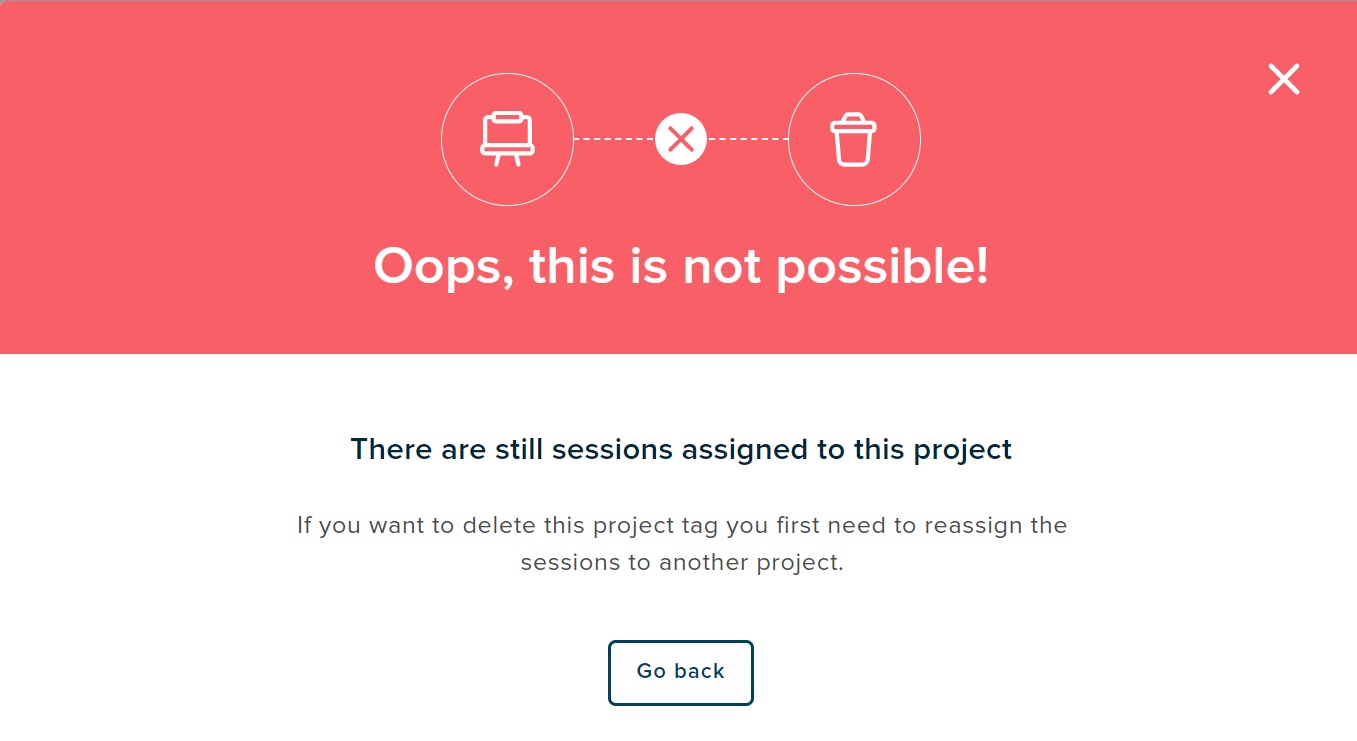
On click of ‘Delete’ option, user will be given a warning message saying if sessions are associated with it, it cannot be deleted. If no sessions are associated with a project, the user will be allowed to delete the project name.
¶ Features available in this module are as below
Sort
The user can sort the ‘Name’ and the ‘Session’ column by clicking the sort icon displayed next to the field name. On clicking the sort icon next to the ‘Name’ column, the project name will be sorted in alphabetical order and the ‘Session’ column will be sorted based on the number of sessions per project in either ascending order or descending order or default.
Lazy loading
The user can scroll the page and the a specific amount of data per scroll will be displayed as the user scroll down.