¶ Manage files
The user can manage all the existing files as a session initiator.
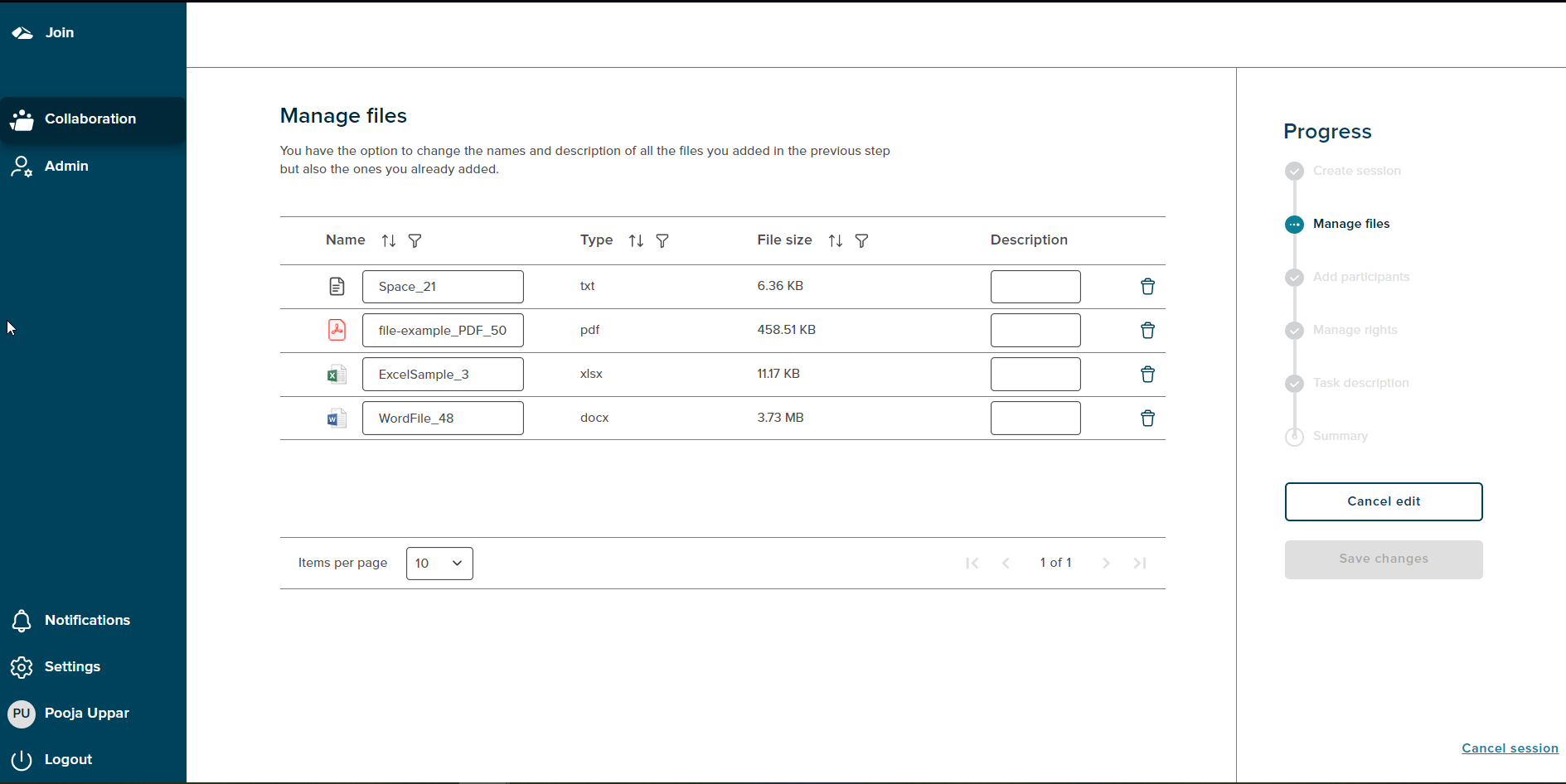
The user can change the name and description of the files added on the ‘select files’ page.
There are two buttons on the Manage file page ‘Save changes’ and ‘Cancel edit’. When a user makes any changes in the name or description field, the ‘Save changes’ button is enabled. The changes made are then seen on the summary page.On click of ‘Cancel edit’ button the changes made are discarded and not seen on the summary page.
The Progress Chart shows ‘Manage files’ as the current state.
¶ Manage files with Case Collection
The tenant user can change the file name and the file description for added files and delete the files from the list. When a change is being made to the existing fields the Save changes button will be enabled and on click of this button the changes made will be saved. The changes made will be displayed on the Summary page.
The files view can be collapsed and expanded using the arrow next on the Document level.
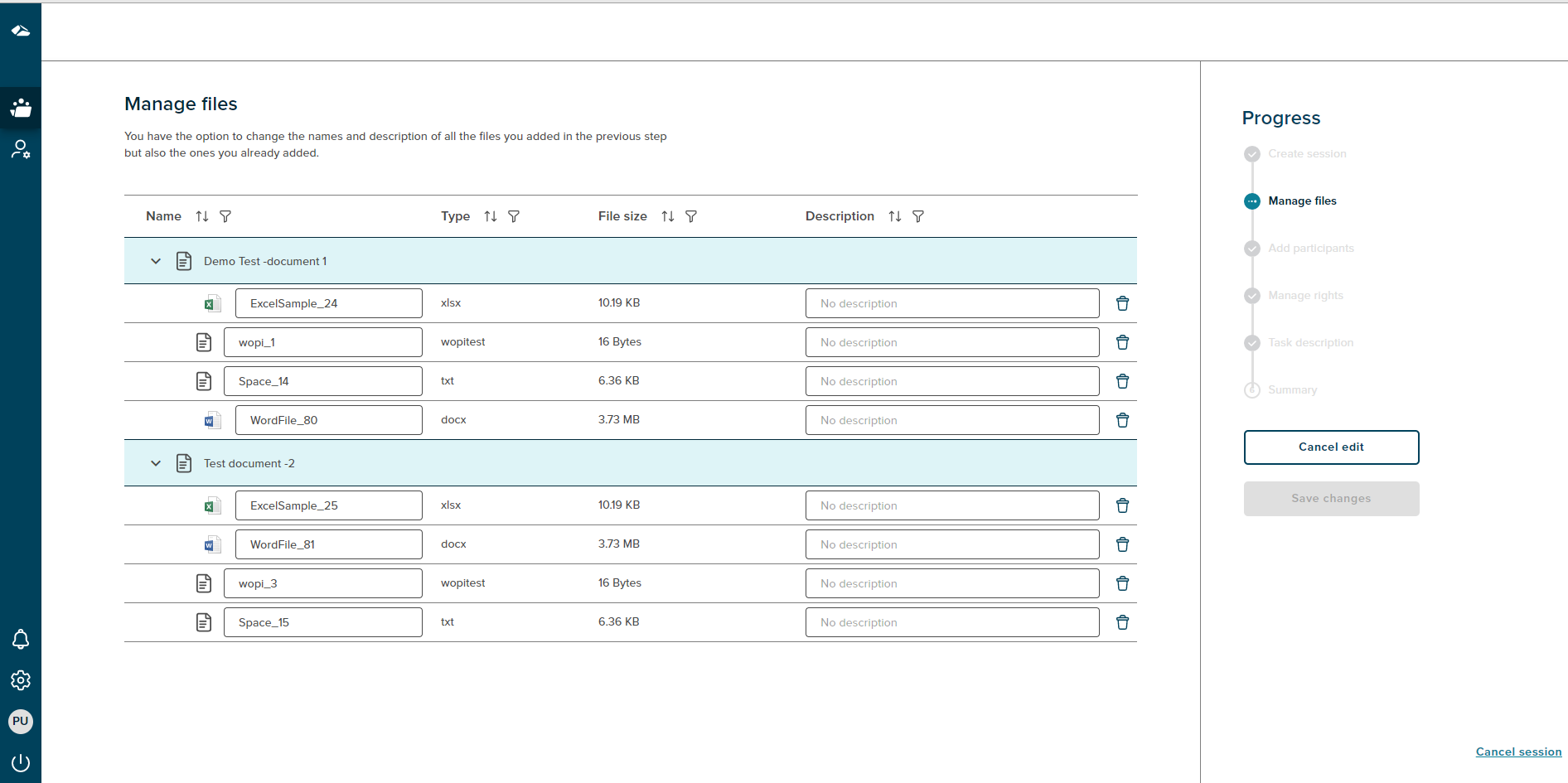
Features available on the the ‘Manage files’ page are as follows:
Filters
Every column in the table has a filter icon next to it. On clicking the icon, filter popup shows up and displays all the items present in the column. User can select one or more items by selecting the checkbox to view the results. ‘Select all’ option is also available. Once selected, click on the ‘Apply’ button to apply the changes. Click on Cancel button will discard the changes.
Search
A search field is present in the filter pop-up which allows the user to search for desired content and view in the column.
Sort
An sort icon is given besides every field which allows to sort and display the data in either ascending or descending order.
Delete
A delete icon is available with every file which allows user to delete a particular file.
Pagination
User can control the number of items displayed per page using ‘Records per page’ button present at the bottom of the page. It contains various options i.e 10,15,30,50. These value depicts the number of items to be displayed per page. If the number of items per page exceeds the limit the feature of ‘Next’ and ‘Previous’ page icon is enabled at the bottom right corner and the user can navigate back and forth between the pages.
Cancel Session
If a user wants to cancel the session,then the progress chart section has a ‘Cancel session’ link at the bottom right corner. On click of the ‘Cancel session’ link a popup will be shown.
There are two options on cancel, On Click of the ‘No,I’m not’ button,the popup gets dismissed.The popup has a ‘Close’ button (X) as well, on click of close button the popup gets dismissed. If user clicks on the ‘Yes,I’m sure’ button the session is cancelled and user gets navigated to the collaboration dashboard.