¶ File Details
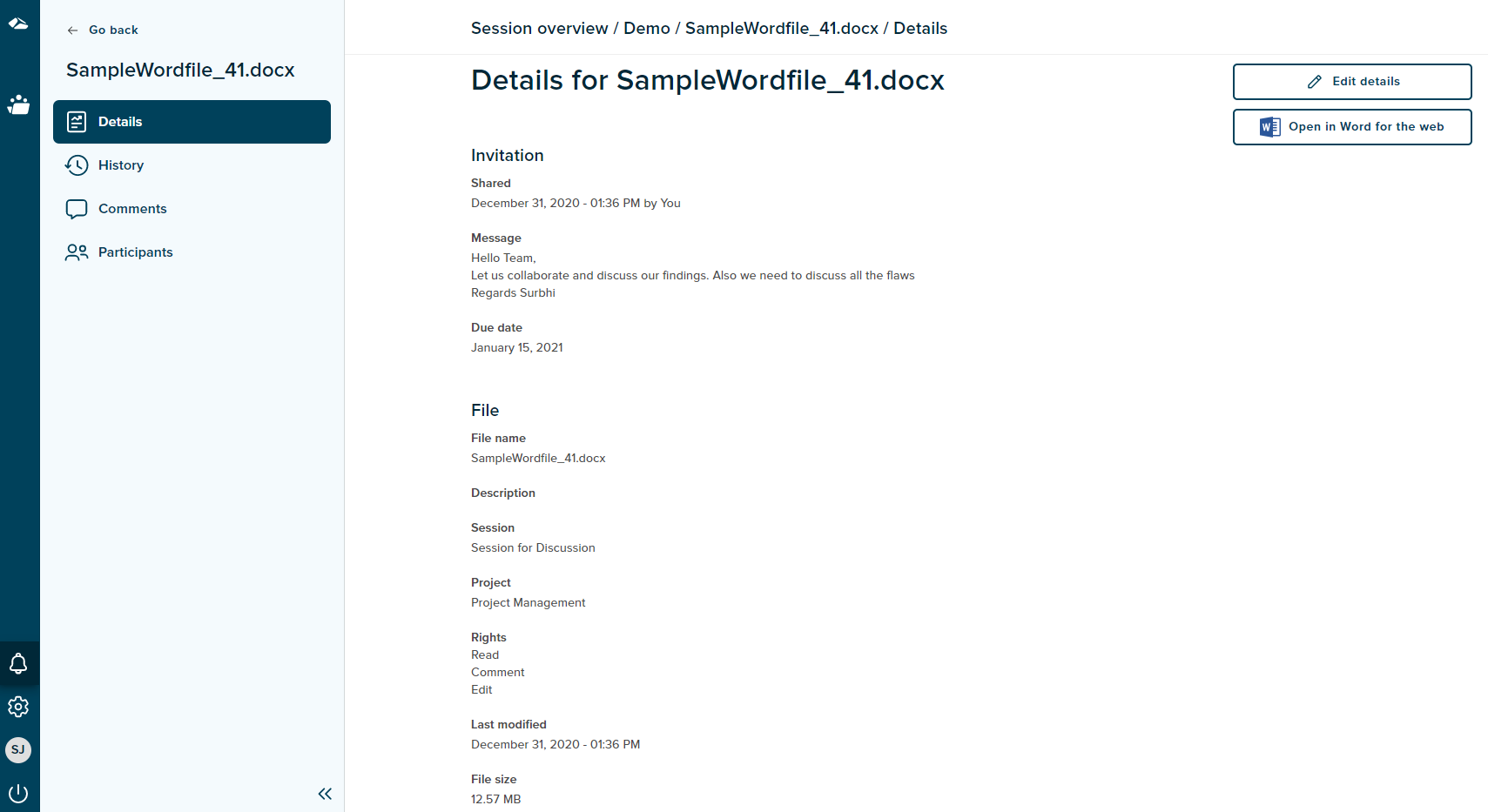
On the Session Details page, the files added in the session are displayed. When the user clicks on the file name, the user gets navigated to the File Details page. The file details page can also be reached from the ‘Details’ option in the kebab menu.
The Details menu item is highlighted, thus showing the details of the file. The File Details page have breadcrumbs displayed on top of the page. The breadcrumb includes links to Session overview, Session name, File name and Details. On Click of Overview, the user will be navigated to the session overview page.On Click of Session name , the user will be navigated to the session details page.
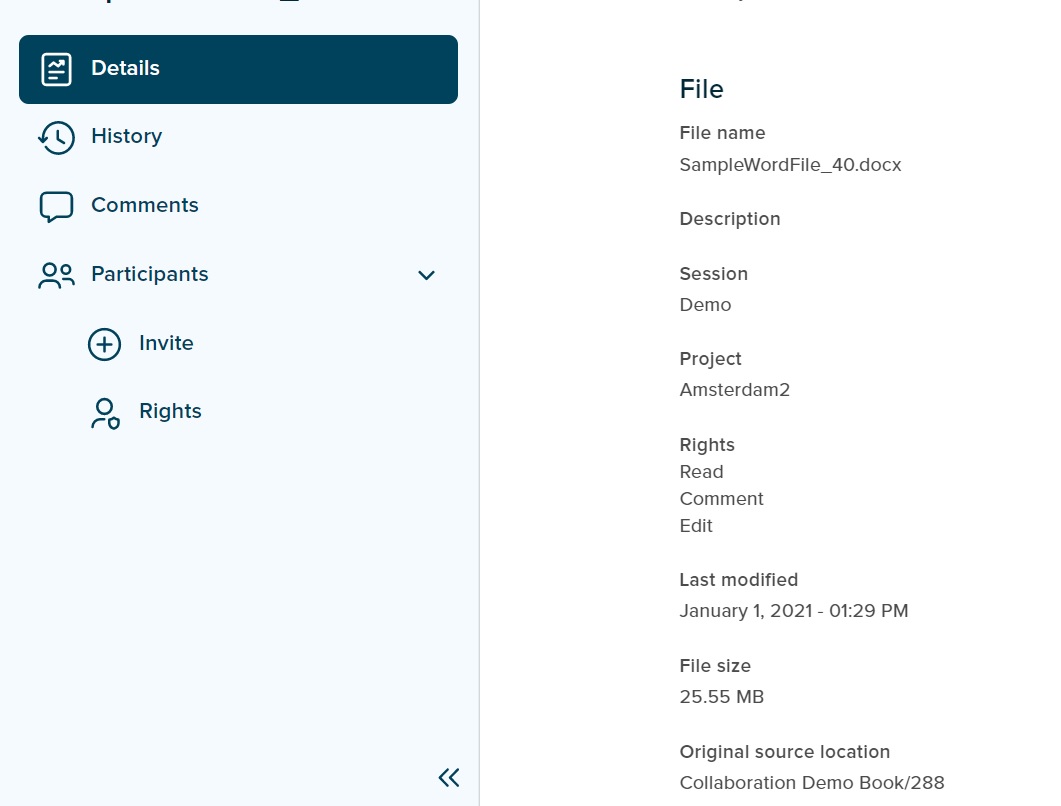
The File details page, has a menu bar to the left, which includes the below items
- Go back
On click of Go Back link, user gets navigated to the session overview page - File name
Shows the name of the file - Details
Shows the session details page - History
The file audit history is shown on this page. - Comments
The comments added for the respective file will be shown here. - Participants
The Invite and Rights option are seen only to the session initiator.
Invite
The session initiator can invite other participants using this menu item.
Rights
The session initiator can assign rights on files to the participants.
The File Details page shows the details of a session and the respective file which is being used. The Details includes Invitation and File details. The Invitation details shown are Shared, Message and Due date.
-
Shared
This shows the timestamp when a session is created. -
Message
This is the task description entered by the session initiator during the session creation. -
Due date
The due date entered during creation of session by user is mentioned. By default, the due date is calculated as two weeks form the current date.
The File details includes File name, Description, Session, Project, Rights, Last modified, File Size and Original source location.
-
File name
The name of the file is displayed. -
Description
The description entered by user while adding a file in JOIN is displayed here. -
Session
The name of the session to which the file belongs is mentioned on this page. -
Project
The name of the project associated with session is displayed. -
Rights
The various rights given by the session initiator on the selected file for the logged in user is mentioned. -
Last modified
The time when the file was last modified. -
File Size
The size of the selected file is shown. -
Original source location
It mentions the Document name to which the session belongs along with its sequence number.
The File Details page has two features ‘Edit Details’ and ‘Open in 'filetype’for the web’.
- Edit Details
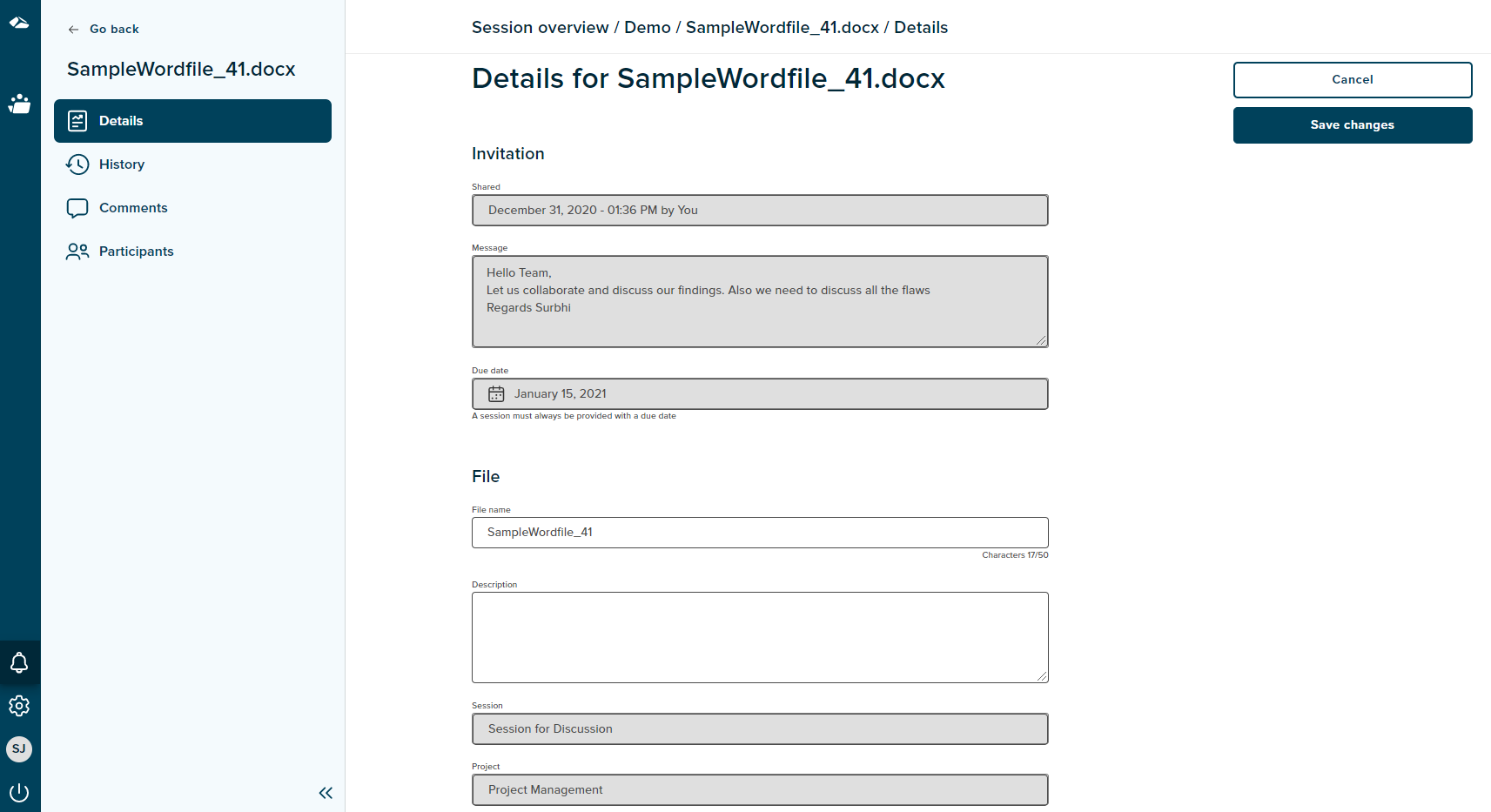
The Edit Details feature allows a session initiator to edit the file details. The fields that can be edited are file name and Description. File name is the only required field.The ‘Save Changes’ button is enabled only when the user edits any content.
On click of ‘Cancel’ button the user will get navigated to the details page and no changes will be saved.
- Open in Word for the web
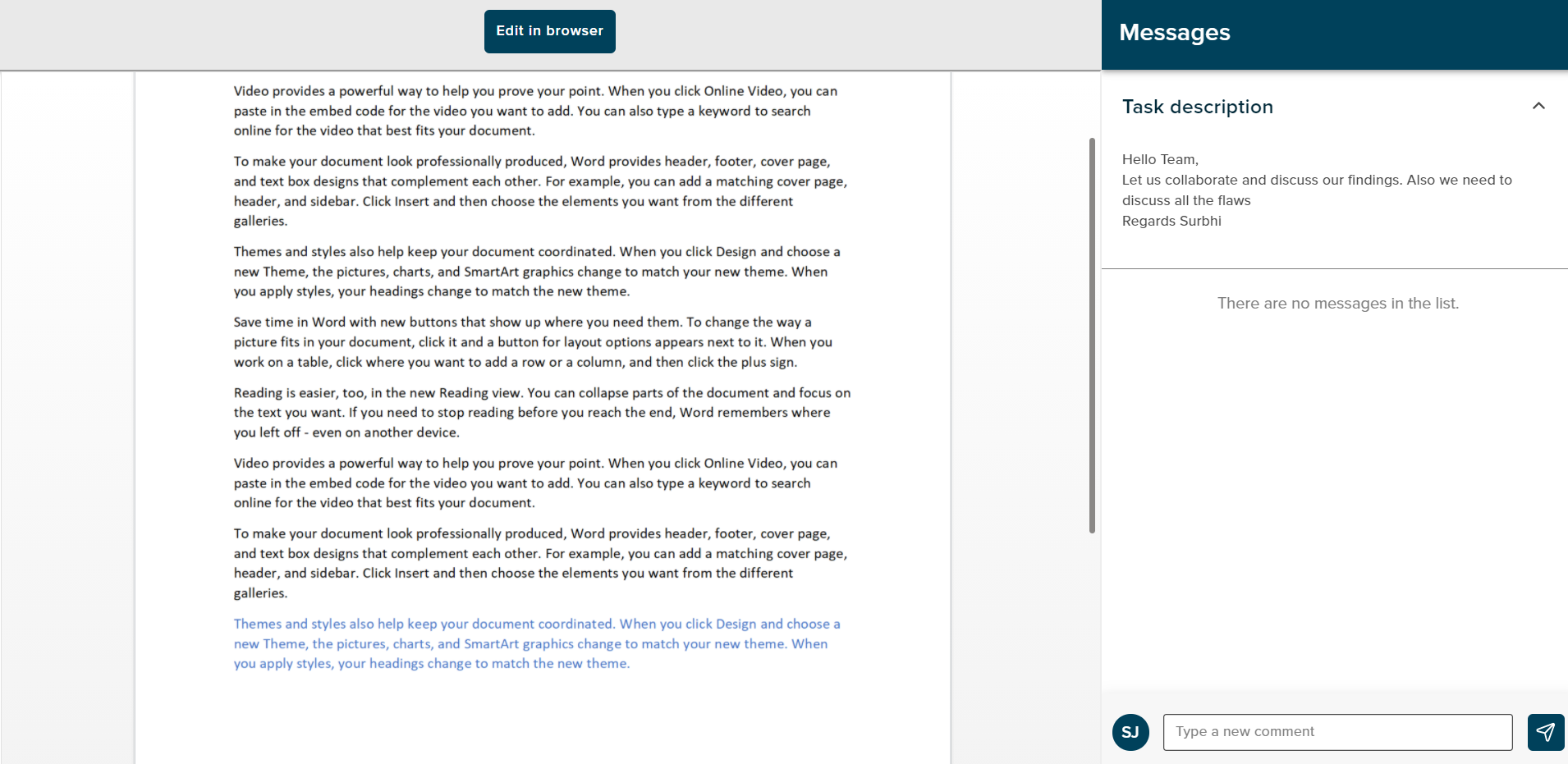
On click of this button, the user can view and edit the word file in the web browser.