¶ Creating a Session
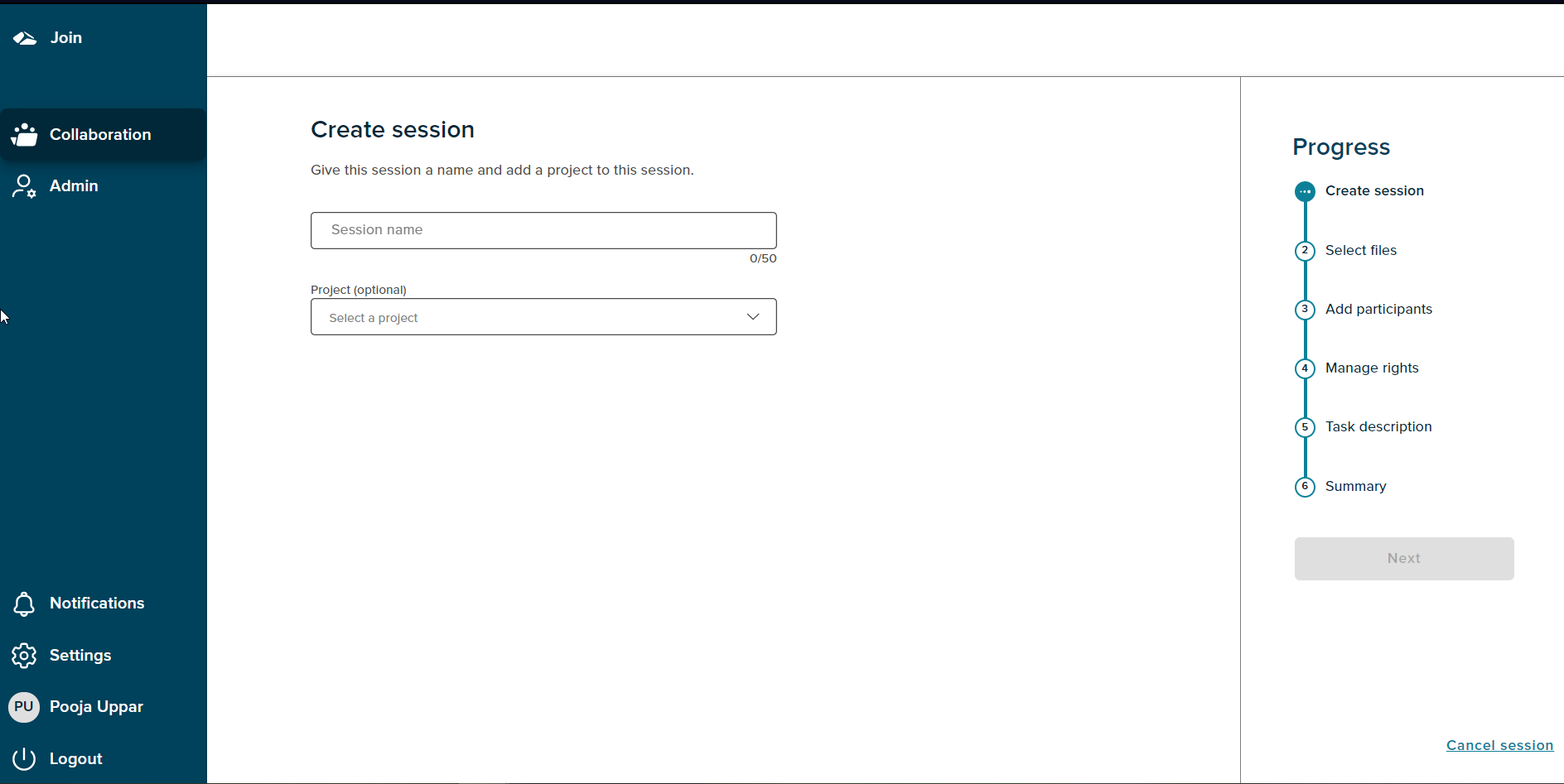
On this page, we have two fields ‘Session name’ and ‘Project name’. On the right, we have a Progress chart which depicts the current stage of the user. The current state is highlighted respectively.The ‘Next’ button is in disabled state intially. The side menu consists of the following elements similar to the collaboration dashboard.
Projects
-
¶ Join
On click of Join, the user will navigate to the portal screen. When the user logins to the collaboration application, the user is taken to the portal screen.
-
¶ Collaboration
On click of Collaboration we get a menu specific to collaboration project. The menu comprises of a title, Session Overview, Session Created by you and Manage sessions and manage projects sections.
-
¶ Admin
On click of it, the user is taken to the admin portal if the user has ‘Plt-admin’ role assigned.
¶ Notifications
This page consists of All notifications and notifications specific to projects, Collaboration and Fixi. It includes the details of the activity done on a session by different users.
¶ Settings
It is under implementation. It shows Coming soon page as of now.
¶ User Profile
It displays the name of the logged in user. The Avatar shown includes initials of the first name and last name of the user. The basic information about the user is displayed on this page which consists of the info: Name, organization and Department and Contact:email address and phone number and change password functionality. Also, the guest user has the facility to edit these data.
¶ Logout
On click of logout, a confirmation popup is shown with two buttons ‘Cancel’ and “Yes, I’m sure”. On select of the ‘Cancel’ option user will be navigated to the page in use before click on logout. On select of “Yes, I’m sure”, the logged in user gets a confirmation from the Identity server if user wishes to logout. On Click of Yes user needs to select the account and gets logged out successfully.
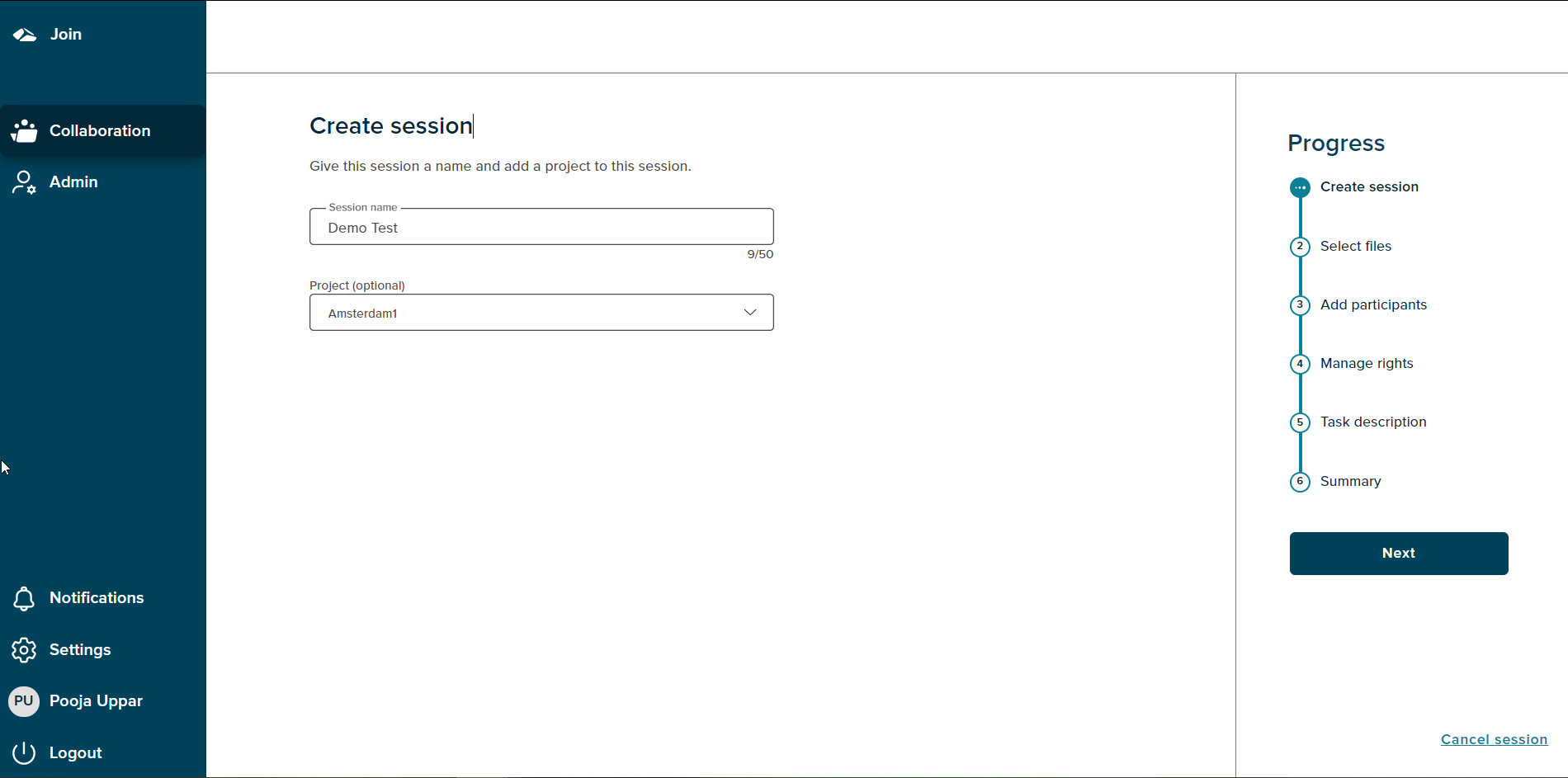
User needs to enter a session name and select a project from the list of available projects.The session name field supports upto 50 characters, there are no restrictions of any of the characters. The project name field is optional,and user can select ‘select project’ option if no project needs to be selected, otherwise user can scroll through the list of projects available in the dropdown.
Session name field is a required field and needs to be filled in order to proceed to the next step.
¶ Cancel Session
If a user wants to cancel the session,then the progress chart section has a ‘Cancel session’ link at the bottom right corner. On click of the ‘Cancel session’ link a popup will be shown.
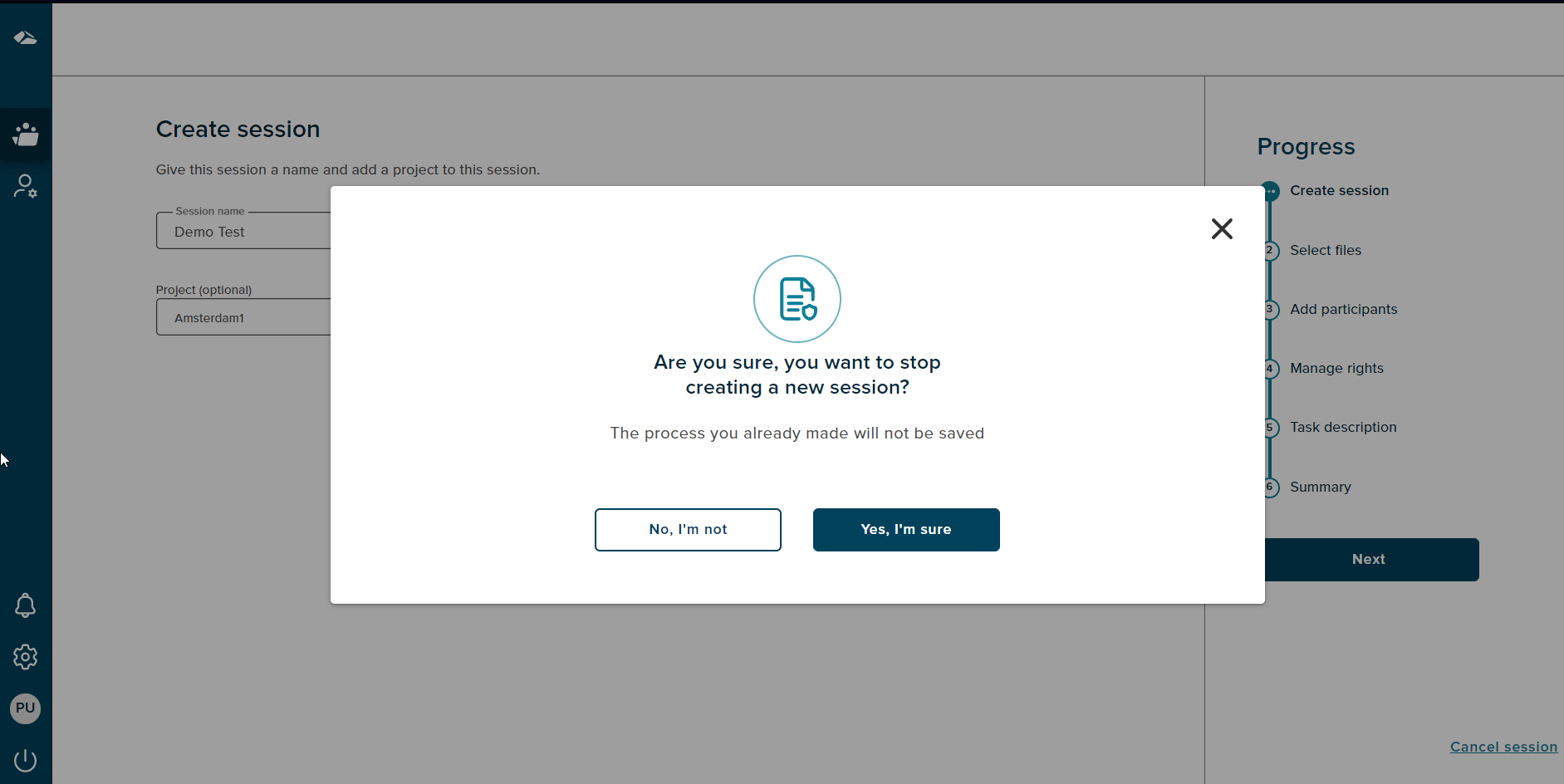
There are two options on cancel, On Click of the ‘No,I’m not’ button,the popup gets dismissed.The popup has a close button (X) as well, on click of close button the popup gets dismissed. If user clicks on the ‘Yes,I’m sure’ button the session is cancelled and user gets navigated to the collaboration dashboard.