¶ Who do you wish to Collaborate with?
Here we add all the users with whom you would like to share the files.
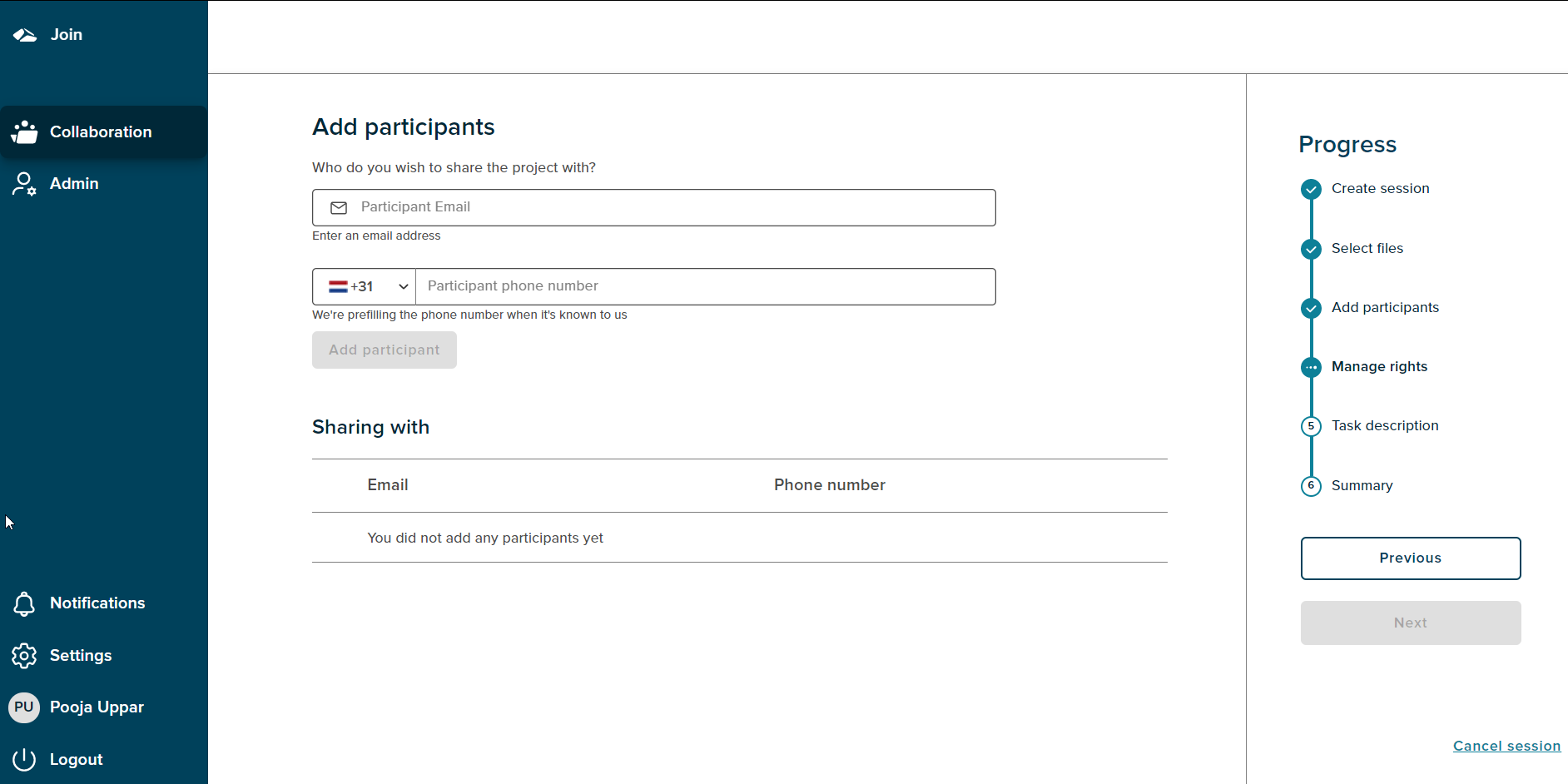
In order to add users, the session initiator needs to add a valid email address in the ‘Participant Email’ field. If the user is a known user and its phone number is stored in the database then the phone number and the country code gets autopopulated in the ‘Participant phone number’ field. If the participant phone number is not known then the initiator needs to enter the phone number manually. The ‘Add participants’ button then gets enabled and on click of it the participant gets added.
The Progress Bar shows the current state as ‘Add participants’.The ‘Next’ button gets enabled after a participant is added.
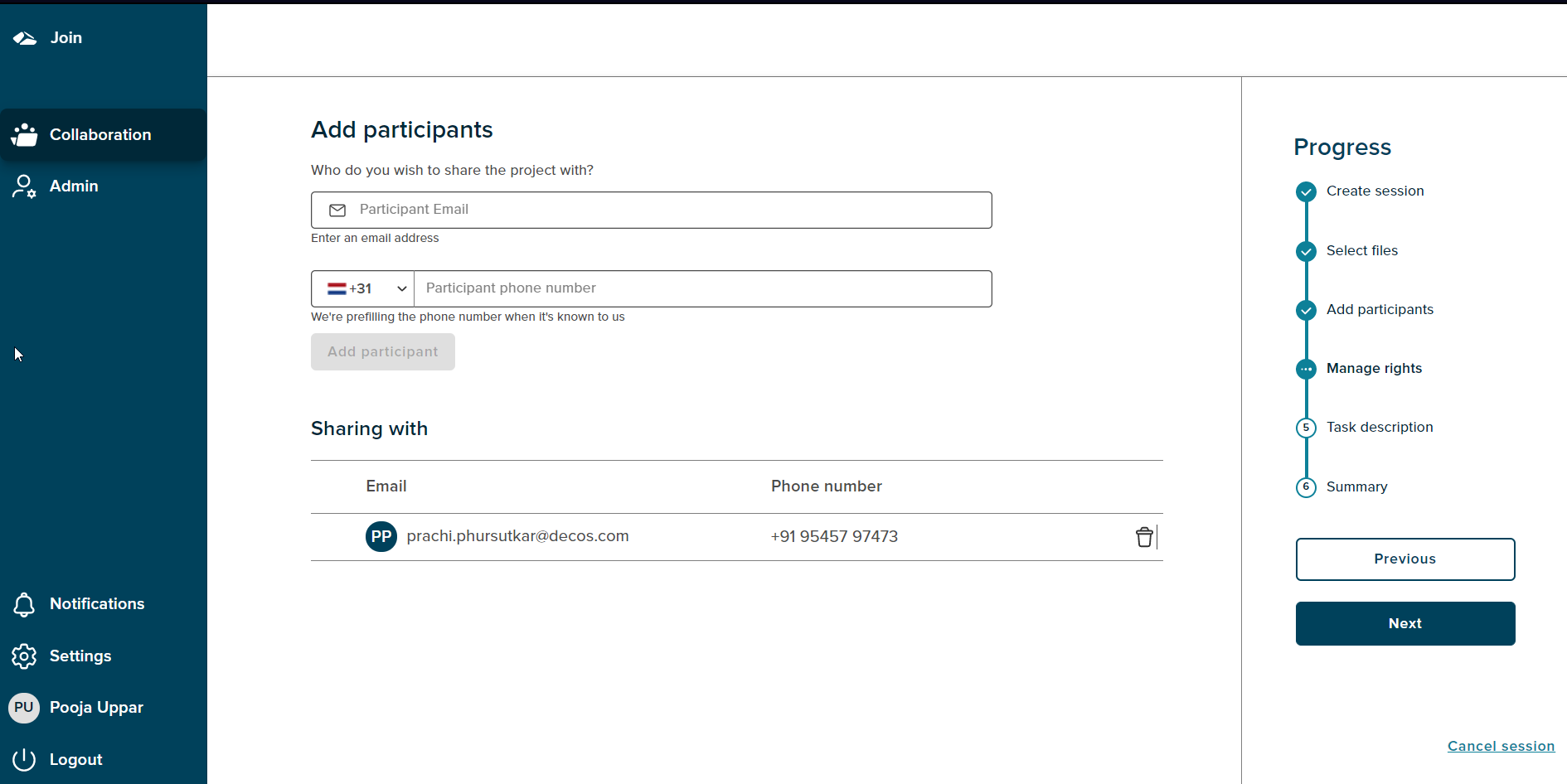
¶ Delete Participant
The initiator can delete a added participant by clicking on delete icon against the participant name.
¶ Cancel Session
If a user wants to cancel the session,then the progress chart section has a ‘Cancel session’ link at the bottom right corner. On click of the ‘Cancel session’ link a popup will be shown.
There are two options on cancel, On Click of the ‘No,I’m not’ button,the popup gets dismissed.The popup has a close button (X) as well, on click of close button the popup gets dismissed. If user clicks on the ‘Yes,I’m sure’ button the session is cancelled and user gets navigated to the collaboration dashboard.