¶ Work Flow - Task types
User can land on this page by clicking on Tasktypes under Workflow in configuration menu.
Empty state of the Task types page will be seen as below image
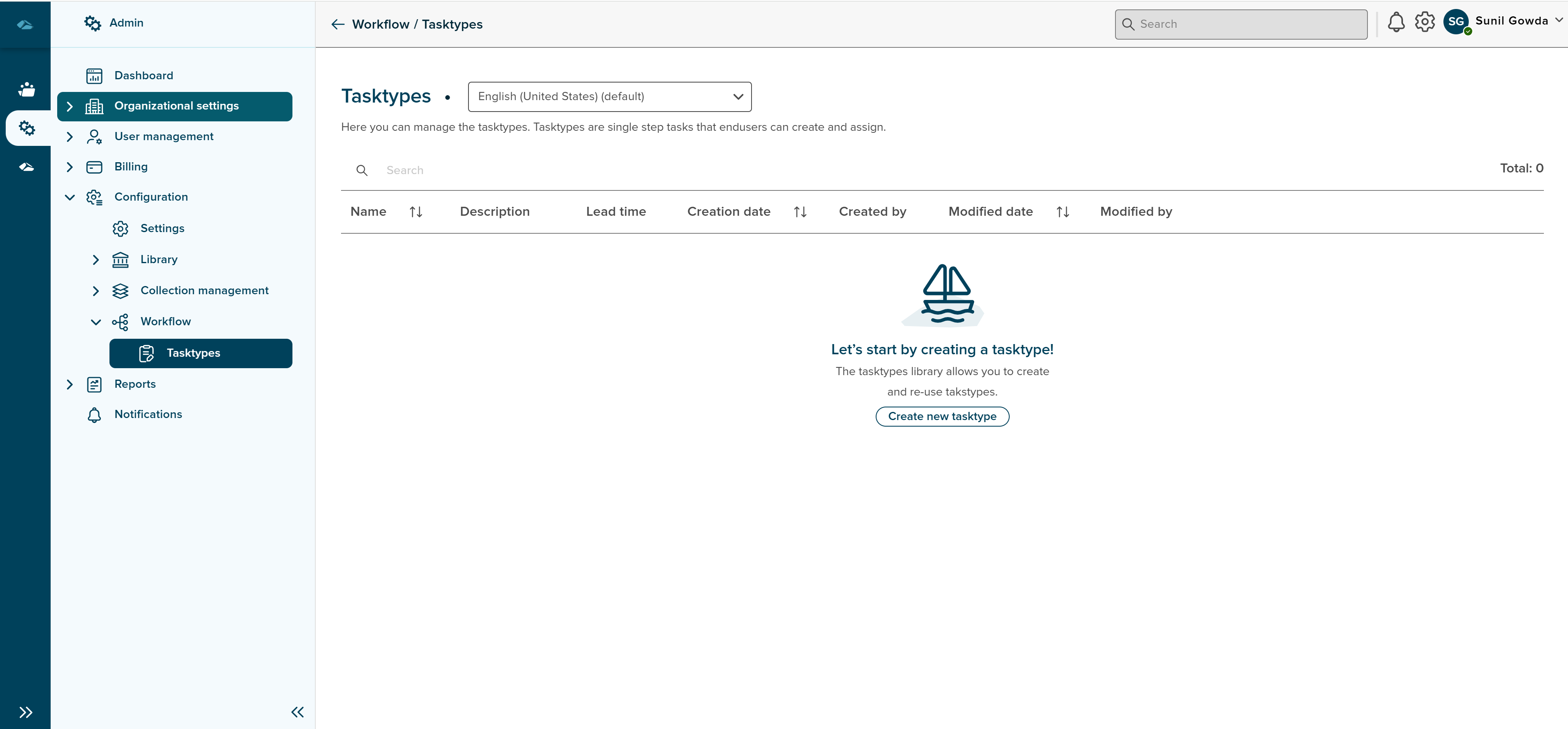
User can click on the Create new tasktype button in the center of page or on the top right corner.
Once the button is clicked, creation screen is opened in the side panel with following fields, which are explained in the below list
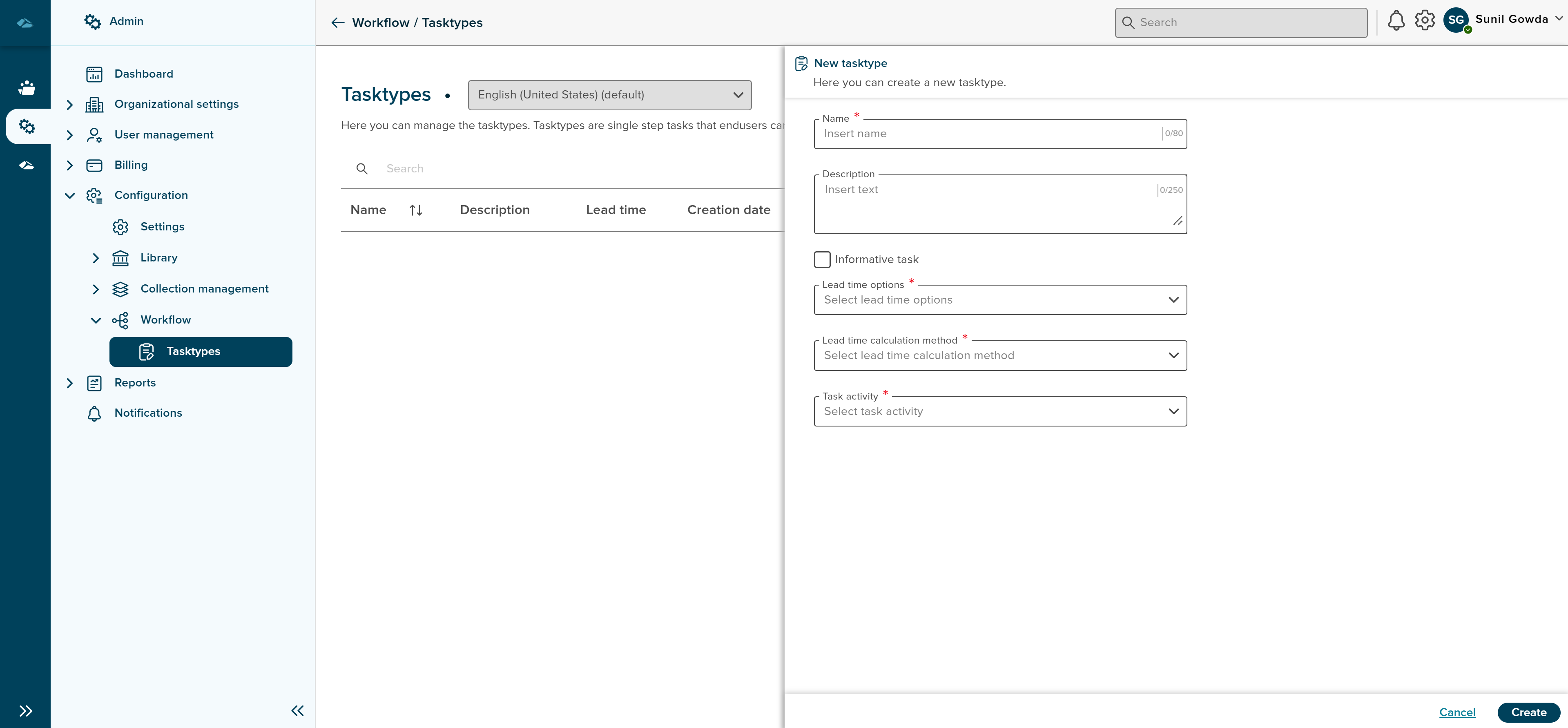
1. Name - Name of the task type are inserted in this field.
2. Description - Description of the task type are inserted in this field.
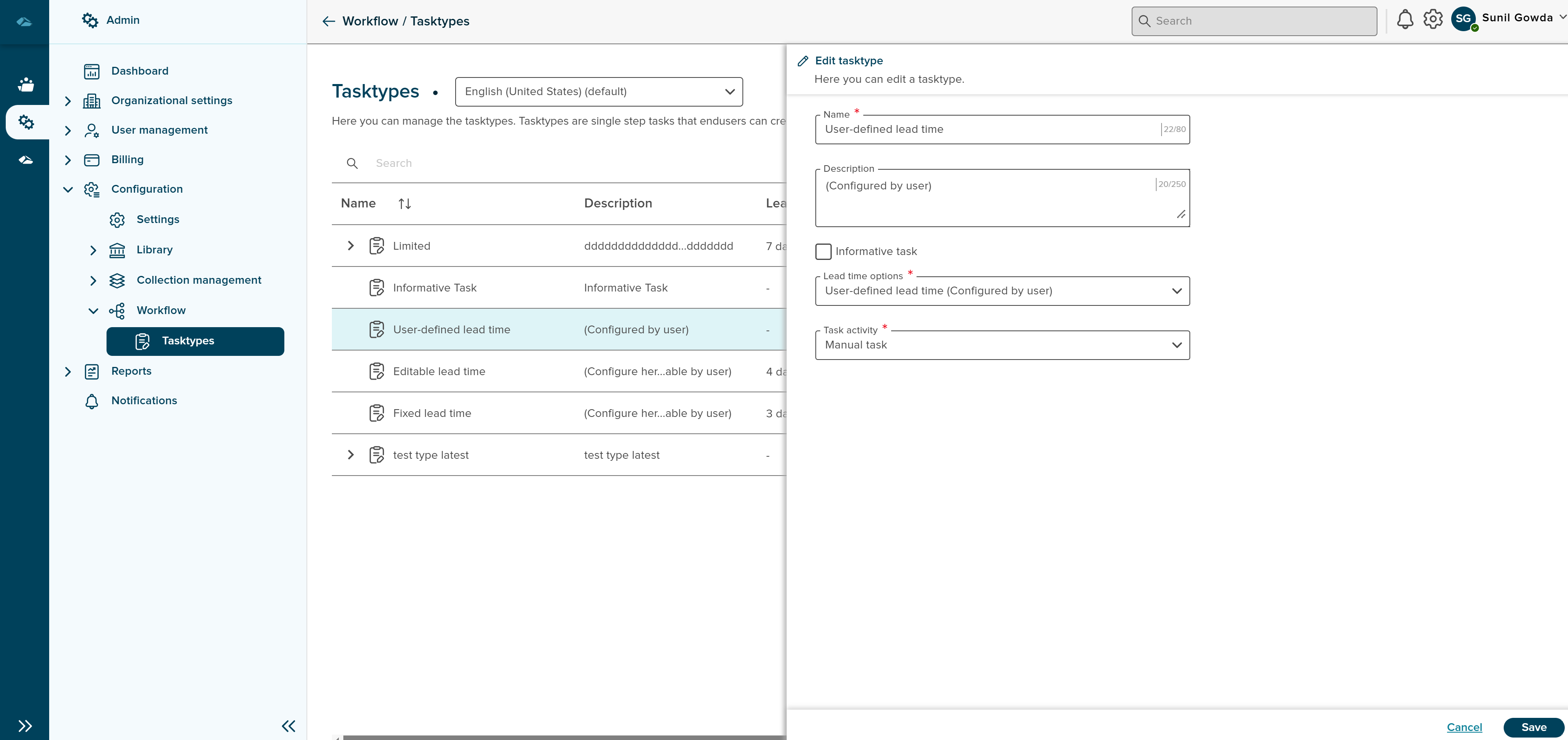
3. Informative Task - Informative task is a check box field, upon selection Task activity field is displayed with read only text as manual task
4. Lead time options - Lead time is a mandatory dropdown field, which has below options, which is to be selected based on the task type.
- Fixed lead time (Configure here, not editable by user)
- Editable lead time (Configure here, editable by user)
- Used defined lead time(Configure by user)
5. Lead time - when user select Fixed lead time and Editable lead time option in this dropdown, new lead time field will be enabled to enter the number of days.
6. Lead time calculation method - Lead time calcultaion method is a mandatory dropdown field, which is to be selected based on the task type.
- Calendar days
- Work days
7. Task activity - Task activity is a mandatory dropdown field, which is to be selected based on the task type.
- Manual task
User can fill the details in the creation side panel and then click on Create button or can click on Cancel button to exit the flow.
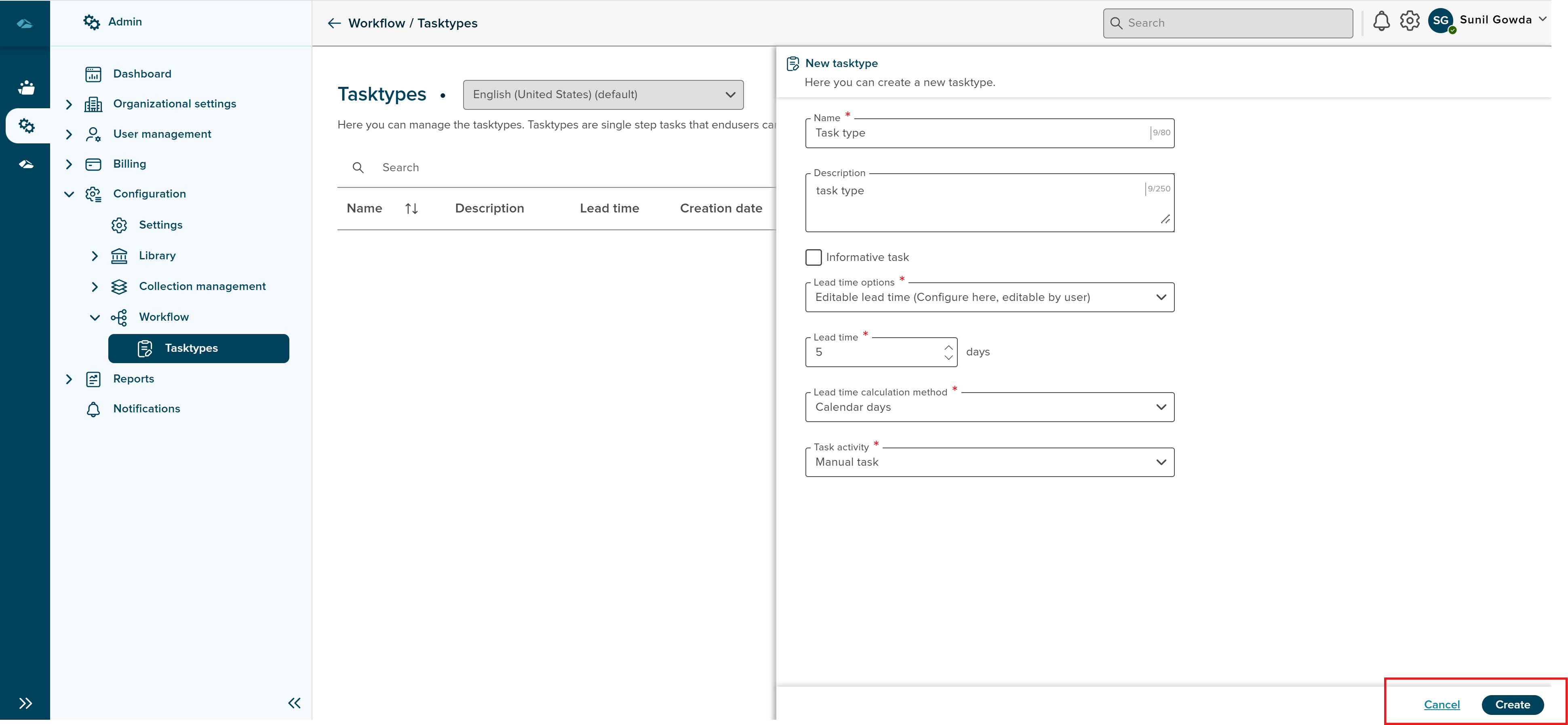
Once create button is clicked, task type will be displayed in the list view of the page. Newly created task type will have NEW tag.
Each of the Task type will have Kebab menu options which can accessed by clicking on the kebab icon at the end of the task type.
Kebab options are as follows,
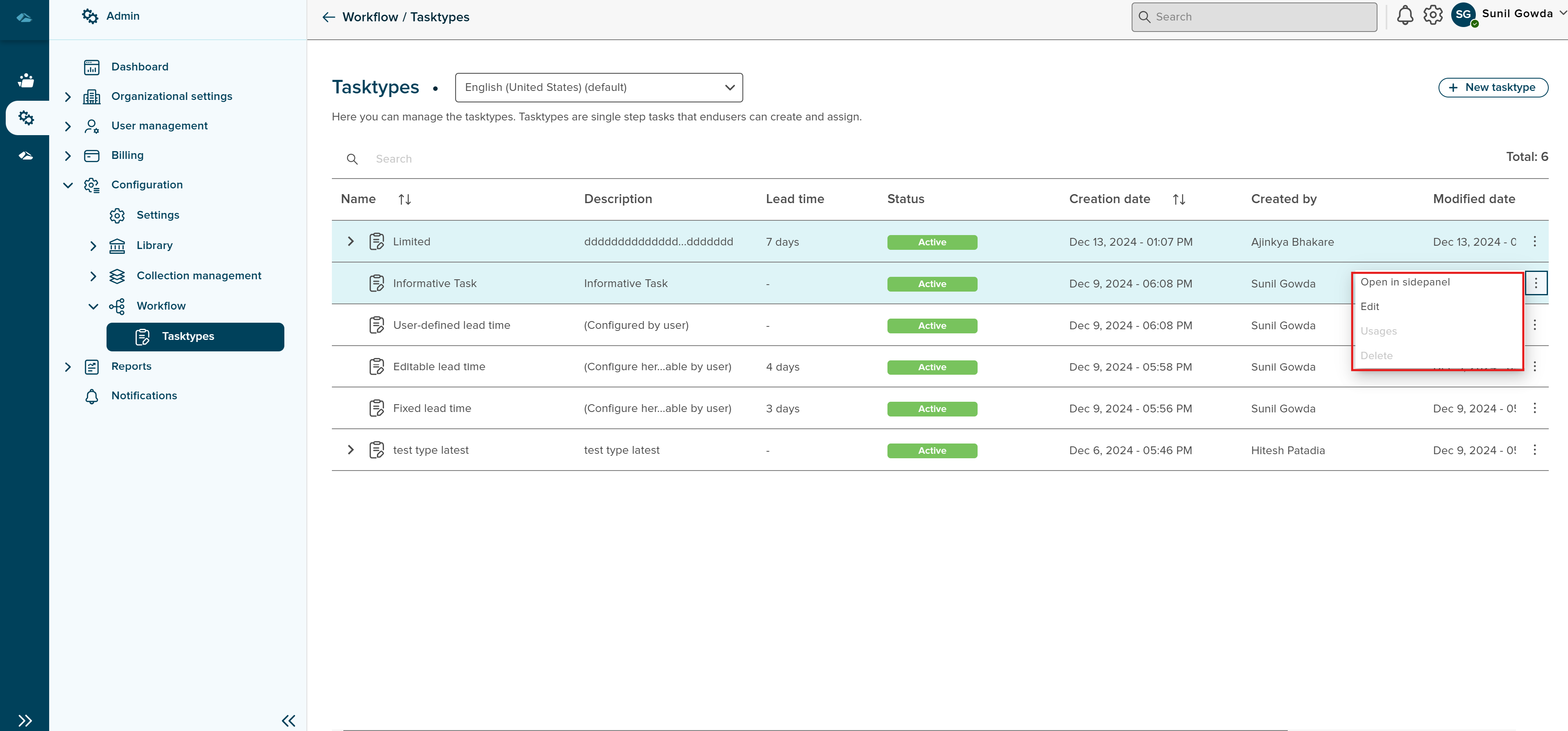
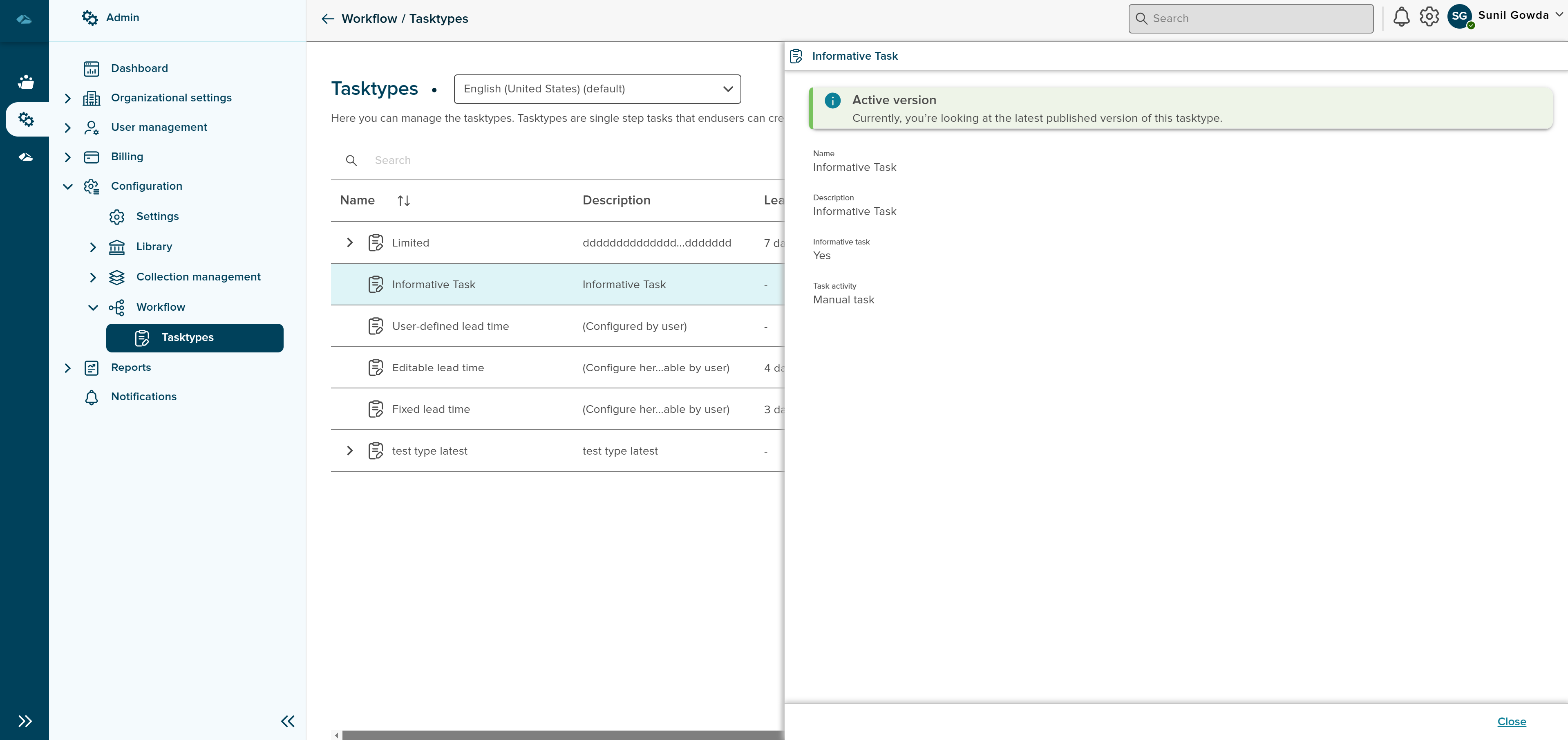
- Open in Sidepanel : When user clicks on this option, tasktype is opened in the sidepanel, as shown in the below image
- Edit : When user clicks on this option, tasktype is opened in the edit mode, as shown in the below image
- Usages : (Information Yet to be filled)
- Delete : (Information Yet to be filled)
¶ New Version
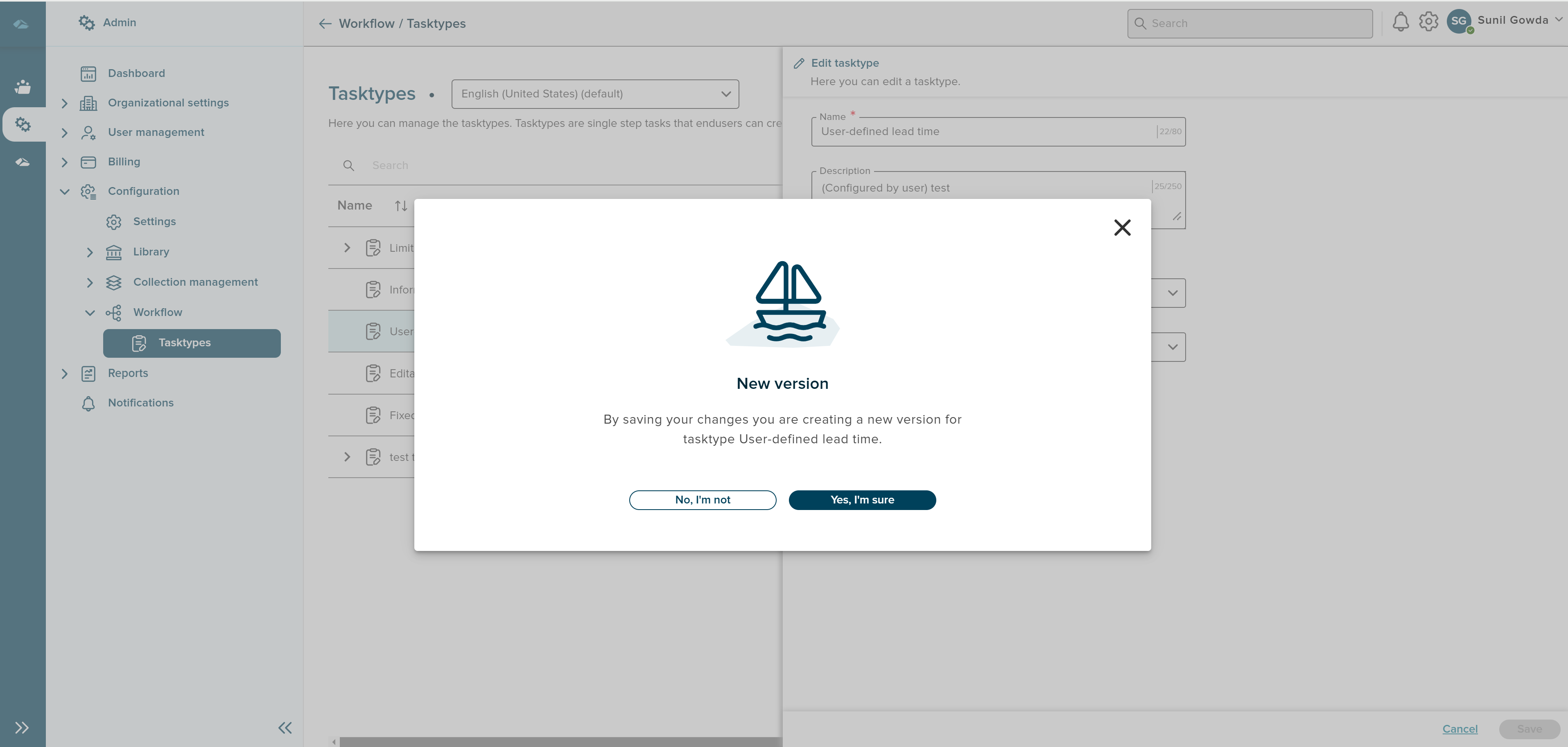
User can create new version of task type by updating the existing tasktype. When user clicks on the edit option in the kebab menu, side panel is opened in the edit mode, and then user can modify the information of the task tyepe as per the requirement and also Save it by clicking on save button. User also gets prompt message to whether to update the information or not, which can be seen in below image.
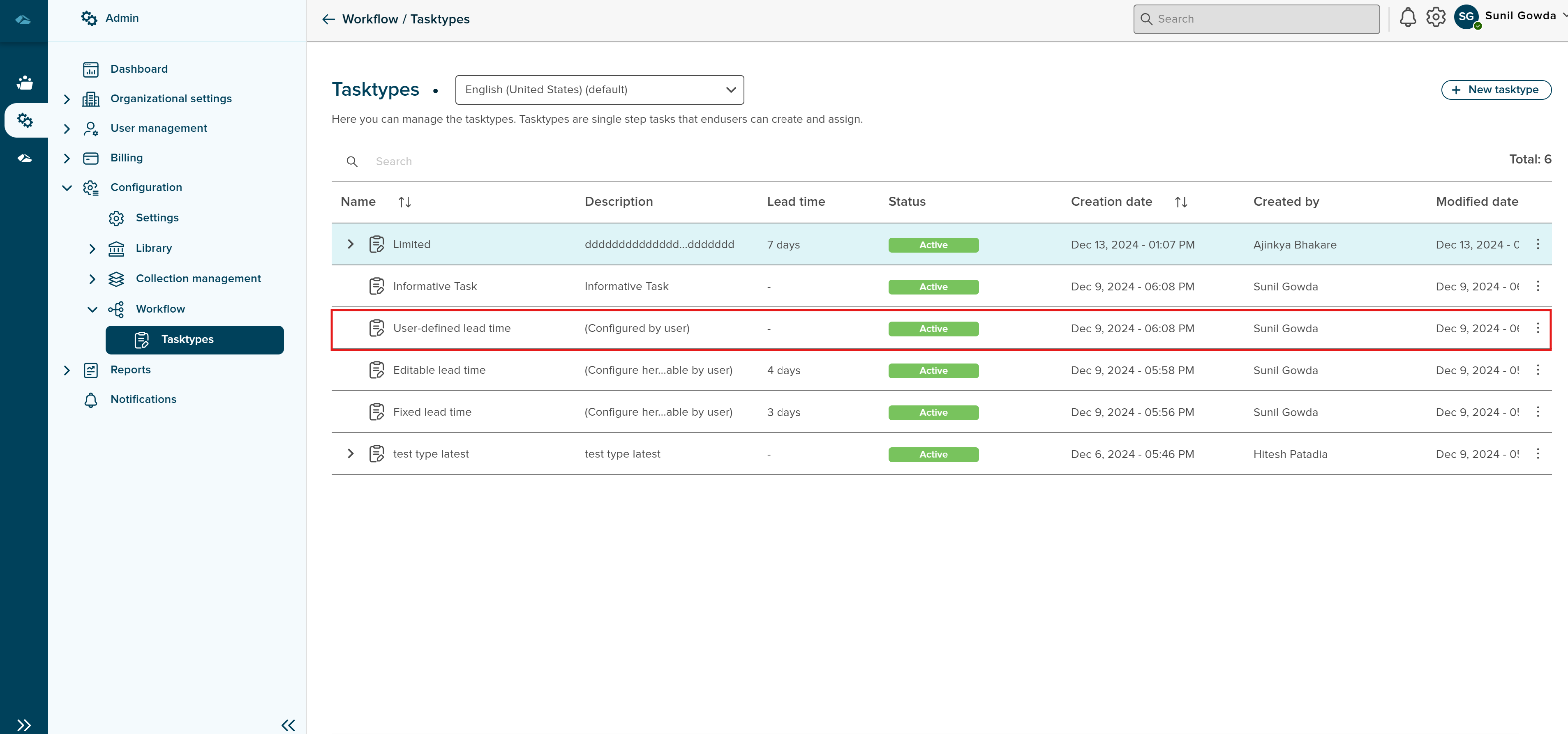
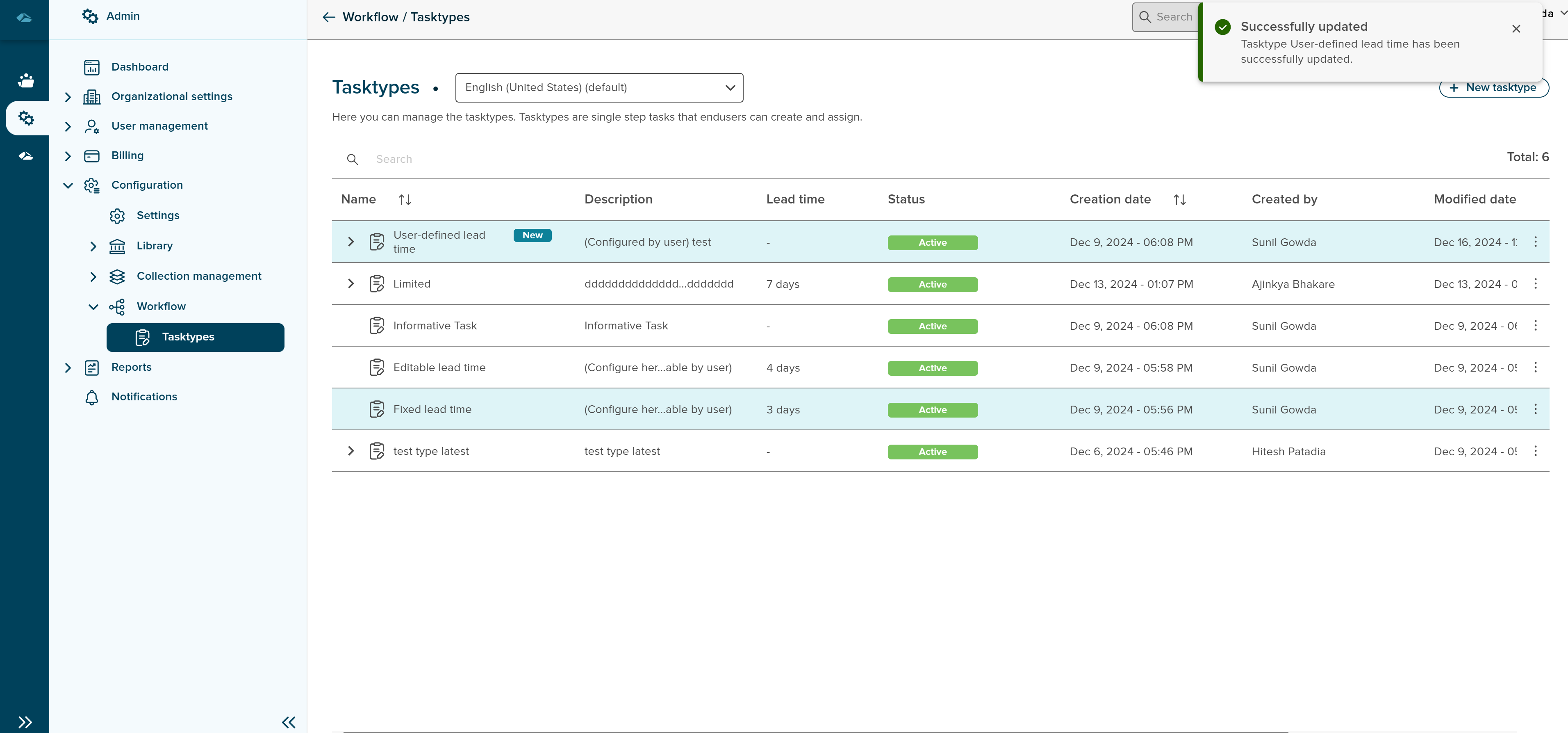
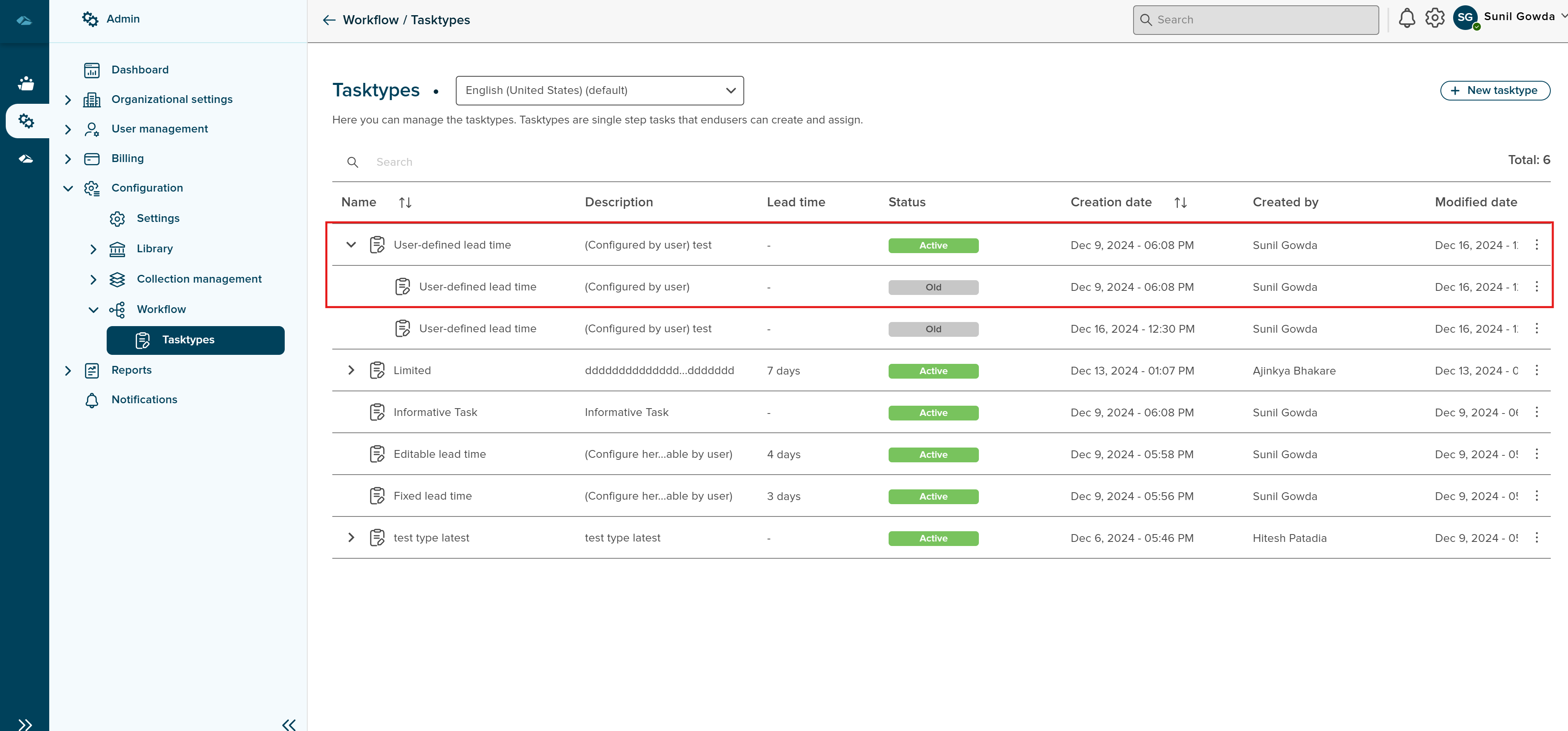
Once the new version is saved, user can see the success message and newly update in the list view. It also has the expand button to see the old version of the task type.
Sort
A Sort icon is present against every column which allows a user to sort and display the data in either ascending or descending or in a default order.
Total
Total Field shows the number of Tasktypes are available in the Tasktype List view page.
Search
Search Field is available to search any particular Tasktypes in the List view page.