¶ Audit Report - New Audit
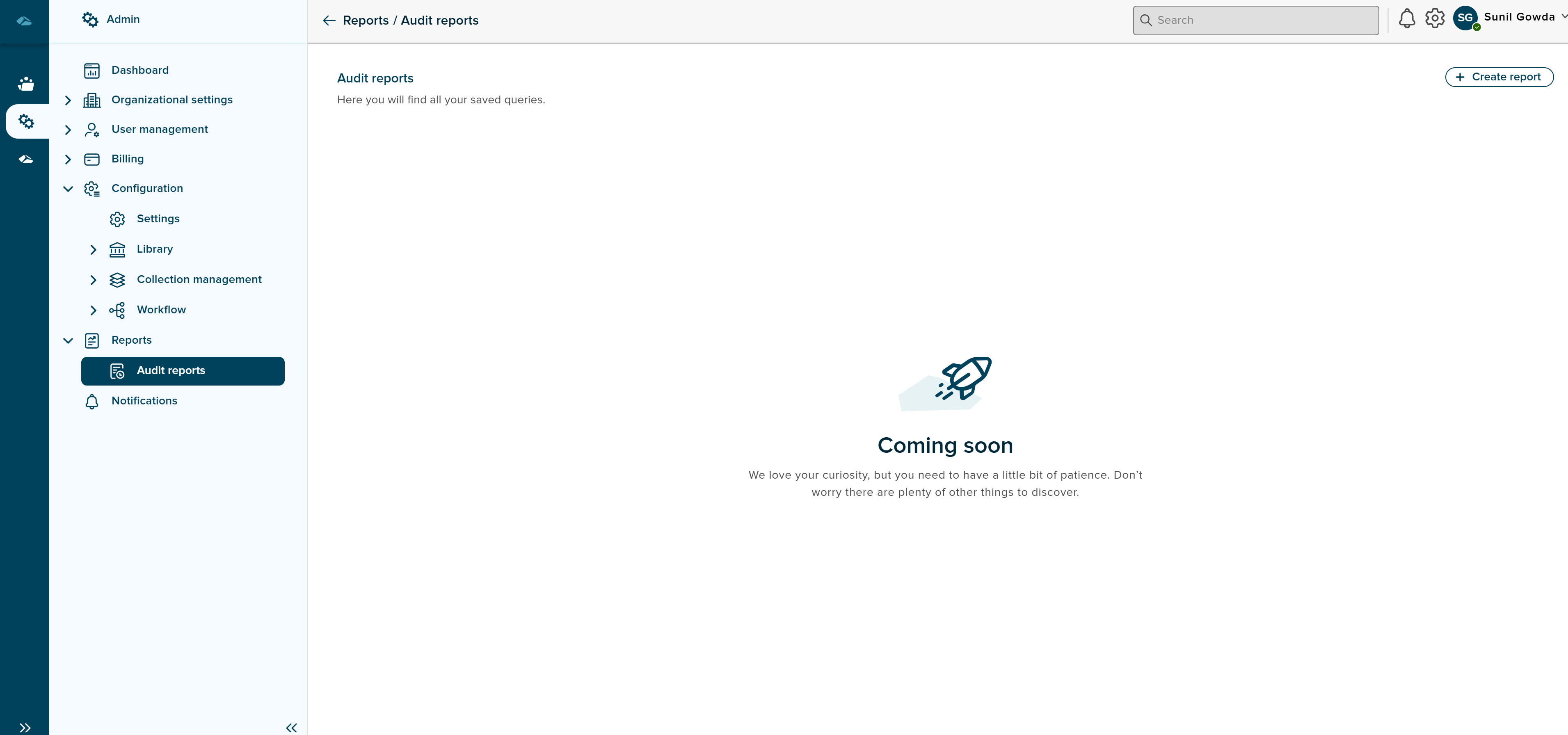
Once user clicks on the audit reports in the navigation menu, user lands on the page shown as below image.
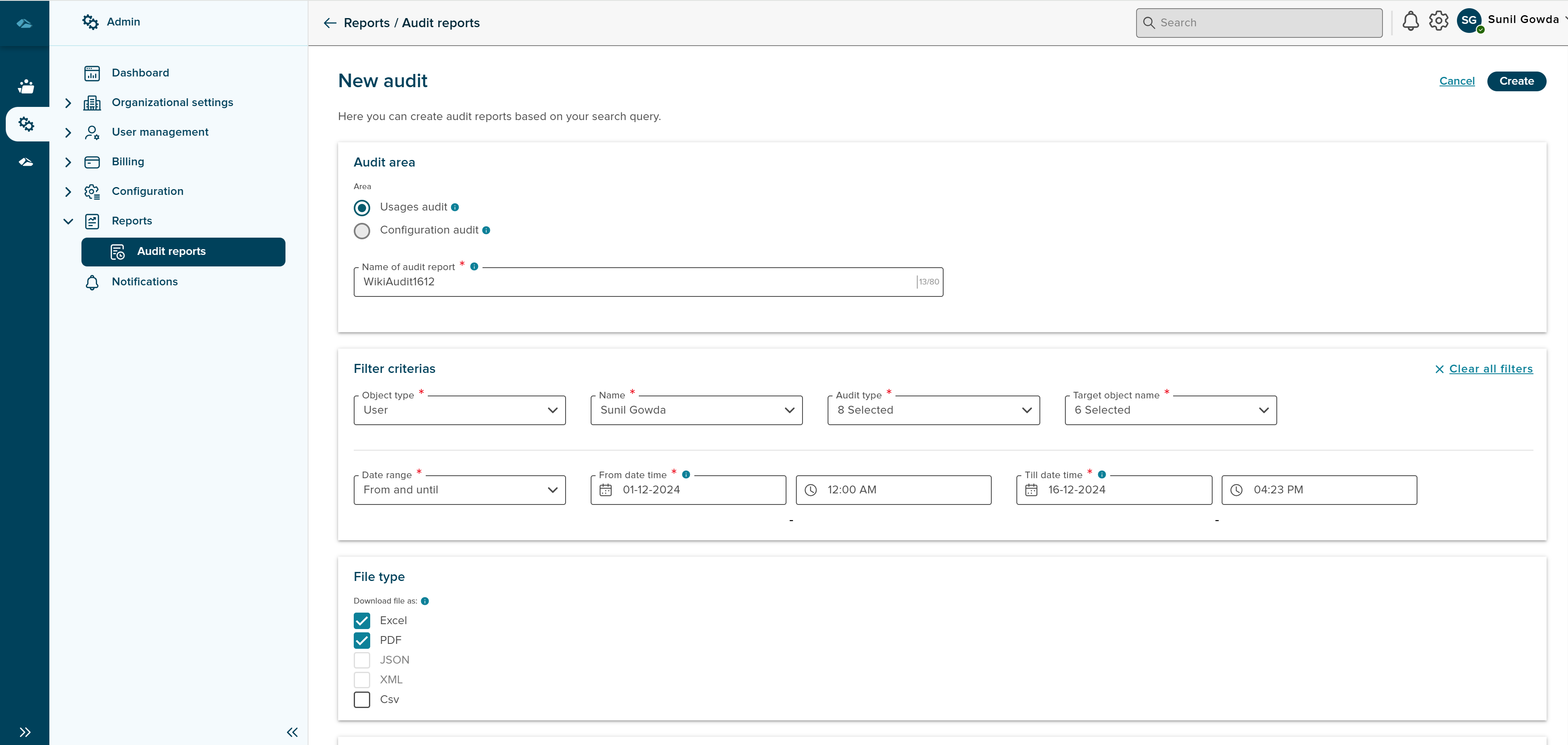
User can click on Create Report button to start creating the audit reports, Creation of audit reports page is seen as shown in the below image.
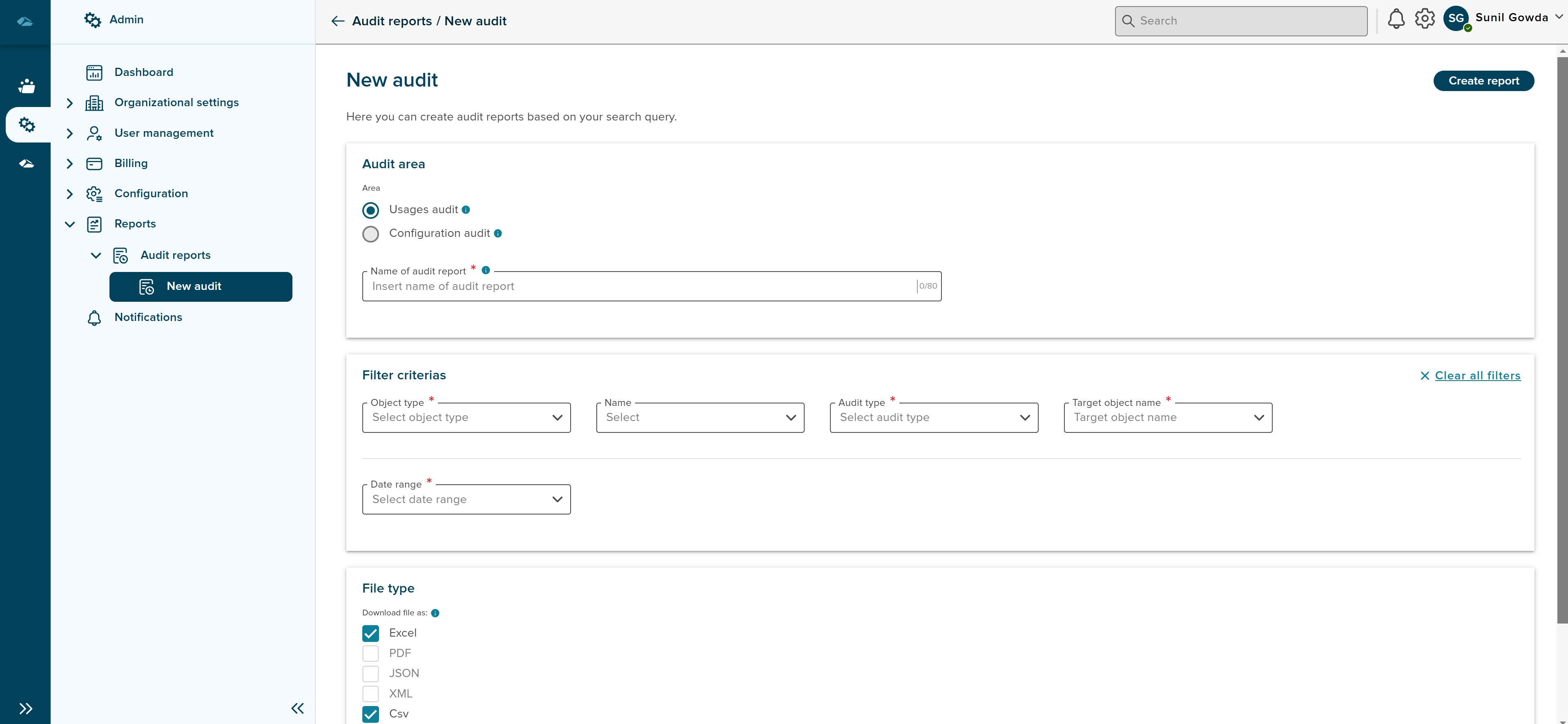
Below are the areas which requires user inputs based on the requirements.
- Audit Area : This area mainly contains radio button selection of area and input field of Name of the audit report.
- Filter Criterias : This area contains different dropdown fields, which requires the selection for further filtering the report. User can also make date selection based on which user can select the timeline.
- File Type : This area contains checkbox selection option to choose different type of formats, user wants to download the report.
- Extras : This area contains a toggle button to choose Yes or No, whether to save the query for future reference.
¶ Filter Criterias
User can choose an option from Object Type dropdown, based on the selected option in object type, further fields will be updated.
When user selects User as object type, options in the next fields will be visible, for eg. Name field will display the name of active users of the system.
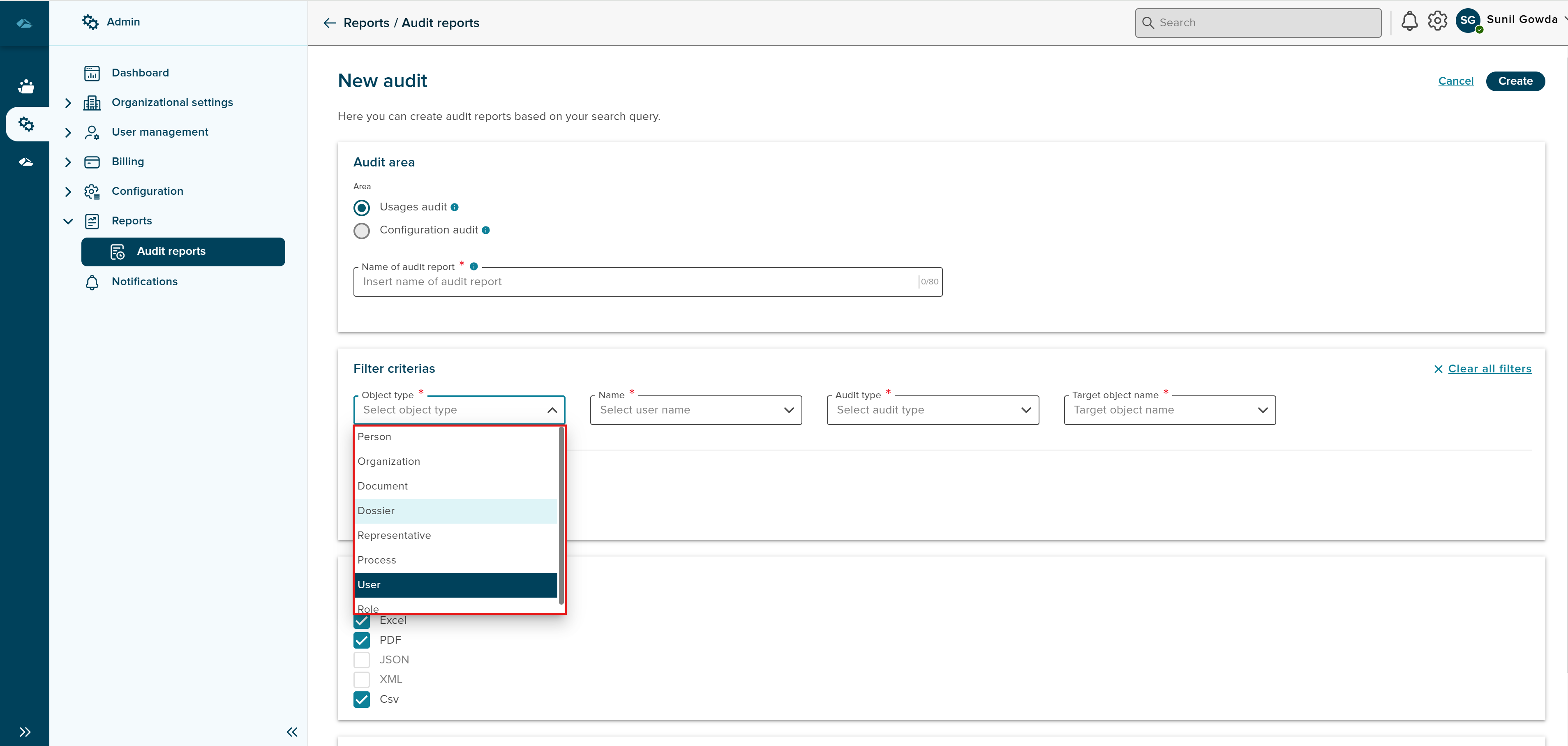
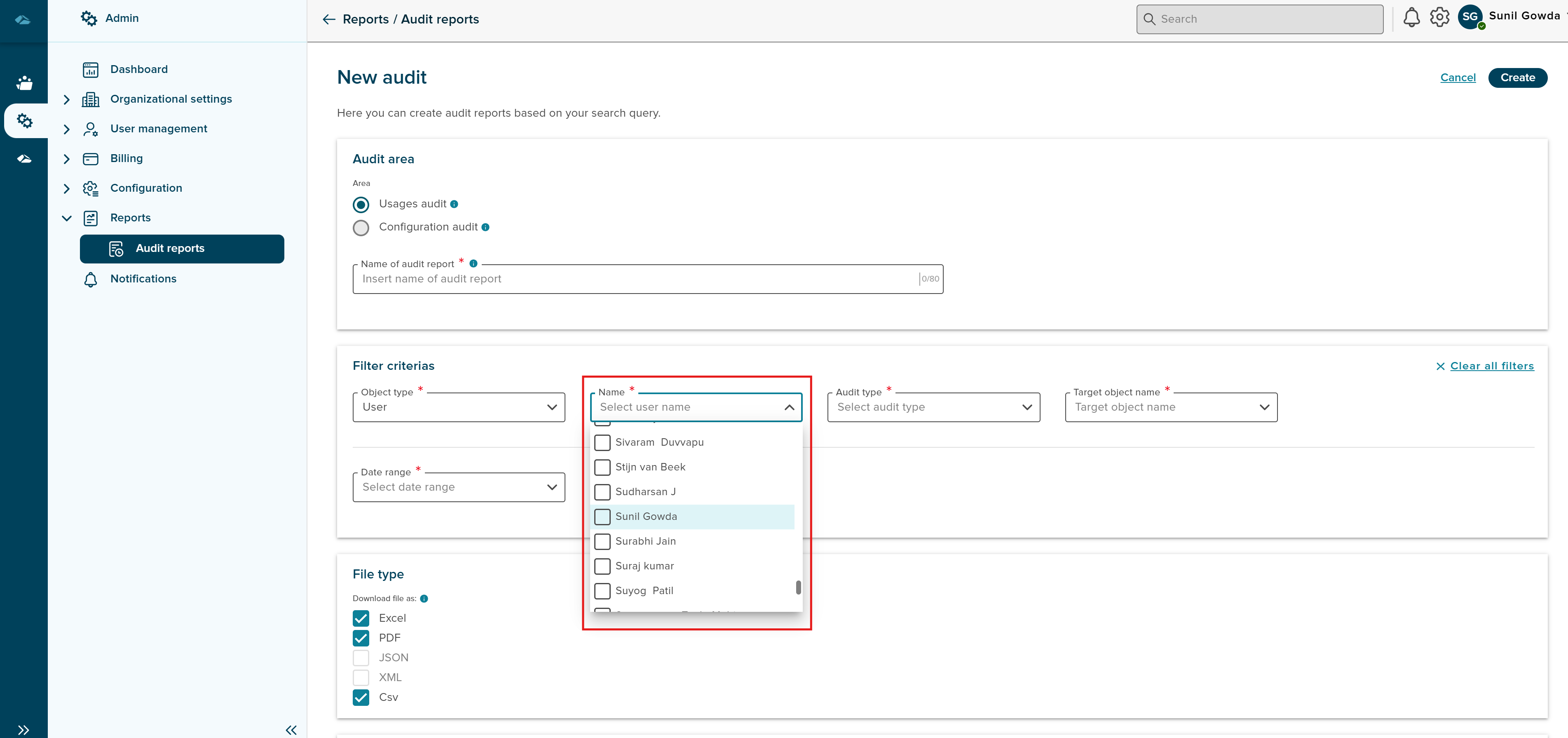
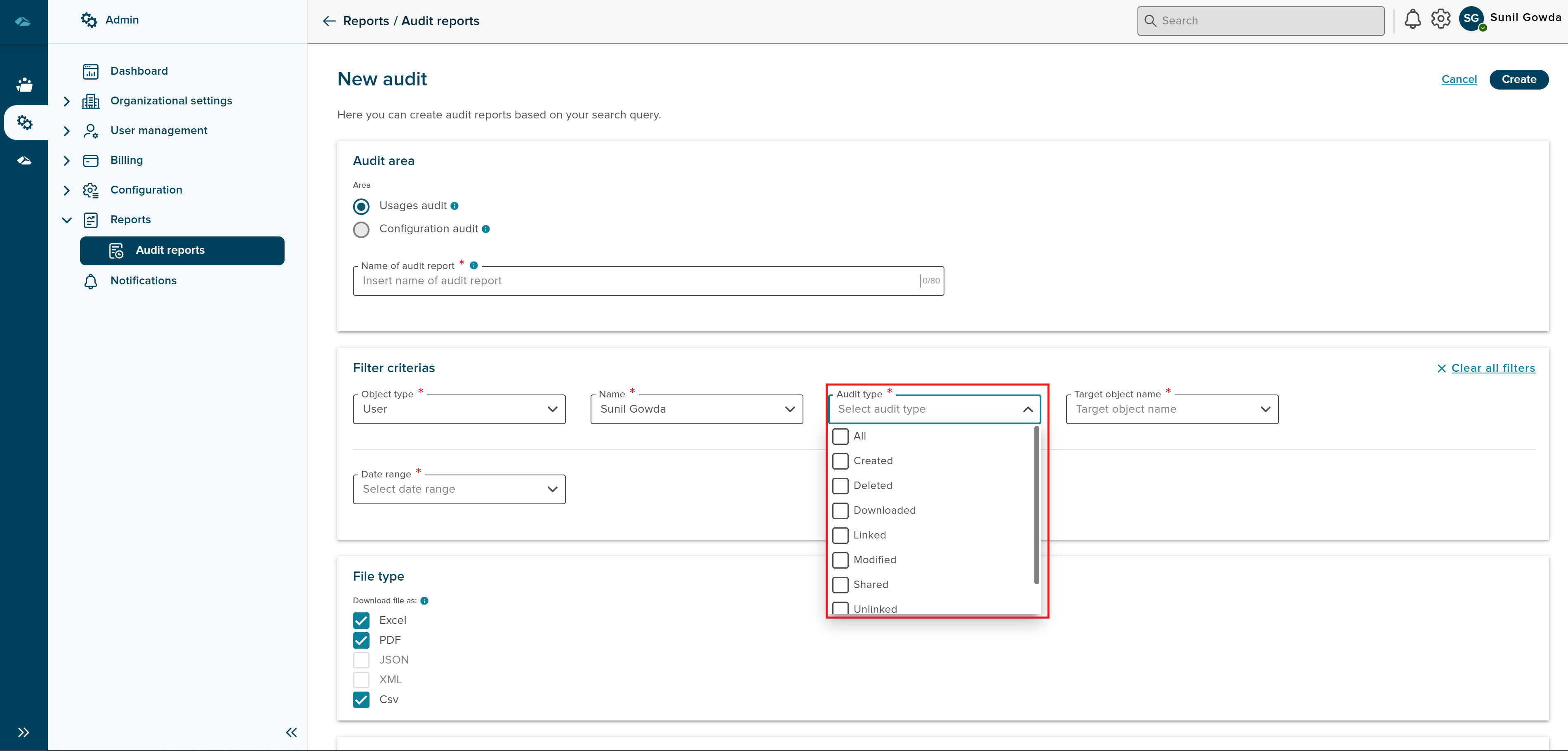
After selecting the Name from Name field, Audit type can be selected from the dropdown.
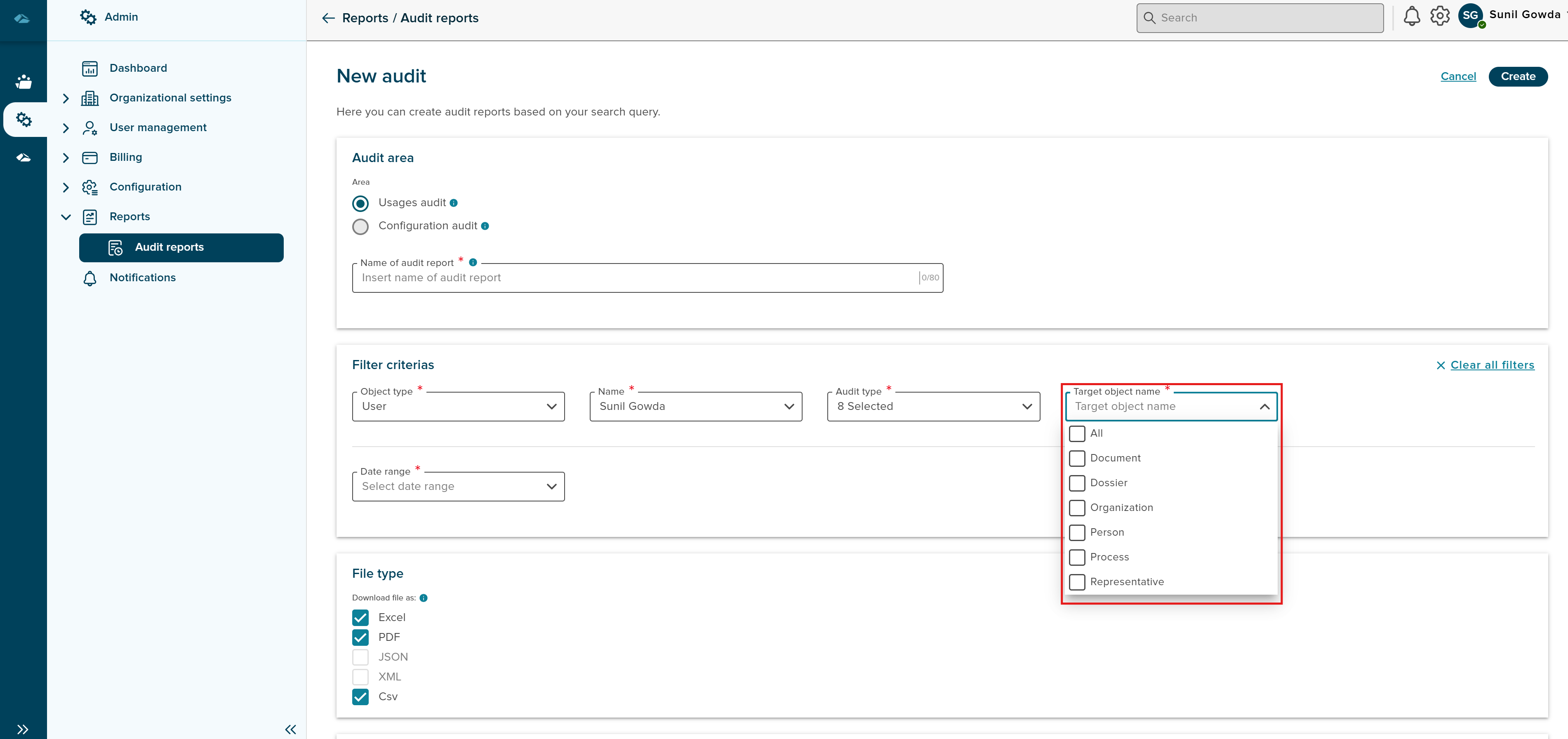
User can also select Target object name dropdown and select different object type based on the requirements.
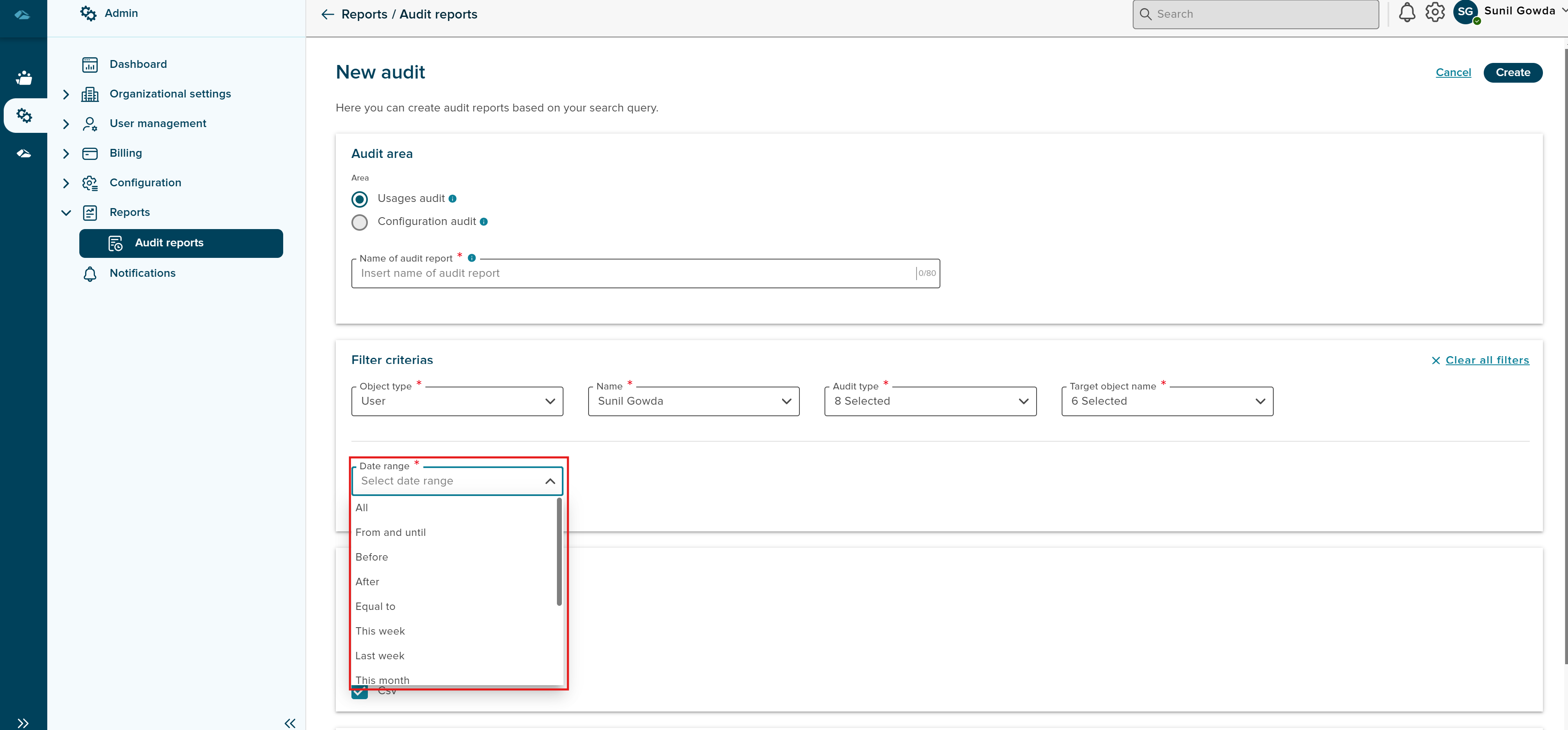
User can select any options from Date Range dropdown, for eg from and until date.
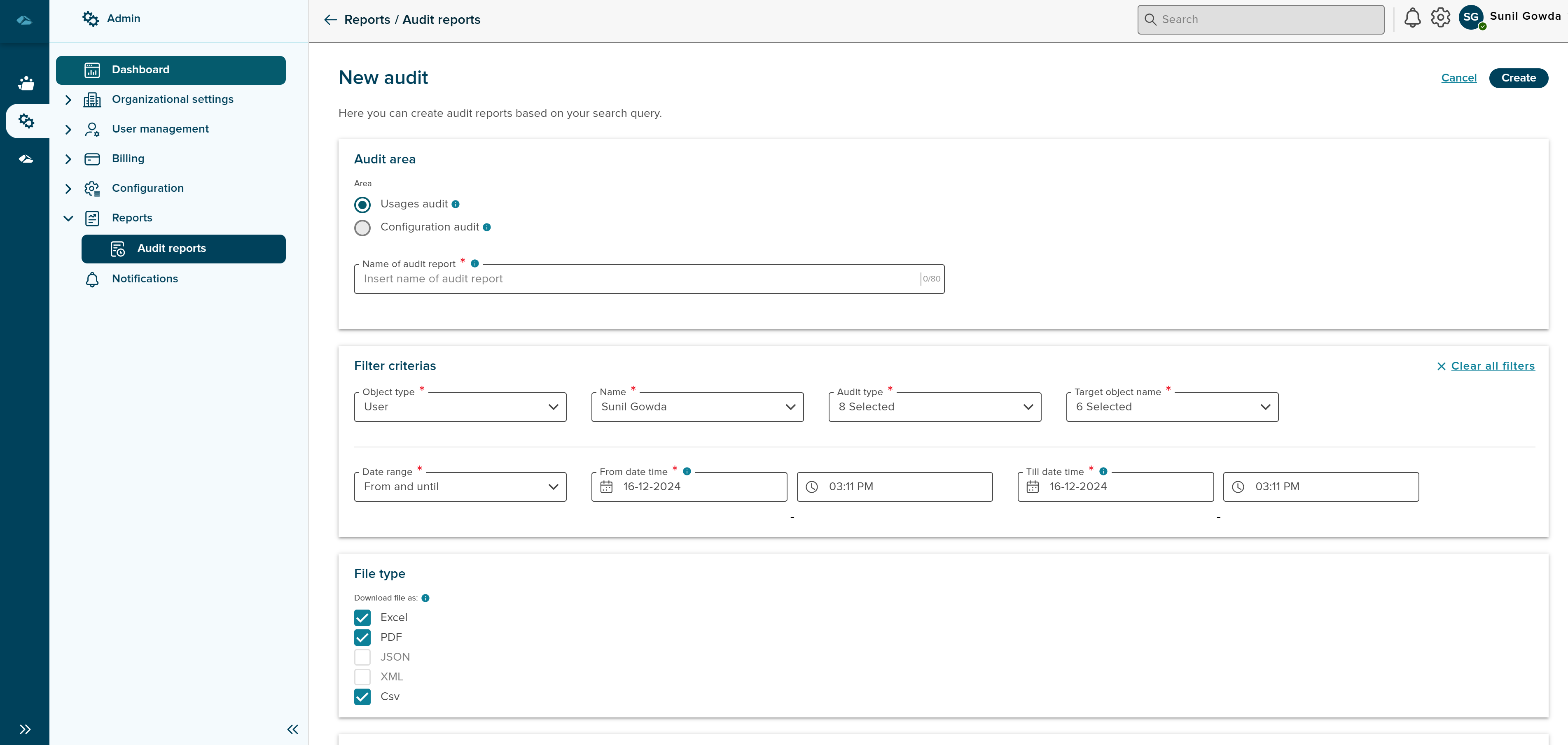
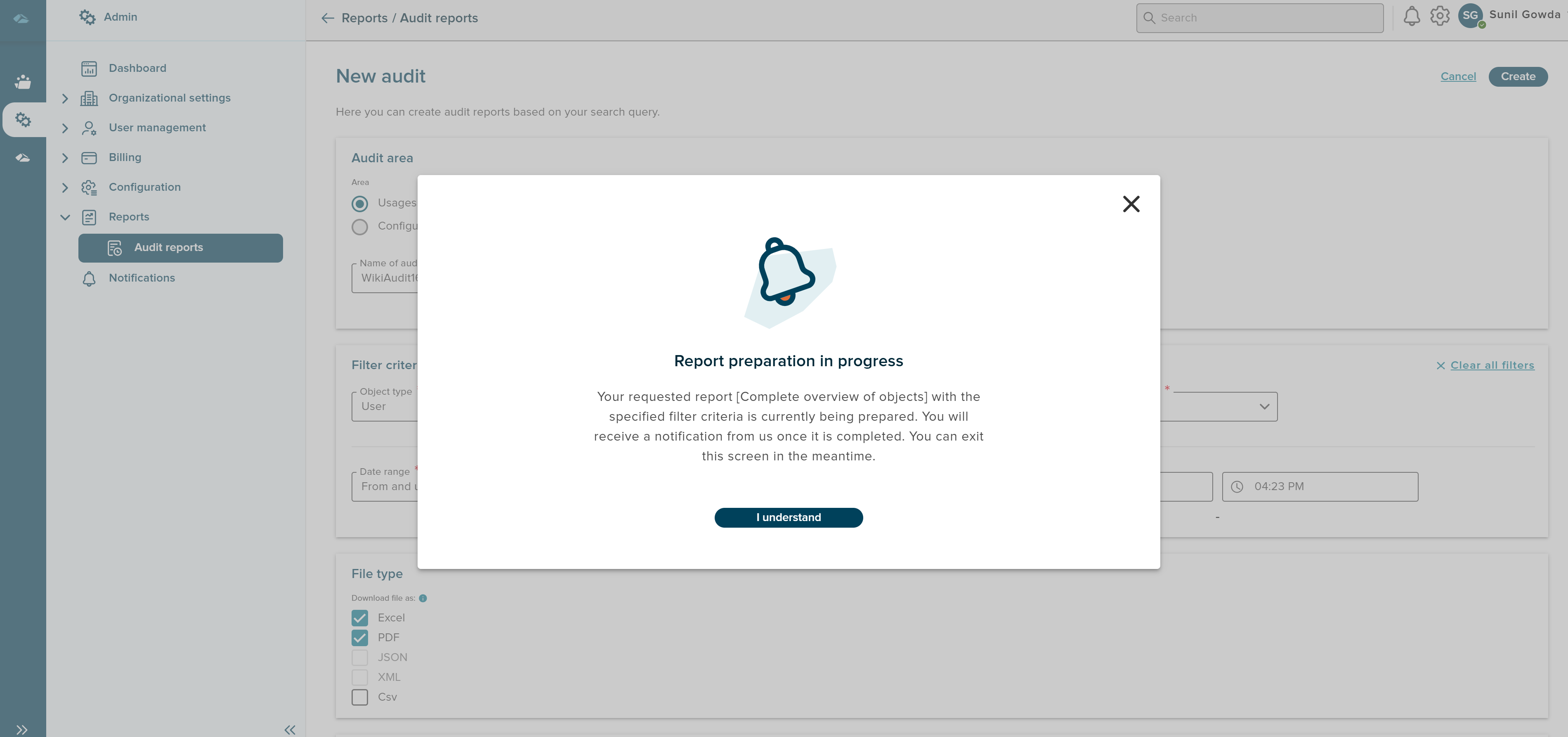
Once all the Areas are filled and filter criterias are populated, User can click on Create at the top right corner. After the click, system takes few secs to prepare the report. System shows the message to indicate the report preparation in progress.
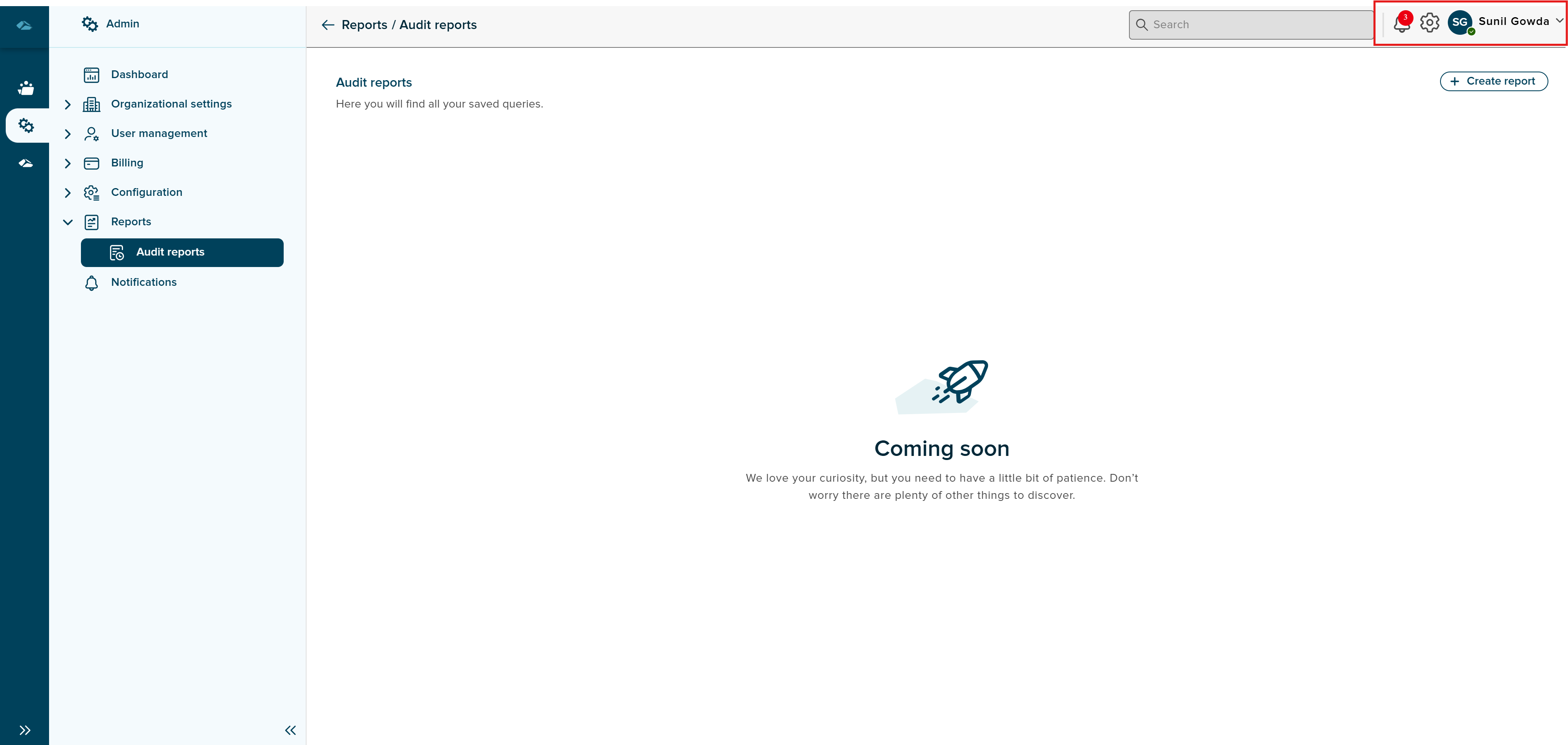
User can click on the I Understand button in the pop-up. User will be returned back to Audit report home screen. User will be notified by the notification icon at top right corner next user icon. Once the counter and red indicator is seen in the notification icon. user can click on it and navigated to notification screen.
¶ Notification
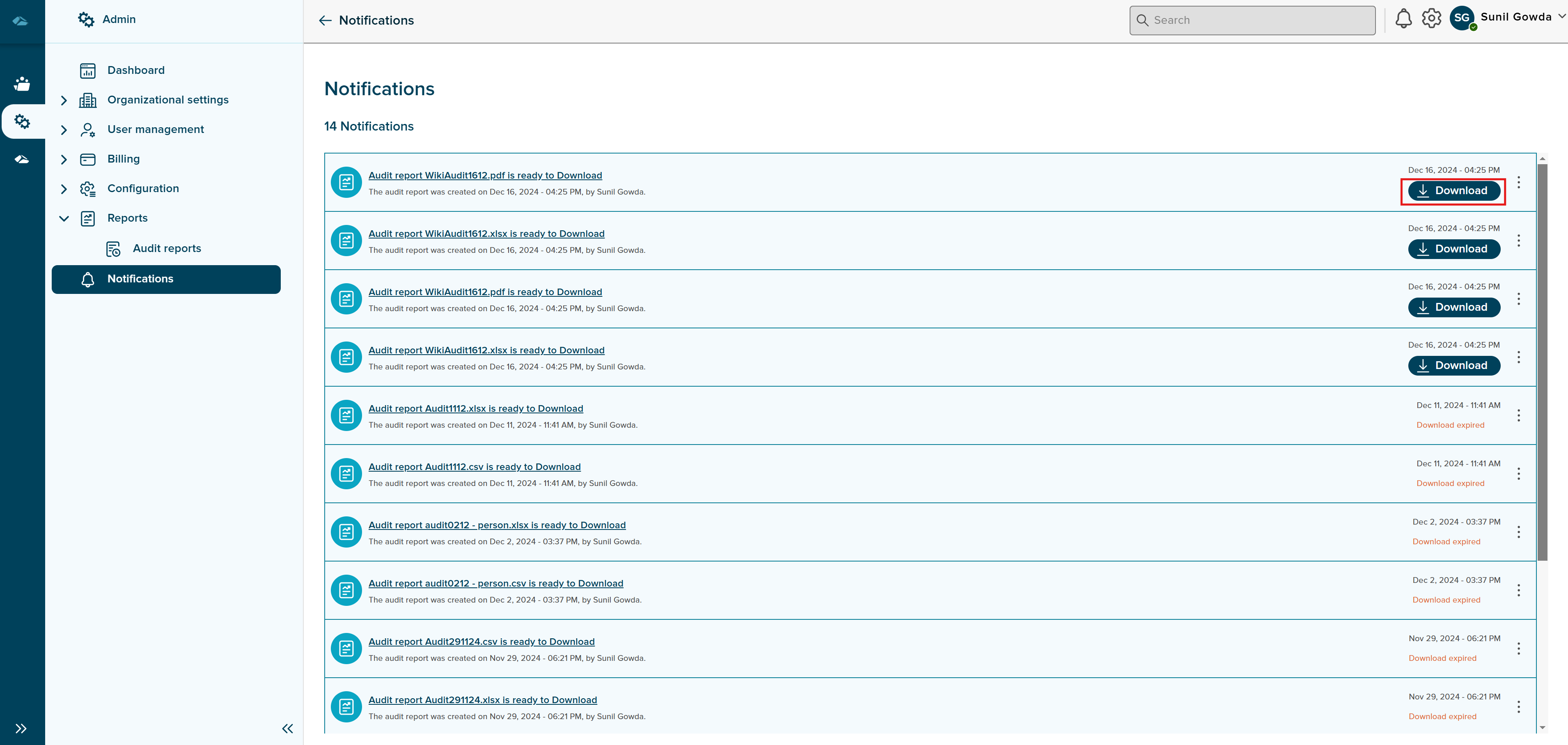
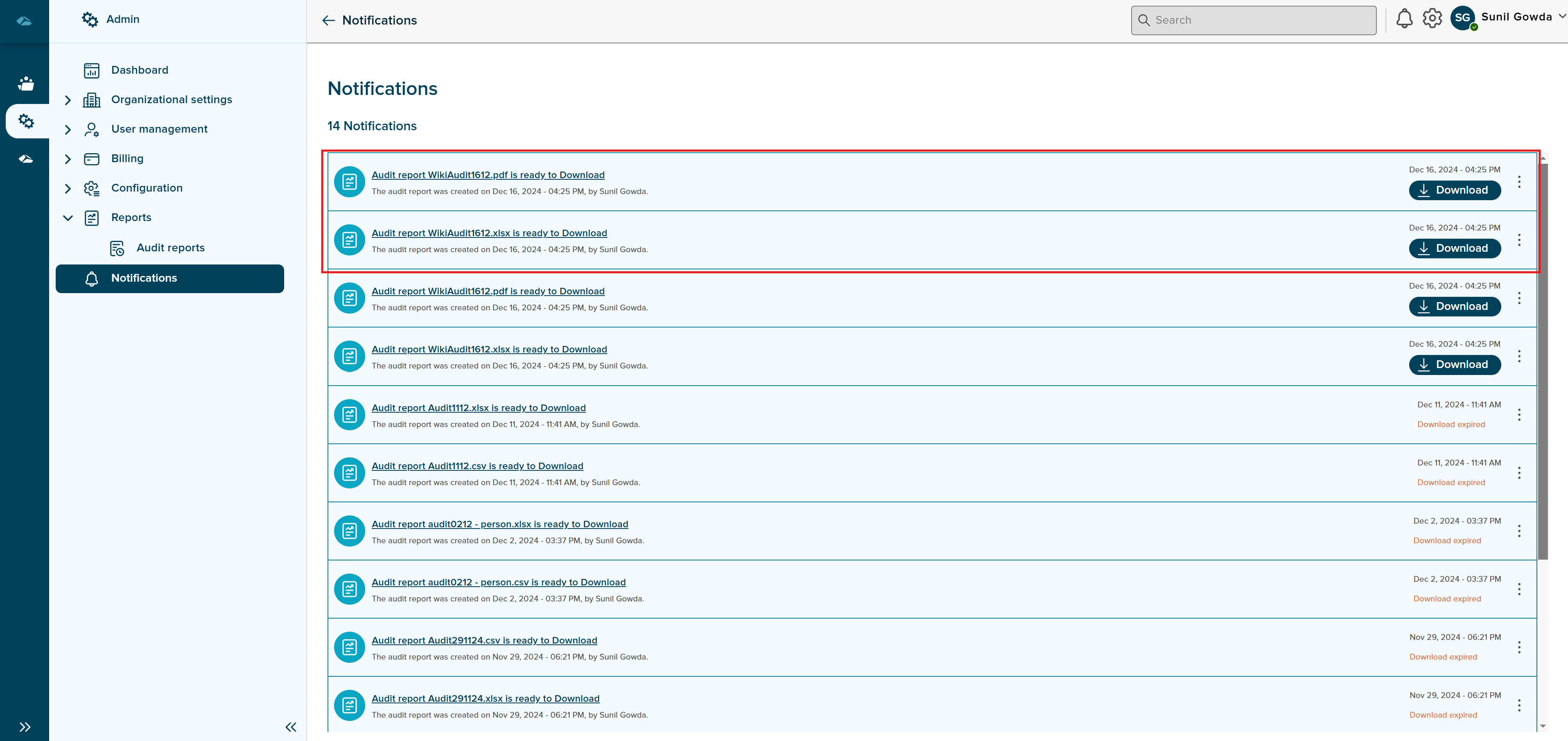
In the notification page, user can see the prepared report ready for download in the notification list with blue highlighted background.
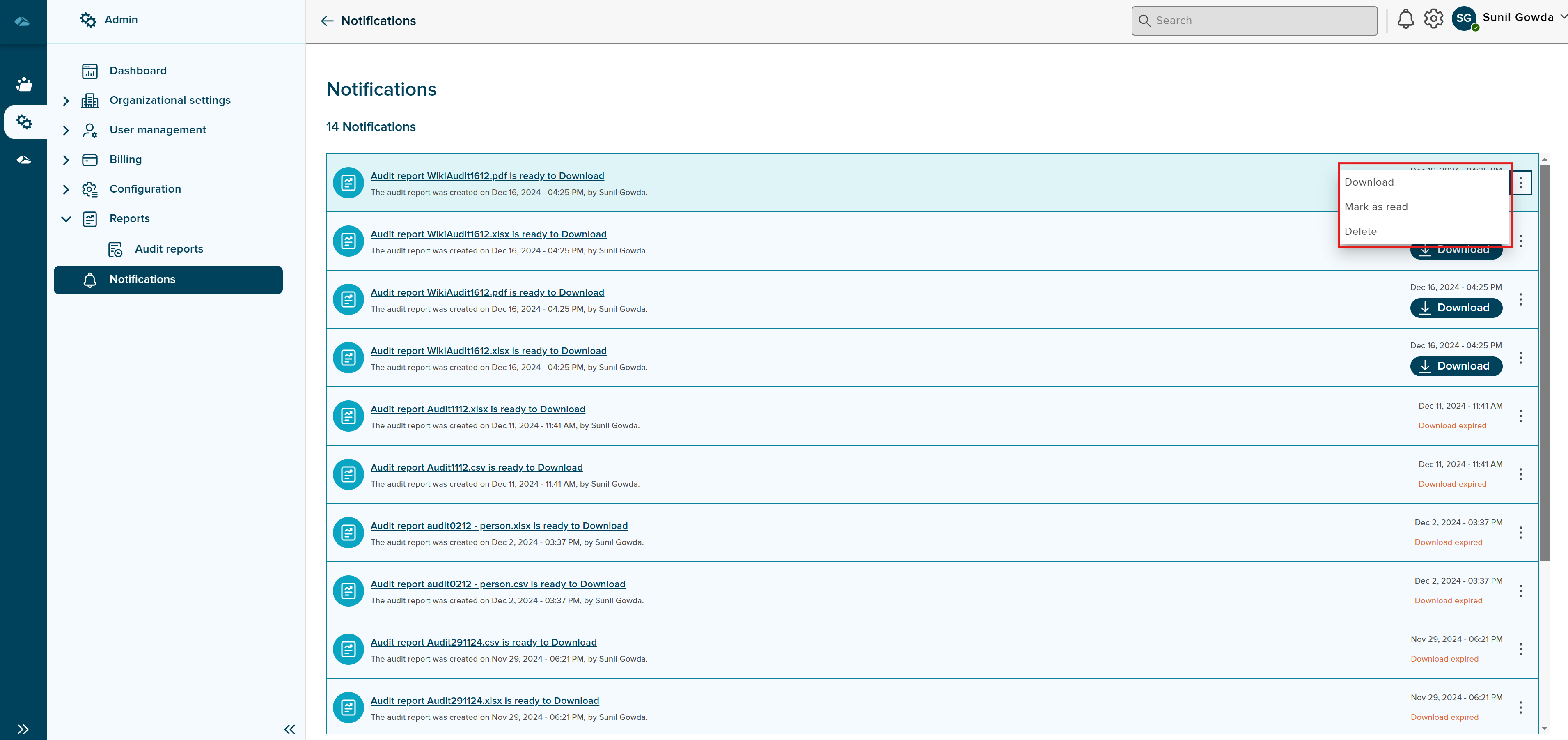
Each of them can be marked Mark as read option from kebab menu to remove the blue highlight.Each of the notification has Kebab Menu options such as, Download, Mark as Read and Delete.
Notifcations will be separate for each of the format for which user has selected during the report creation. User can be download the report using Download button in the right side of the notification.