¶ Manage Custom Table
On this page, we will see how to Manage already created custom tables.
User can see the Custom table in the overview page and do the actions through Kebab menu items.
Each custom table will have the Kebab menu on the right side of the screen, and this menu will have below items for action,
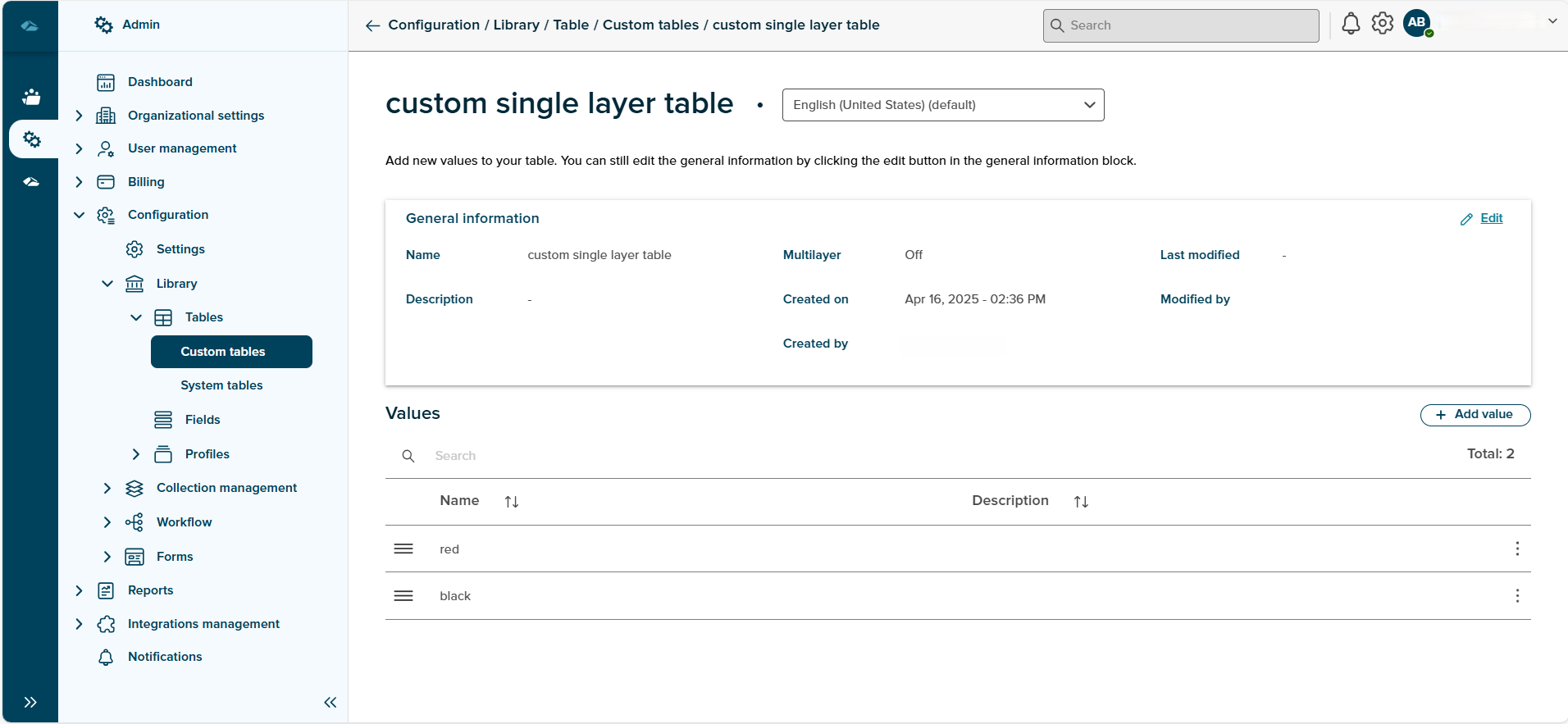
- Details: Clicking on this option, user will be landed in the Details page of custom table.
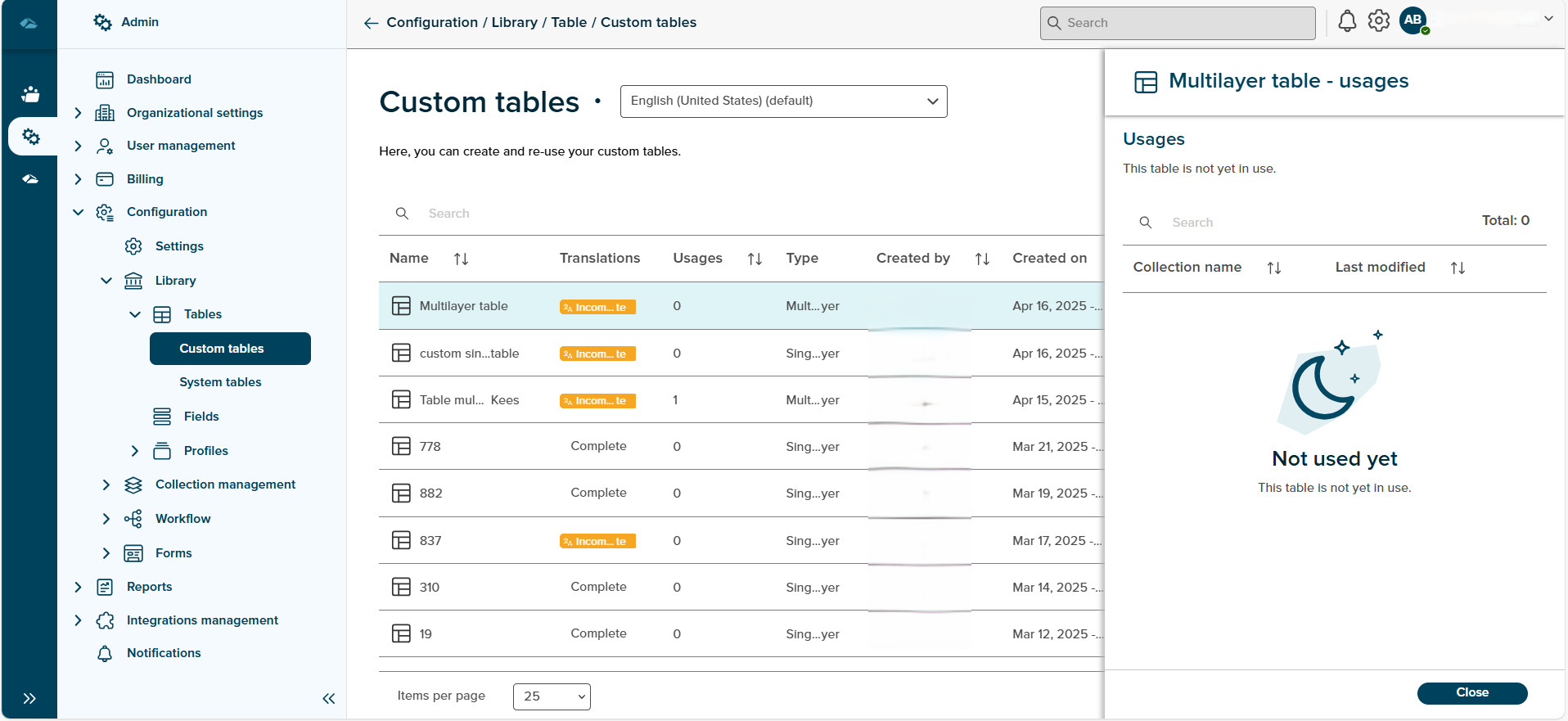
- Usages : Clicking on this option, a side panel will open and display list of collections, if the table is used in collections.
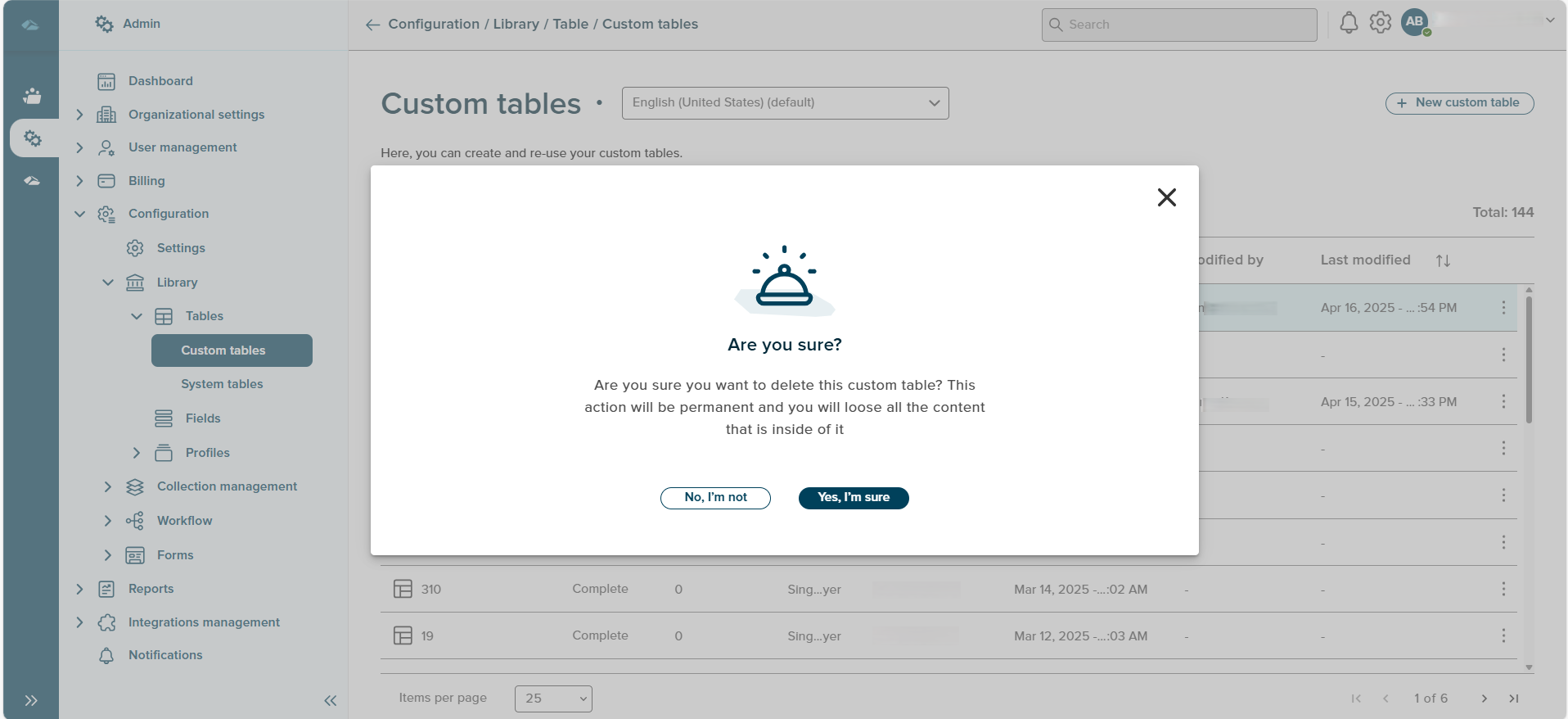
- Delete : Clicking on this option, pop-up message will be displayed to delete the table.
¶ Update table value in custom table
- User can navigate to details page of the custom table by clicking on the table name.
- Edit side panel can also be opened by clicking on the value in the grid.
- Each of the Table values in the table has two options in Kebab menu, such as Edit and Delete.
- Edit : Clicking on this Kebab menu option, will open the side panel with value prefilled, which can be edited.
- Delete : Clicking on this Kebab menu option, will delete the value from the table, and value row will be removed from the grid.