¶ Result Type
In this page, admin can create Result type and can configure it.
Empty state of Result type page will be displayed as below:
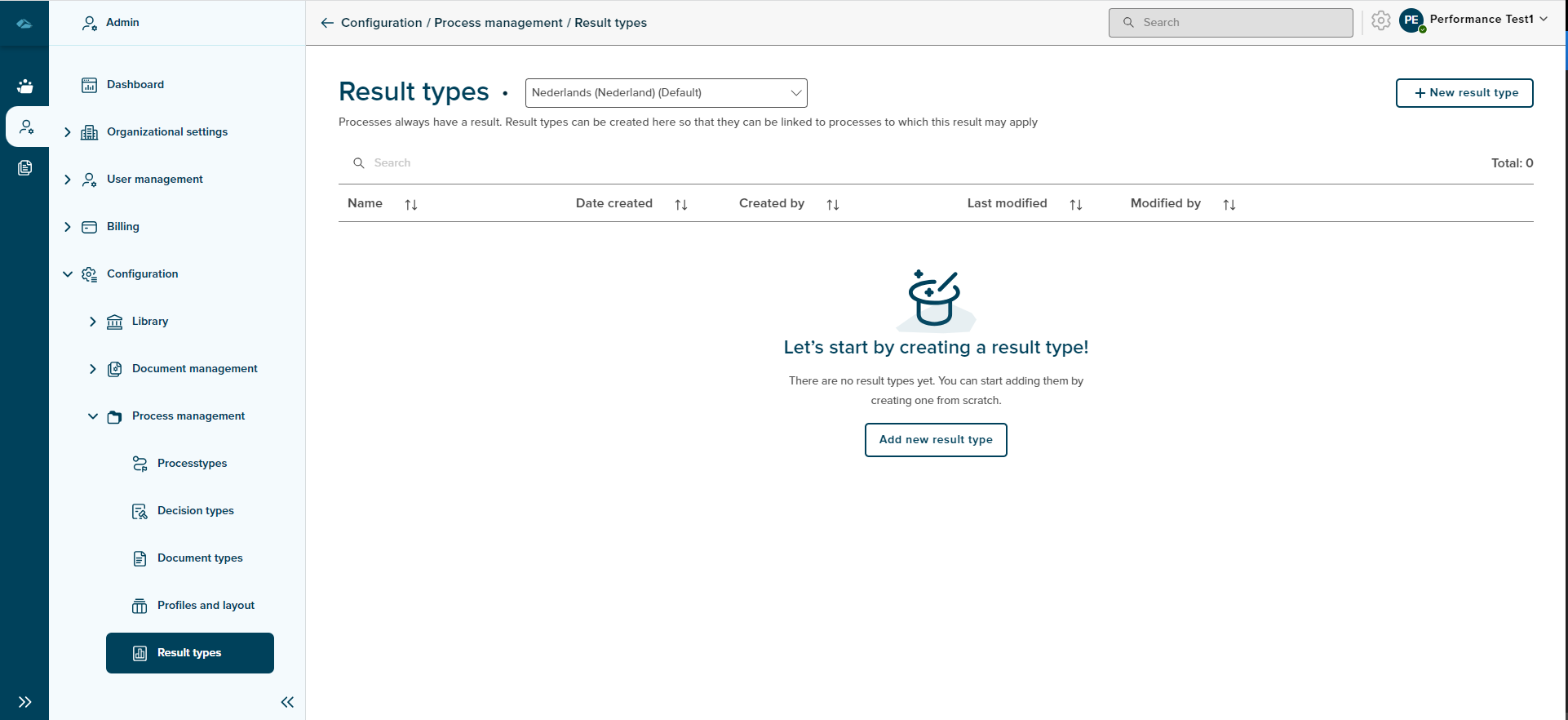
Result Types home page list view has differenet columns, each column will show the information as below
- Name : Name of the Result Types will be displayed.
- Date created : Date of creation of Result Types will be displayed under this columm area.
- Created by : Created by creator will be displayed under this column area
- Last Modified : Last modified Date and Time will be displayed under this column area.
- Modified By : Latest modified personel information will be displayed.
¶ Create Result Type
Result Type can be created by clicking on New result type button the top right corner of the list view page.
After clicking on the button, side panel will be opened for creating the new result type. Side panel will have 2 input fields such as Result type description which is a mandatory field and Result type generic description as shown in the below image.
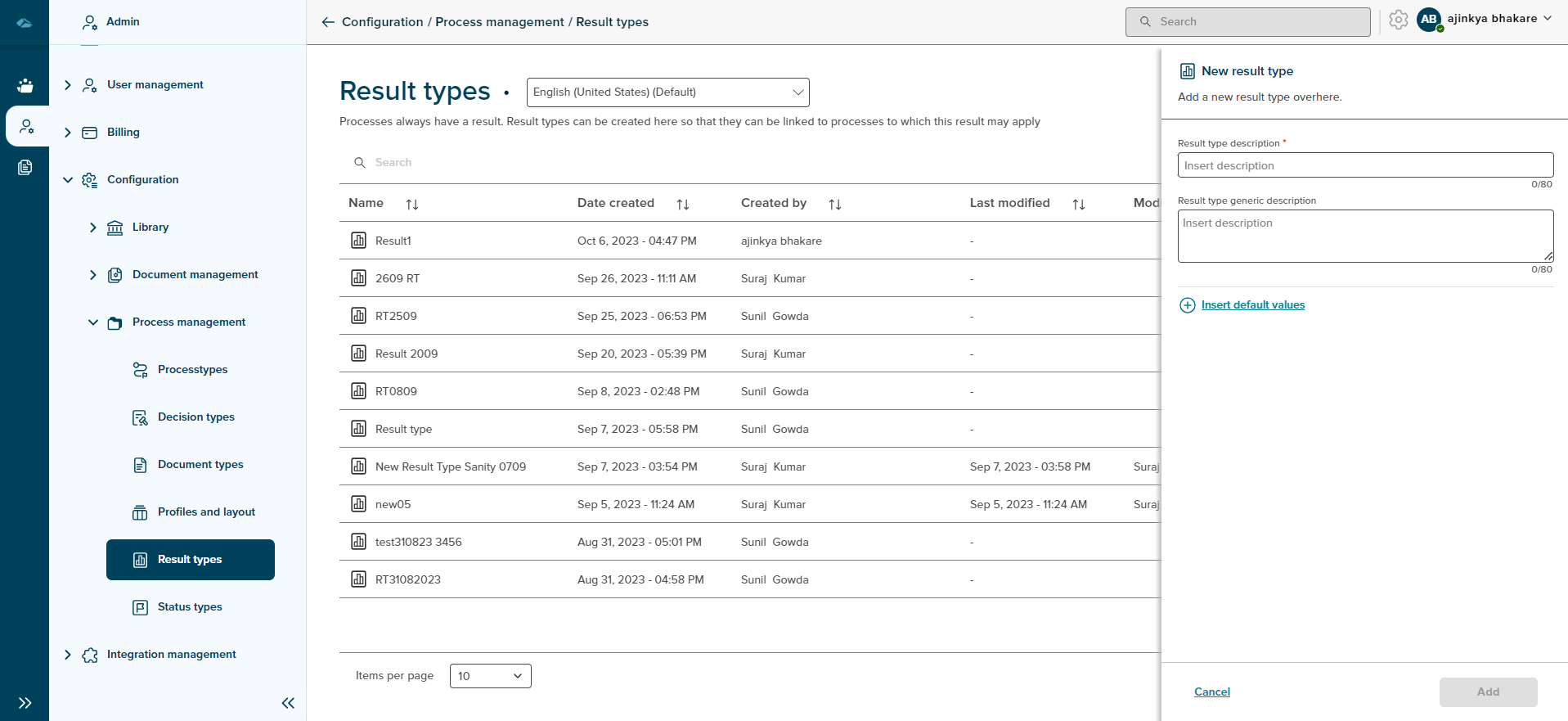
Admin can add default values using the Insert default values button, side panel will expand to show the input fields to insert the default values.
Insert default values screen is displayed as shown in the below image
Admin can click on Insert button to add the default values and cancel the default values screen by clicking on Cancel button.
After clicking on Insert button, the admin will return back to result type creation page. Here, Add button can be clicked to add the result type or can close the creation side panel by clicking on the cancel button.
On clicking the Cancel button, a pop-up message is displayed to warning about the action which leads to information loss. clicking on Yes, I’m sure will exit the page from the creation, and clicking on No, I’m not will close the pop-up screen.
After the creation of Result type, Success toast message is displayed and admin will be in the list view page with newly created Result type with New Tag.
Sort
A Sort icon is present against every column which allows a user to sort and display the data in either ascending or descending or in a default order.
Total
Total Result Type are available on the overview page.
Search
Search Field is available to search any particular Result type in the overview page.