¶ Profile and Layout
In this page, admin can create Profile and Layout and can configure it.
Empty state of Profile and Layout page is displayed as below:
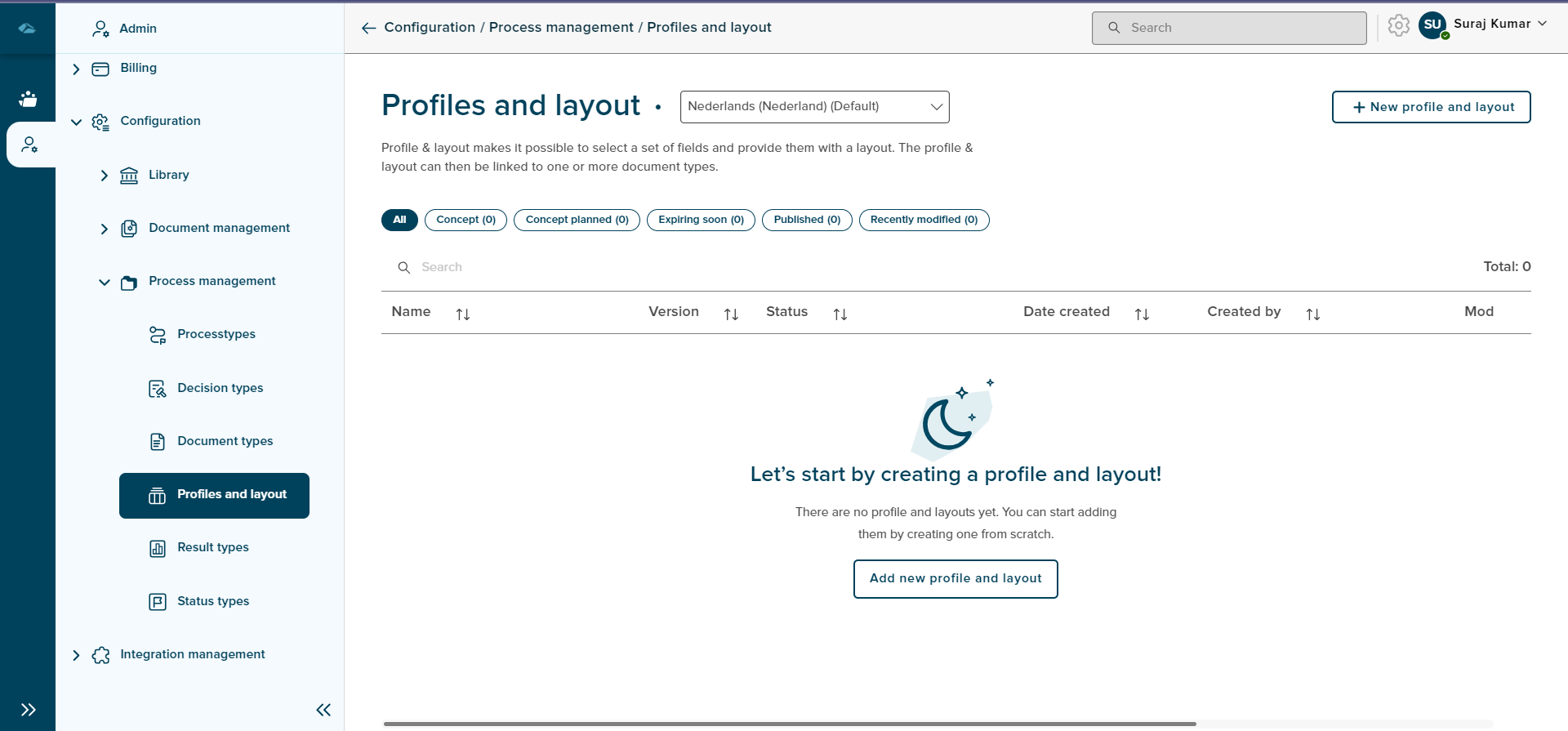
Profile and Layout home page list view has differenet columns, each column will show the information as below
- Name : Name of the Profile and Layout will be displayed.
- Versions : Version of Profile and Layout will be displayed.
- Status : Status of the Profile and Layout will be displayed.
- Date created : Date of creation of Status Types will be displayed under this columm area.
- Created by : Created by creator will be displayed under this column area
- Last modified: Last modified personel information will be displayed.
¶ Create Profile and Layout
Profile and Layout can be created by clicking on New profile and layout button the top right corner of the list view page.
After the click, admin will land in new page, where user can select the radio button, whether to create new profile and layout or to create a copy of profile and layout.
In the Creation of New profile and layout page, we have 2 tabs such as Profile and layout name and Description , which are displayed below:
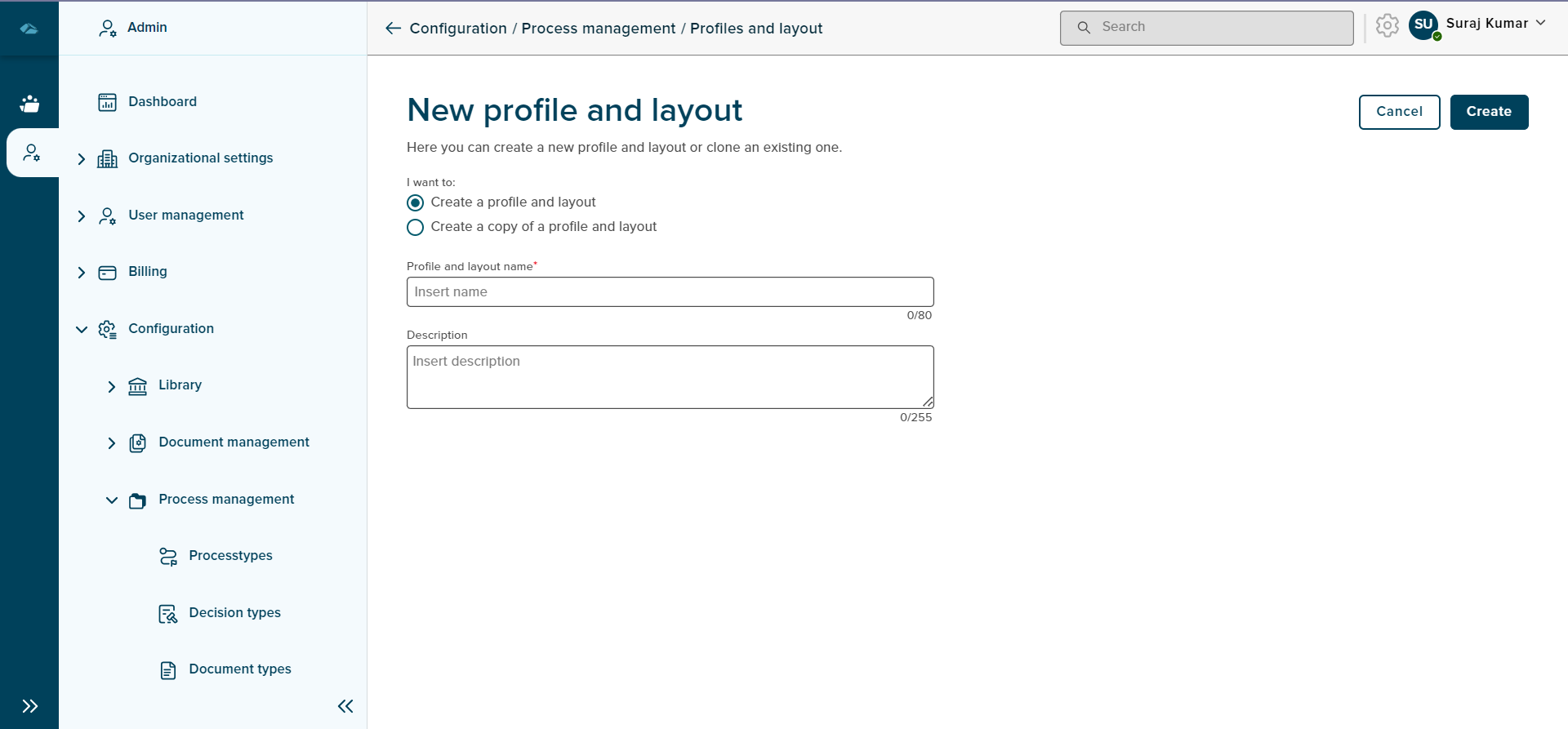
Under Profile and layout name tab, the name of the profile and layout can be filled.
once the user clicks on any mandatory field and moves away from the field, then the field will display the error indication that This Field is Required.
Under the Description tab, the description can be filled in.
After filling all the mandatory data, user can click on the Create button. Cancel button is also available to exit the page or to cancel the creation step.
On clicking the Cancel button, a pop-up message is displayed to warning about the action which leads to information loss. clicking on Yes, I’m sure will exit the page from the creation, and clicking on No, I’m not will close the pop-up screen.
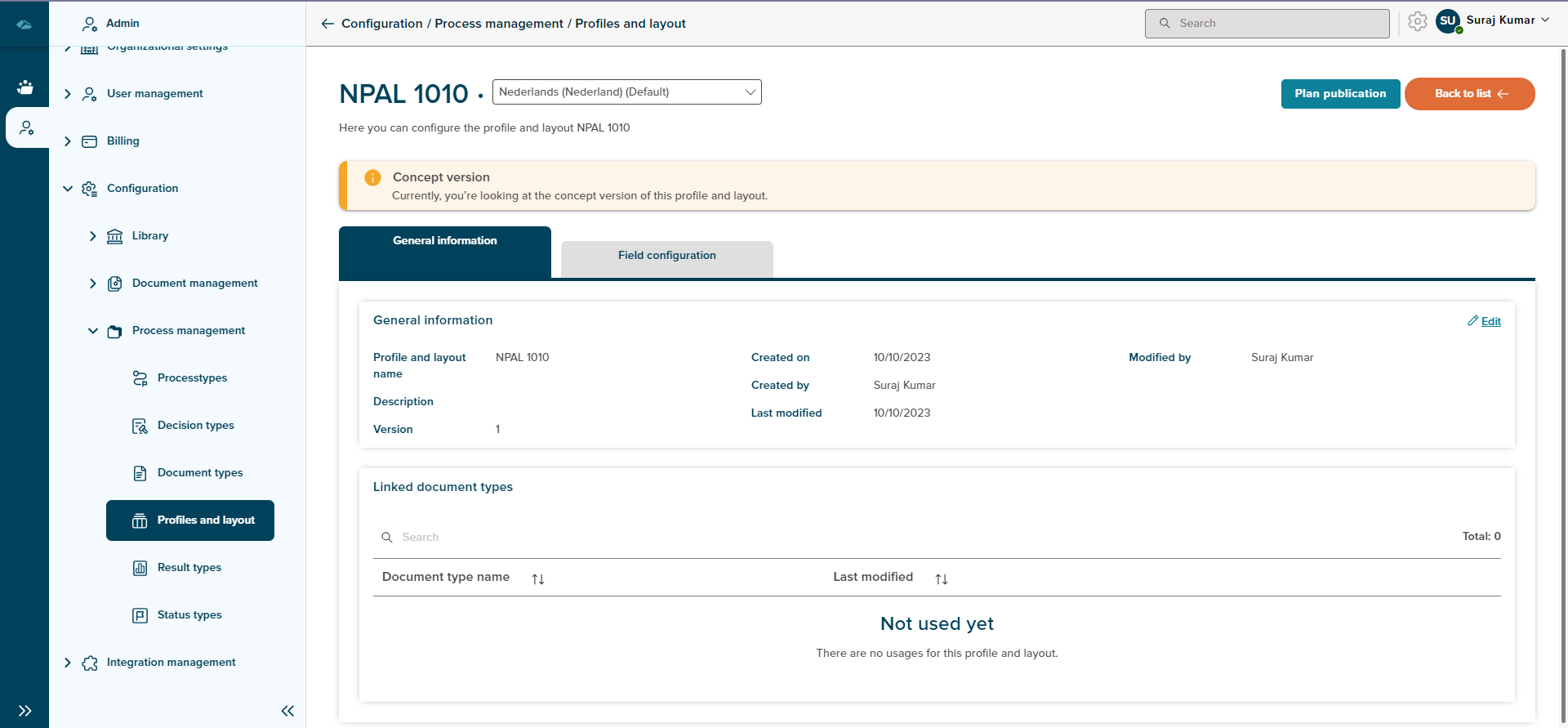
After the creation of the profile and layout, the user will land on the details page of the profile and layout, the details page is displayed as the below image:
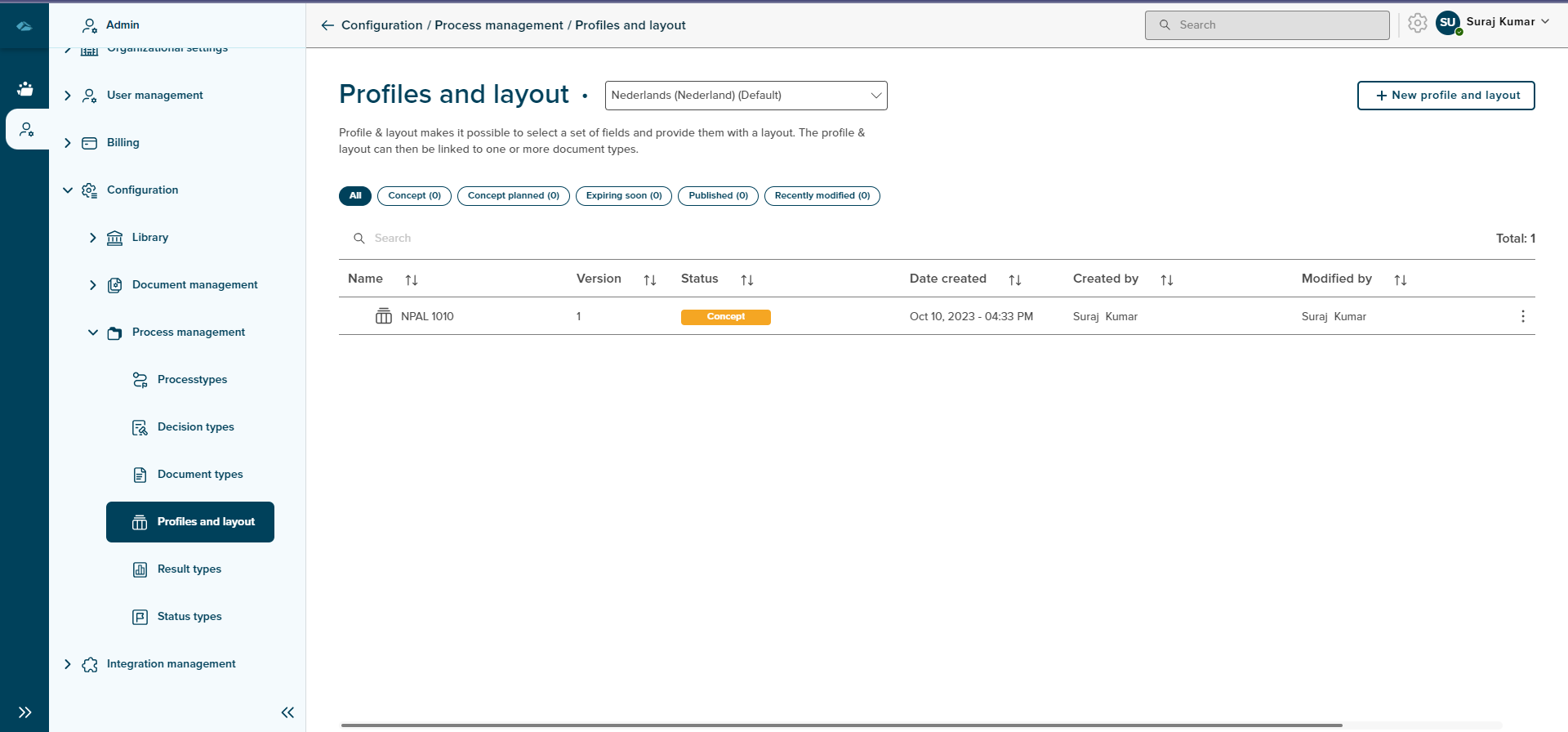
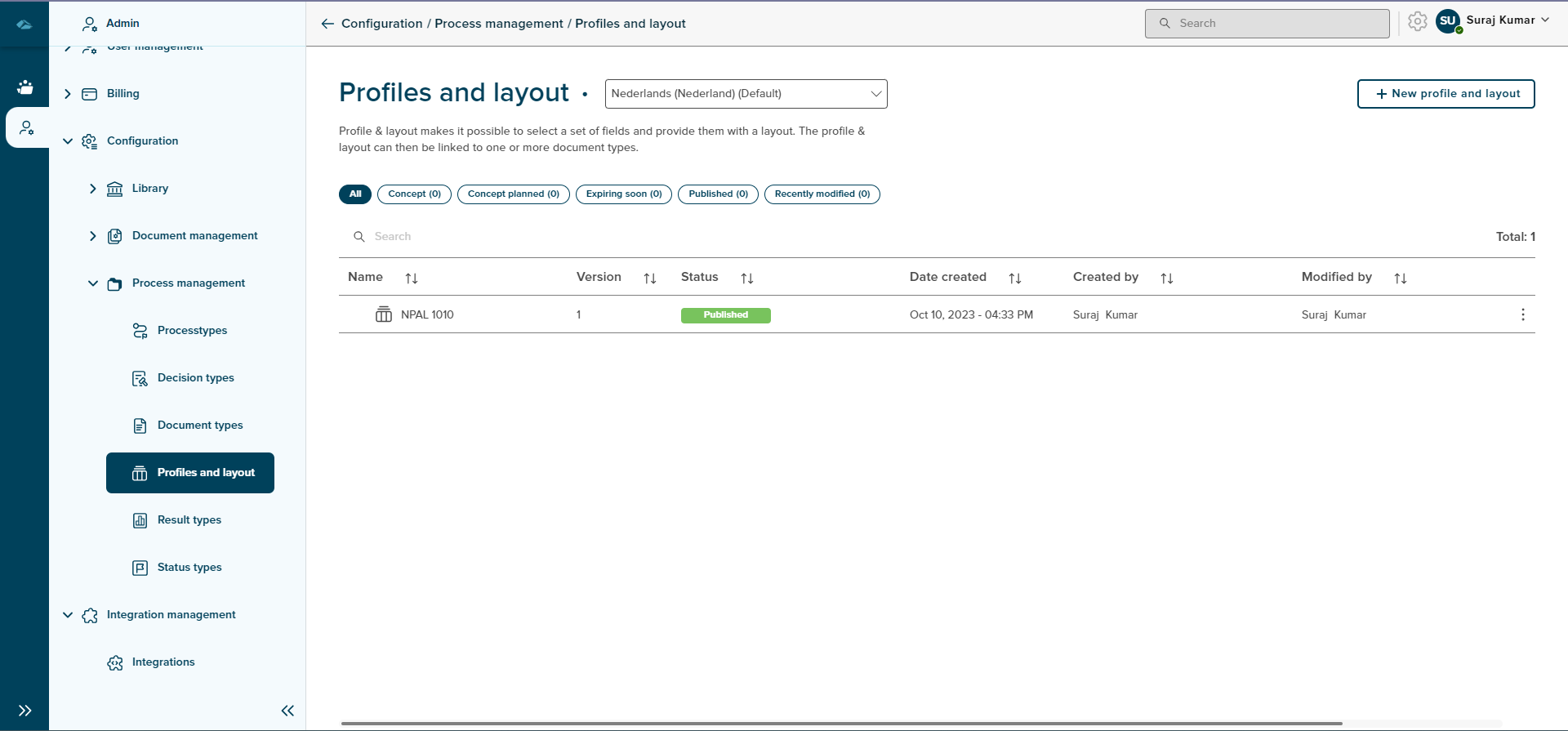
In the grid, the new profile and layout are displayed in the below image:
Admin can also change the status of the newly created profile and layout Concept to Published by clicking on the Plan publication in the newly created profile and layout detail page.
After clicking on the Plan publication, the admin will land in the side panel on the right side, where the admin can select the radio button, whether to Publish now or Plan publication date which is displayed below:
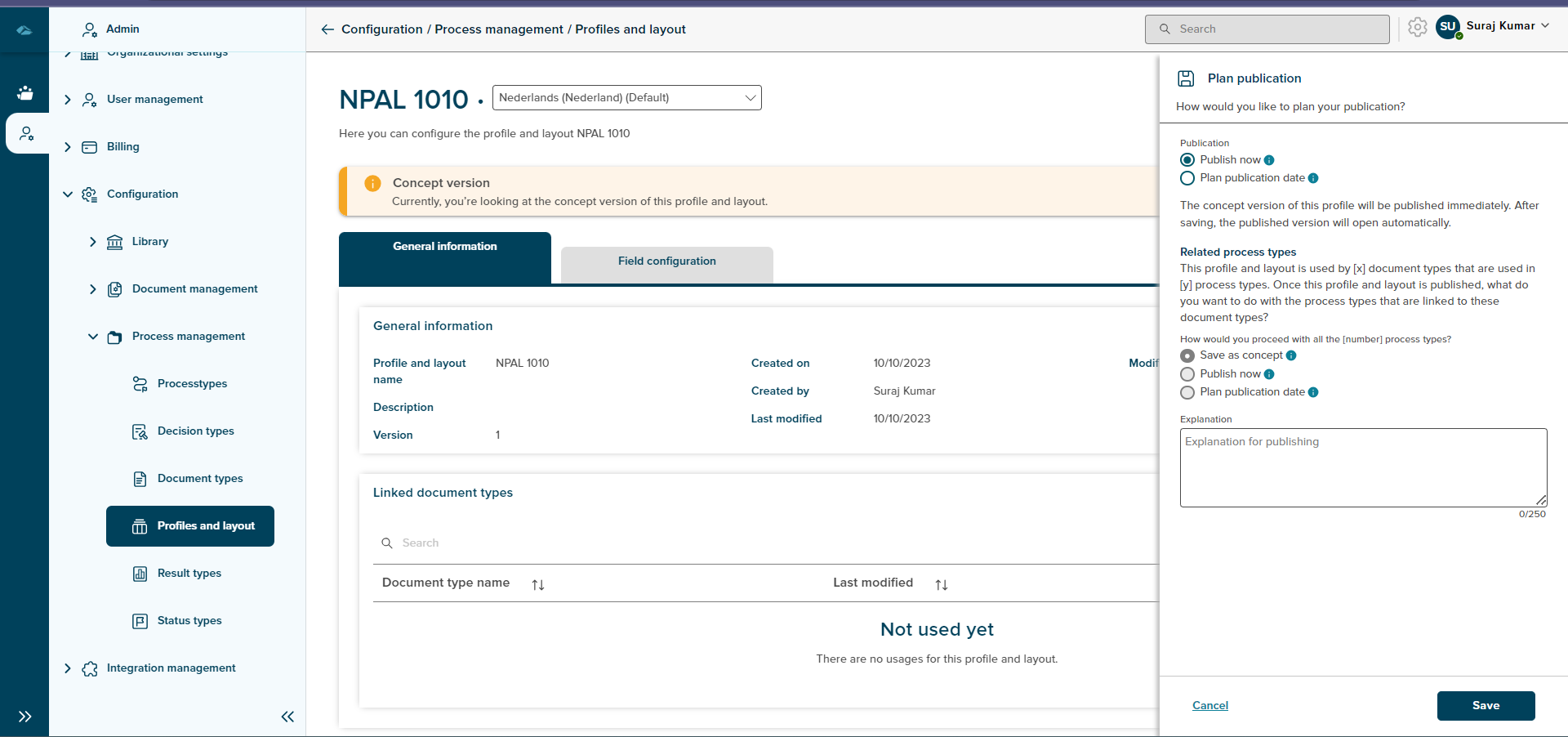
If the admin, selects Publish now and saves it then the status of the newly created Profile and Layout will change Concept to Published in green colour. And if the admin, selects Plan publication date then on the specific date which the admin has selected, the status will change to Published in green colour which is displayed below:
Sort
A Sort icon is present against every column, allowing a user to sort and display the data in ascending, descending, or default order.
Total
Total shows the number of profiles and layouts available on the overview page.
Search
Search Field is available to search any particular profiles and layouts in the overview page.