¶ Billing
Manage accessibility for your tenant users efficiently through the License and Subscriptions menu as an Organization’s Admin.
¶ Manage subscriptions
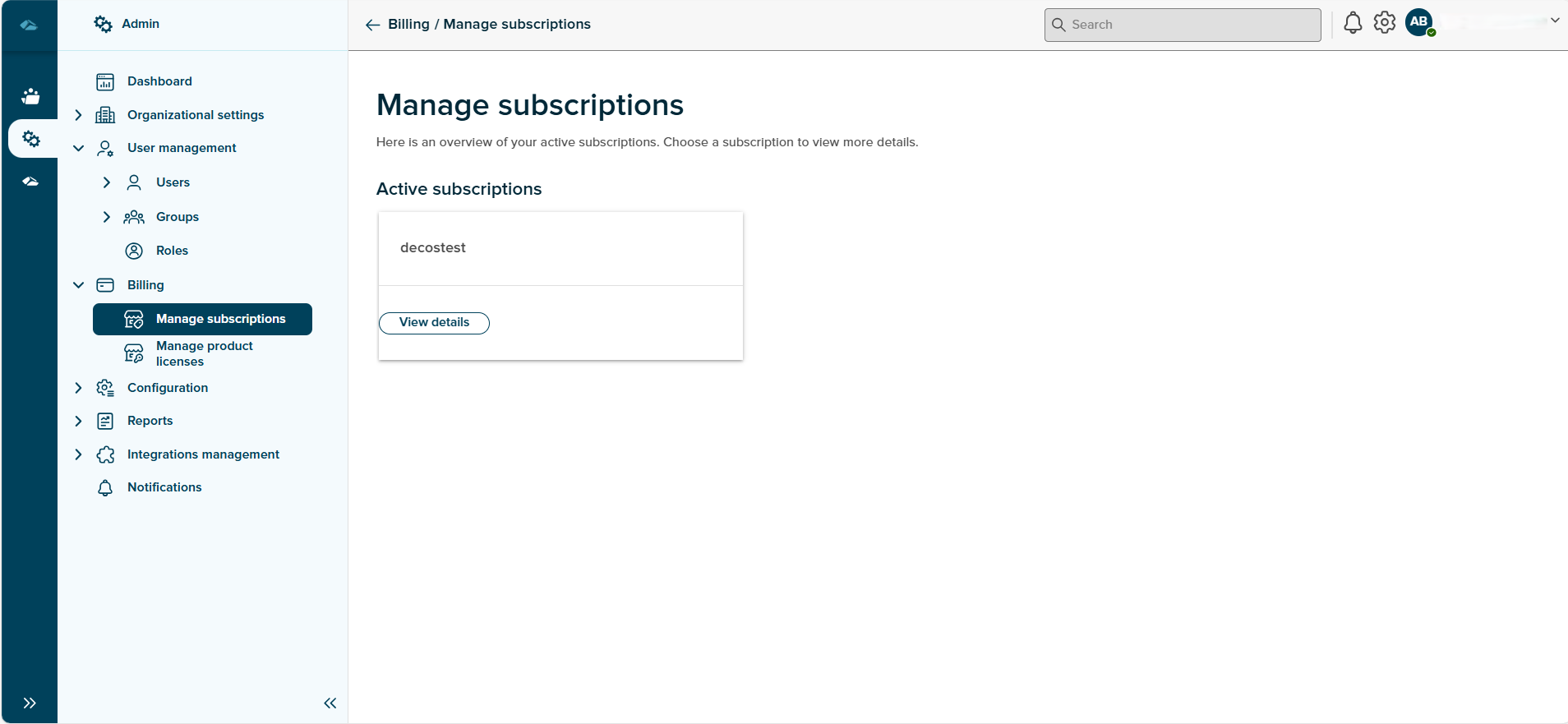
The Platform Admin can manage all the Subscriptions here purchased from the Azure Portal- Marketplace. The Active subscriptions are displayed on this page. The Platform-Admin user can view the details with the click of the View details button.
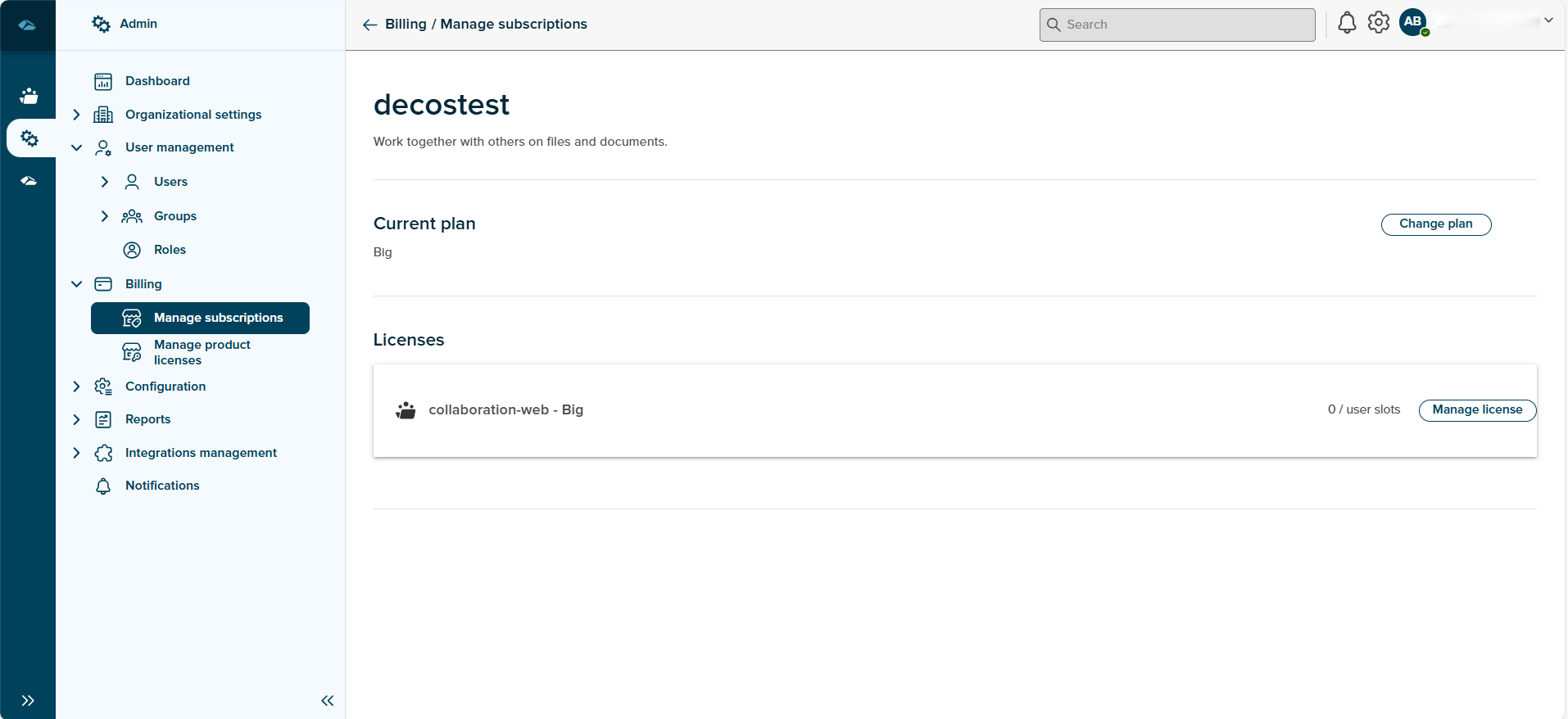
On the Subscription details page, the Platform-Admin can view the associated Plan and License details with the Subscription. The Change Plan button navigates to the Microsoft App source page. The Licenses section displays the License Collaboration-Web followed by the Plan name. It displays the count of the user slots occupied and the limit for the particular license in the tile with a Manage License button. This button navigates to the License details wherein the platform admin user can manage the Licenses for the tenant users.
¶ Manage License
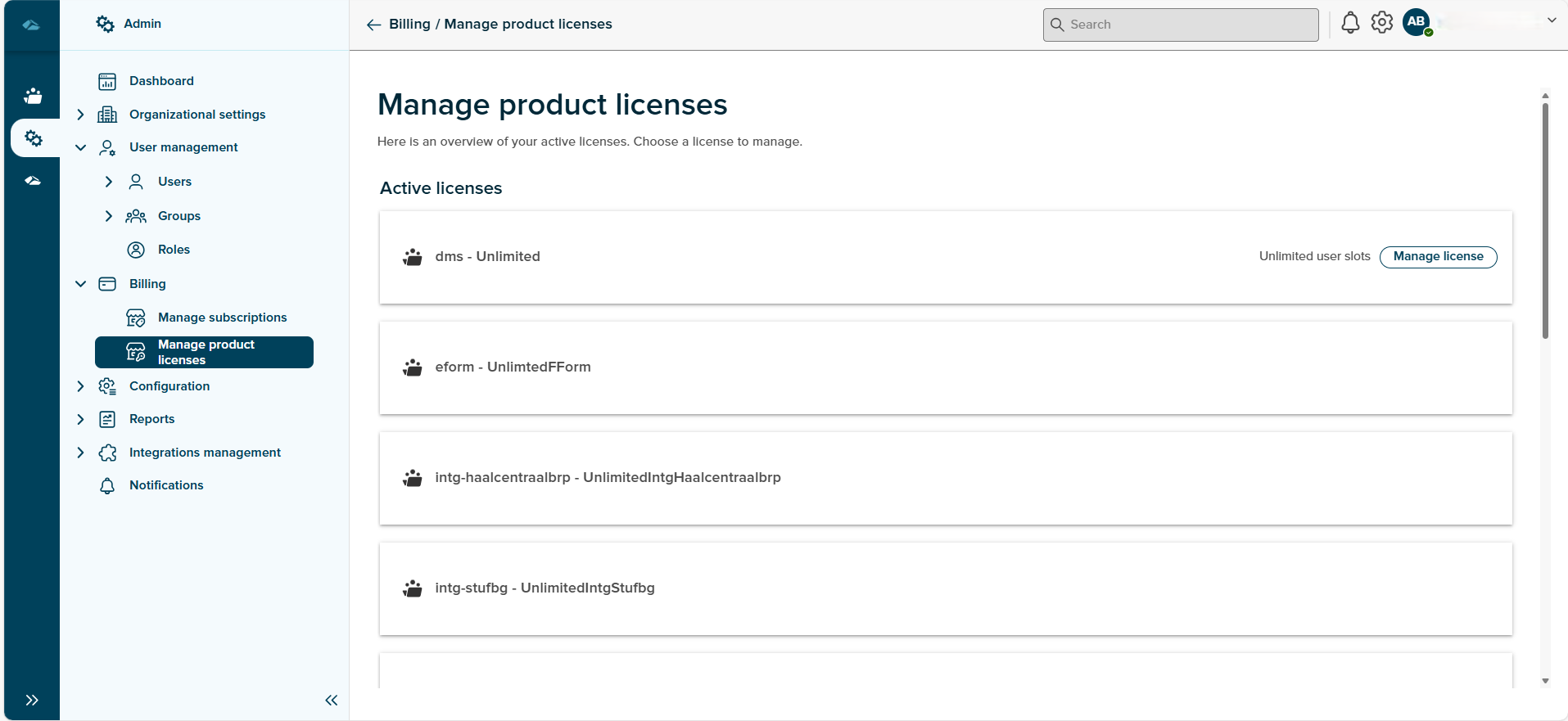
This page allows you to manage the Licenses for your organization. This enlists the active licenses associated with your organization. The license describes the Plan, the user slots count, and the Manage License button which allows managing users for the license on the License details page shown below.
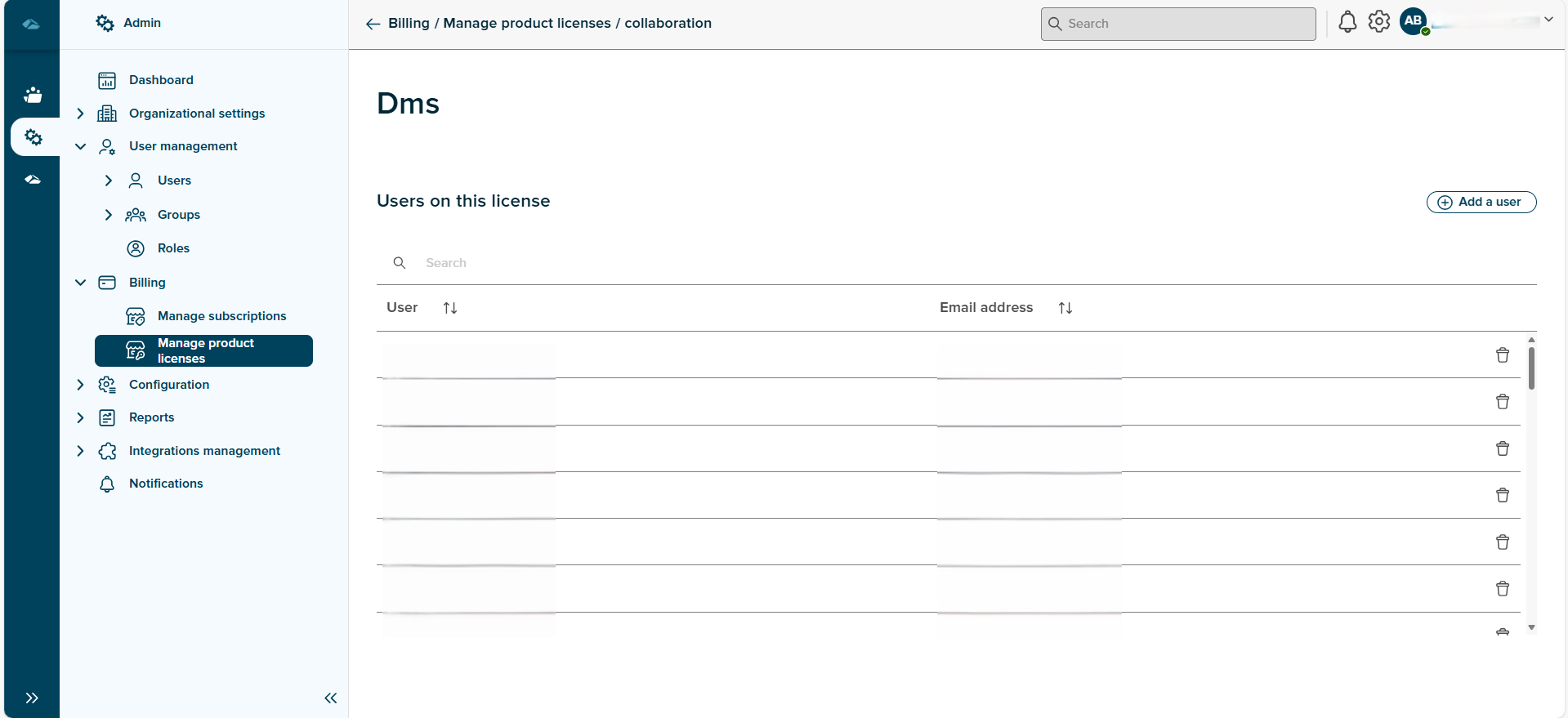
On the License details page, the storage slot and user slot metric bar are shown which depicts the number of users who have licenses and the stored data. The count is initially zero and it gets updated as we add users. The Add a user button navigates to the page given below which allows the tenant users to be selected to whom the license needs to be assigned. The Delete button helps to remove the users and the license is unassigned, and accordingly, the storage and user slot metrics are updated whereas the storage is updated every four hours.
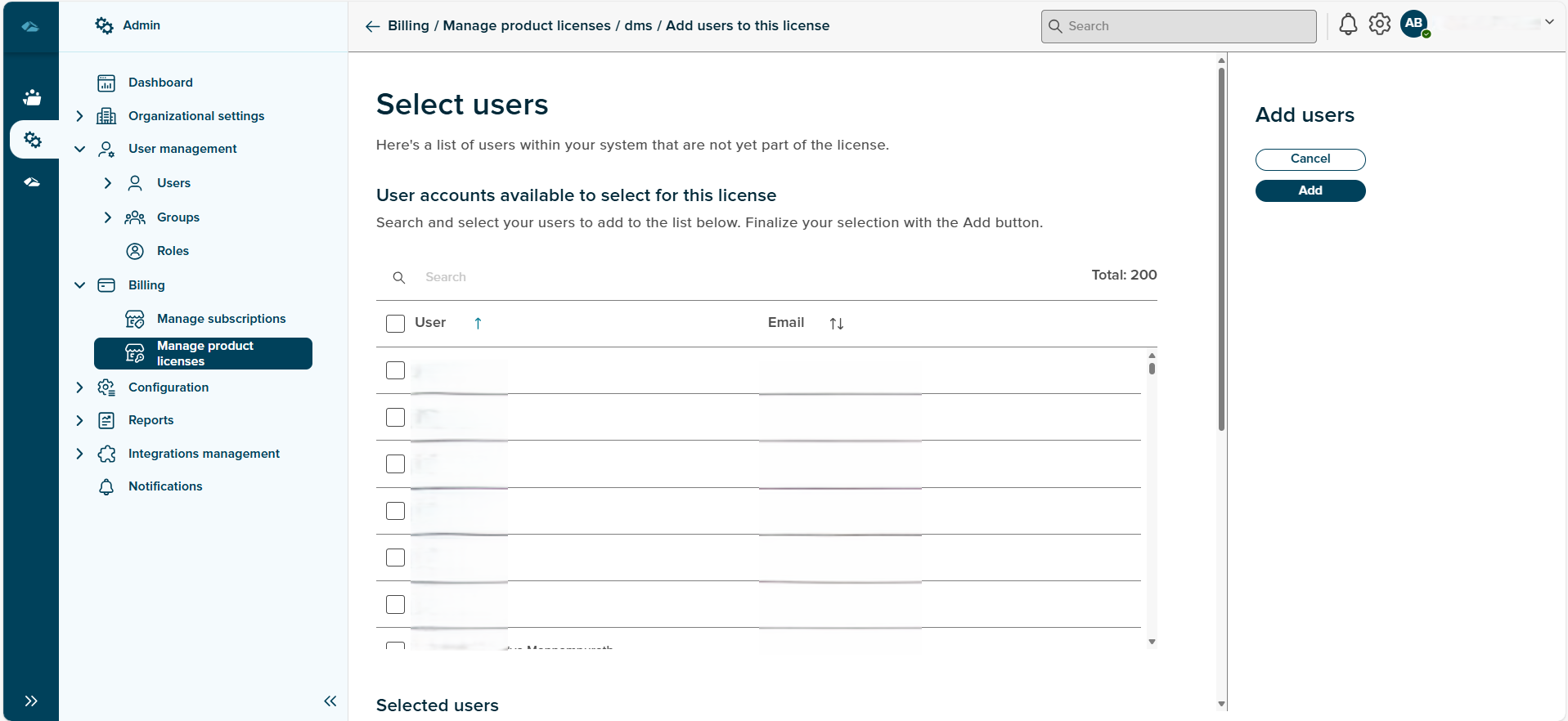
The Select Users page displays the user slots metric bar and the user’s list. The users can be searched in the search field using the name or the email address. Selecting the text box against the required user will add the selected user to the Selected Users list. With a click on the Add button, the users will be assigned a License and will be shown under the ‘Users on this license’ list on the License details page. The user slot bar will be updated accordingly. The total count of tenant user’s in the organization is displayed next to the search field in both the list of users. With on click of the Cancel button, the User will be taken to the License details page.
¶ Exceeded user limit or storage limit?
When the user slot limit has reached the warning limit or exceeded, the Add a user button is disabled on the License details page and a warning banner message is displayed on the Subscription details page, Admin overview page and the Portal page to the Platform-Admin user as shown below. The warning icon is displayed in the respective License tile and the Create session function is disabled when the storage quota reaches the threshold. Although if the storage limit threshold when reaches 90%, the session creation function is disabled however the files in the existing sessions can be edited and can be utilised upto 120%.

In the banner message displayed above, the Platform- Admin user can manage the license using the link which navigates to the License details page. The Current Plan can also be changed if required thereby allowing the users to collaborate on the sessions smoothly.
¶ Suspended Subscription
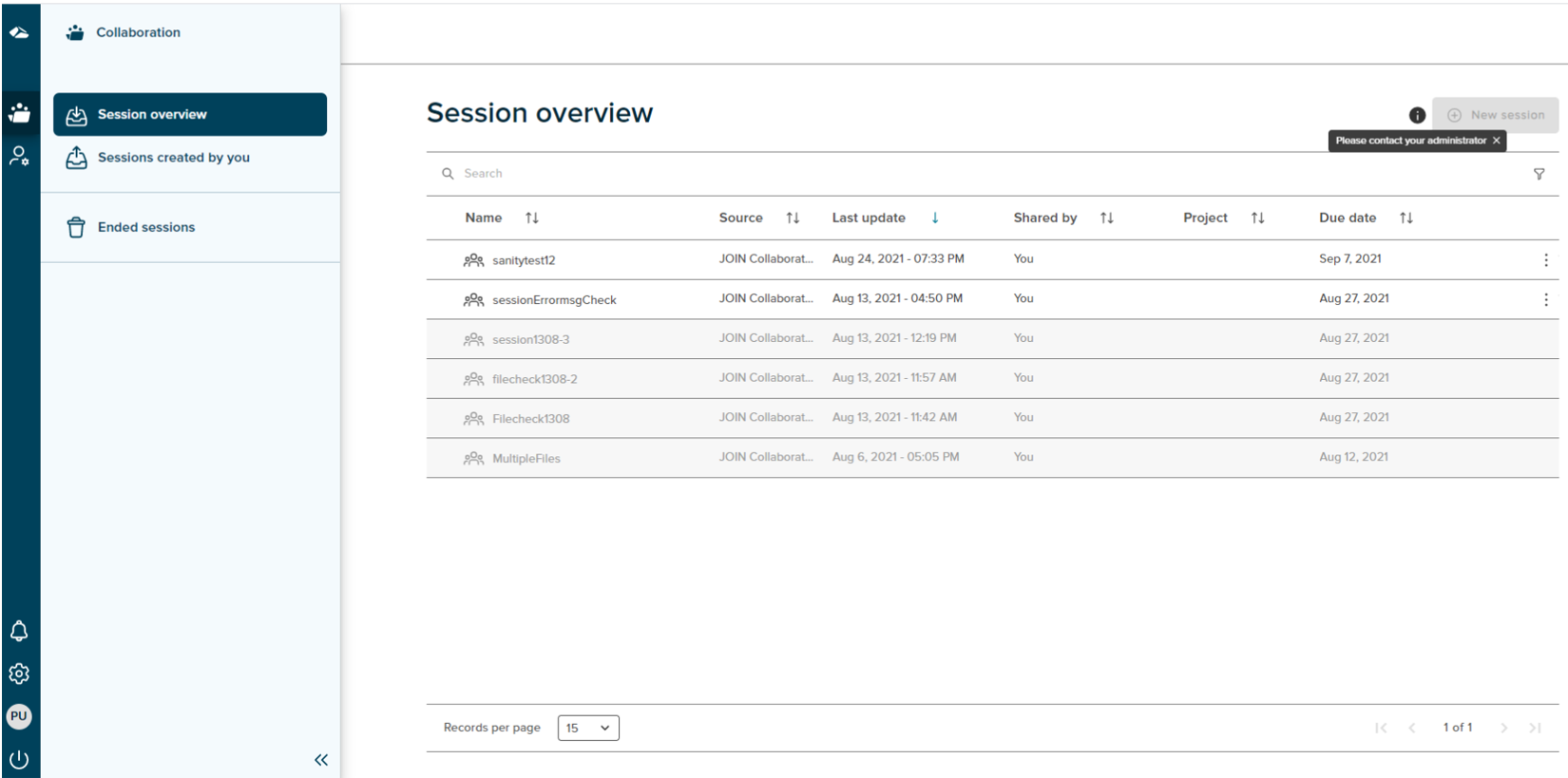
The Collaboration-Web subscription when suspended, the tenant users in the organization receive a grace period of 7 days to manage the existing sessions and data. In this state, the ‘New session’ button will be disabled thus restricting the Session creation. Post 7 days, failing to subscribe the Microsoft Suspends/cancels the subscription.